
Introduction
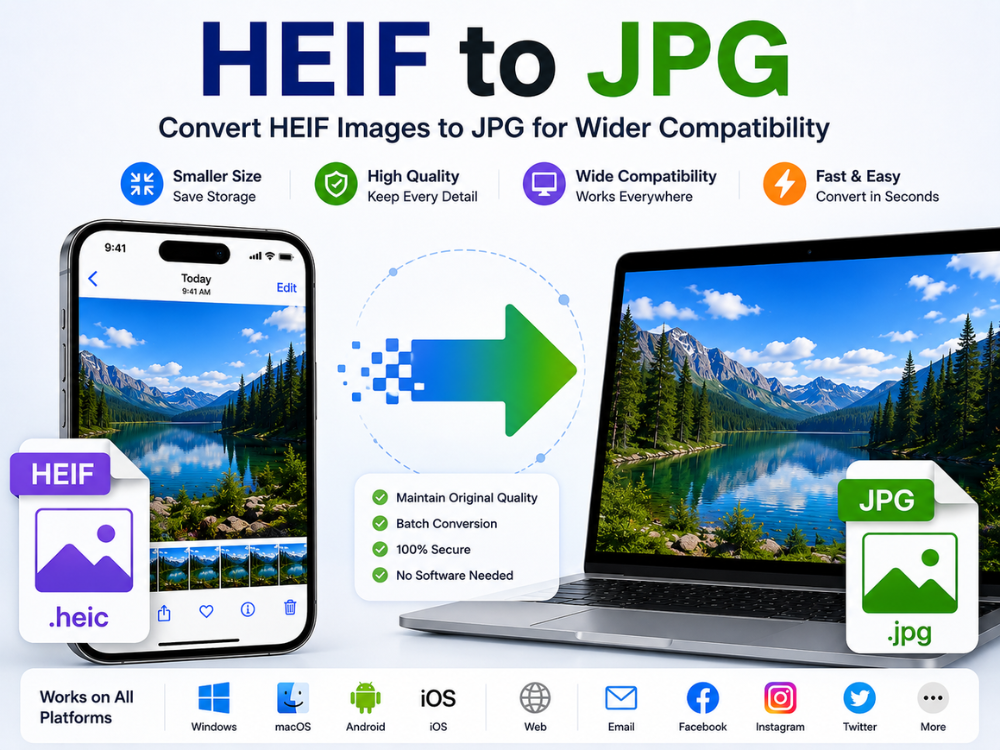
Some modern cell phones, particularly iPhones, automatically use HEIF files as their default format. Images stored as HEIF files offer great quality while maintaining compact file sizes compared to ordinary image files. However, it might become difficult to open these files across different websites, Windows PCs, image editors, and older devices due to poor compatibility.
Many users need to convert HEIF to JPG. JPG is widely supported and works across most devices, websites, and image editors. With a good converter, the conversion from HEIF to JPG is instant and requires no extra effort.
Are you interested in how to convert HEIF to JPG without any installation? You can find plenty of free browser-based converters online. This guide explains the differences between HEIF and JPG. You will also learn about common issues and the best converters available in 2026.
What is HEIF format?
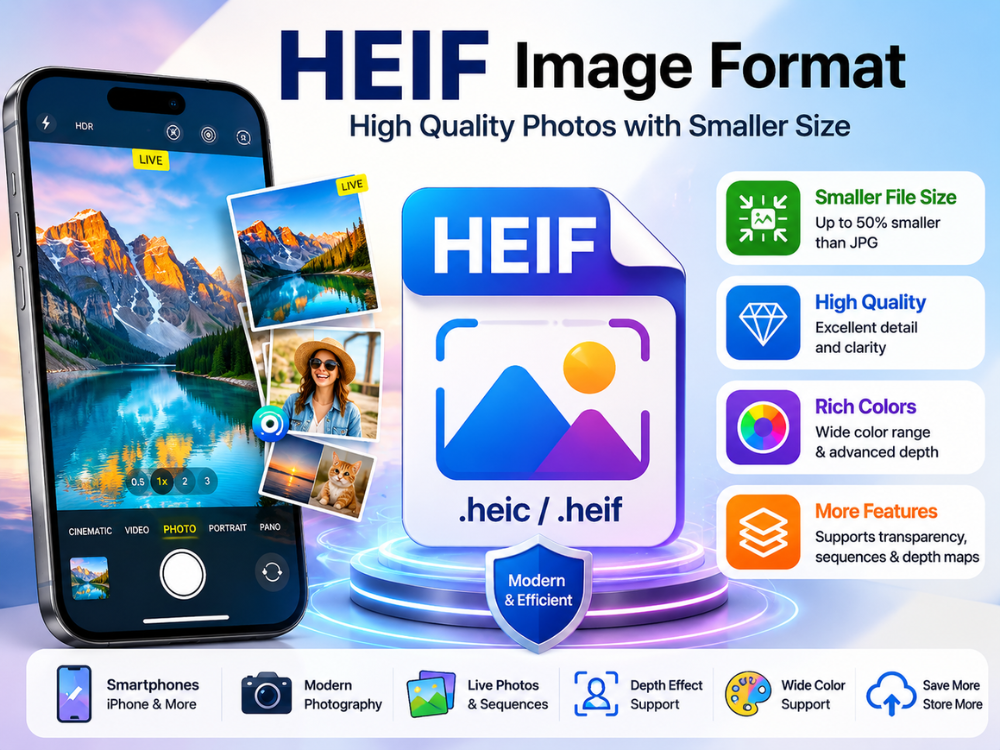
HEIF refers to High Efficiency Image File Format. It was developed by the Moving Picture Experts Group (MPEG) as a state-of-the-art container format for storing images and image series. Apple introduced HEIF as the default image format in iOS 11. It also became available on macOS High Sierra. Other operating systems have since also implemented HEIF.
The greatest benefit of HEIF lies in its high compression rate. The amount of data required to represent an HEIF picture is about half that needed to create an equally detailed image in JPG. HEIF uses less storage space. Users can save more photos without losing image quality. HEIF also enables functionalities such as support for a wider color gamut, transparency, image series, and depth maps, all of which JPG lacks.
However, there is one considerable downside to HEIF: lack of compatibility. The Windows platform does not automatically open HEIF files. Additionally, most web pages, emails, and social media platforms do not support HEIF files. In such situations, JPG is much more preferable.
Another factor that contributed to the popularity of HEIF was the new capabilities it offered when used with modern smartphone cameras. In Apple products, the HEIF format can be used for features such as Live Photos, photo bursts, portraits, depth effects, and high dynamic range photography. The use of HEIF enables higher image detail while reducing file sizes. Nevertheless, users prefer converting HEIF to JPG because it offers greater versatility.
HEIF VS HEIC: What’s the Actual Difference?
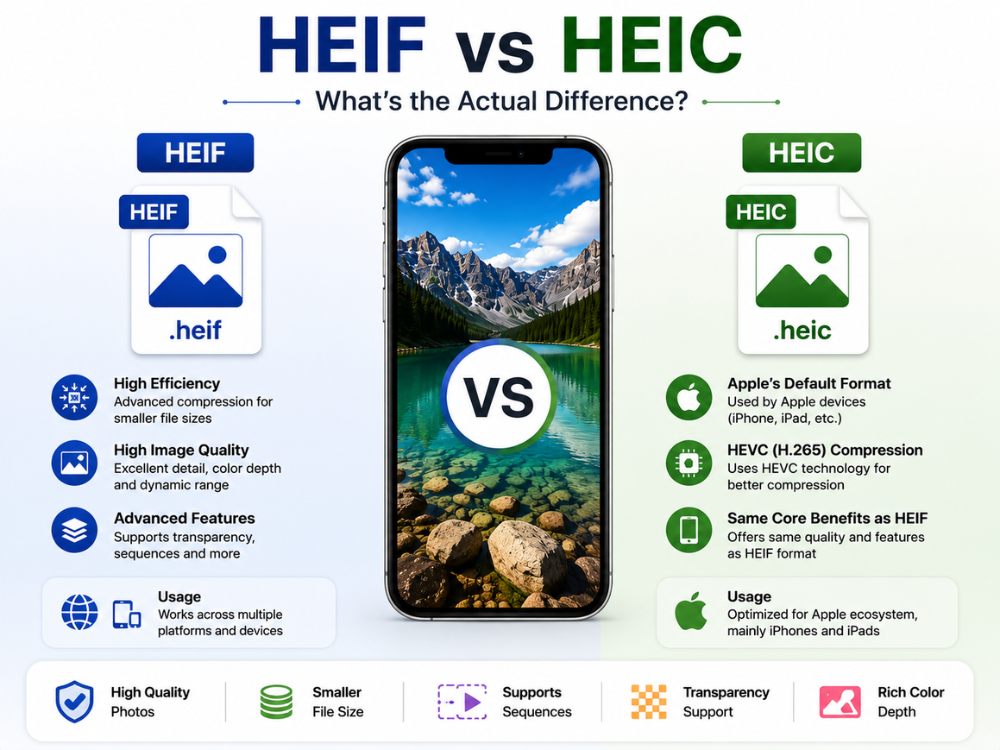
The HEIF and HEIC file types are frequently interchanged, causing significant confusion. These file types are somewhat related but distinct in several ways. HEIF refers to the general image file format, whereas HEIC is a specific image format within the HEIF container format.
The HEIC file extension is used by Apple primarily on iPhones and iPads. In essence, when the iPhone takes a picture, it stores it in HEIC format using HEVC compression. As a result, iPhones can achieve good image quality at relatively small file sizes compared to typical JPG images.
In the HEIF vs HEIC formats comparison, both formats are capable of offering sophisticated characteristics such as transparency, image sequence support, and efficient compression rates. Both formats are equally problematic with regard to their ability to function in an incompatible environment. On the whole, both formats are nearly indistinguishable in terms of their behavior.
| Feature | HEIF | HEIC |
|---|---|---|
| Full Name | High Efficiency Image File Format | High Efficiency Image Container |
| Relationship | Main image format standard | Specific HEIF-based file type |
| File Extension | .heif | .heic |
| Compression | High efficiency compression | HEVC (H.265) compression |
| Common Usage | Multiple platforms | Apple devices mainly |
| Transparency Support | Yes | Yes |
| Image Sequences | Supported | Supported |
| Compatibility | Limited on older systems | Limited on older systems |
HEIC VS JPG: Which Format Is Better?
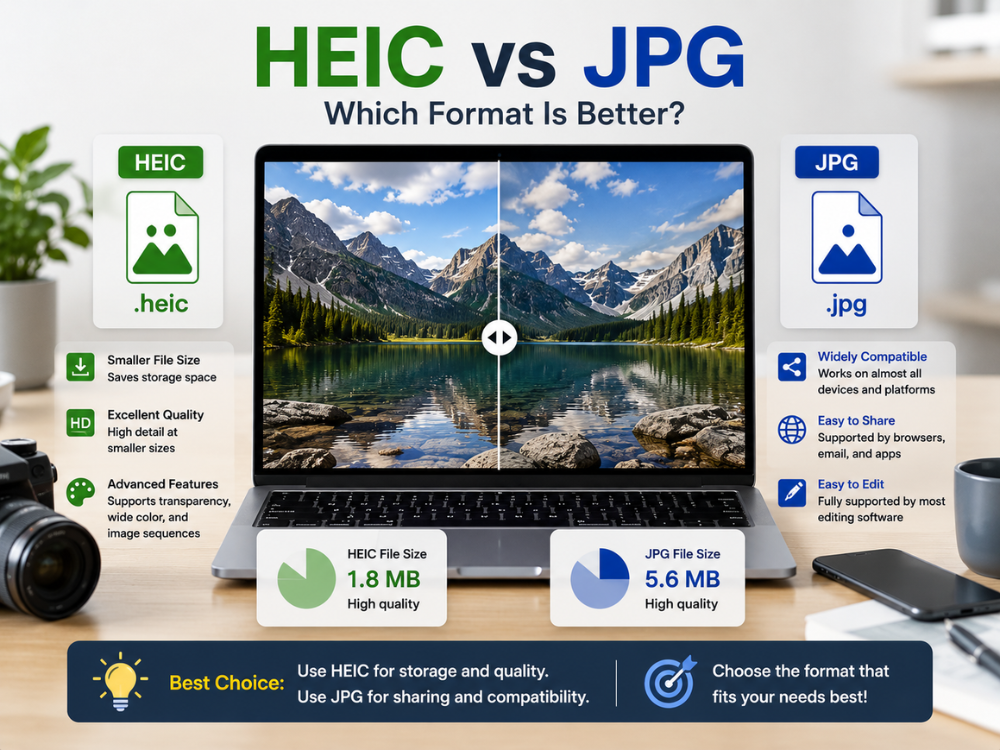
HEIC is a better choice depending on the purpose for which the photo will be used. HEIC focuses on efficient image compression in the modern world, whereas JPG prioritizes ease of sharing and universal compatibility. In this HEIC vs JPG discussion, it becomes evident that HEIC offers a smaller file size with good picture quality. A single HEIC picture can contain almost as many details as a single JPG, but at a much smaller file size.
But when it comes to those users who frequently exchange and collaborate on editing their images, JPG becomes the better choice. JPG works on almost every device. Most browsers, apps, and email services support it without extra software. This is the reason many people still convert their HEIC files to JPG before uploading.
HEIC supports transparency and wider color depth. It can also store image sequences. JPG does not support these features. But JPG is still more popular and widespread than HEIC.
| Feature | HEIC | JPG |
|---|---|---|
| File Size | Smaller | Larger |
| Compression Efficiency | Very high | Moderate |
| Image Quality | Excellent at smaller sizes | Good but larger sizes |
| Color Depth | Advanced | Standard |
| Transparency Support | Yes | No |
| Universal Compatibility | Limited | Excellent |
| Browser Support | Partial | Full |
| Editing Software Support | Limited in older software | Widely supported |
| Best Use Case | Apple ecosystem and storage | Sharing and web use |
Online Free HEIF to JPG Converter – AhaConvert
AhaConvert HEIF to JPG converter is a web-based software solution that lets you convert HEIF and HEIC images to JPGs for free. The software does not require installation, and no account is required. You can use it anywhere with a web browser.
Key Features:
- Free – no hidden fees or subscription.
- You don’t need an account, sign up and you’ll be converting in no time at all!
- Batch conversion of multiple files in a single session.
- All uploaded files are encrypted with 256-bit SSL during the conversion process.
- To ensure your privacy, files are automatically deleted within 24 hours.
- Completely supports Windows, macOS, Linux, iOS, and Android platforms
AhaConvert is a simple solution for iPhone users. It converts HEIF images quickly and works on many devices. Users can further check out the image converter by the AhaConvert image converter of various types.
How to Convert HEIF on Windows
Windows cannot open HEIF files directly without having to download other codecs. Instead of downloading different codecs, it will be better for one to convert such files using a free online service such as AhaConvert.
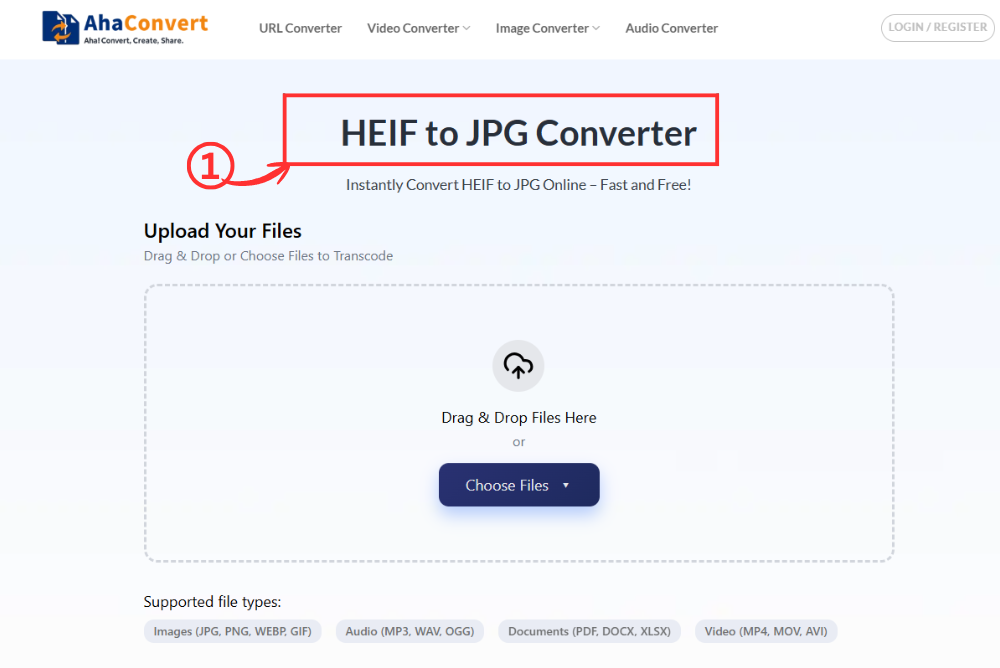
Step 1: Open the AhaConvert HEIF to JPG Converter
Visit the AhaConvert HEIF to JPG Converter website using your Windows PC’s web browser. The page opens immediately without downloading, signing up, or any technical configurations.
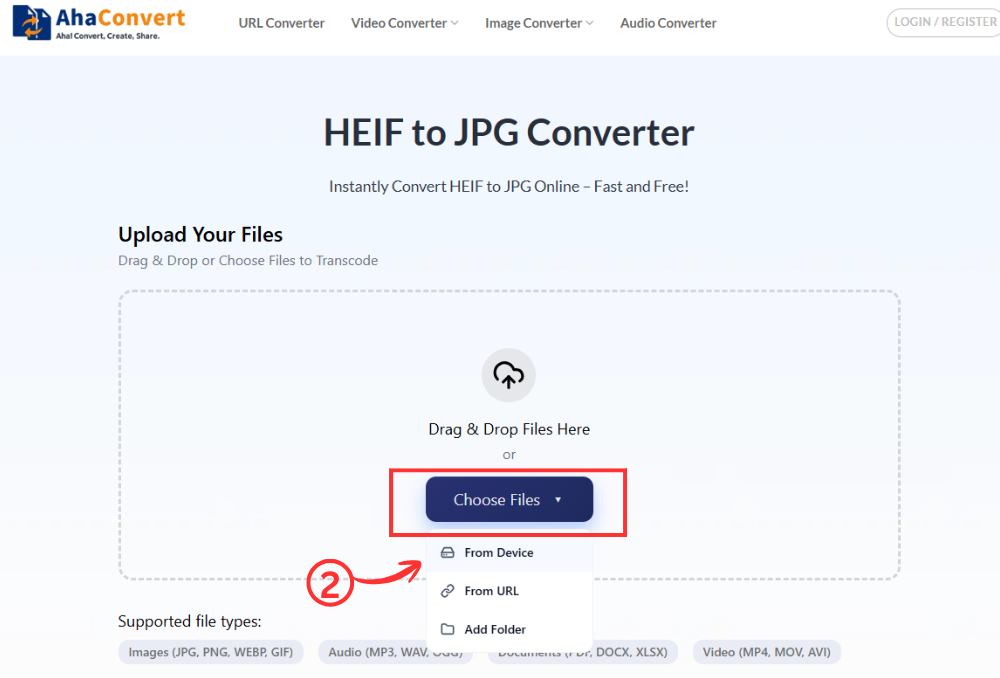
Step 2: Upload Your HEIF File
By clicking on the “Choose Files” button, you can browse and choose the file that you want to convert. You can also upload the HEIF file by simply dragging and dropping the file or pasting the link to your file.
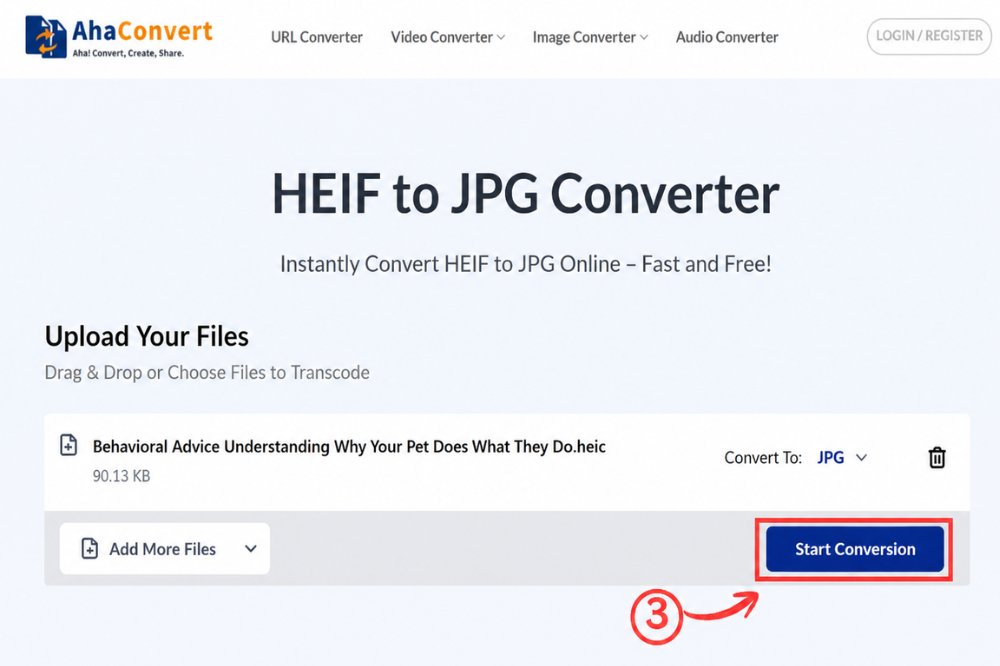
Step 3: Start the Conversion
Once your file is uploaded, click the “Start Conversion” button. Since this is a dedicated HEIF to JPG converter, the output format is automatically set to JPG — no dropdown menu or format selection is needed. AhaConvert begins processing your file immediately.
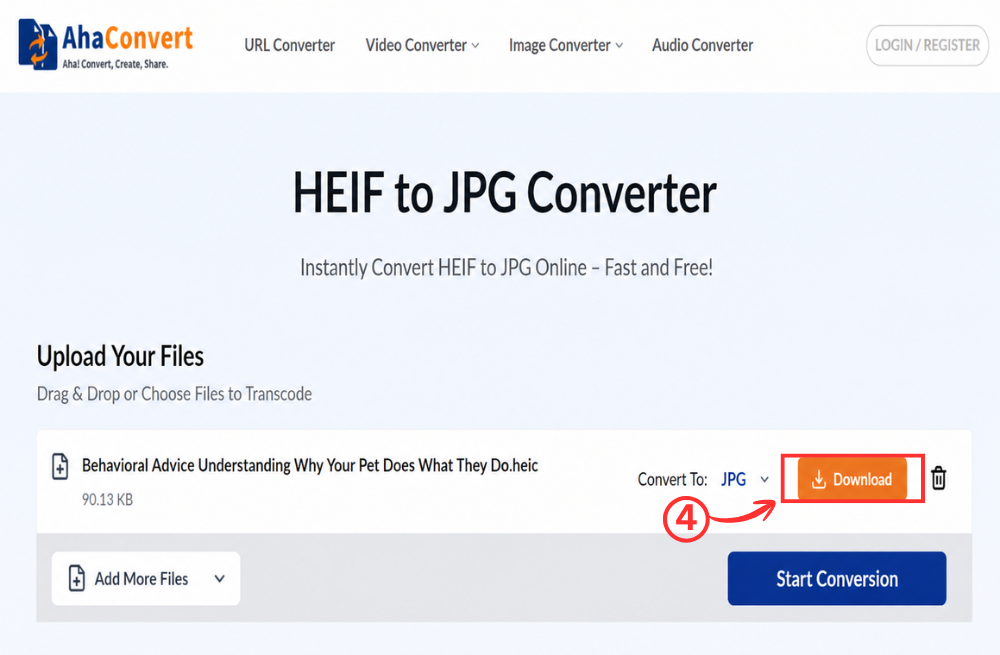
Step 4: Download Your JPG File
When the conversion is complete, a download link appears on the page. Click the “Download” button to save your JPG file to your Windows PC. The whole process takes just a few seconds, even for high-resolution iPhone photos.
How to Convert HEIF to JPG on iPhone
If you want to convert HEIF files directly on your iPhone without transferring them to a computer first, AhaConvert works just as smoothly in a mobile browser. No app installation is required.
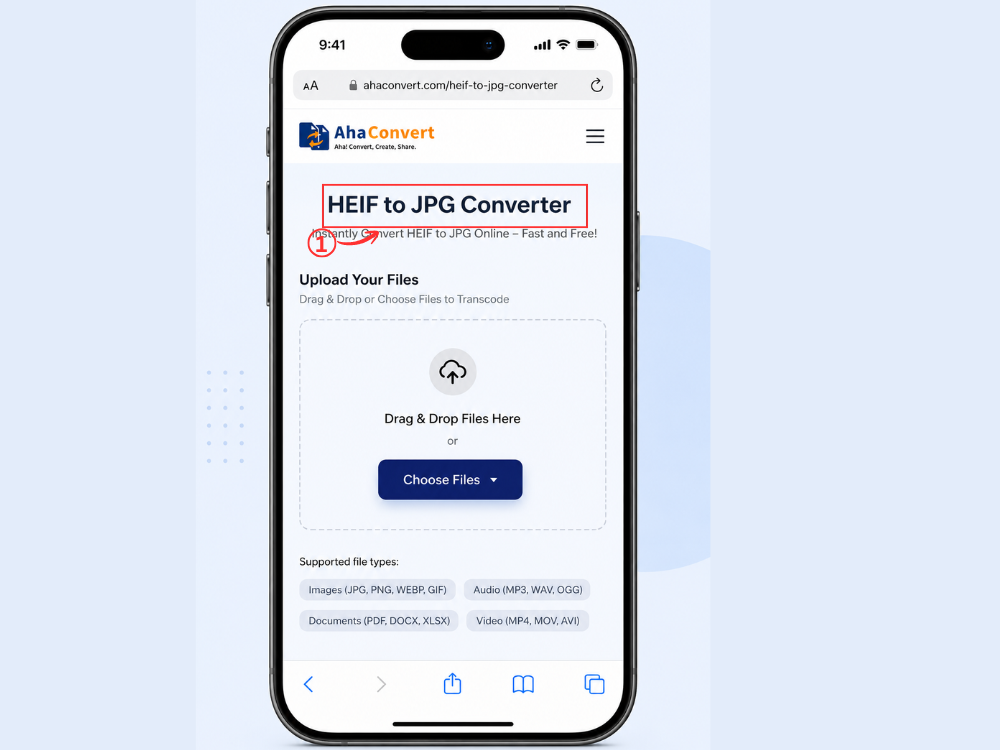
Step 1: Open the AhaConvert HEIF to JPG Converter on your iPhone
Open Safari, Chrome, or any browser on your iPhone and go to AhaConvert HEIF to JPG Converter. The page loads and displays the same clean upload interface as on desktop.
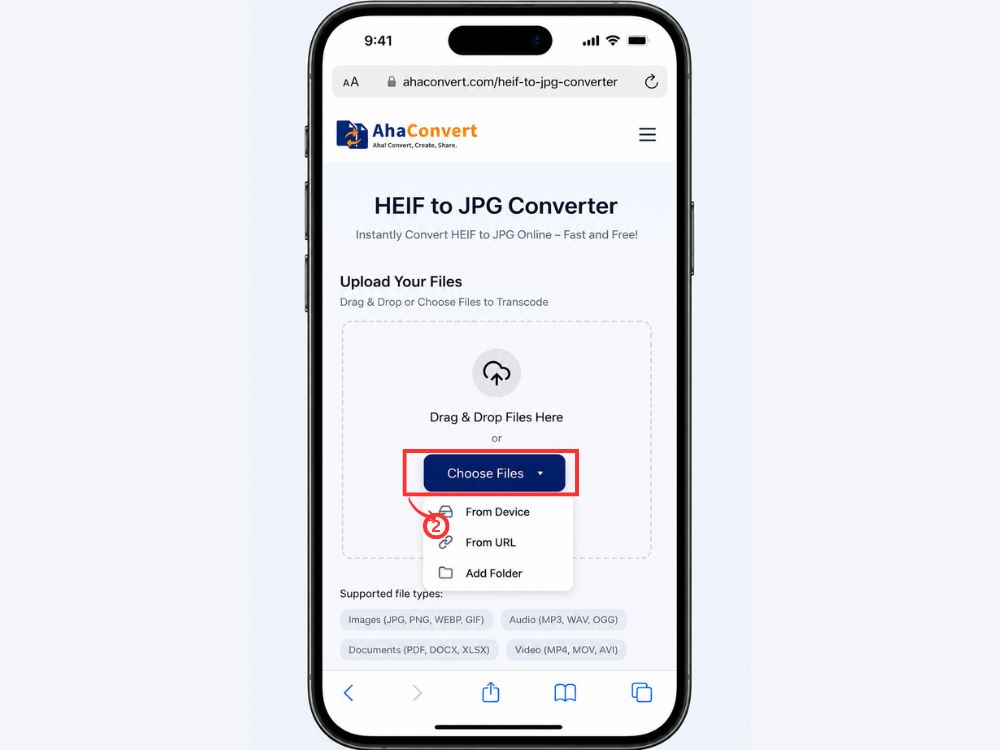
Step 2: Upload Your HEIF Photo
Tap the “Choose Files” button. Your iPhone will prompt you to select a photo from your library. Navigate to the HEIF or HEIC photo you want to convert and tap to select it.
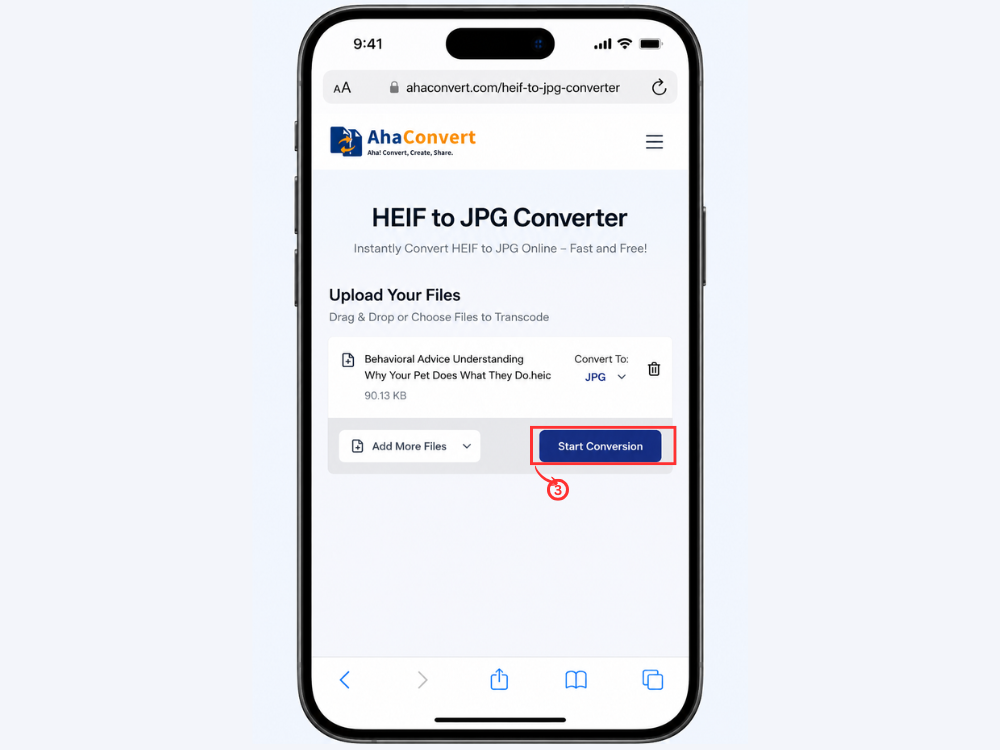
Step 3: Start the Conversion
Tap the “Start Conversion” button. The output format is already set to JPG automatically, so there is nothing else to configure. AhaConvert processes the photo directly in the browser.
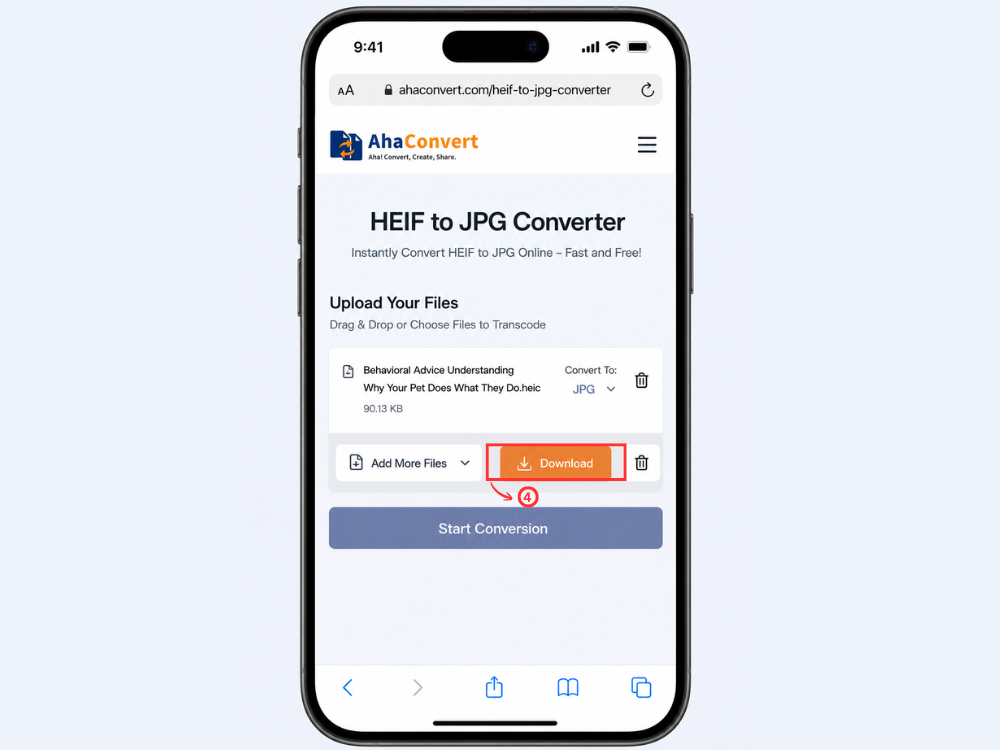
Step 4: Download and Save the JPG
Once the conversion is complete, a download file appears. Tap it to save the JPG file to your iPhone. You can then share it, upload it anywhere, or open it in any app without compatibility issues.
Frequently Asked Questions
1. Is HEIF better than JPG?
Regarding technical quality and compression efficiency, HEIF is more advanced. In comparison, JPGs are far better when it comes to compatibility; you can open them anywhere without having additional software installed. The difference between the two formats is that HEIF produces much smaller file sizes while maintaining good quality.
2. Why can’t Windows open HEIF?
The issue with Windows is that it does not have built-in support for HEIF files. Windows does not always open HEIF files by default. You may need to install HEIF Image Extensions from the Microsoft Store.
3. Why do iPhones use HEIF or HEIC?
HEIC is an Apple adaptation of HEIF and became the default format for all photographs captured on iPhones since iOS 11. The primary advantage of using HEIC is that it uses less space. HEIC images require 50% less space than their JPG equivalents while offering similar or even better image quality.
4. Can I convert HEIF to JPG on mobile devices?
Yes. The AhaConvert website is fully web-based, meaning it can be used on any phone or tablet — iPhones and Android phones included — and does not require any application installation.
5. Are uploaded HEIF files stored permanently?
No. All uploaded files are deleted by AhaConvert after 24 hours. All uploaded files are encrypted using 256-bit SSL. AhaConvert does not share user files with any third party, making it a safe choice for converting personal images.
6. Does converting HEIF to JPG reduce image quality?
There is some degradation in image quality because JPG uses lossy compression. But for general use, such as sending images on social networks or by email, the difference will be hardly noticeable. If the highest image quality is required, keep the HEIF file and convert it only when necessary.
In Conclusion
HEIF and HEIC offer several advantages. They provide smaller file sizes, better compression, and improved image quality. On the downside, their limited compatibility with non-Apple platforms makes them unsuitable for general use. With JPG conversion, however, you can ensure flawless operation anywhere, anytime with a photo format compatible with any device, program, and operating system.
When it comes to HEIF-to-JPG conversion, whether you are using a computer or an iPhone, it is easy with the right software. The AhaConvert HEIF to JPG Converter helps you achieve this in minutes at no cost, regardless of the device you use, since it requires no installation or registration. For anyone planning to send iPhone photos to people outside the Apple ecosystem, a HEIF-to-JPG conversion might be just what you need.
