
You must have heard of HEIC at some point. You have likely seen the image file format attached to an email or shared across a messaging app. People who use Apple devices are probably already familiar with the HEIC format.
Apple introduced HEIC to cater to iOS users who want their images and videos to retain the premium iPhone camera quality without taking up too much storage space. But not everyone is an iOS user. Some people may want to view or receive images in a format compatible with their devices.
JPEG is the all-rounder in that case, and many people choose to convert HEIC to JPEG for easier access and sharing. But first, what is the difference between HEIC vs JPEG, and why do so many people, including iOS users, prefer converting their HEIC files to JPEG?
What is HEIC Format?
When iOS 11 was released, Apple adopted the HEIC format as the default for storing photos on iPhones and iPads.
HEIC stands for High Efficiency Image Container. It is based on the HEVC (High Efficiency Video Coding) compression standard and was designed to store images more efficiently than older formats.
The idea behind it is simple. Keep image quality high while taking up less storage space. Between HEIC vs JPEG, HEIC takes up half the size of JPEG, considering both have the same quality.
One thing that continues to hold HEIC back, especially comparing between HEIC vs JPEG, is compatibility. While Apple devices handle the format without any issues, support outside the Apple ecosystem is not always guaranteed.
Some websites, applications, and older devices may struggle to open HEIC files directly or not support them at all. That is one of the main reasons people convert HEIC to PNG or JPEG before sharing images with others.
What Is JPEG Format?
If you haven’t heard of either JPEG or JPG, it is likely because you have rarely ever dealt with digital images. JPEG, which stands for Joint Photographic Experts Group, is one of the most common digital image file formats. It uses lossy compression to make images easier to store and share.
You have most likely seen it used nearly everywhere. You can send JPEG images across almost every messaging app, upload them to websites, and store them on most devices without giving compatibility a second thought.
JPEG is also one of the earliest file formats people widely used on the internet. Over time, many alternatives came in. PNG works better when you need higher quality. SVG is better for vector files. WebP is often used for websites.
But even with all these options, people keep coming back to JPEG because it is easy, convenient, and works almost everywhere. That is why, in HEIC vs JPEG, JPEG is often the safer choice when sharing and compatibility matter most.
HEIC vs JPEG: Key Differences

These factors will help you better understand the difference between HEIC vs JPEG, so you can decide as to which is better and if conversion is inevitable.
HEIC vs JPEG: File Size
The difference between HEIC vs JPEG file size is 50%. HEIC is about half the size of a JPEG, while both can achieve similar quality. HEIC uses advanced compression algorithms to compress images while making sure the data is not significantly compromised.
Meanwhile, with JPEG compression, you may often notice pixelation. This is basically an image compromise after data is removed from the file.
HEIC vs JPEG: Image Quality
HEIC supports 10-bit color, allowing images with up to a billion colors. JPEG supports only 8-bit color, which provides around 16.7 million colors.
This may not seem like much at first, but in images, the difference between HEIC vs JPEG can appear massive, especially if gradients don’t seem blended in JPEG images.
HEIC vs JPEG: Compatibility
One of HEIC’s key attributes is its full compatibility with Mac and iOS devices, especially since iOS 11. Windows can eventually open HEIC files natively, but that is not always reliable.
JPEG is universally compatible and can easily be opened across almost any device.
HEIC vs JPEG: Editing and Sharing
You must have noticed that the HEIC file format takes up much less space on your mobile device. This also contributes to its ease of editing and sharing.
Since HEIC retains far more colors than JPEG, you can adjust exposure, contrast, and saturation with more room to work. But many editing tools still do not support HEIC. If you want to edit HEIC files easily, it is usually best to do it natively on iOS devices.
JPEG is again a crowd favorite. Many editing tools support the JPEG file format, making it easy to share across social media, websites, and applications. But since HEIC takes up far less space, it can be shared faster compared to JPEG.
HEIC vs JPEG: Storage Efficiency
Apple automatically saves videos and images in HEIC format, especially after iOS 11. Apple’s ecosystem supports this format to optimize storage while maintaining high-quality images.
Because of its space-saving ability, HEIC can be stored efficiently in iCloud and across Apple devices.
JPEG storage is more convenient and versatile. Cloud storage options like Google Drive and many built-in device apps support JPEG easily, making it useful across different devices and platforms.
Tips for Choosing a HEIC to JPEG Converter
Not every converter is worth your time. Some take too long. Some reduce image quality. Some add watermarks out of nowhere. And some make you upload a file, wait, and then hit you with a limit right when you need the final download.
Before choosing any HEIC-to-JPEG converter, especially if you are already comparing HEIC vs JPEG, here are a few things to consider.
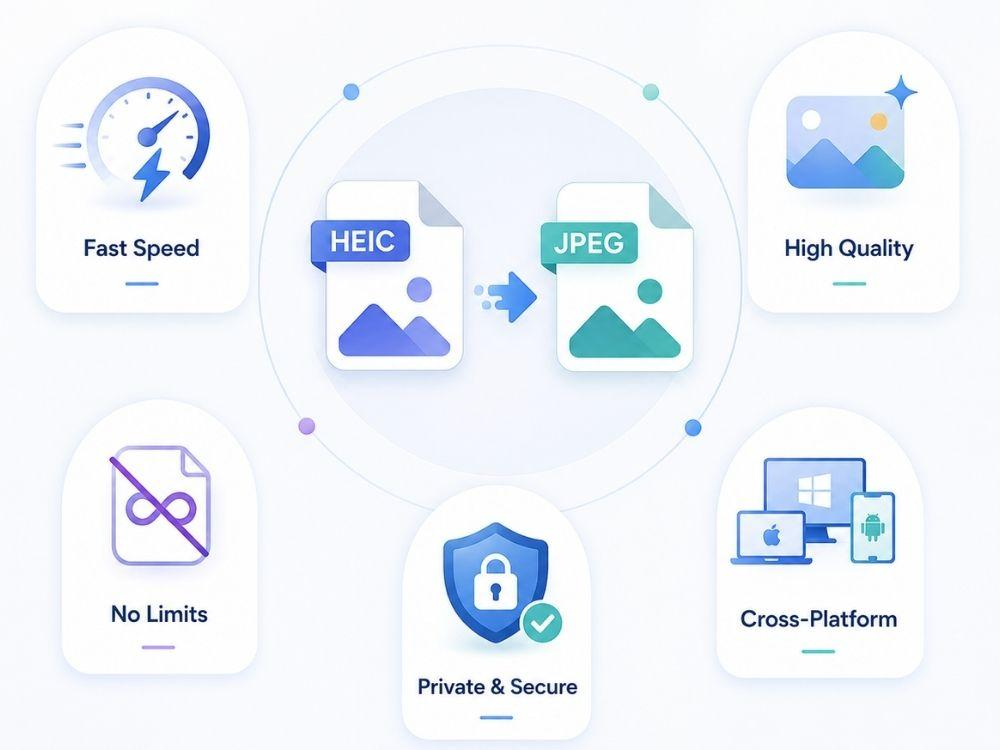
Fast Conversion Speed
A good converter should not make you wait for a single image. The process should be quick and simple enough that an average middle schooler could do it. The tool should not make them feel like they are solving the entire HEIC vs JPEG debate from scratch.
High-Quality Output
The quality must never be compromised to achieve the converter’s speed. The final image should still look close to the original. With clear details. Clean colors. No strange softness. No broken gradients. This matters even more in HEIC vs JPEG, because the whole point of conversion is to make the file easier to use without making the image look worse.
No Watermark or File Limits
A converter should not stamp a watermark on your image. File limits are another headache. One image may be fine. But what if you have ten? Or twenty? A good HEIC-to-JPEG converter should let users get the job done without every click feeling like a paywall.
Security and Privacy Protection
Images can be personal. Some may be work-related too. So the converter should handle your files safely and not keep them sitting on its server longer than needed.
Cross-Platform Compatibility
A good HEIC-to-JPEG converter should work across different devices. Whether you are on Windows, Mac, iPhone, Android, or just using a browser, the tool should make the job easy.
The AhaConvert HEIC to JPEG converter is a good example to mention here because it keeps the process simple for users who just want to upload, convert, and move on without making a meal out of it.
How to Convert HEIC to JPEG with an HEIC to JPEG Converter?
One concern people have with online converters is whether the image will look worse after conversion. That is fair. Nobody wants to upload a clean photo and download something soft, blurry, or washed out.
AhaConvert keeps the process pretty smooth. You can convert HEIC to JPEG without making it feel technical, and the final image stays close to the original for everyday use. Here is how to use the AhaConvert HEIC-to-JPEG converter.
Step 1: Open the HEIC to JPEG Converter
Go to AhaConvert in your browser and open the HEIC-to-JPEG converter page.
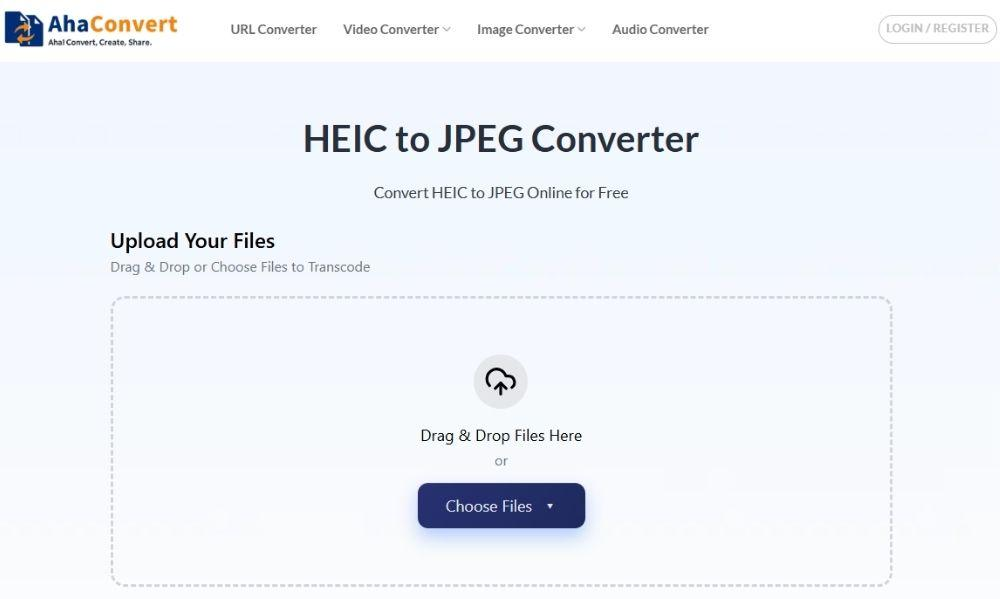
Step 2: Add Your HEIC File
Click “Choose Files”, then select the HEIC image from your device. You can also drag and drop the file into the converter if that feels quicker.
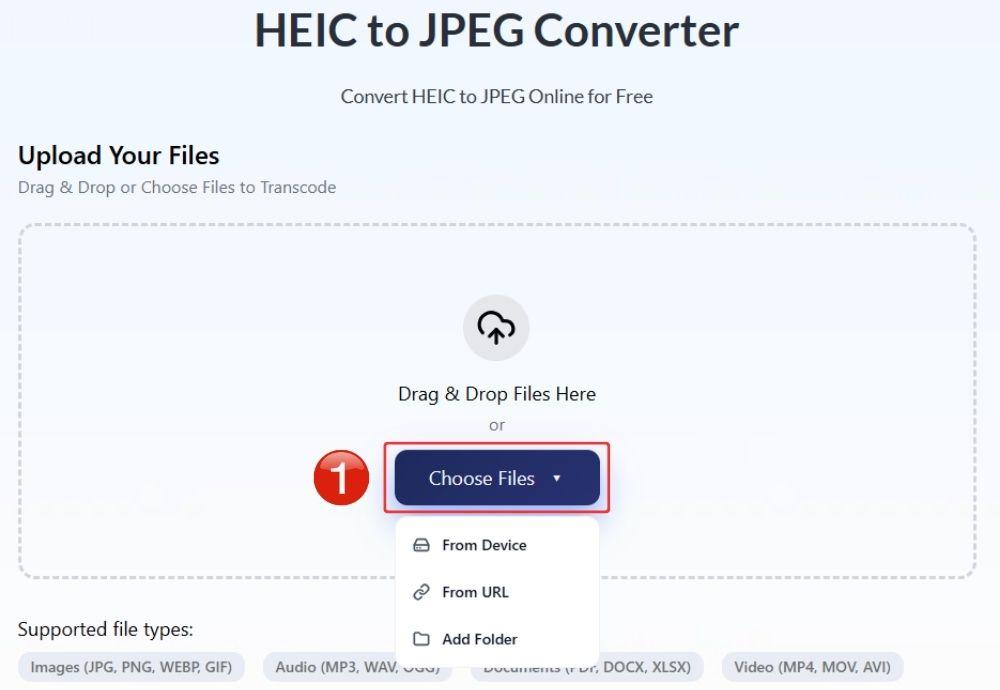
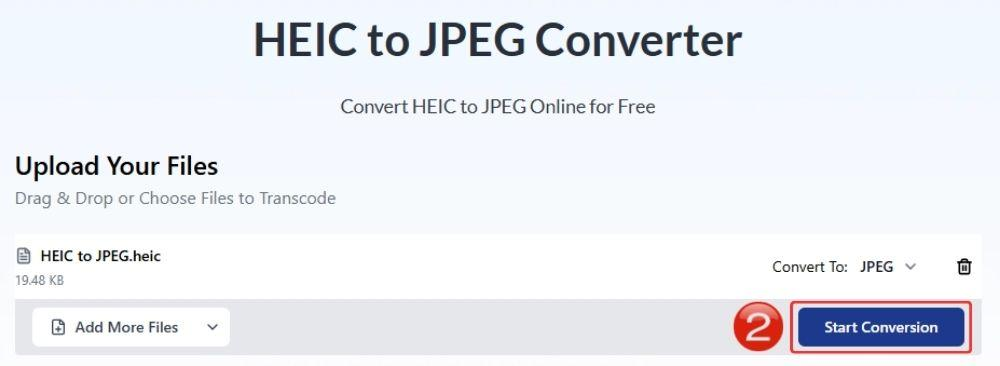
Step 3: Start the Conversion
Once the file is added, click “Start Conversion”. The tool will begin converting your image from HEIC to JPEG.
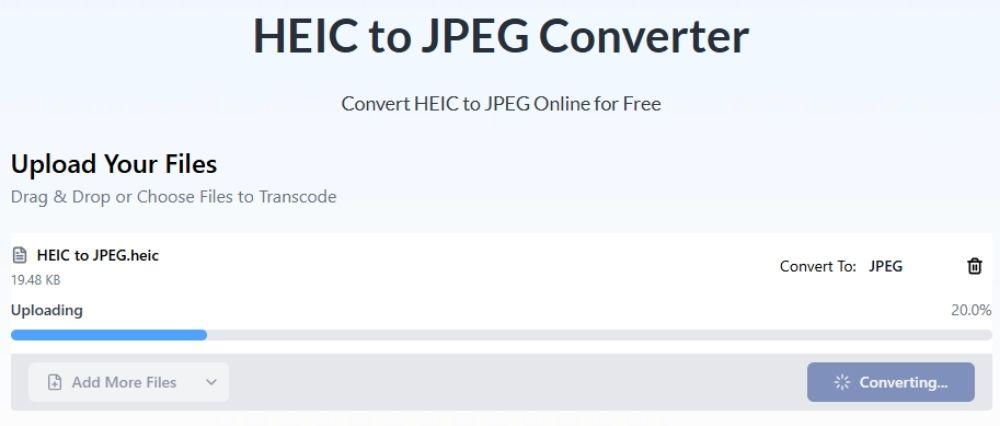
Step 4: Let the File Process
Wait a few seconds while the converter does its job. Larger images may take a little longer, but for most regular files, it should not take much time.
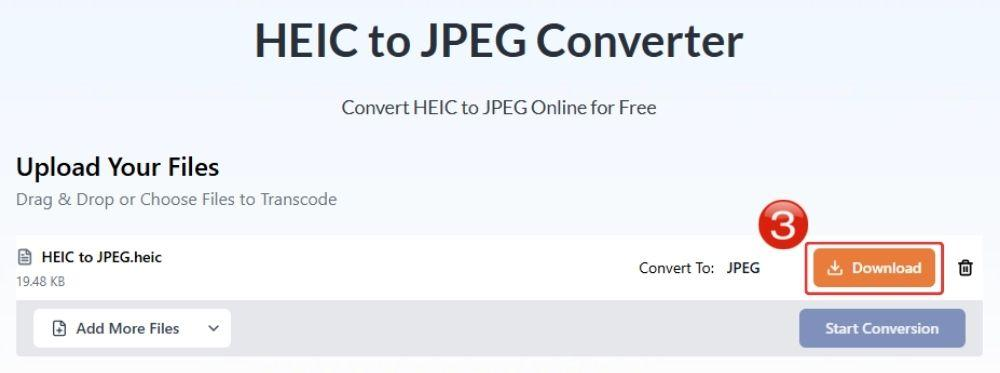
Step 5: Download Your JPEG Image
When the conversion is done, click “Download” and save the new JPEG file to your device.
HEIC vs JPEG: Which One Should You Choose?
HEIC vs JPEG really depends on what you need the image for. If you are keeping photos inside your Apple device, HEIC makes a lot of sense. If you are sending files to others, uploading them somewhere, or opening them on different devices, JPEG is usually the safer option.
Choose HEIC If
Choose HEIC if you mostly use Apple devices and want to save storage space without sacrificing too much image quality.
It works well when your photos stay inside the Apple ecosystem. Your iPhone, iPad, Mac, and iCloud can handle HEIC files easily, so you do not have to think about compatibility every time.
HEIC also makes sense if you take a lot of photos and videos. Since the files are smaller, your storage does not fill up as fast. That is probably the biggest reason Apple uses it in the first place.
Choose JPEG If
Choose JPEG if you want the image to open in any application.
That is why JPEG is still popular even after 30 years of its reign. You can send it through email, upload it to websites, use it on social media, open it on Windows, share it with Android users, or add it to documents without worrying too much. So, in HEIC vs JPEG, HEIC is better for Apple users who care about storage. JPEG is better when you want easy sharing, simple editing, and fewer “why is this file not opening?” moments.
Frequently Asked Questions
a. Why Can’t I Open HEIC Files on Windows?
Windows does not always support HEIC files. Some versions may require additional image extensions to open the file properly. You can choose to convert HEIC to JPEG to view or share the image on a Windows device.
b. Are Online HEIC to JPEG Converters Safe?
That depends on what safety precautions the converters are using. AhaConvert is a reliable converter to consider in this regard, as it uses SSL encryption and deletes your data within 24 hours.
c. Can Android Phones Open HEIC Files?
Some Android phones can open HEIC files, but not all of them handle the format smoothly. It depends on the device, Android version, and the app you are using.
d. Does Converting HEIC to JPEG Reduce Quality?
A small amount of quality loss can occur because JPEG uses lossy compression. In normal use, most people will not notice a big difference.
But if the image has fine details or smooth colors, or if you plan to edit it later, keeping the original HEIC file is still a good idea.
e. Why Does Apple Use HEIC Instead of JPEG?
Apple uses HEIC because it saves space while keeping strong image quality. That matters a lot on iPhones, where people take hundreds or thousands of photos.
In simple terms, HEIC lets Apple users save photos as smaller files with better quality. JPEG gives everyone else better compatibility. That is the real HEIC vs JPEG tradeoff.
Conclusion
Between HEIC and JPEG, HEIC is truly a commendable image format, especially for its high-quality at an incredibly low file size.
But this HEIC vs JPEG debate takes a turn when the subject is compatibility. Regardless of which is better, though, using a safe and reliable converter to convert between them is where one draws the line.
You want something that can change the format without making the image look damaged or washed out. AhaConvert HEIC to JPEG Converter is a great option here because it is not only one of the easiest tools to use but also ensures quality is not compromised. All while keeping your file safe and secure.
