

Do you need to add a photo to a PDF? You may be trying to include a business logo in a presentation or combine multiple images into a single file for a portfolio. Anyway, knowing how to add JPG to PDF is a skill you will need more frequently than you may think.
It is an easier process than you imagine. It does not require expensive software or expertise. In this guide, you will be led to add a JPG to PDF using a free online tool that will be operational in your web browser. We will also include tips on ensuring your image is clear and the layout looks good in the final paper.
Why Add a JPG to a PDF?
There are many reasons to add a JPG to PDF. Let us know the most common ones.
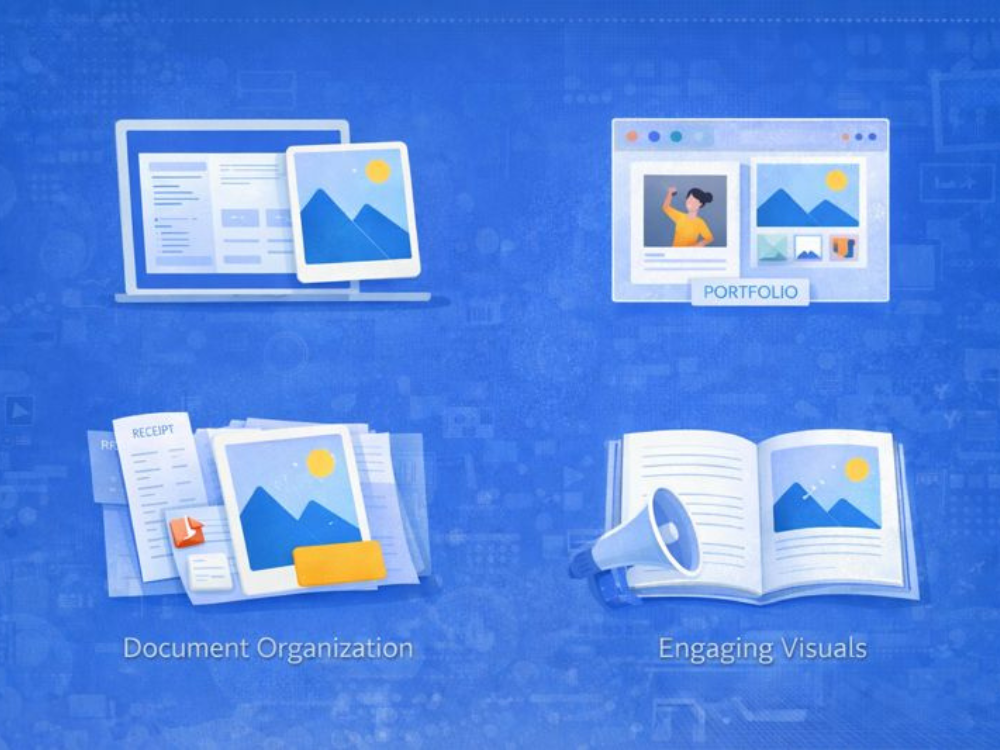
Presentations and reports: To expressed presention or report in a clearer way using visuals such as charts, graphs, and photos, rather than pure text. When images are added to a PDF, they remain in a single file, so nothing is lost or out of place, and the images appear in the desired sequence.
Creating online portfolios: Photographers, designers, and artists tend to share their work using PDFs. Using ideal images in JPG format and consolidating them into a single PDF file creates a clean, professional file that is easy to email or upload without the risk of missing images.
Enhancing document interest: Long paragraphs are hard to read. Including photos, diagrams, or illustrations enhances readability and helps readers retain information in training or educational materials.
Arrange your files: PDF allows one to arrange similar images. This is effective when receipts or documents, archived materials, or photo collections you wish to keep in a single place are scanned.
Learning how to add JPG to PDF will make sure that your photos are presented in the proper format and do not take much time.
Top Tips for Perfecting Image Quality and PDF Layout
Before adding your image, you need to prepare a few things that will make a significant difference in the final PDF.
Tip 1: Match your resolution to your purpose
When you plan to display your PDF on screens, 72–150 DPI is generally sufficient and helps maintain a moderate file size. For printed PDFs, use a minimum of 300 DPI to ensure clear images and avoid blurriness.
Tip 2: Resize images before you add them
Do not post large images; resize them. Resize and convert to JPG files first; this will reduce file size and also help the PDF load more quickly.
Tip 3: Think about your image format
JPG is a good choice when the photo has a lot of color, whereas PNG is a good choice when the photo has text or hard edges. The final PDF can be more transparent with the right format choice.
Tip 4: Plan your layout before you start
Most importantly, decide where photos will go. Basic layout scheme eliminates the unnatural spacing and additional editing.

How to Add a JPG to PDF Quickly?
When you need to add a picture to a PDF quickly and easily, an online tool is recommended. The browser-based tools allow you to edit a file directly in the browser; software and sign-up are not needed, which saves time and avoids additional procedures.
AhaConvert is a free online PDF editor that lets you upload your PDF and add JPG images to it. It only takes a few clicks to open the editing tools, place your picture, and drag it to the position before downloading the new file. It is also an easy process, so anyone learning how to add JPG to PDF can use it in their day-to-day activities.
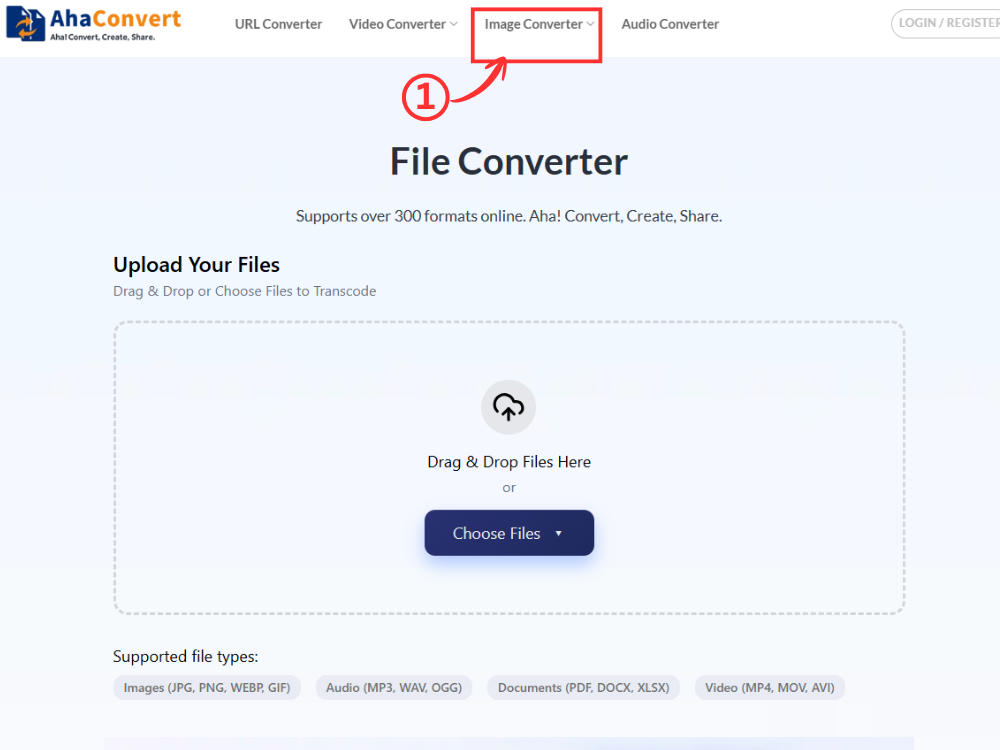
Step 1: Open the AhaConvert File Converter
Simply open the AhaConvert file converter in a web browser. It is a full web-based tool, so you are not required download software or open an account. When the page loads, you will see a button to upload files.
Step 2: Upload Your PDF and JPG
To start, upload the PDF file you need to edit by clicking the “Choose Files” button or simply dragging the file into the upload section. After uploading, add a JPG image to this PDF file using the editing tool.

Step 3: Open the PDF Edit Tool
Once your PDF has been uploaded, look to the right of the file, click the “Tools” dropdown. From the menu, select “Edit” to enter the editing interface. You can easily add images, text, or other elements to this PDF document. The interface is very simple and user-friendly.

Step 4: Add the JPG Image to the PDF
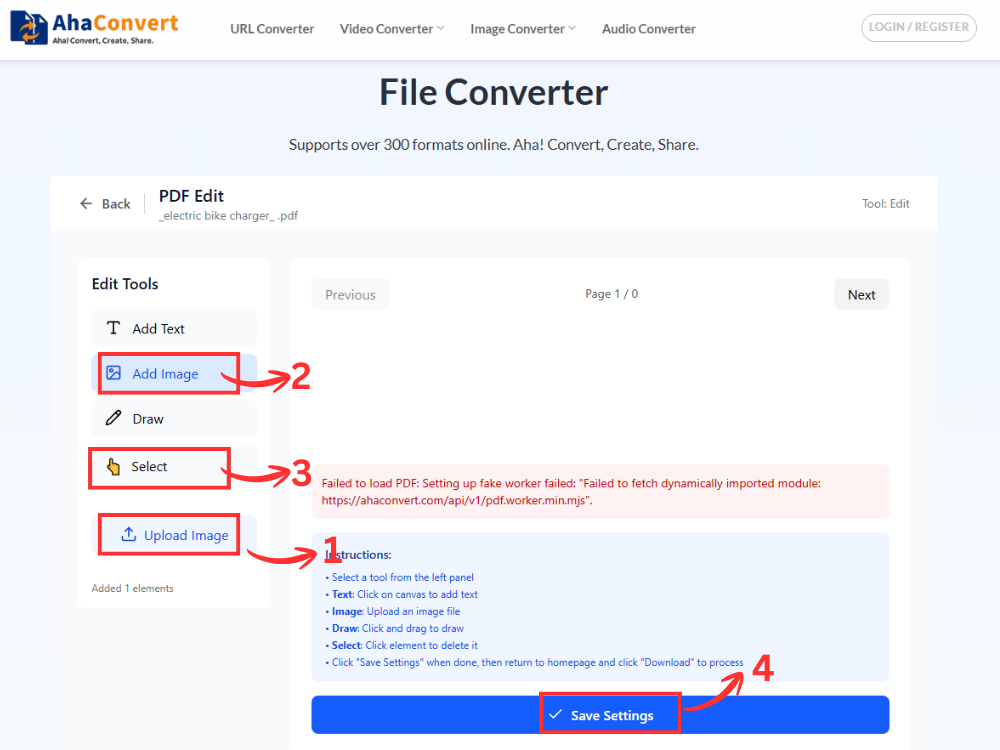
In the editor, click “Add Image” on the left panel to upload your image. Once it is uploaded, click “Select” to select this image. Then resize and position the image to fit within the layout. This is the best way to position the JPG where it is needed. Once it is satisfactory, click the “save settings”.
Step 5: Download the Updated PDF
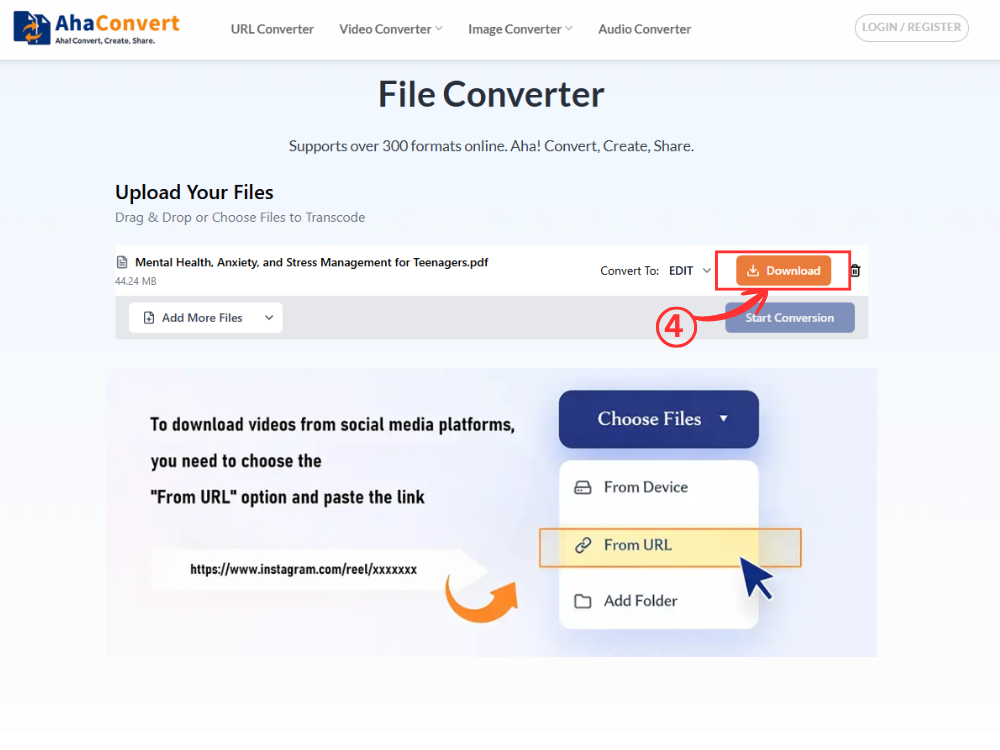
Once you have saved, click the “Download” button to save the PDF with the changes to your device. Your JPG image is now embedded in the PDF.
It is a simple process that allows add a JPG to PDF without any technical installation or additional software.
Additional Features of This Online Tool
Beyond helping you add a JPG to PDF, AhaConvert also offers several built‑in tools accessible from the “Tools” menu. The features allow you to edit and streamline documents without platform transition.
Merge PDFs: Combine multiple files into a single file. It can be useful when you need to share or store a larger set of PDF files that are currently separate files.
Split PDFs: Splits a PDF file into several files. Will help you when you need to share or retain large PDF files in smaller segments.
Add Watermarks: Apply text or image watermarks to PDF files. Apply it to indicate that one of the documents is a draft, protect the ownership, or provide some simple branding.
Protect PDFs: Use a password to secure PDFs. When sharing a file, this prevents others from opening, copying, or editing it.
Unlock PDFs: Remove the password to allow authorized users to access them. This allows editing or reusing secured files without recreating them.
These features make AhaConvert a useful option for daily PDF work, whether organizing files, locking documents, or making small corrections and adding pictures.
Frequently Asked Questions
1. Can I add more than one image to a PDF?
Yes, you can add more than one JPG image to a single PDF using the edit tool. Once the PDF edit is open, images can be inserted one by one and positioned accordingly. This enables you to add more than one image to a PDF document.
2. What’s the best format for my image when adding it to a PDF?
JPG is suitable for photographs and images that have numerous colours. PNG is more graphics- and text-oriented, with graphics that include logos or edges. Selecting the correct format ensures the image in the PDF remains clear and sharp.
3. Do I need to install any software to use this tool?
No software installation is required. AhaConvert is fully web-based, meaning you can convert a JPG to a PDF on any device (desktop, laptop, tablet, or smartphone) as long as you have an internet connection.
4. What should I do if the image does not fit properly in the PDF?
If the image is large or misaligned, resize or crop it and upload it. It is also best to prepare the image in advance to fit the page better and provide a cleaner appearance in a PDF layout.
5. Can I add an image to a PDF on my phone?
Yes. You can copy JPG images to PDF on your tablet or phone. AhaConvert supports mobile browsers, allowing users to easily upload, process, and download PDFs, just as on a desktop.
Conclusion
Knowing how to add JPG to PDF ensures you have more freedom in editing documents when you need them to work, at school, or for yourself. Adding images directly to PDFs ensures your files are organized and easier to share, without requiring multiple attachments.
Convert a JPG to PDF using a browser-based tool such as AhaConvert; no software is installed, and no complicated procedures are required. It is fast, available on any device, and suitable for creating clean, professional-looking documents.
