
WebP vs JPG sit in a friendly trade-off between quality and efficiency. JPG, although a little dated, is still quite popular, attributed to its intricate detailing and brighter visuals. Its more contemporary counterpart, WebP, is usually opted for as a much more pragmatic option when you need fast-loading and better-performing webpages.
JPG is a more compatible image format in many cases, and when you already have a WebP image, you can convert it to JPG to make it easier to edit, share, or use in software that does not support WebP. In this guide, we will look at the main differences between the two formats and how to convert WebP to JPG using AhaConvert.
What is WebP?
WebP is a modern image format developed by Google for use on the web, and its purpose is to enable digital spaces that require visuals to perform significantly better. Their inherent feature is reduced image file sizes with visual quality remaining uncompromised. Because of this compression advantage, WebP images help websites load faster and use less bandwidth.
Before the WebP format’s development, JPG and PNG image formats reigned in digital spaces. Compared to them, WebP supports both lossy and lossless compression, which allows websites to choose between smaller file sizes and preserving full image data.
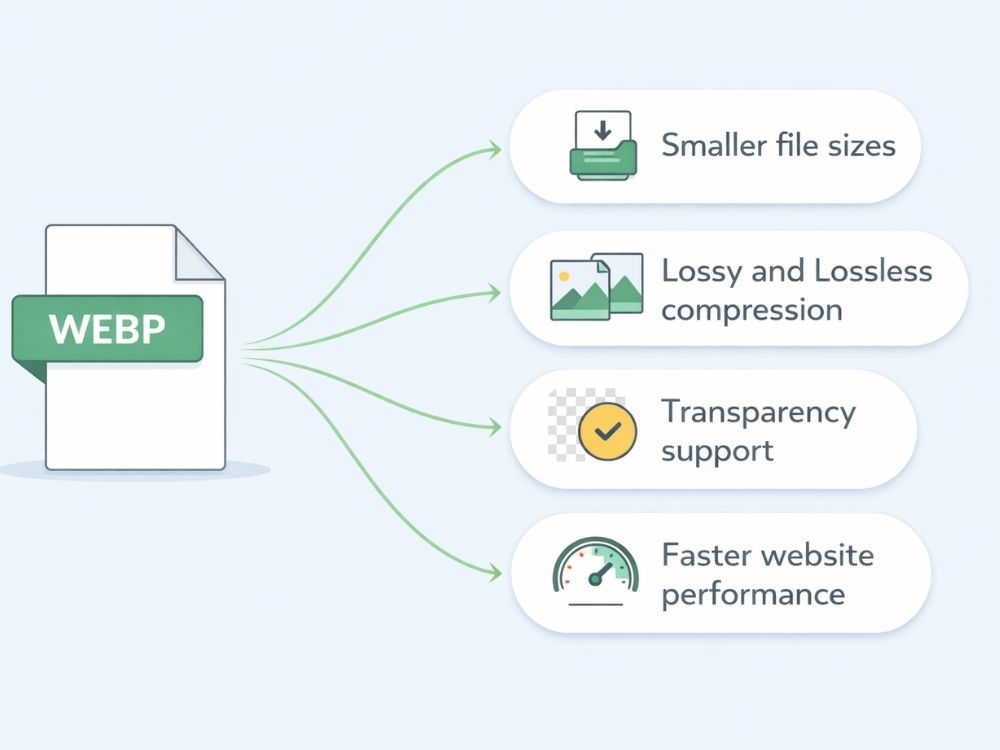
Key Features of WebP
1. Compact File Sizes
According to Google, WebP lossy images are 25–34% smaller than JPEG files at the same quality level, making them smaller in size by a massive margin compared with their alternatives.
2. Supports Lossy and Lossless Compression
Developers prefer WebP because it can be reduced via both lossy and lossless compression. This means that it can be reduced in size by either removing some data from the file or keeping the data intact and still shrinking the size of the file.
3. Background Transparency
WebP supports alpha transparency, making it a popular choice of format for logos, icons, and UI graphics.
4. Faster Website Performance
Because WebP files are smaller, they reduce the amount of data a website needs to load, leading to faster page loading speeds, and ultimately improving user experience, and can benefit search engine performance.
5. Browser-Based Image Delivery
Not every browser supports every image format. When WebP is used for modern browsers such as Chrome, Firefox, Edge, and Safari, and other formats are used for older browsers, adjustments are made conveniently for users
What is JPG/JPEG Format?
The JPEG or JPG image format is a widely used standard for compressing images that uses lossy compression to reduce file size while keeping the image visually clear in most cases. It belongs to the raster image category, meaning images are made of pixels. Each pixel contains color information, which allows JPG files to display detailed photographs and complex visuals effectively.
You may have often heard people mention JPEG vs JPG, but one thing to keep in mind is that both .jpg and .jpeg refer to the same image format and can be used interchangeably, as JPEG was shortened to JPG due to early operating systems having limitations on file extensions.
Because they are the same format, you will usually see JPG used for common images such as photos from cameras or phones, pictures on websites, and images shared on social media.
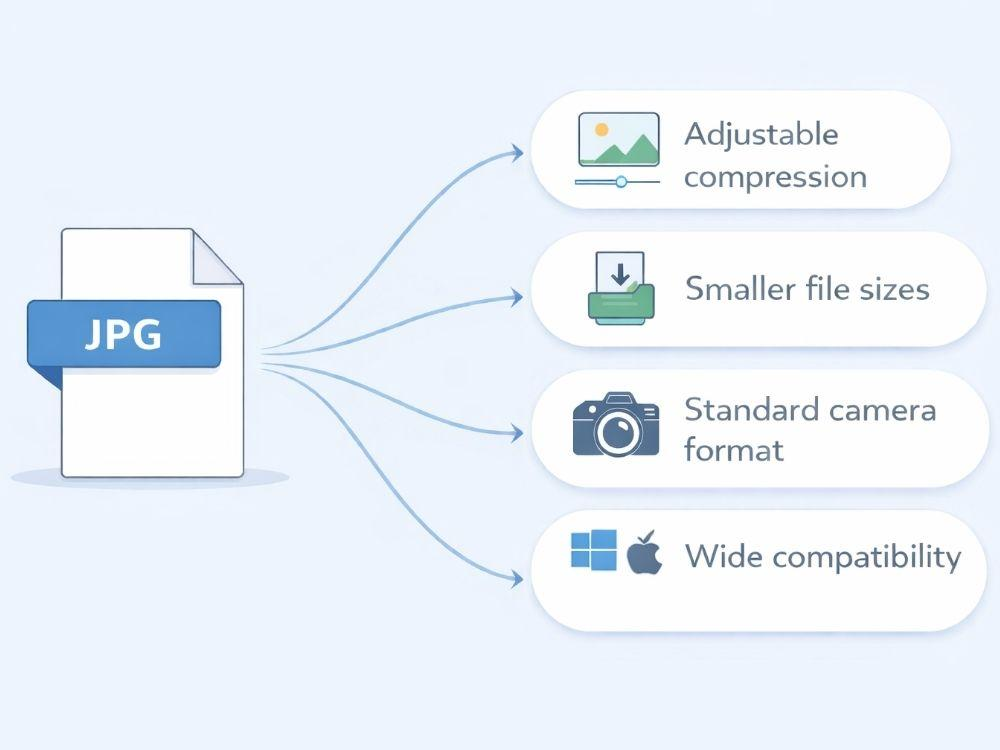
Key Features of JPG
1. Perfect for Photographs and Photo Editing
With support for about 16.7 million colors, JPG works well for photographs and highly detailed images, making it a common choice for pictures captured by digital cameras.
2. Adjustable Compression
JPG is compressible and can be reduced in size by a lot, where visual quality can remain undisturbed in most cases.
3. Smaller File Sizes
Compared to many uncompressed image formats, JPG files tend to be much smaller, which helps with storage efficiency and faster loading when images are used on websites.
4. Standard Format for Digital Cameras
Most digital cameras store photos in JPEG format by default because it balances image quality and file size efficiently.
5. Wide Range of Compatibility
You will find JPG compatible across almost all devices, including major operating systems and image editing software, which is why it remains one of the most universally supported image formats despite being relatively old.
WebP vs JPG: Key Differences
WebP vs JPG are two most frequently used image formats across the internet for both uploading and downloading, and the difference at times can become visually apparent after you convert WebP to JPG.
Both these formats are designed to store digital images efficiently. The way they handle compression, image quality, and web performance sets them apart, and thus, these are the key differences to know about both formats:
| Feature | JPG | WebP |
|---|---|---|
| Compatibility | Works on almost all devices, browsers, and editing software. | Supported by modern browsers, but older software may still rely on JPG. |
| Compression & File Size | Uses lossy compression, which reduces file size but may remove some image data. | Supports lossy and lossless compression. |
| Transparency | Does not support transparency. | Supports transparency. |
| Image Purpose | Commonly used for photographs and detailed images. | Mainly used for websites where smaller images are preferred. |
WebP vs JPG: When to Use
One of the most popular queries across users emerges from the curiosity about how to use both image formats. JPG, being able to handle color gradients and natural textures in a way that feels visually consistent and superior, makes it a popular choice for photographers and photo editors. Many cameras store images in JPG format by default, and while one of the oldest file formats, it remains one of the most compatible formats across devices, editing software, and platforms.
JPG is often used for:
- Photography and portfolio images
- Images that will be edited in photo software
- Files intended for printing or archiving
- Situations where universal compatibility is acceptable
WebP is a more contemporary file format, exhibiting its popularity on websites and digital platforms because the format produces smaller files, it helps webpages load faster, and reduces server bandwidth usage. Modern browsers widely support WebP, which makes it a practical choice for online content.
WebP is commonly used for:
- Website images and blog graphics
- E-commerce product images
- Logos and UI elements that require transparency
- Platforms hosting large numbers of images
Why You May Need to Convert WebP to JPG?
Even though WebP is widely used on websites, there are situations where converting a WebP image to JPG becomes necessary.
1. Better Software Compatibility
Not all image editing programs and older systems support WebP files. Converting the image to JPG makes it easier to open and edit in common software.
2. Easier Sharing and Uploading
Many platforms and tools still prefer traditional formats like JPG. Converting WebP to JPG can help ensure the image uploads correctly on websites, apps, or email attachments.
3. Photo Editing Across Various Softwares
Photographers and designers often work with JPG files because most editing tools and photography software they use tend to favor JPG file formats.
4. Universal Device Support
JPG works on almost every device, browser, and operating system. If you need to share images across different systems, JPG is usually the safer option.
5. Printing and Archiving Images
For printing or long-term storage, JPG is still a common format. Converting WebP to JPG can make the image easier to manage in standard photo libraries.
How to Convert WebP to JPG (Step-by-Step Guide)
AhaCovert’s WebP to JPG converter is one of the most efficient converters for audio, images, and various other files, and the process is equally simple. Here’s how you can convert WebP to JPG using AhaConvert.
Step 1: Open the AhaConvert WebP to JPG converter
First, open your browser on your device and go to the AhaConvert WebP to JPG converter page.
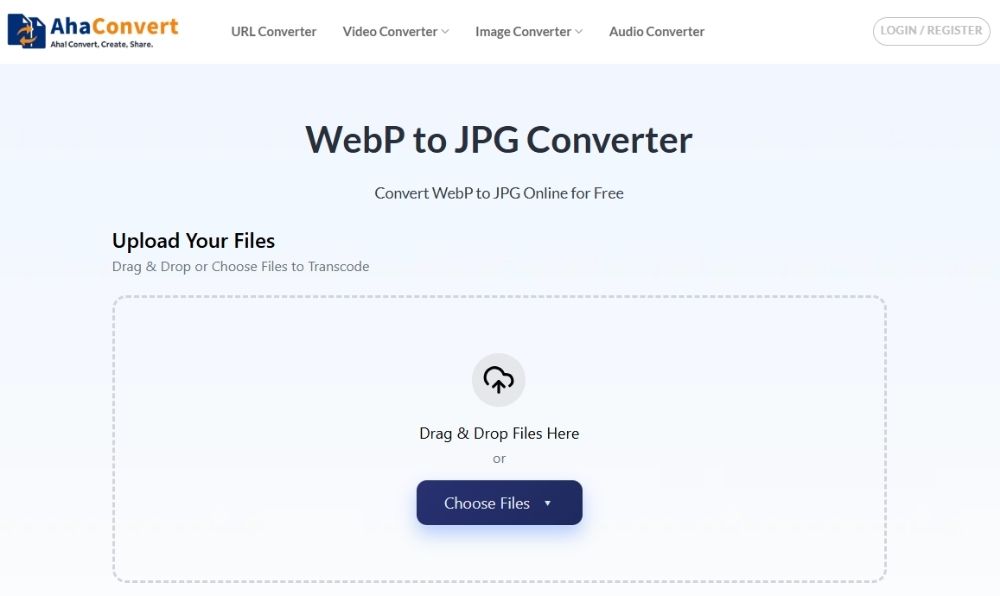
Step 2: Upload your WebP file
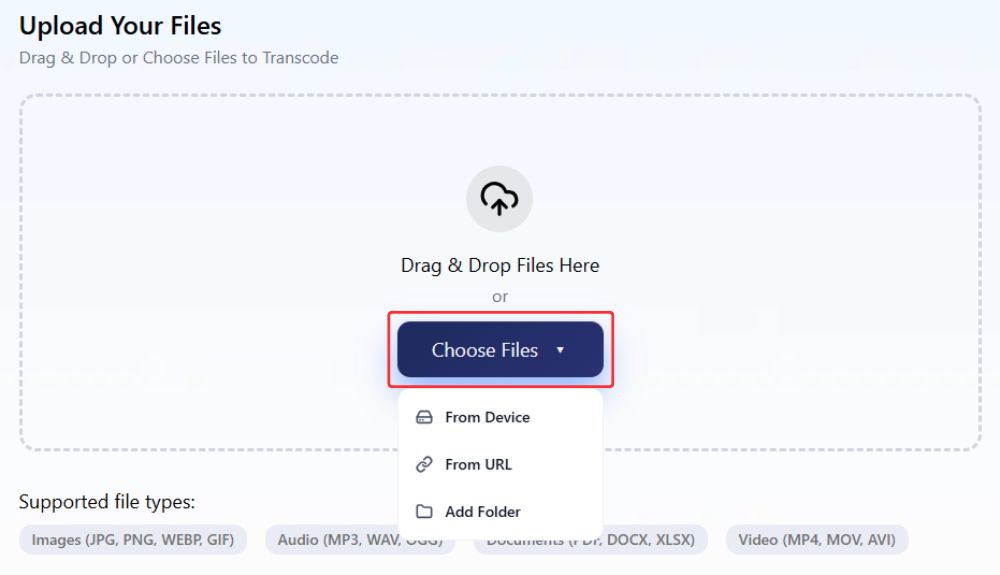
Now drag and drop your files into the AhaConvert upload area. You can also click “Choose Files” to upload your WebP image from your computer or paste a URL.
Step 3: Confirm JPG as the output format
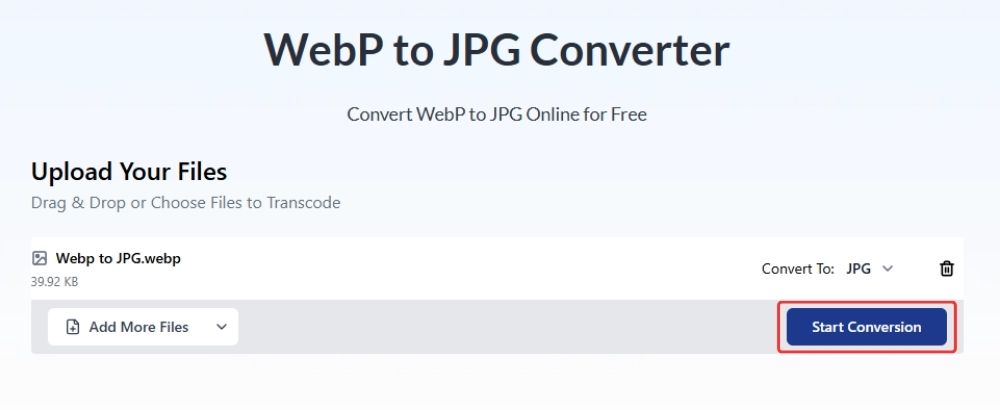
Once the WebP files are uploaded, you will see the file names and sizes. You can also add more images if needed. Make sure the selected output format is set to JPG, then click “Start Conversion”.
Step 4: Uploading and converting
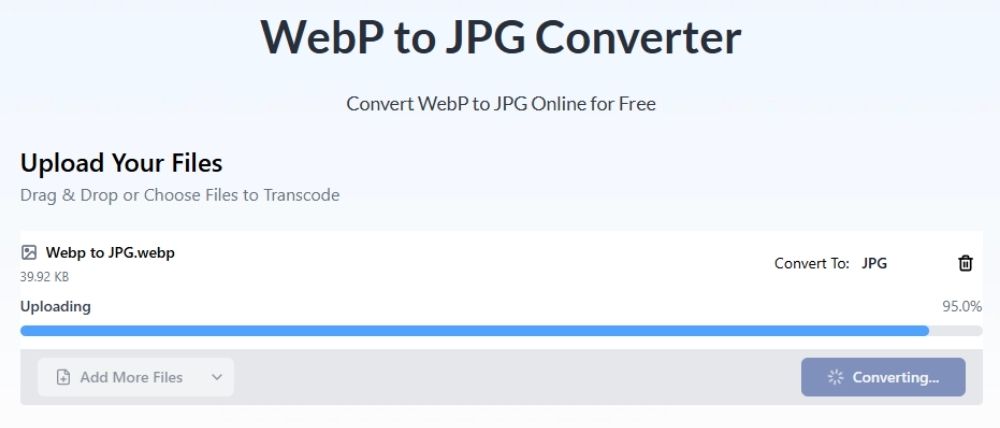
The conversion process may take a few seconds, depending on the file size or the number of images uploaded. You can monitor the progress on the screen.
Step 5: Download the JPG file
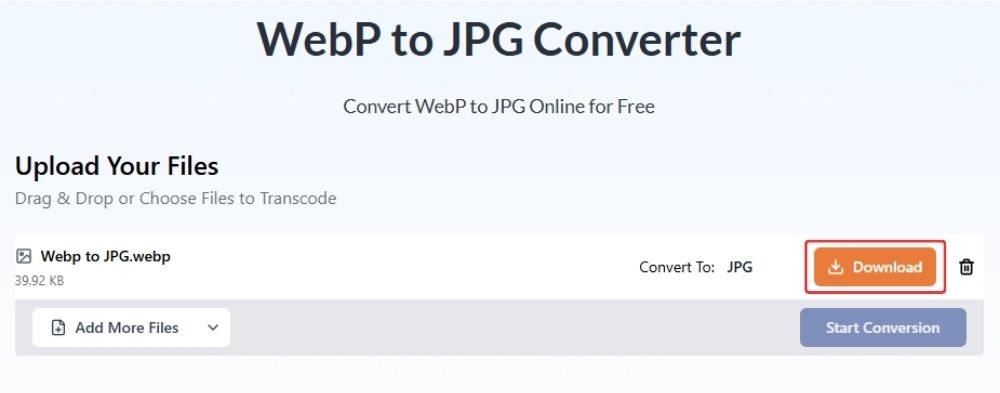
Once the process is complete, click the “Download” button to save the JPG file to your computer.
Step 6: Save the file to your folder
A Save As window will appear. Choose the location where you want to save the JPG image, rename it if needed, and click “Save”.
In just a few steps, and without any downloads or signups, you can use AhaConvert’s WebP to JPG converter on any device as long as you have a browser. In addition, if you ever find yourself searching for other conversion tools, such as audio or video converters, or dealing with less common formats like converting TIFF to PDF, it may help to save AhaConvert as a bookmark for quick access whenever needed.
Frequently Asked Questions
a. Will converting WebP to JPG reduce quality?
JPG uses lossy compression; naturally, some image data may be reduced during conversion, but a good converter like AhaConvert can preserve the visual quality, where any visual difference is barely even noticeable
b. Is this online WebP to JPG converter safe?
Yes. AhaConvert uses 256-bit SSL encryption during conversion and automatically deletes uploaded files within 24 hours, so your images remain private and secure.
c. Can I batch convert WebP images to JPG?
It depends, since some converters don’t support batch conversions, but converters like AhaConvert allow you to upload and convert multiple WebP images to JPG in one go.
d. Do I need to install software to convert WebP to JPG?
No. AhaConvert is an online tool, which means it works directly in your browser, so you can convert images online without installing any software.
e. What is the maximum file size supported by the converter?
It varies from converter to converter, but AhaConvert typically can load image sizes used online and with unlimited conversions without requiring registration.
WebP vs JPG: Why A Good Converter Matters
WebP vs JPG serve different purposes, even though the differences may not always be obvious at first; the file format is incredibly important for developers, users, photo editors, etc. And understanding these differences can help users choose the right format for their needs.
This is where reliable tools become non-negotiable. While many converters exist online, AhaConvert provides a simple and efficient solution. Its browser-based WebP to JPG converter allows users to convert files quickly, supporting batch uploads and still delivering results that exceed the needs of users, all without needing you to install external software or create an account.
