
The development of modern image formats is not stopped, and AVIF is now a potent format of compression with high quality and lower file sizes. Nonetheless, the compatibility problems normally occur when exchanging AVIF files between different platforms and applications. There are several users who are forced to convert AVIF to PNG so that their images can be seen everywhere. Whether it is pictures of websites, presentation materials, or personal photos, it is not difficult to have a good AVIF to PNG converter to help you along.
This article will take you through the three viable ways of converting AVIF to PNG on Windows. You will find out how to use online converters when you want to have batch processing fast, use built-in Windows tools when your conversions are occasional, and learn about third-party software when you need to go all the way. The methods apply to various requirements and users, such as amateurs and other professionals who work with a lot of files on a daily basis.
What are AVIF and PNG?
The knowledge of the differences between these formats can assist you in making informed choices on when and why you need to carry out AVIF to PNG conversions.
What Is AVIF Format
AVIF (AV1 Image File Format) is the most recent image compression format. This format was developed by the Alliance for Open Media based on the compression algorithm AV1 video coding. The outcome is extreme compression efficiency, resulting in high visual quality with much smaller file sizes.
More modern browsers, such as Chrome, Firefox, and Edge, now know AVIF. But compatibility is still not available with many legacy applications, image viewers, and content management systems. This limitation poses the problem of requiring conversion to more generally accepted forms.
What Is PNG Format
PNG (Portable Network Graphics) is an internet standard that has been in use since the mid-90s. This format uses the lossless compression technique, and thus, the quality of images is not lost as they are compressed. PNG is a very good file format in terms of transparency, attributed to its alpha channel, thus very appropriate in case of logos, graphics, and images which have a transparent background.
The format is universal and can be used with all operating systems, browsers, and applications. The PNG files are usually larger than the current compressed files, such as the AVIF, but due to their popularity, they are a secure option when it comes to making sure that your pictures are showing up in the right way everywhere.
Key Differences Between AVIF and PNG
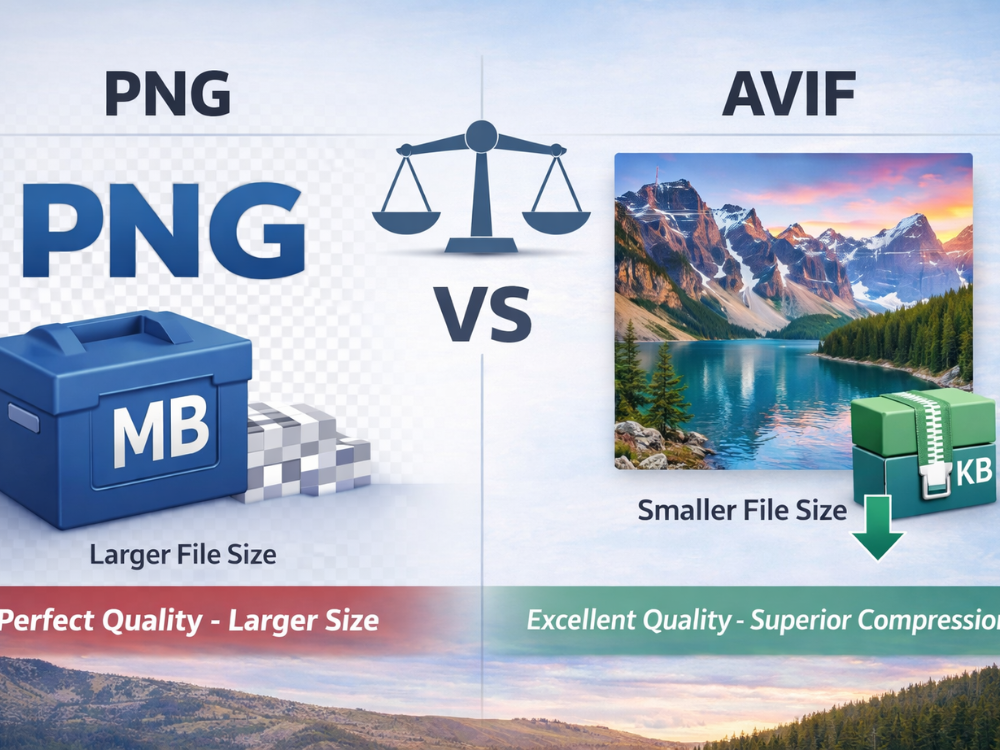
The largest distinction between these formats is represented by file size. AVIF normally emits files that are 50-90 percent smaller than PNG, and the quality is similar. This means reduced bandwidth usage and quicker page loading times for the web developer and creator of the content.
These formats differ essentially with regard to compression methodology. PNG is a lossless compression, and it does not compress all the pixels of the original image. AVIF relies on lossy compression, which decides to forgo the less noticeable data to achieve smaller files. AVIF is lossy but has impressive visual quality, which usually does not stand out in comparison with the original at common display sizes.
PNG is much preferred for compatibility. All devices, browsers, and applications developed over the last 20 years can view PNG files without any trouble. AVIF needs the latest software, and it might not render on older systems or specialized applications. Such a compatibility gap often requires AVIF to be converted into PNG to make it more accessible.
Why Convert AVIF to PNG?
There are a few real-world cases where AVIF has to be converted to PNG even though it is technically superior in terms of compression efficiency.
The top of the reasons list belongs to compatibility. AVIF files are not supported by many content management systems, social media systems, and old software applications. After loading an AVIF image on these sites, you may receive error messages or blank spaces where the image is supposed to be displayed. A conversion to PNG gets around all these compatibility roadblocks.
The PNG format is frequently required in professional workflows. The tools that the graphic designers, photographers, and marketing teams use often do not support AVIF yet. AVIF may be poorly or not handled by Adobe Photoshop, Adobe Illustrator, and other professional programs. Image conversion makes the imagery perfectly integrated into the existing workflow.
PNG has a lossless nature that is more preferred for archival purposes. AVIF is a very impressive quality, but its lossy compression provides an irreversible loss of information. PNG does not degrade the quality of any images, artwork, or documents with many consecutive saves, which is important when you have to edit important documents, artwork, or photographs.
PNG delivery is, at times, given as specifications by clients. Print clients, publishers, and other corporate clients can have technical requirements that require the PNG format. Knowing how to convert AVIF to PNG in a short time means you fulfill such requirements, avoiding any delay and rewrites.
PNG is better in editing flexibility. PNG can be used when you have to make changes, insert text, or merge images, as its lossless format does not build up compression artifacts. The lossy compression is rejuvenated every time you save an AVIF file after making any edits, and this may compromise quality. PNG is consistent across the various editing sessions.
How to Convert AVIF to PNG (Step-by-Step Guide)
After knowing why conversion is necessary, the second thing to do is to use a simple procedure that is fast and sure. This is a step-by-step guide on how to convert AVIF to PNG using an online AVIF to PNG converter.
Method 1 – Use an Online AVIF to PNG Converter
The best, most suitable, and timely option to convert AVIF to PNG without software downloads is online converters. AhaConvert is a free and browser-based application that is efficient in batch conversions.
Step 1: Access the AVIF to PNG Converter
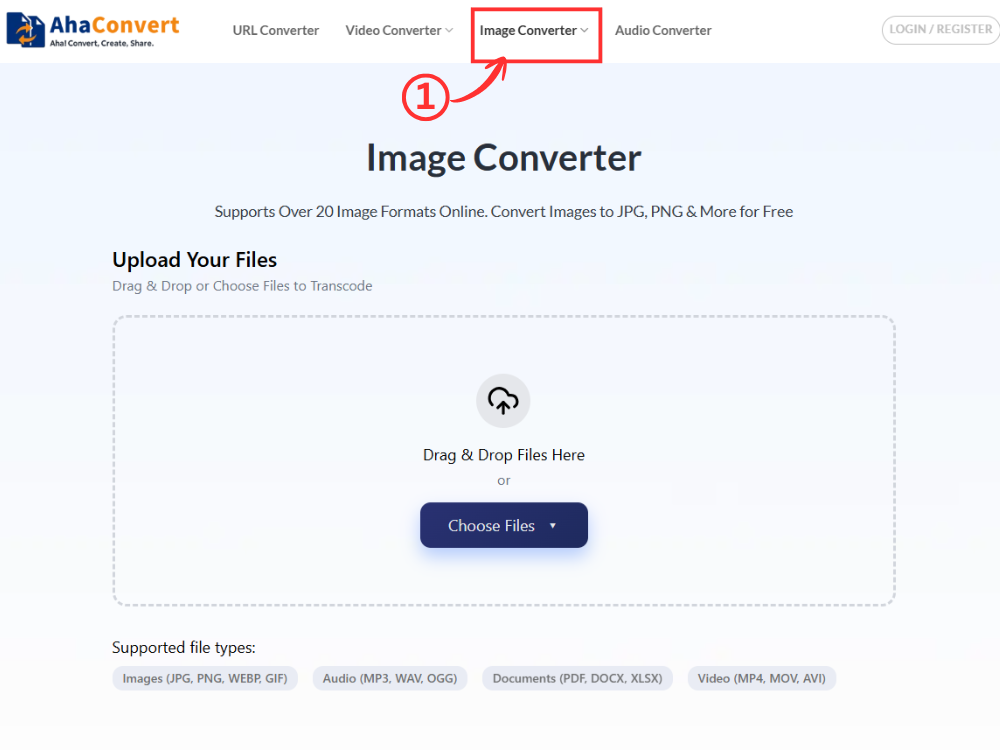
Go to AhaConvert Image Converter with your web browser. The interface is easy and fast to load, and therefore, you can begin instantly. There is also no need to open an account or install any software. This is a tool that can be accessed on Windows, macOS, Linux, and mobile devices, which is why numerous people can do so.
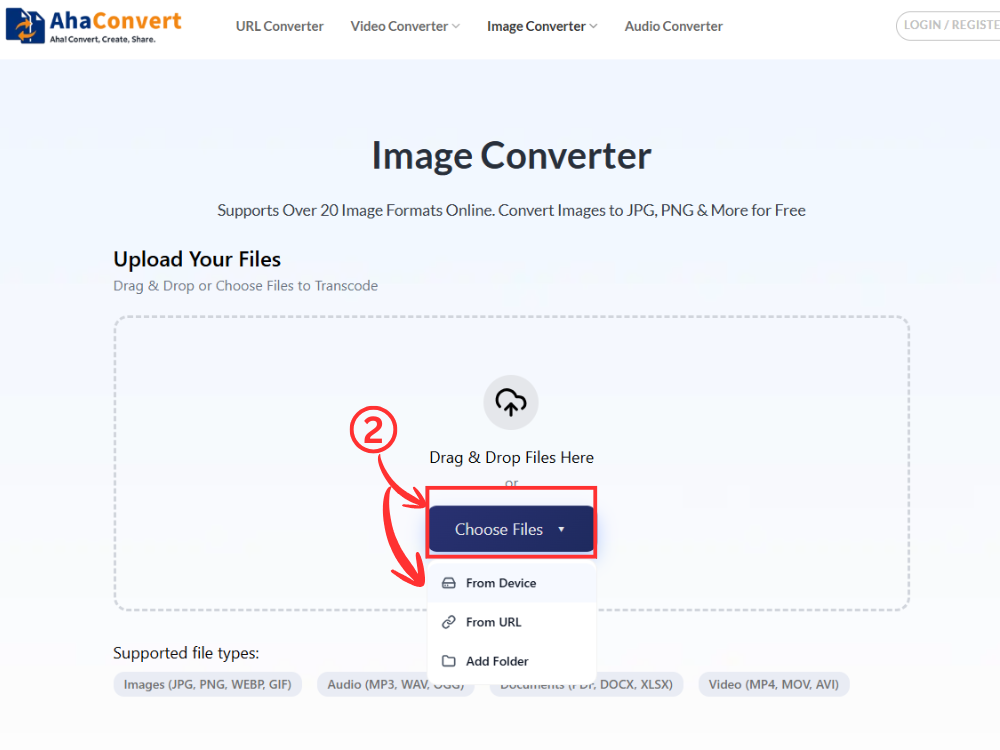
Step 2: Upload Your AVIF Files
Click the “Choose Files” button to choose the AVIF images. There are options to upload one or even more files at once. This is not difficult when you have a bunch of pictures to convert at the same time.
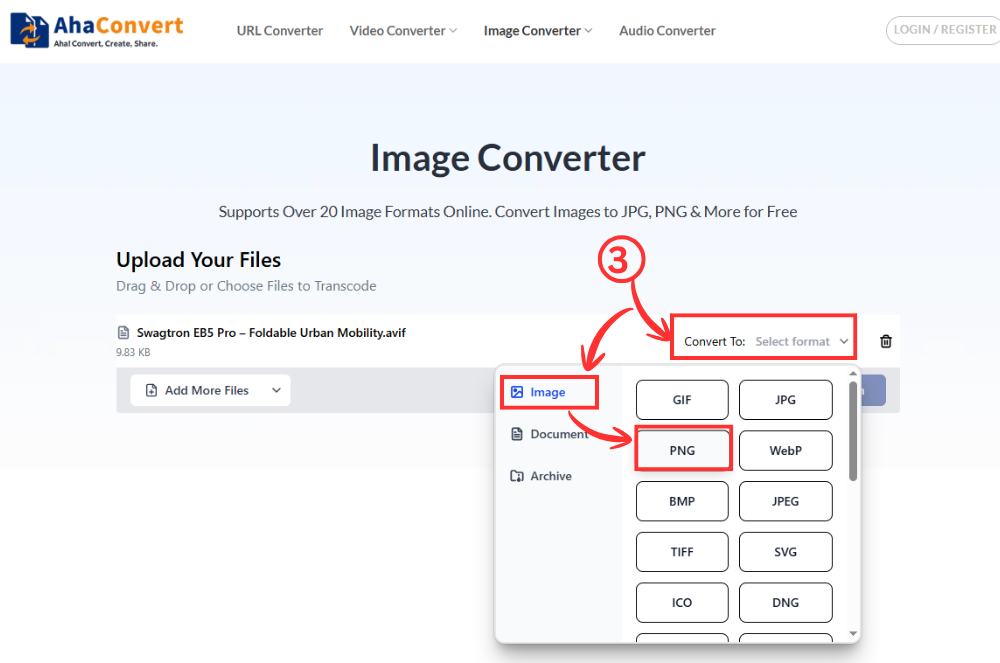
Step 3: Select PNG as Output Format
Once you are done uploading your files, find the option for the output format. Use “PNG” from the formats available. This action instructs the tool to transform AVIF to PNG without deteriorating the quality of the images.
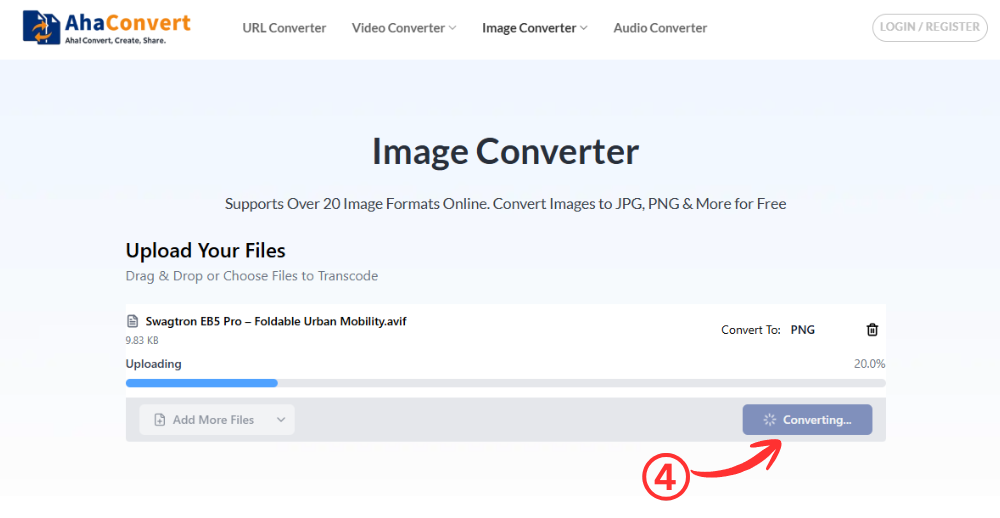
Step 4: Start the Conversion
To start, click the “Convert” button. The application will run your files in a matter of seconds, depending on the size of the file.
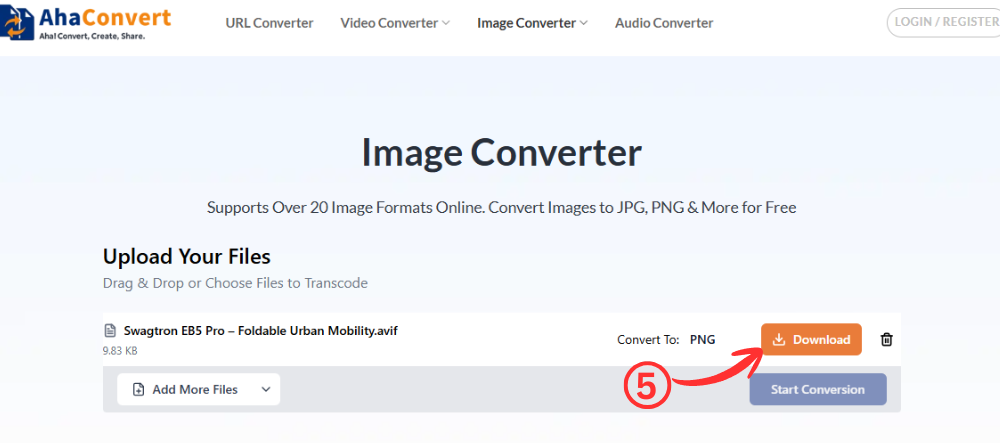
Step 5: Download Your PNG Files
Once converted, click the “Download” button. In case you have several files uploaded, you can download each one of them separately.
Method 2 – Use Windows Built-in Tool
One of the simplest methods of converting images on Windows is through Microsoft Paint. It does not need any installation and has a familiar workflow, just like when using a simple JPG to PNG converter.
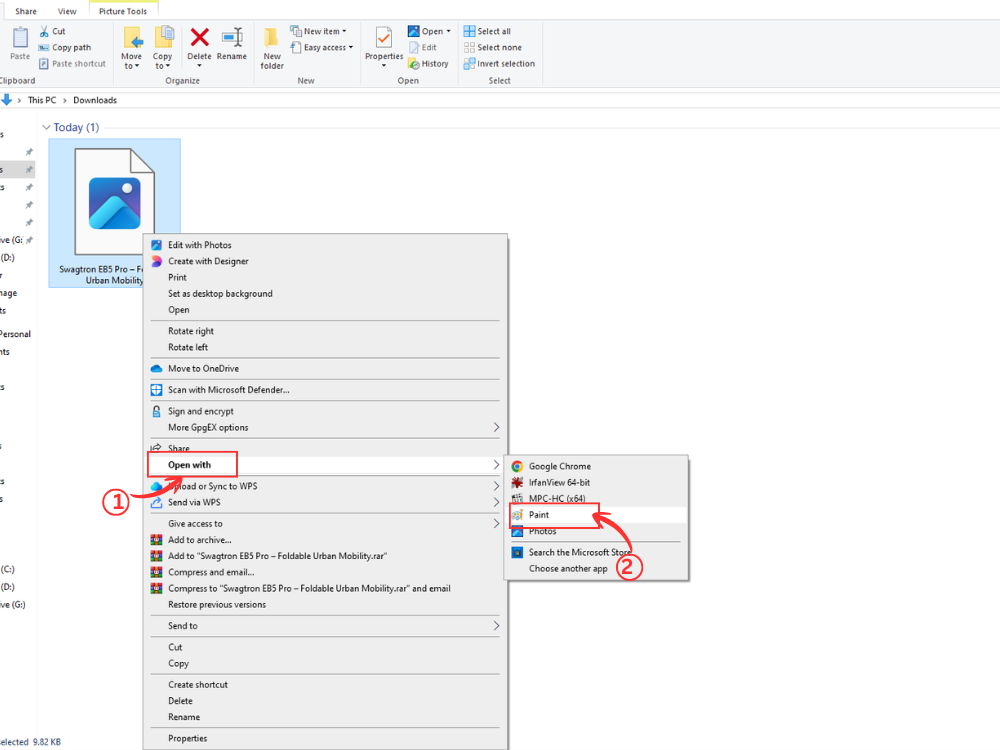
Step 1: Open the AVIF Image in Paint
Right-click your AVIF file and choose “Open with → Paint”. Then your system can take the AVIF format, and the image will be loaded in the Paint workspace. In the case that it does not open, then you might have to use some other method.
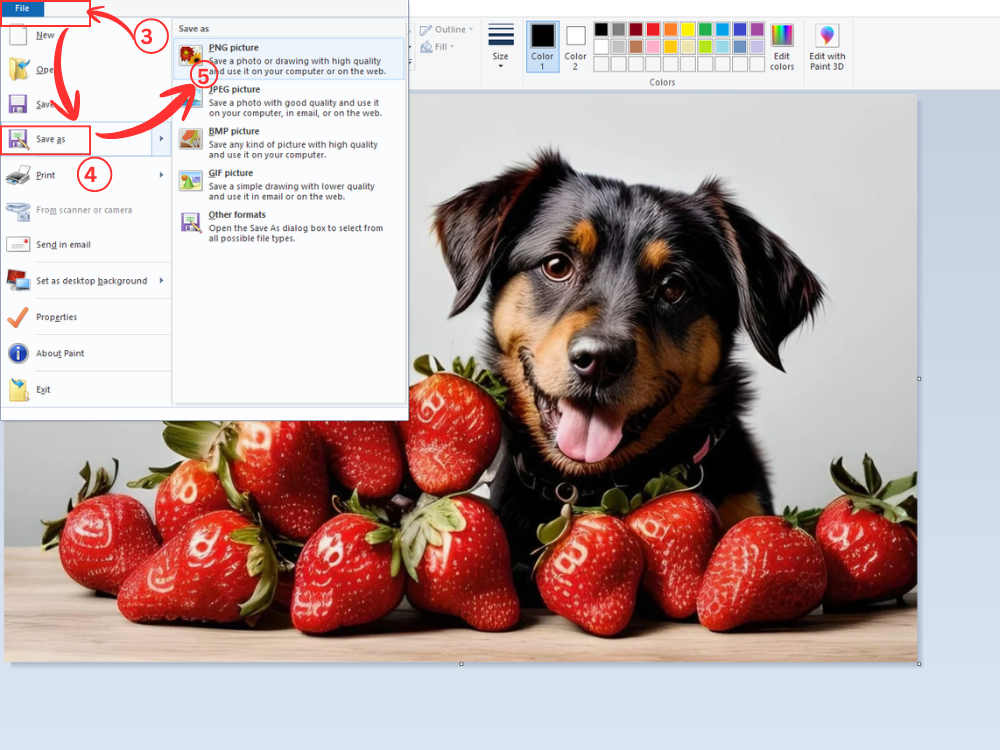
Step 2: Access the Save Options and Choose PNG as the Output Format
After opening the image, click the “File” option appears in the upper-left part of the screen, and it should be clicked. This will bring up a drop-down menu of the various file-saving options. Move the cursor over or click “Save as” and then select PNG picture as one of the options. This step will make sure that your image will be converted from AVIF to PNG format.
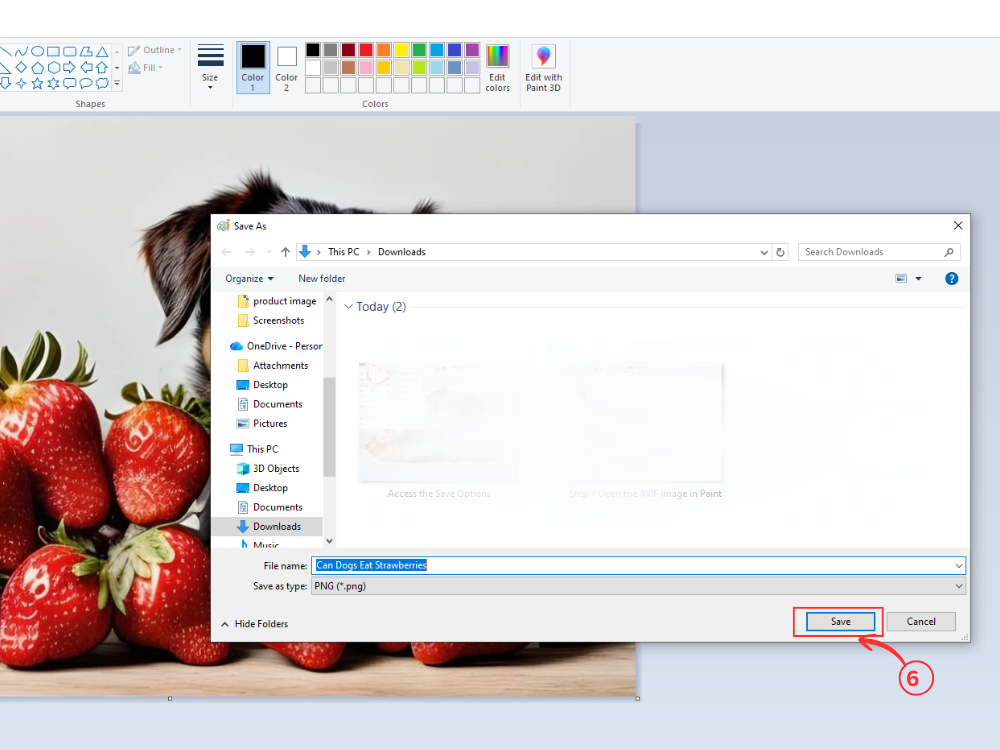
Step 3: Save the Converted File
Choose your save location and click “Save”. You can save a file name when required, and then click “Save”. And your picture is ready to use.
It is most suitable to use in simple tasks that you simply need to convert AVIF to PNG without any additional functionality.
Method 3: Irfan View (The Fast and Lightweight Choice)
IrfanView is a fast and simple Windows image viewer. When the necessary plugins are installed, it is used as a solid AVIF to PNG tool. It is also a fast JPG to PNG converter for many users due to its lightweight nature.
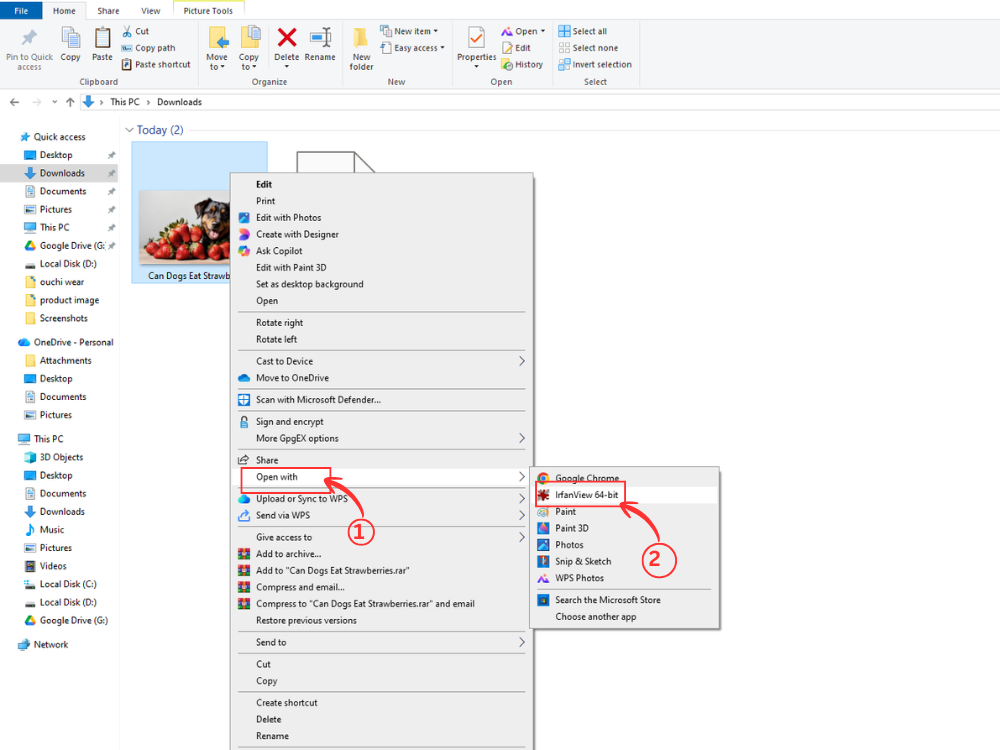
Step 1: Open the AVIF Image in IrfanView
Right-click your AVIF Image and choose Open with → IrfanView. The picture will be fast-loading for the viewer. Ensure you have applied the IrfanView formats plug-in in order to see AVIF files.
Step 2: Choose and Save PNG as an Output Format.
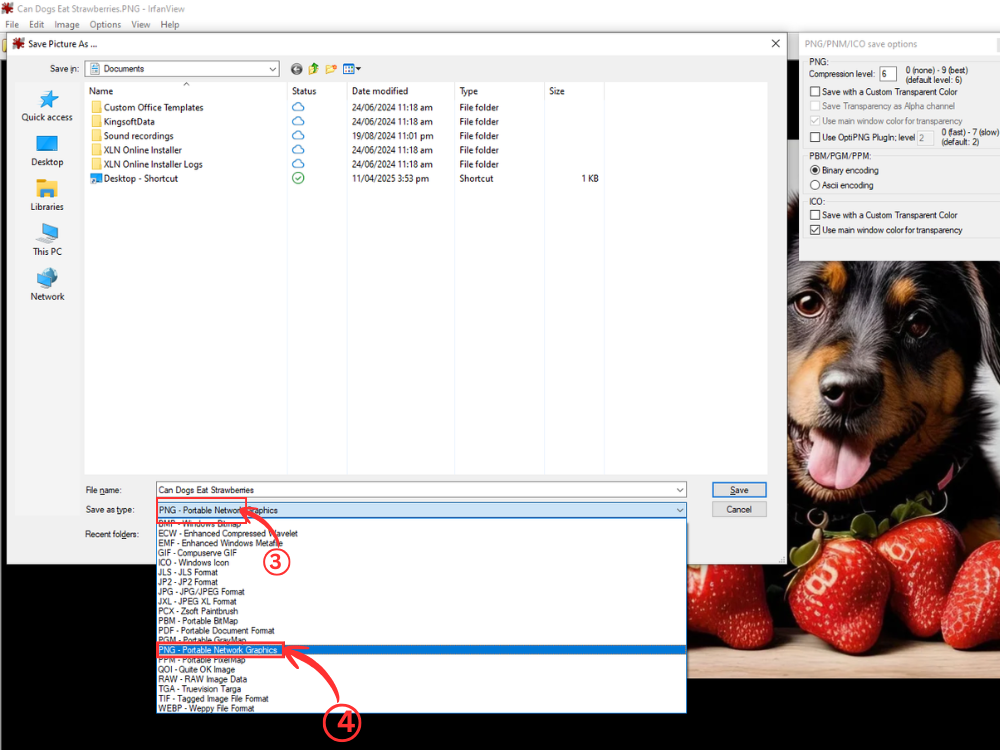
Click on “S” on your keyboard or File > Save As. Use the Save as type menu, which is a drop-down menu, and then select PNG – Portable Network Graphics.
Step 3: Customization of PNG (Optional)
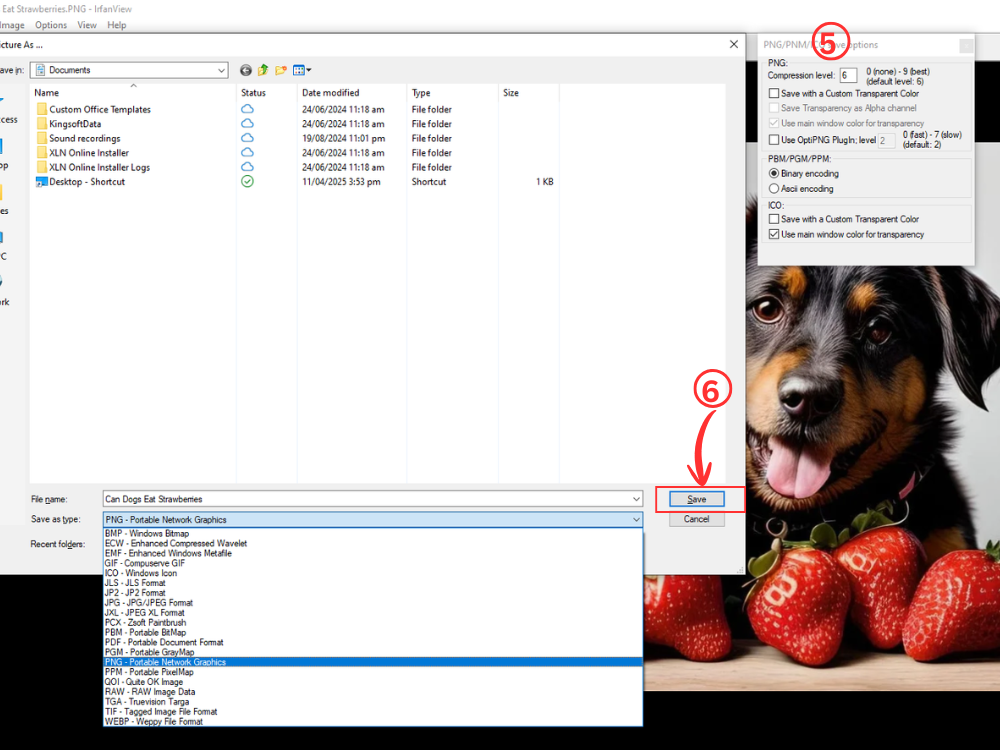
A small pop-up window reading PNG/BMP save options will appear. Make sure that you have checked the option of saving transparent color in case your AVIF has a transparent background. Select where to save it and click “Save.”
AVIF to PNG Conversion Tips
To achieve the best quality and efficiency in converting AVIF to PNG, it is essential to learn some of the main practices. These will allow you to get the best possible outcomes regardless of the method that you adopt.
Check your AVIF files first before converting. Open them in a matching viewer to make sure that they have not been corrupted or damaged. Reformatting an invalid source file only causes the problems to be transferred to the PNG output. Early detection of problems helps save time and frustration.
The conversion methods you will use should depend on your intended use. Web applications such as AhaConvert AVIF to PNG converter are preferred for normal web images and in general applications. But when you are ready to print images to be used professionally or on a large display, you have more control over quality settings with the help of Gimp, IrfanView, or other such software.
Multiple files are processed with great savings of time when done with batch processing. Instead of uploading each image separately, upload several images at the same time to AhaConvert or Gimp batch processing or extensions. This style is especially useful in cases of photographers and web developers who deal with tens or even hundreds of images.
Keep file systems well organized during conversion. Make specific directories for your AVIF to PNG converter. Clarity ensures that one does not get lost and later on finds it easier to retrieve a particular file. In consideration, descriptive filenames where format and version are indicated are to be considered.
Check file sizes on conversion. The compression methods will make PNGs bigger than their AVIF counterparts. File size may be an issue when working with web or even storage, so you may consider converting JPG to PNG instead when working with photographs, but this presents lossy compression. PNG is the more preferable choice with large sizes because the graphics are transparent.
Keep your original AVIF files when converted. The cost of storage space is on the decreasing side, and it would be feasible to retain both versions. The presence of originals will also be handy in case you require different forms in the future or when conversion settings need to be altered.
Frequently Asked Questions About AVIF to PNG
1. Is AVIF better than PNG?
AVIF is also the best in compression, with files approximately 50-90% smaller than the size of PNG, and similar quality. PNG is, however, better compatible with all platforms and applications. No format is better or worse; your needs for file size or compatibility determine each version.
2. Does converting AVIF to PNG reduce quality?
No, in the general case of converting AVIF to PNG, the visual quality can and frequently does not decrease. PNG is a lossless compression code, and it does not lose any visual data during the conversion operation. The PNG version presents precisely the same quality as the AVIF file due to the compression of the picture that AVIF had already completed.
3. Can I convert AVIF to PNG for free?
Yes, there are several free solutions for AVIF to PNG conversion. AhaConvert offers free unlimited registration and free conversions. Windows Paint is a simple application that provides conversion functionalities to users who might want to use the built-in modules. GIMP also provides high-quality conversion freely, with high-end features to be used.
4. Why can’t I open AVIF files on Windows?
Earlier versions of Windows do not have native AVIF support. AVIF files can be opened in Windows 10 (Version 19H1 and beyond) and Windows 11 with the AV1 Video Extension that is installed in the Microsoft Store. Instead, the compatibility problems are addressed by third-party viewers such as IrfanView or conversion to PNG.
5. Is AVIF supported by all browsers?
AVIF is compatible with such modern browsers as Chrome, Firefox, and Edge. Safari has become better with support in Safari since the last versions, although older versions and Internet Explorer do not provide them. In order to prevent cross-platform and cross-device compatibility problems, several users encode AVIF as PNG to ensure better display.
Wrapping Up
Image file conversion does not have to be complex and costly. Regardless of the online tools, built-in Windows programs, or professional software, it is simple and easy to convert AVIF to PNG.
AhaConvert is a good AVIF to PNG converter for most users, as it provides free and unlimited conversion with the ability to convert in batches. The web-based application does not need to be installed and is compatible with any device in a safe environment. Windows Paint offers a simple native conversion, should the conversion be occasional. Gimp has an extensive feature set that can be used by professional users who need advanced control.
It is important to remember that, depending on your situation, the right format should be selected. AVIF has high compression potential for contemporary web applications, whereas PNG possesses compatibility and lossless quality across the board. Knowing how to convert AVIF to PNG effectively will enable you to apply the strengths of both formats in the most suitable ways to make sure that your images always appear beautiful and should be used where they are well-seen and received.
