

Back in the Windows 95 and early XP days, many images, especially those saved with Paint, were saved as .bmp files. Even though that feels like a long time ago now, BMP was quite ahead of its time. The images looked clean, detailed, and sharp, as long as the original picture was clear.
The only real problem was the file size. BMP files could get heavy, which made them harder to send, upload, or store.
Today, BMP may not be as popular as JPG or PNG, but you can still find it in old files, scans, and legacy systems. Since these files often need sharing or printing, many users convert BMP to PDF for better compatibility. In this guide, we will cover how to convert BMP to PDF and which tools can help maintain quality.
What is BMP Format?
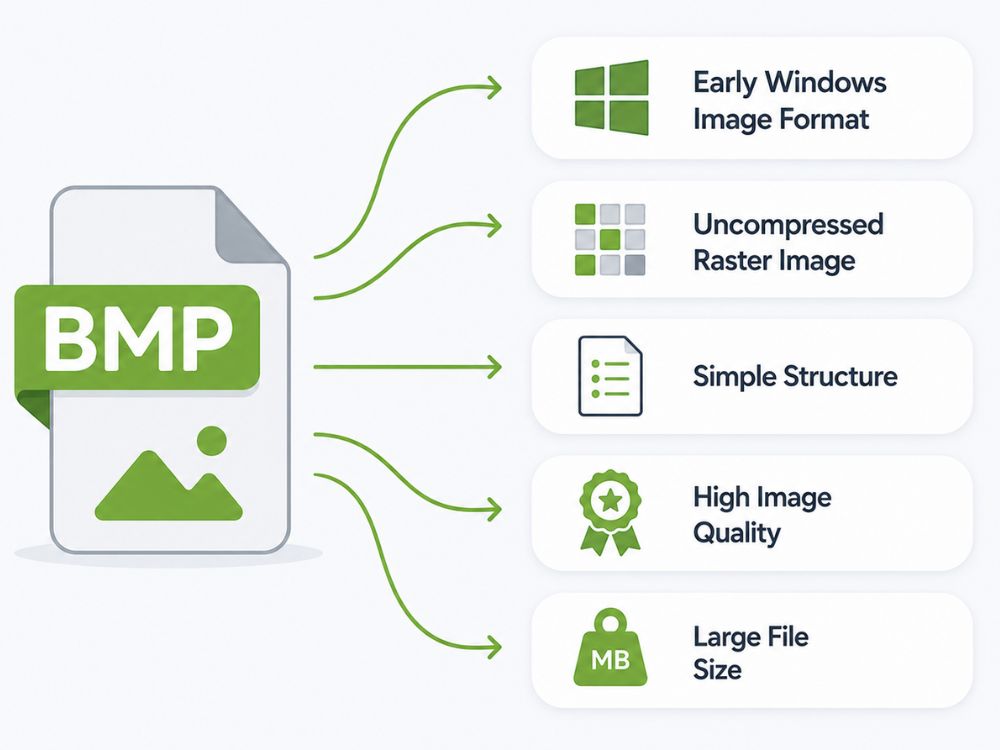
Bitmap, or BMP, was one of the star formats in the earlier Windows era. If you used Paint on older Windows versions, saved a desktop wallpaper, or worked with basic Windows graphics, there is a good chance you came across a .bmp file.
A BMP file is an uncompressed rasterized image format consisting of four main parts: the file header, bitmap information, color palette, and bitmap data. The file header tells the system that it is reading a BMP file. The bitmap information explains the image size, color depth, and layout. The color palette helps map colors in some BMP files, while the bitmap data holds the actual pixel values that make up the image.
This simple structure made BMP easy for Windows programs to read and display. It was also popular because it kept image quality intact. Since BMP usually stores images without compression, pictures could stay clean, sharp, and detailed. That made it useful for printing, icons, cursors, scans, and older Windows-based graphics.
The problem was the file size. BMP files were heavy, but that was easier to tolerate when Windows was the main environment for many users. As more operating systems, devices, websites, and modern formats became common, BMP became less practical for sharing. Today, it still has its place, but is converted to either PDF or another more compatible file format for sharing.
Why Convert BMP to PDF?
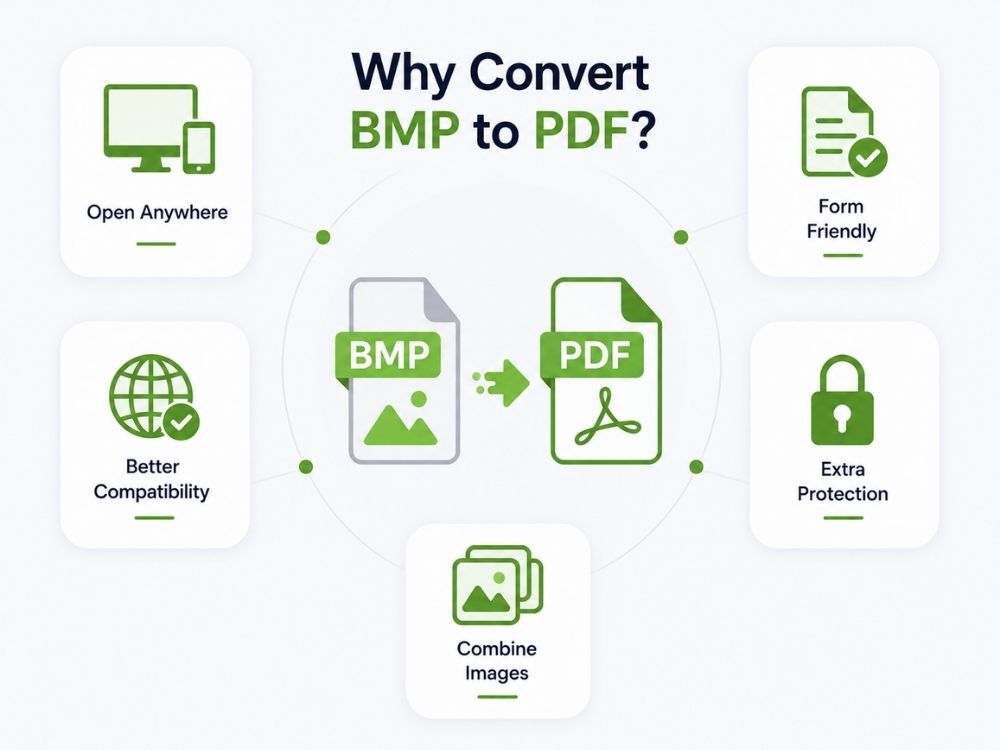
BMP files can be very large, and sharing them across platforms can raise compatibility concerns. PDFs aren’t just a universally accepted file format; they can contain the .bpm file content, which can be easily shared for viewing or printing.
This reason is pretty similar to why people convert GIF to PDF. To be even more precise, these are a few reasons why many may want to convert BMP to PDF.
- A PDF opens easily on Windows, Mac, phones, browsers, and office systems.
- Many online forms and portals accept PDF, but may not accept BMP.
- Printing is cleaner with PDF because the image sits inside a proper page layout.
- Several BMP images can be combined into one PDF instead of being sent one by one.
- PDF is usually a preferred format for school, office, client, and government submissions.
- PDF can also support passwords and permission settings, which helps when the file contains private information.
BMP vs PDF
BMP and PDF are very different file formats, but the table below outlines the main differences in their key features.
| Feature | HEIF | HEIC |
|---|---|---|
| Full Name | High Efficiency Image File Format | High Efficiency Image Container |
| Relationship | Main image format standard | Specific HEIF-based file type |
| File Extension | .heif | .heic |
| Compression | High efficiency compression | HEVC (H.265) compression |
| Common Usage | Multiple platforms | Apple devices mainly |
| Transparency Support | Yes | Yes |
| Image Sequences | Supported | Supported |
| Compatibility | Limited on older systems | Limited on older systems |
Benefits of Converting BMP to PDF
- Converting BMP to PDF makes old or heavy image files easier to handle, especially when you need to send, print, upload, or store them as proper documents.
- Works better across devices: PDF is accepted by most office tools, browsers, phones, printers, and online systems.
- Smaller in size: BMP files are often heavy. A PDF can be easier to store when the converter uses compression properly.
- Easier to share: Email, WhatsApp, online forms, client work, school files. PDF fits these situations better than a raw BMP image.
- Better for web uploads: Many websites and portals prefer PDF for scanned forms, receipts, certificates, and records.
- Cleaner printing: PDF gives the image a proper page layout with margins and page size.
- One file instead of many: Several BMP images can be combined into a single PDF.
- Looks more formal: Better for office, school, client, and government submissions.
- Security options: PDFs can support passwords, restricted editing, and printing permissions.
- Better for long-term records: PDF keeps scans, old files, and certificates easier to organize.
AhaConvert BMP to PDF Converter
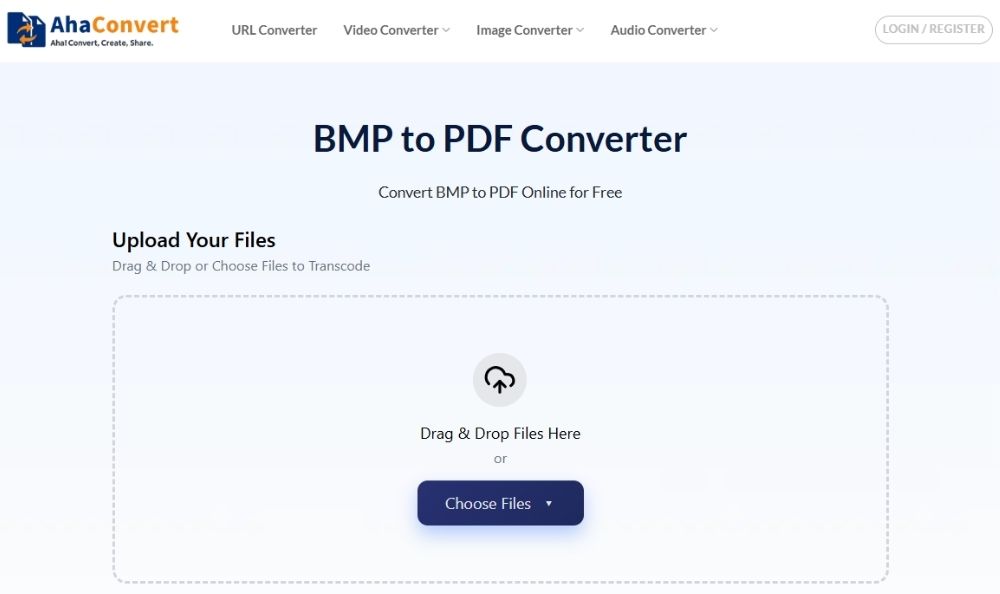
AhaConvert is a newer online converter, but it already supports 300+ file formats across images, documents, audio, video, and ebooks. Its BMP to PDF converter is simple to use, where you can also upload multiple BMP files at a time, which helps if you are trying to turn several images into PDFs without repeating the same process again and again.
The output also uses the PDF page space well. Instead of leaving the image looking tiny in the middle of the page, it places the BMP across the page in a cleaner way. Downloading the final file is just as easy, which is what most users need from a BMP to PDF converter.
Pros
- 300+ file formats
- Entirely free to use
- Batch conversion supported
- Works on any device
Cons
- Few advanced PDF settings
How to Convert BMP to PDF on AhaConvert
Step 1: Open the AhaConvert BMP to PDF Converter
Go to the AhaConvert BMP to PDF converter in your browser. Since it works online, you do not need to download or install any software.

Step 2: Upload your BMP image
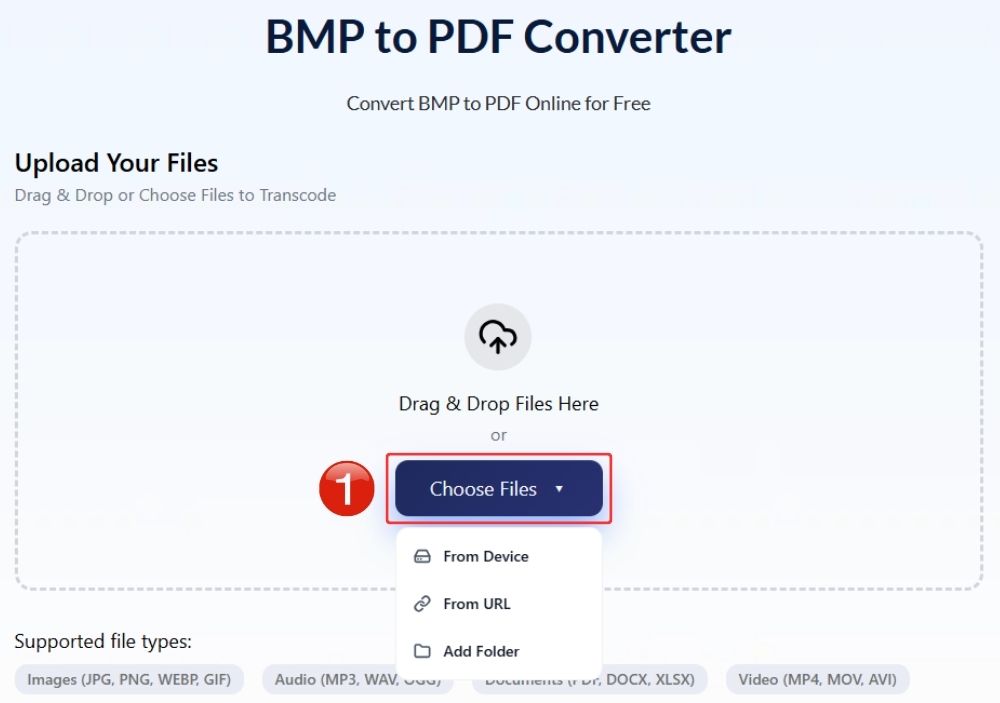
Click Choose Files and select your BMP file from your device. You can also drag the file into the upload area if that feels easier. If you have more than one BMP image, you can upload multiple files in the same session.
Step 3: Start the BMP to PDF Conversion process
Make sure the output format is set to PDF and click the Start Conversion button. The tool will process the BMP file and prepare the PDF.
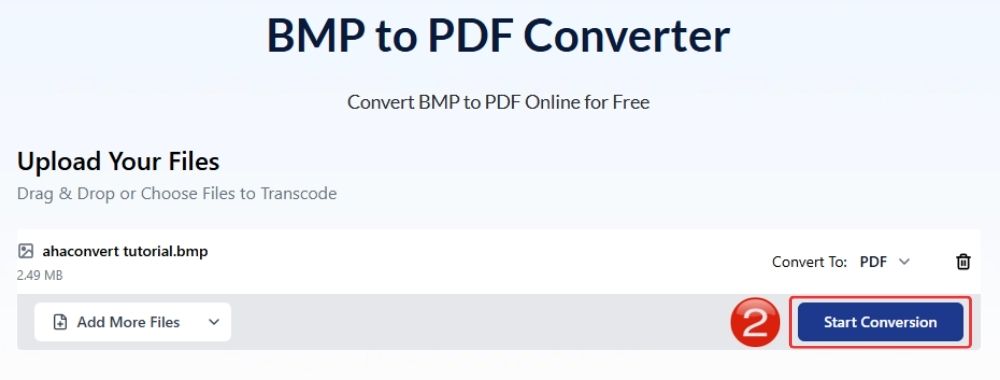
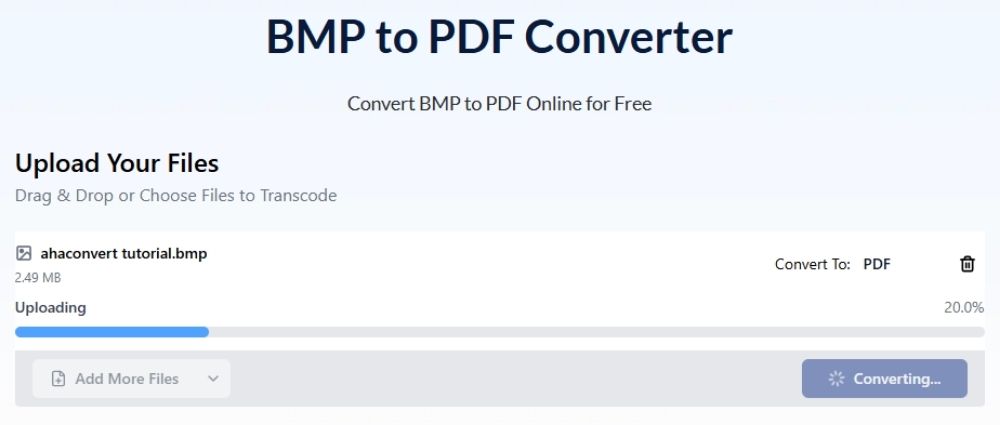
Step 4: Wait for BMP to PDF conversion
Wait a couple of seconds till AhaConvert processes your BMP to PDF image conversion.
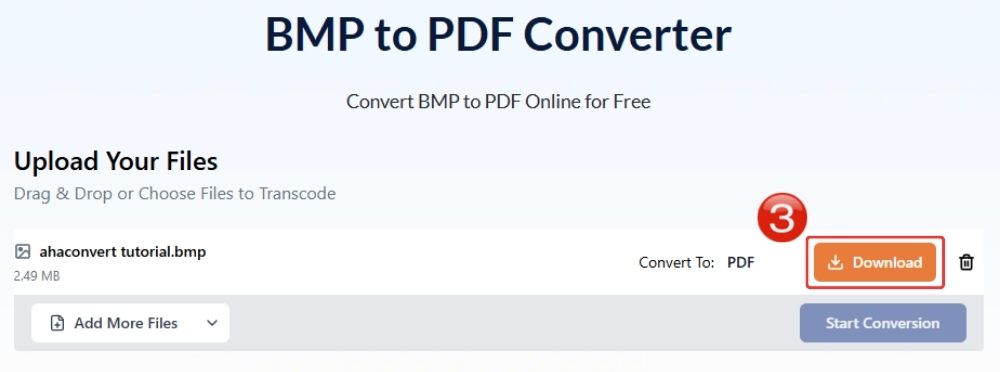
Step 5: Download the converted PDF
Once the conversion is complete, click Download to save the PDF file to your device. The final file should now be easier to share, print, upload, or store.
MiConv BMP to PDF Converter
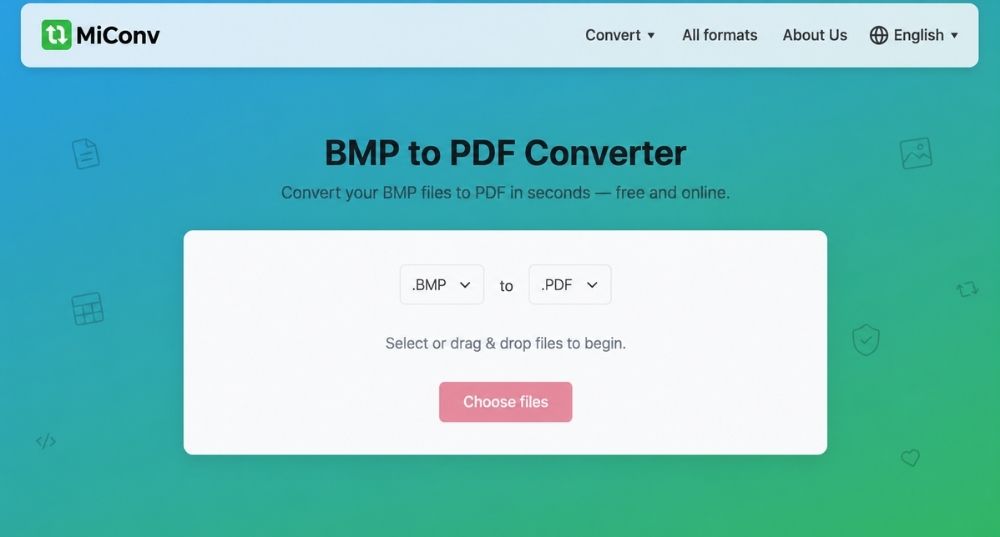
MiConv is another simple BMP to PDF converter, and it seems to hold up well for quick conversions. It claims to deliver files in around 20 seconds, which feels fair for regular BMP images.
The file limit is 75MB, and you can add more than one file, but the upload options feel a little limited. For BMP files, that may not be a big issue. But if you often work through URLs or need a more complete converter setup, it can feel restrictive.
Pros
- Fast conversion
- Simple upload process
- Good for quick BMP files
Cons
- No URL upload for BMP
- Not many PDF controls
How to Convert BMP to PDF with MiConv
- Head over to the MiConv BMP to PDF converter.
- Choose your BMP file from your device.
- Make sure the output format is set to PDF.
- Click Convert.
- Download the converted PDF file.
i2IMG BMP to PDF Converter
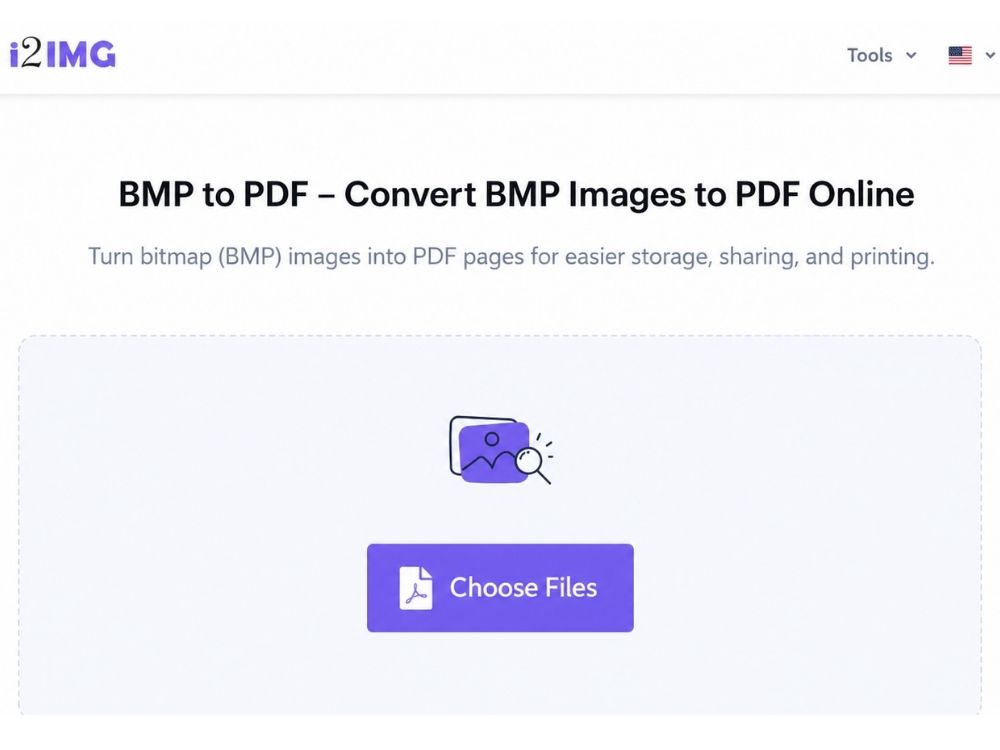
i2IMG is another free converter with browser-based image tools, and its BMP to PDF converter gives you more control than a basic upload-and-download tool. The upload can feel a little slow at times, but that makes sense once you see the extra options.
Each BMP image is placed on a separate PDF page. You can adjust the gap between pages, rotate images, reverse the order, fit the image to the page, change the page orientation, and adjust margins. That is useful when you care about how the final PDF looks, not just the conversion itself.
The only downside is that you do not get Drive or URL upload options. Still, for normal BMP to PDF conversion from your device, that is not a major issue.
Pros
- Margin and orientation controls
- Rotate and reverse options
- Fit image to page
Cons
- Uploading can feel slow
- No Drive or URL upload
How to Convert BMP to PDF with i2IMG
- Open the i2IMG BMP to PDF tool.
- Upload the BMP image or images from your device.
- Adjust the page settings if needed.
- Start the conversion
- Wait for the PDF to generate.
- Download the converted PDF file.
GuruPDF BMP to PDF Converter
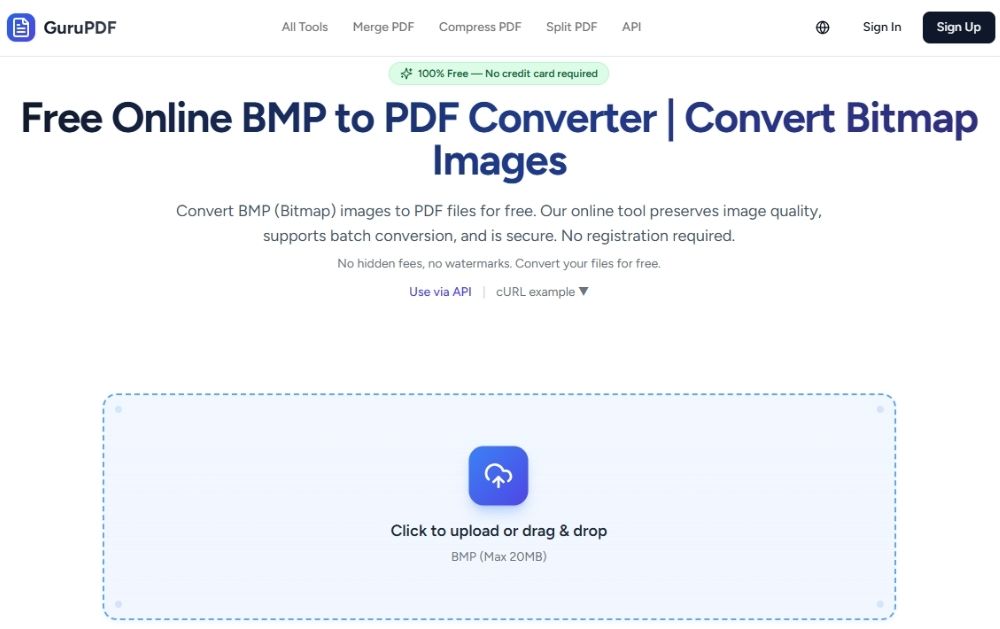
GuruPDF has a more modern feel than many basic converter pages. The BMP to PDF tool is made for users who want to keep the image quality and color depth intact, not just quickly turn the file into a PDF and hope for the best.
It can also combine multiple BMP files into one multi-page PDF, which is useful if you are working with scans, old image exports, or a batch of bitmap files. The file limit is 20MB per BMP, so it should handle most regular files without much trouble. It is free; however, sign-up is usually required before you proceed with BMP file to PDF conversions.
Pros
- Keeps color depth intact
- Combines BMP files into one PDF
- Auto-deletes files after 1 hour
Cons
- Fewer layout controls
- No advanced editing options
- Internet required
How to Convert BMP to PDF with GuruPDF
- Open the GuruPDF BMP to PDF converter and sign up.
- Upload your BMP file or drag it into the upload area.
- Add more BMP files if you want a multi-page PDF.
- Click the convert button.
- Download the final PDF.
Frequently Asked Questions
a. Can I convert BMP to PDF offline?
Yes. On Windows, you can open the BMP image and use the print option to save it as a PDF. Mac users can also open BMP files in Preview and export or print them as a PDF.
b. Is it free to convert BMP to PDF online?
Yes, many online BMP-to-PDF converters are free. AhaConvert, for example, lets you convert BMP to PDF without paying, and you can use it from any device with a browser.
c. Can I convert BMP to PDF on my phone?
You can. Open an online converter in your mobile browser, upload the BMP file, convert it, and download the PDF. That is usually the easiest method.
d. Does converting BMP to PDF reduce image quality?
Not automatically. A PDF can keep the BMP image clear if the converter does not resize, blur, or compress it too much.
e. Do online BMP to PDF converters store my images?
It depends on the tool. Some delete files after a set time, some mention encrypted uploads, and some are not very clear about it. Tools like AhaConvert use security protocols such as SSL encryption, which helps ensure secure transfer.
Conclusion
The most important part of converting BMP to PDF through an online converter is not just speed. It is how well the tool protects the original image quality. BMP files are valued because they keep images clean, sharp, and color-accurate, so the final PDF should not look faded, stretched, or softer than the original.
Security matters just as much. If you are uploading scans, old records, certificates, or business files, the converter should not make you second-guess where your file is going or how it is being handled.
AhaConvert is a jack of all trades. It is free, quick, supports multiple formats, uses SSL encryption, and keeps the BMP to PDF process simple enough for everyday use.
