
Introduction
If you have to send a receipt, submit a document, or share a photo in a format that will look the same. No matter which device it’s viewed on, turning a picture into a PDF on the iPhone can be a valuable skill.
PDFs are universally accepted, are easy to share, and are much more professional than sending loose image files. Fortunately, there are several methods you can use to do this on your iPhone. Some are built in, and others are available as a free online image converter that performs the task in seconds.
This guide will explore 4 practical approaches, so you can determine which one is suitable for you. There are pros and cons to each, and knowing what they are before you start will help you determine which method is the quickest for your purposes. Whether it’s a one-time process or the need to do it again and again.
Why Convert Pictures to PDF?
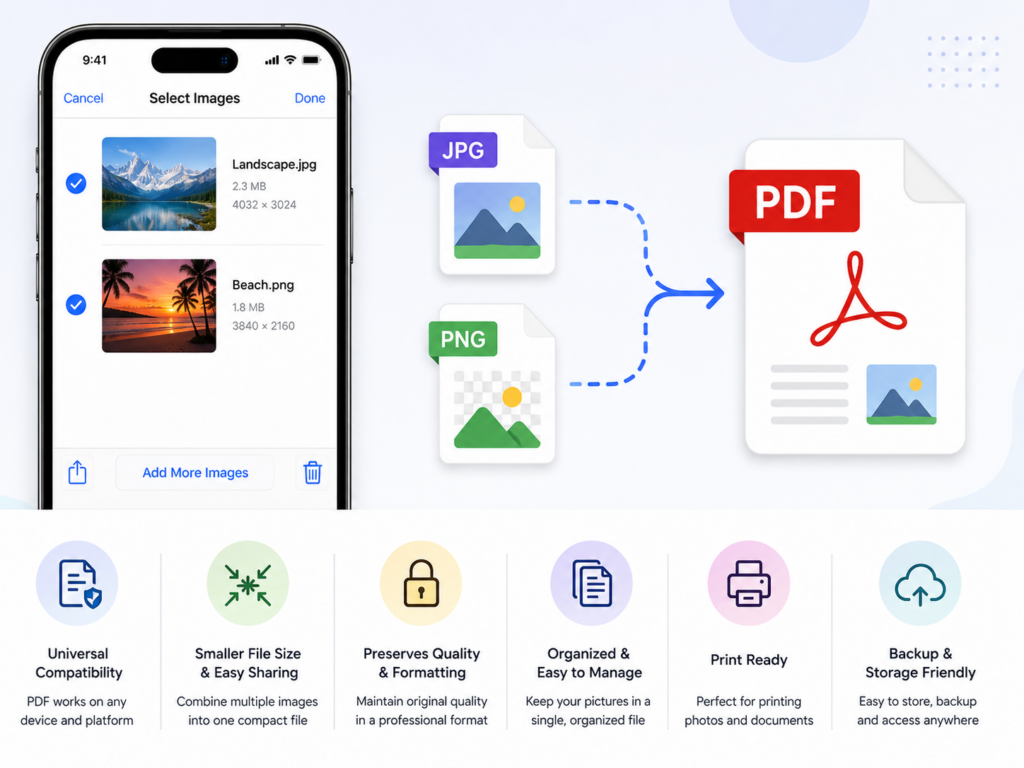
Before getting into the methods, it is important to be aware of the reason that converting pictures to PDF makes sense in so many situations. Here are the main advantages.
Universal compatibility. PDF files are accessible on nearly all devices and operating systems, including Windows, MacOS, Android, and iOS. And don’t need special software or cause any formatting problems. A JPG or PNG file, however, could look different on other devices.
- Professional presentation. Sending documents, invoices, or application materials in PDF format is more professional and intentional than sending raw image files. PDF is often the preferred format for official documentation. Such as for many employers, government bodies, and institutions.
- Multi-image documents. PDF enables you to add multiple pictures to one document that is organized. This is especially helpful when uploading a collection of documents (like ID photos, receipts, or property pictures). As one document instead of multiple attachments.
- Smaller, shareable file size. PDFs are good for compressing image content. Will not have a major impact on how well the quality of the images is seen in smaller files. If they are sent by email or uploaded to websites with size limits.
- Preservation of image quality. Converting to PDF preserves the original resolution of the images. Some sharing methods will compress and/or resize images on the fly.
Method 1: Convert Picture to PDF Using Photos App (Built-in Method)
iPhone’s Photos app includes its own print option. It acts as a handy tool for saving photos as PDF without needing any third-party software.
How to Convert Picture to PDF on iPhone?
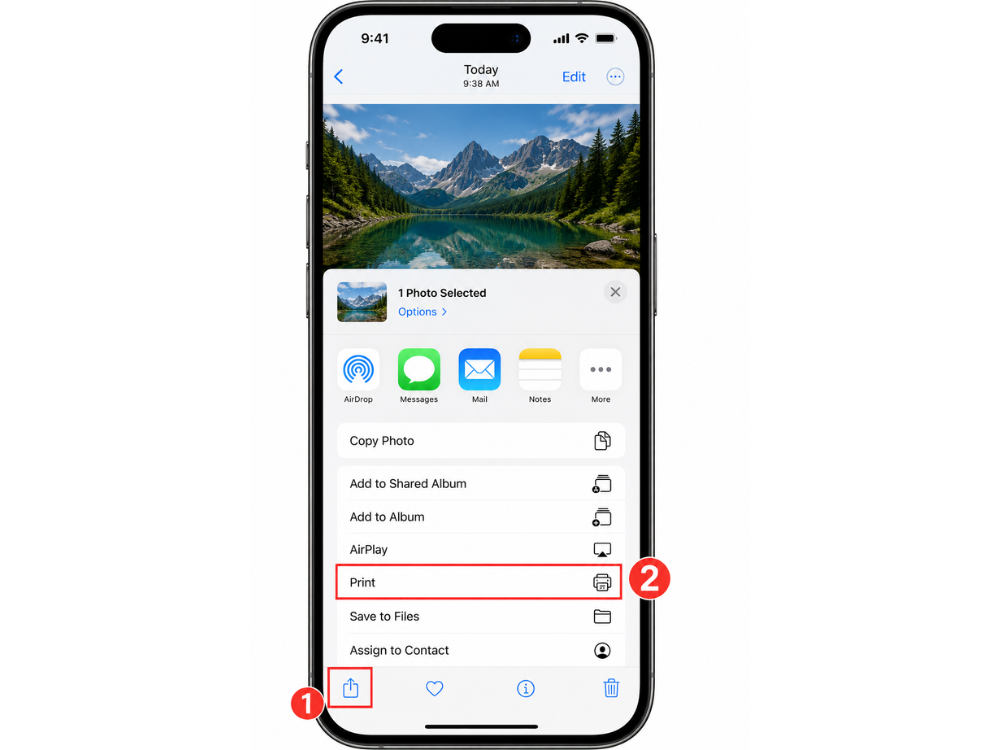
- Open the Photos app and choose the image to convert.
- Tap the Share button (the square with an upward arrow).
- Scroll down in the share sheet and tap Print.
- Tap the image preview with two fingers to zoom out on the Printer Options screen.
- Tap the Share button to open the image as a PDF in a new screen.
- Select Save to Files to save the PDF to your device, or share it directly via email or other application.
Advantages of This Method
This method doesn’t involve any downloads and is compatible with any iPhone with iOS 10 or newer. It’s quick, discreet, and free of charge. This feature, however, only converts one image at a time. Does not offer any quality settings for PDF or the ability to merge several images into one PDF.
It can do a quick, one-shot conversion if that’s what you’re looking for. It should be noted, too, that this trick doesn’t require a specific PDF application.
So the resulting PDF will occasionally have tiny white margins around the image based on the printer setting you have in place.
Method 2: Convert Picture to PDF Using Files App on iPhone
For images that are already in the device storage, you can save a little time by using another built-in route in the Files app.
How to Convert Picture to PDF on iPhone?
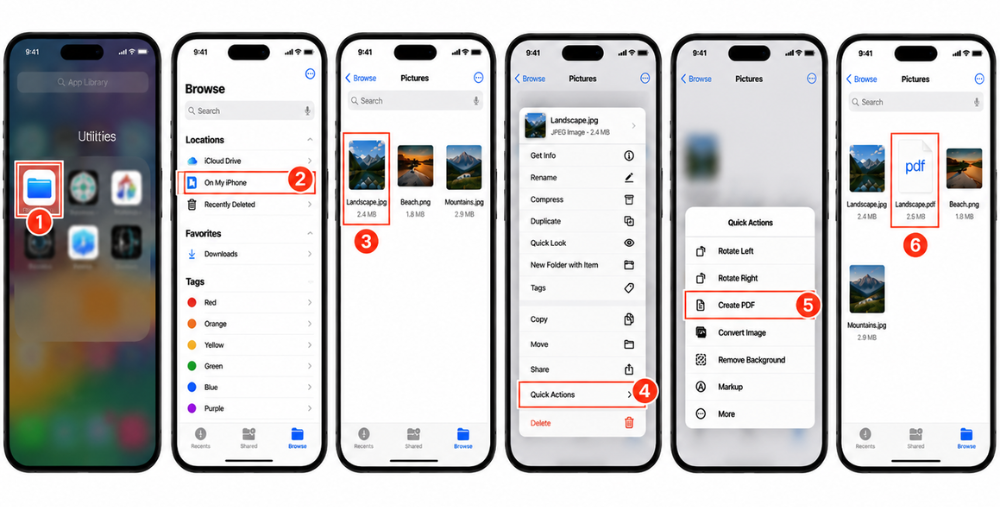
- Open the Files app on your iPhone.
- Go to the folder where the image is saved.
- Hold the image file down for a while, until you see a context menu.
- Tap Quick Actions, and choose Create PDF.
- The PDF is generated immediately in the same file and folder.
- Click on the PDF to view, share, or drag the PDF to another location.
Pros and Cons of This Method
Pros:
- Very fast – only two taps after locating the file.
- No Internet access is needed.
- Operates directly from the native file system that Apple provides, and
- generates PDF output immediately beside the original image.
Cons:
- The Files app method is best used when there are images on the local file system.
- It has no batch conversion nor output quality.
- It may not be a Quick Action option for all image types, such as less popular ones like HEIC for older iOS versions.
- For simple JPG or PNG files, though, it’s among the fastest built-in features offered.
This method also tends to work better for users who are already comfortable. Navigating the Files app’s folder structure. Since locating the right image first is a necessary step before the conversion shortcut becomes available.
Method 3: Convert Picture to PDF Using an Online Image Converter (Recommended)
If you require more flexibility, such as batch conversion, format selection, and cross-platform compatibility, then it is best to use a free online image converter.
What is an Image Converter?
An image converter is a browser application that enables users to convert an image file from one format to another, without installing anything on their computer. AhaConvert Image Converter is a free online tool that can convert more than 300 image formats, including JPG, PNG, HEIC, WebP, and more, directly from your iPhone browser into PDF.
There’s no account required; the files are encrypted with 256-bit SSL when converting. Any uploaded files are deleted automatically within 24 hours to ensure security. Easy-to-use solution for converting photos from any device. The tool isn’t an app, so it doesn’t cause the storage limitations that can be an issue on an older iPhone model.
How to Convert Picture to PDF on iPhone?
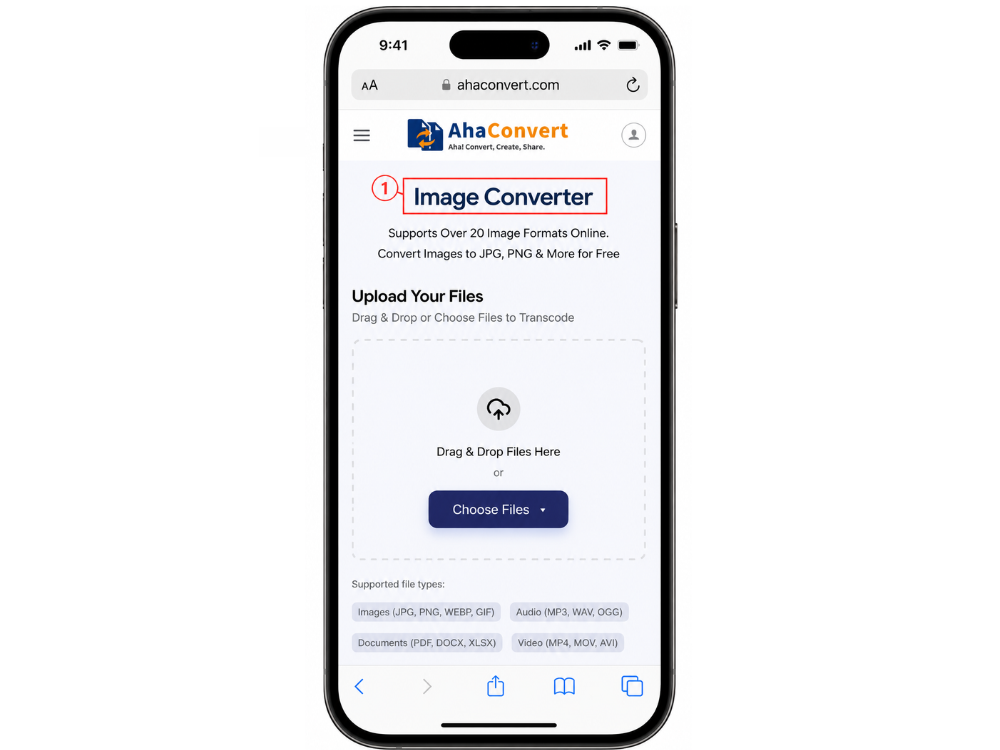
Step 1: Open AhaConvert Image Converter
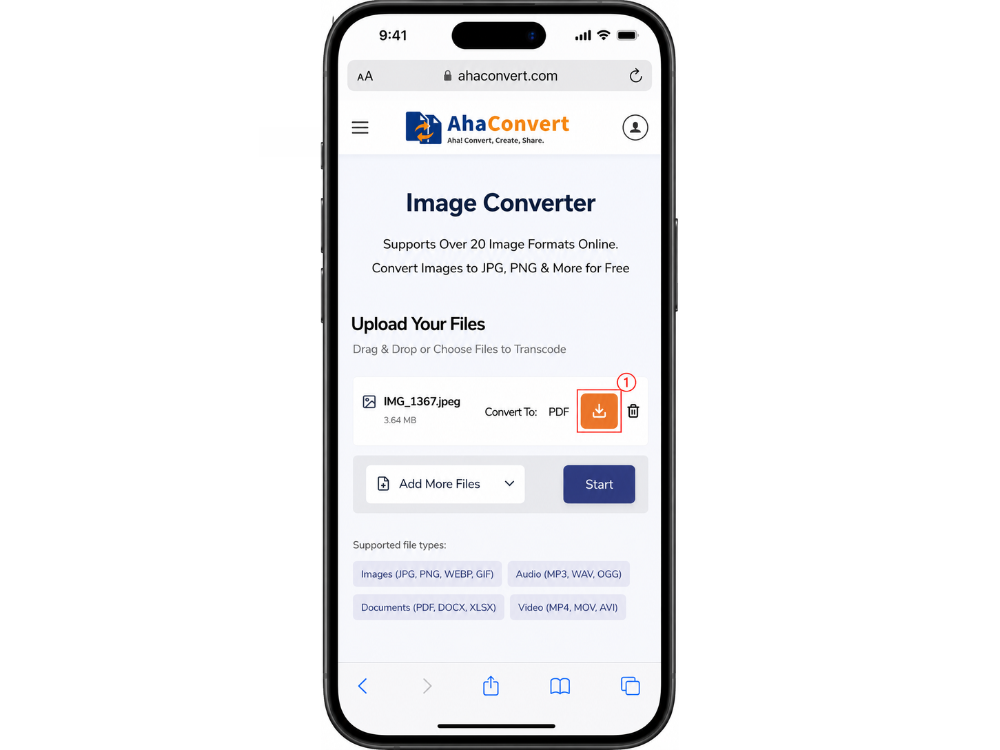
In your iPhone browser, navigate to AhaConvert Image Converter. No login needed, the upload area will be displayed right away.
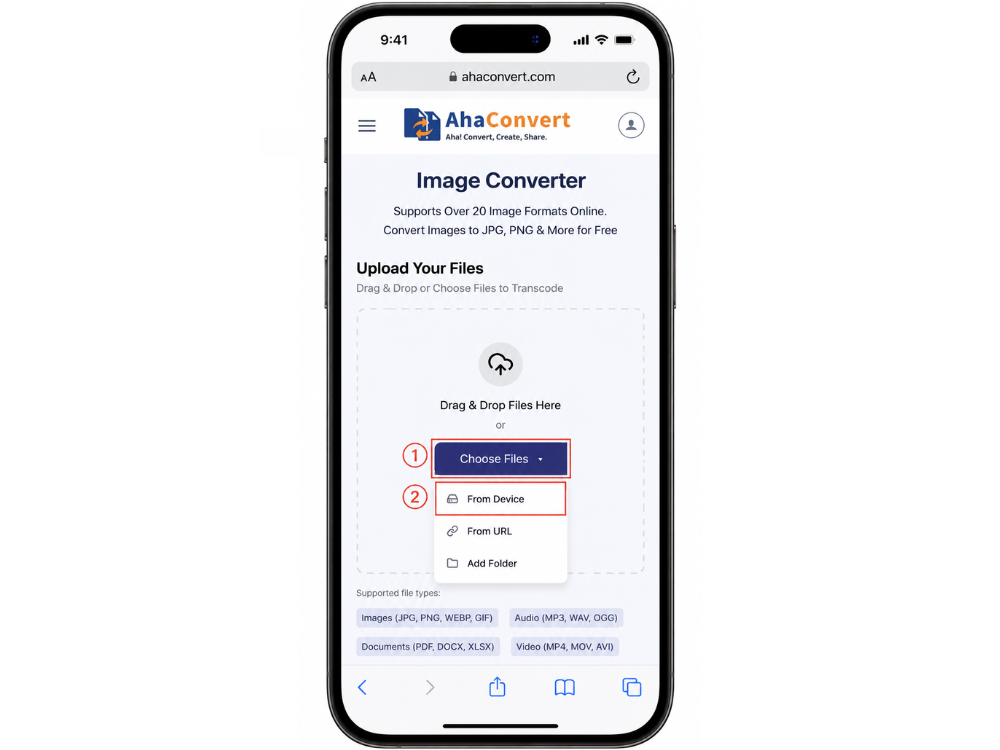
Step 2: Upload Your Image
Tap Choose Files to upload your picture. Tap the “From Device” option from the drop-down to choose from photos and/or camera roll. Alternatively, you can use From URL to paste in a direct image URL or drag and drop a file (if supported by your browser).
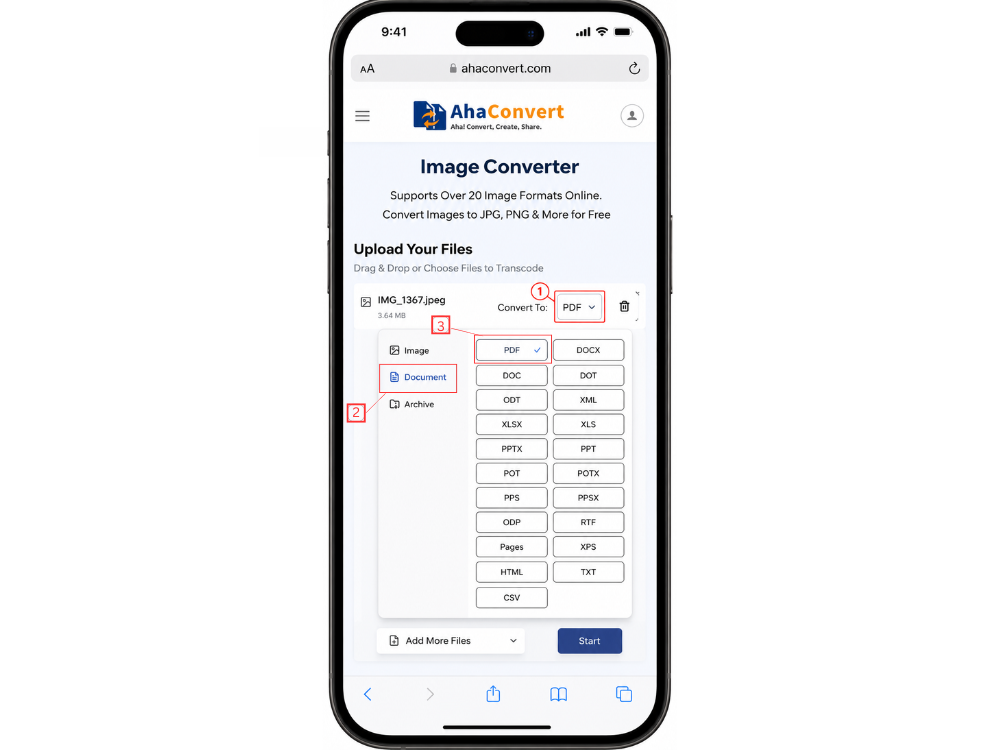
Step 3: Select PDF as the Output Format
Upload it and then choose PDF from the output format dropdown. Note: since the AhaConvert Image Converter is a general application, you must choose the output format yourself. Unlike AhaConvert’s specific converter (AhaConvert JPG to PDF converter, for example). Where the output format is automatically determined and only appears when it is necessary to choose one.
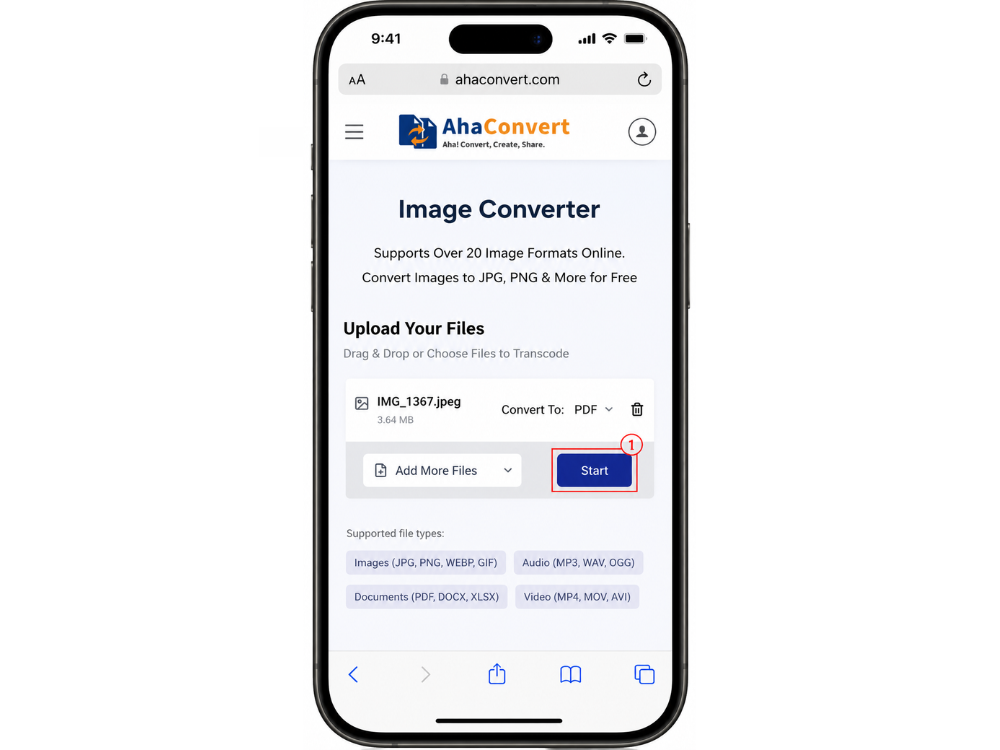
Step 4: Start the Conversion
Tap on the Start Conversion button. Your file will be processed in seconds, and let AhaConvert process your file.
Step 5: Download Your PDF File
Tap on the Download button to save the PDF file straight to your iPhone. It’s then located in your Files app in the Downloads folder.
Benefits of Online Image Converter
There are many reasons to use an online image converter, such as the AhaConvert image converter, which is better than the built-in iPhone image converter. First, it allows batch conversion; that is, you can upload several pictures and convert them all in a single action. This saves a great deal of time from converting them one by one.
Second, it supports a variety of file formats, such as HEIC, WebP, and TIFF, which the Photos and Files apps might not process as well. Third, it is browser-based, so it will function exactly as on any device. Whether it’s an iPhone, iPad, Android, or desktop, it won’t require any app installation.
Lastly, the end result is a properly formatted PDF with good image quality that has been converted. The cross-device consistency is especially helpful for those who frequently switch between an iPhone and a laptop during the day. The same converter and workflow are used on both devices, regardless of their availability.
Method 4: Convert Picture to PDF Using Third-Party Image Converter Apps
There are several third-party applications that excel at converting pictures to PDF from the App Store, if you prefer to keep a dedicated app on your home screen.
How to Convert Picture to PDF on iPhone?
Using Adobe Acrobat Reader as an example:
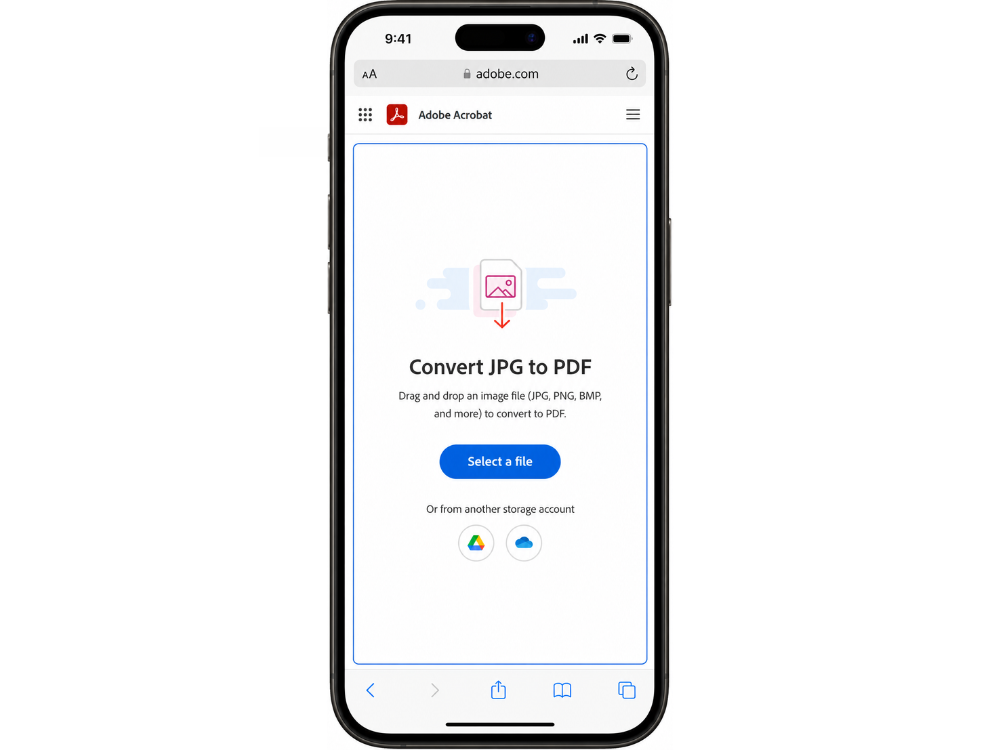
- Open Safari on your iPhone and go to the Adobe Acrobat JPG to PDF converter page. The page shows a Select a file button in the center.
- Tap Select a file and choose a picture from your iPhone. Adobe Acrobat will upload the image and convert it into a PDF file.
- After the conversion is complete, download the PDF to your iPhone. You can save it in the Files app or share it with others.
There are other popular applications like Scanner Pro, PDF Expert, and Small PDF that provide similar workflows.
Pros and Cons of Mobile Apps
Pros: Dedicated apps usually have other functions, like editing, annotation, joining several PDF files, and also signing documents. They operate in offline mode for basic conversions. And provide a much cleaner interface that is specifically geared for document management in mobile.
Cons: Most apps that are capable are subscription-based, and free versions usually include limits on conversions or watermarks. Adding and keeping other applications also consumes disk space.
A free online image converter, such as the AhaConvert image converter, is more convenient for users who need to convert images occasionally, and does not come with installation and maintenance costs. It may be a worthwhile expense for those who are already using Adobe products for their jobs, though, since a subscription includes a wider range of editing tools.
Frequently Asked Questions
1. Can I convert picture to PDF on iPhone without an app?
Yes. Two native options don’t involve downloading additional apps on the iPhone. The Photos app’s print option allows you to print any picture as a PDF by pinching out in the print preview. Quick Actions has a “Create PDF” option within the Files app. These are free and on any modern iPhone.
2. Is the online image converter safe to use?
Yes, as long as you use a reputable tool. All uploaded files are converted with 256-bit SSL encryption, and the files are automatically deleted after 24 hours. Data is not shared or sold on the platform. Whether you’re converting personal photos or professional documents, AhaConvert is a reliable choice.
3. Can I convert JPG, PNG, or WebP to PDF on iPhone?
Yes. The AhaConvert image converter is compatible with all three formats, as well as HEIC, TIFF, BMP, and many more. Just use the same procedure with the converter in your iPhone browser, drag your image from any of the aforementioned formats, choose PDF as the output, and download it. There is no need to install any applications.
4. Is there a free image converter for iPhone?
Yes. There is no fee, plan, or registration required to use AhaConvert. It is available for use directly in your iPhone’s browser and supports batch conversion, where multiple images can be converted in a single operation without needing to pay anything.
5. Does converting an image to PDF reduce quality?
Not very, particularly with a good converter! When embedded in PDF, the image content is displayed with the same resolution as the source file, and the quality of the pictures is close to that of the source file. For most purposes (sharing, emailing, printing), the difference is not apparent with standard compression settings. But this varies by compression method and settings used.
6. Can I combine multiple photos into one PDF on iPhone?
Yes. The built-in Photos and Files app functions are single-image conversion, whereas AhaConvert can support batch uploading. If you want to merge several pictures into one PDF file, then you can also find the combined feature directly from the mobile browser. Such as iLovePDF or Adobe Acrobat.
Wrapping Up
Here are a few ways to convert a picture to PDF on iPhone, depending on your needs. For simple, one-shot conversions. The built-in Photos and Files application methods are the quickest, without requiring any setup. There are features to be gained with third-party apps, but there are tradeoffs in cost and storage.
When it comes to versatility and flexibility, the AhaConvert image converter is the easiest to use when dealing with multiple images or less common formats. No installation is required; it is free, browser-based, and produces a clean PDF every time.
Regardless of which one you select, having two or more ways to accomplish a conversion will put you in a position to complete the job quickly on the fly. When it comes to converting a photo into a PDF on your iPhone. All of these will do the trick – just choose the one that works best for you!
