
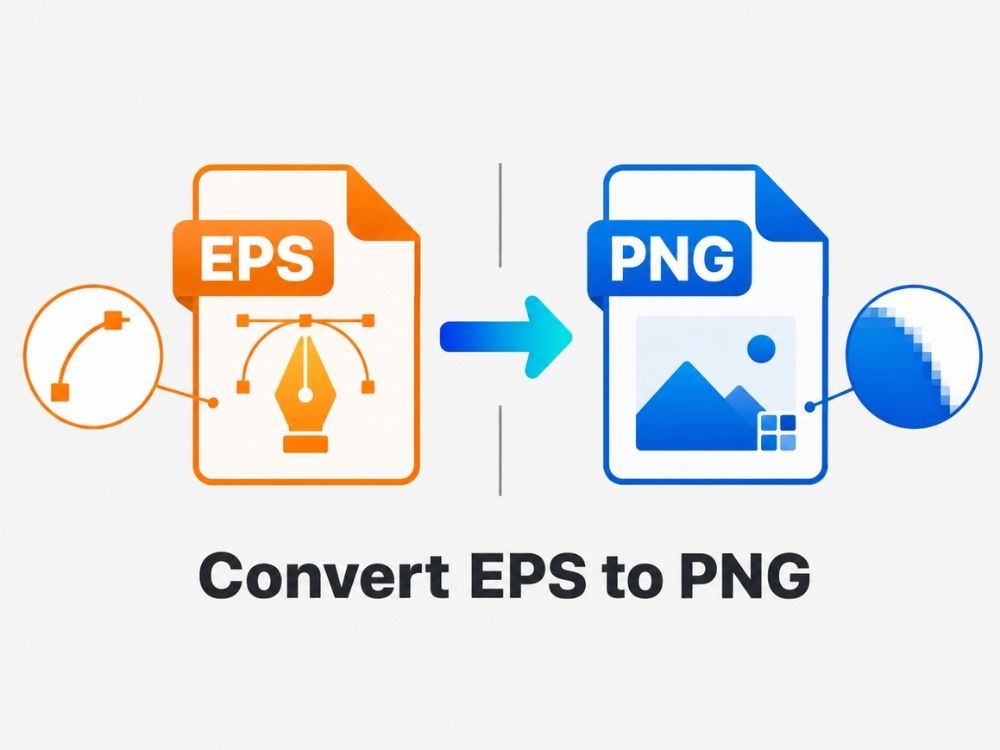
The EPS vector file format has stood the test of time since the late 1980s. Vector files like EPS are great for many reasons, especially because you can zoom into them however much you want to and they won’t “burst”. However, at times, you may find yourself wanting to convert to a raster file format like PNG for reasons like making it more accessible to editing.
EPS to PNG is one of the most common conversions users go for. In this article, we will explain why this conversion helps, what to expect from an EPS to PNG converter, and how to convert EPS to PNG without making the process confusing.
EPS VS PNG
What is EPS format?
EPS, short for Encapsulated PostScript, is a vector file format. This means the image in the .eps file format isn’t built on pixels but mathematical instructions that define every line, curve, shape, and color.
EPS images can be shrunk to the size of a grain of rice or expanded to the size of an aeroplane without losing quality or becoming blurry. This is one of the main reasons why the printing industry still values EPS files today.
EPS was created by Adobe in the late 1980s. While it was initially associated with Adobe tools, many other design programs and editors can now open EPS files as well. Still, users may sometimes face issues when opening, sharing, or editing them. Because of these reasons, users frequently convert EPS files to other file formats, such as converting EPS to PDF or PNG.
What is PNG format?
PNG, which stands for Portable Network Graphics, is one of the most popular raster image formats because of a few of its important features. First, PNG uses lossless compression, which means the file can be compressed without losing image quality.
Second, it supports transparency. Many formats, such as JPG, do not support transparent backgrounds, which is why people often convert JPG to PNG when they need logos, icons, or design elements with clear backgrounds.
Third, PNG is widely compatible. Almost every messaging app, email platform, browser, and editing tool can open PNG files, making it one of the easiest image formats to use and share.
Why Convert EPS to PNG?
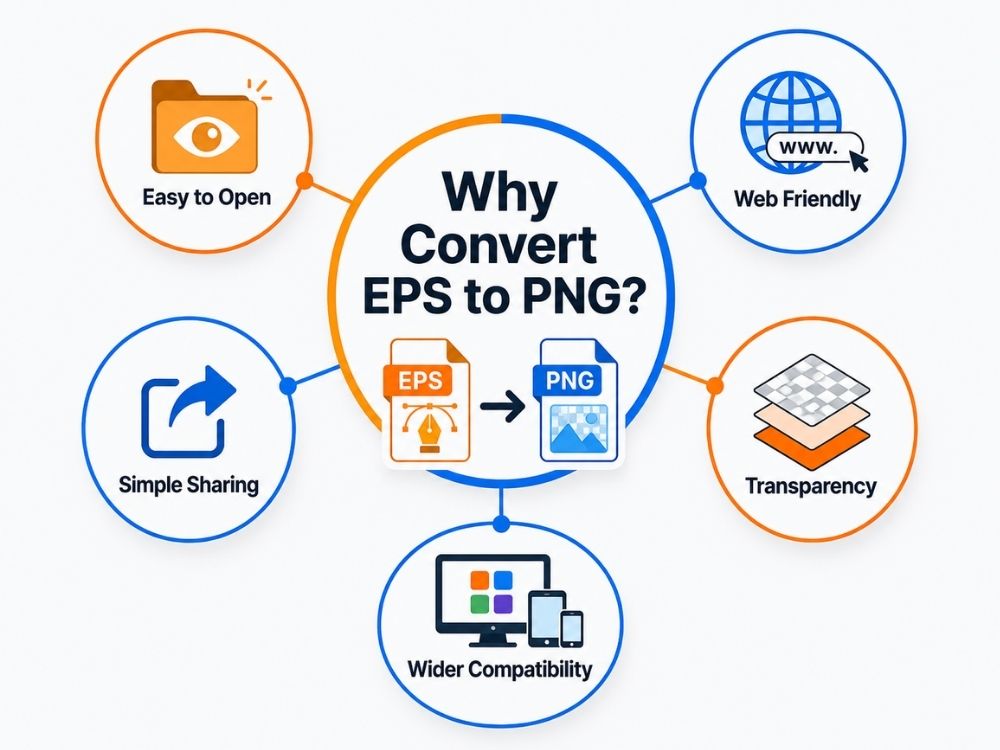
There will come many circumstances under which you could be made to convert EPS to PNG or any vector file to any raster file, for that matter. These instances include:
- Easier to open: EPS files are normally only compatible with certain design software, like Adobe Illustrator. PNG’s popularity makes it easy to open across any device.
- Better for online use: EPS is not built for websites, blogs, social media, or online uploads, whereas the same digital platforms easily cater to PNG files.
- Certain editing: You cannot make certain edits on an EPS file, such as blending or adding certain elements to the image, so users often have to convert EPS to PNG.
- Simple to share: If you send someone an EPS file, they may not be able to view it. PNG is much easier to send through email, messaging apps, or file-sharing platforms.
- Supports transparency: PNG can keep transparent backgrounds, which makes it useful for logos, icons, stickers, and design elements.
- More practical for everyday use: EPS is still worthwhile for printing and vector work, but PNG is often the better option when you simply need an image that opens, uploads, and displays without issues.
How to Convert EPS to PNG with an Online EPS to PNG Converter
Many online converters promise the same conversion gimmick. Free and fast EPS to PNG conversion. And they often fail to live up to the expectations they set. When you rasterize a vector image, the quality is to some extent expected to drop. How much depends on the converter. AhaConvert ensures the quality of your image in the PNG file remains as crisp as it did in your EPS file.
With its 256-bit SSL encryption, you get security assurance for your document. So, you get a safer way to convert your files without worrying too much about privacy. It also supports batch conversion, which saves time when you need to convert multiple EPS files to PNG instead of uploading them one by one.
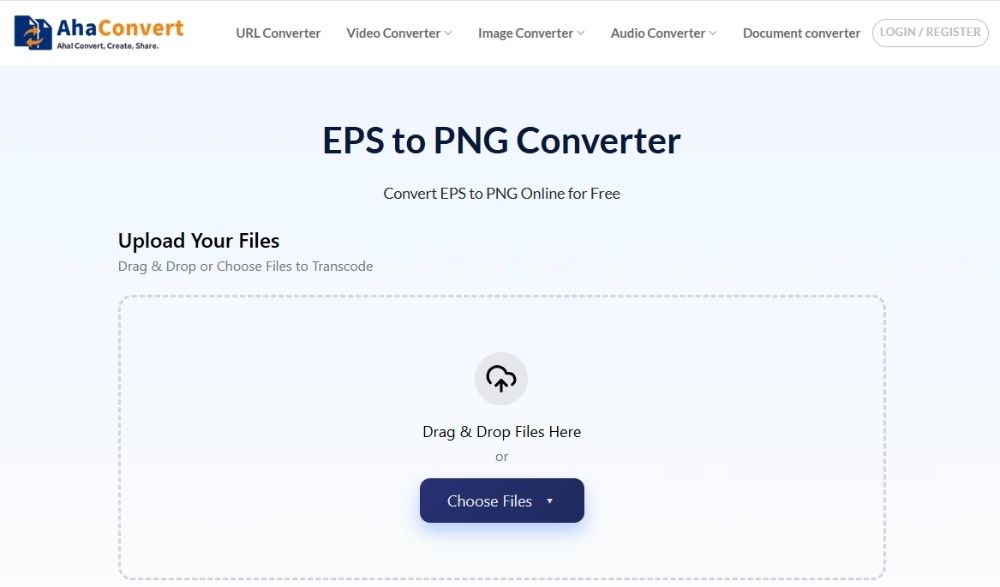
Step 1: Open AhaConvert EPS to PNG Converter
Start by opening your browser and going to the AhaConvert EPS to PNG converter page.
Step 2: Upload Your EPS File
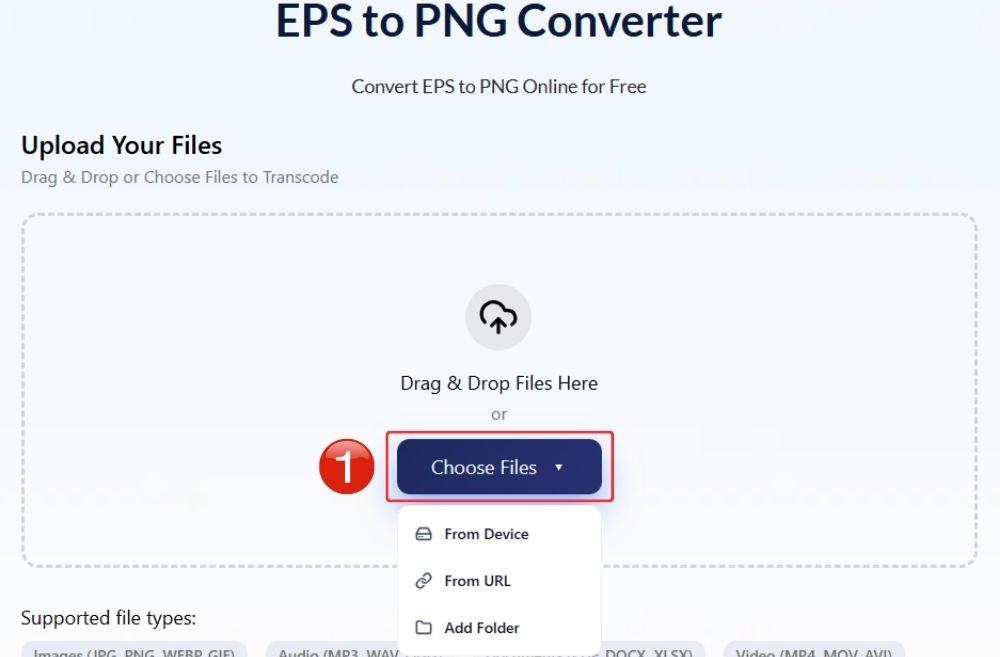
Click on the “Choose Files” button and select the EPS file from your device. You can also drag and drop the file directly into the upload area if the option is available.
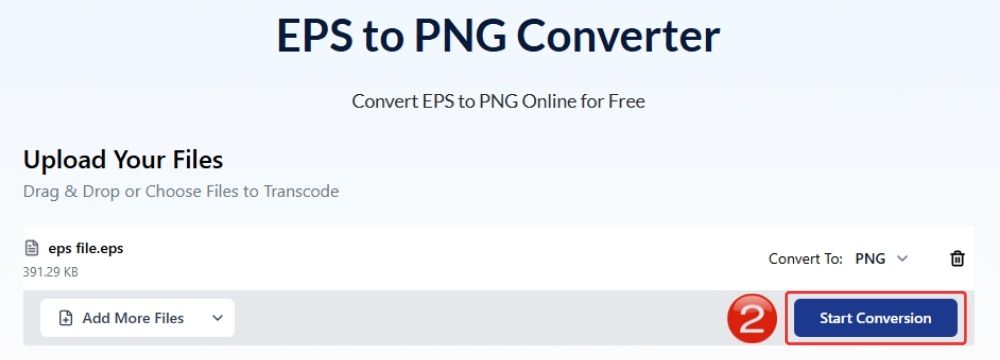
Step 3: Start the Conversion
Click on the “Start Conversion” button to begin converting the EPS file.
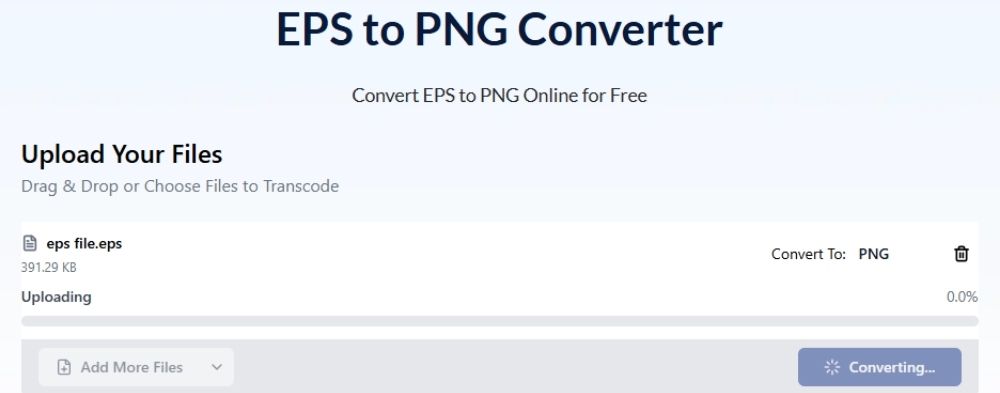
Step 4: Wait for the File to Process
AhaConvert will now process your EPS file and turn it into a PNG image. This usually takes only a short while, depending on the file size and your internet connection.
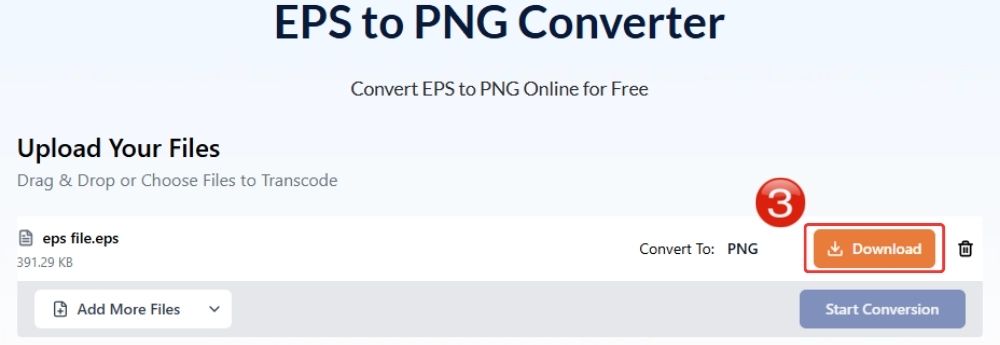
Step 5: Download the PNG File
Once the conversion is complete, click on the “Download” button to save the converted PNG file to your device. You can now open, share, upload, or use the image more easily.
How to Convert EPS to PNG with Adobe Illustrator
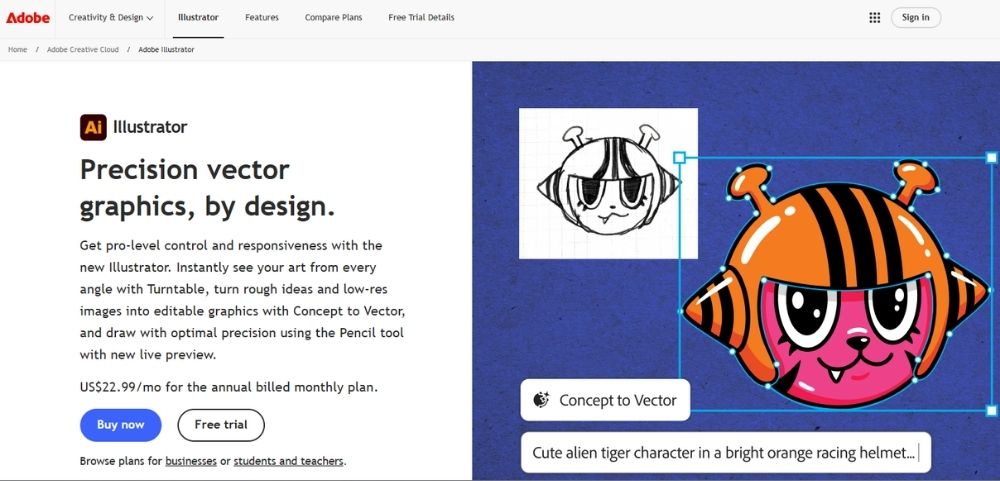
Adobe Illustrator is at the forefront of offering EPS compatibility. Adobe didn’t just create EPS, but built an entire graphics editor dedicated to editing and creating vector designs – Adobe Illustrator.
Within Illustrator, you can also convert EPS to PNG or another raster file format and save it directly to your device. The process goes something like this:
- Open “Adobe Illustrator” on your computer.
- Go to “File” and select “Open”.
- Choose the EPS file you want to convert from your device.
- Make any needed edits on the image.
- Go to “File”, then select “Export” and click “Export As”.
- In the format menu, choose “PNG”.
- Select the folder where you want to save the converted file.
- Click “Export” to convert EPS to PNG.
- In the PNG Options window, choose the resolution. Use “72 ppi” for web use or “300 ppi” for higher-quality output.
- Under the background option, select Transparent if you do not want a white background.
- Click “OK” to save your EPS file as a PNG.
How to Convert EPS to PNG with Photoshop

Just like Adobe Illustrator is mainly built around vector files, Photoshop is more accommodating to raster image formats like PNG, JPG, and TIFF.
Photoshop also gives you more room for image-based editing, such as blending, retouching, adjusting colors, adding effects, and working with layers. And this is one of the many reasons why users wish to convert EPS to PNG.
When converting for the purpose of having access to more editing tools, you can convert EPS to PNG within Photoshop. It is a very convenient option since there’s no middleman in the picture. The process is fairly simple and goes something like this:
- Open “Adobe Photoshop” on your computer.
- Click on “File” and then select “Open”.
- Choose the EPS file you want to convert.
- Photoshop will show a “Rasterize EPS Format” window before opening the file.
- Set the image size, resolution, color mode, and background option according to your needs.
- Click “OK” to open the EPS file as a raster image in Photoshop.
- Make any edits you want, such as adjusting colors, adding effects, or working with layers.
- Go to “File” and select “Save As” or “Export As”.
- Choose “PNG” as the output format to convert EPS to PNG.
- Select the folder where you want to save the file, then click Save or Export.
How to Convert EPS to PNG with Desktop Conversion Software
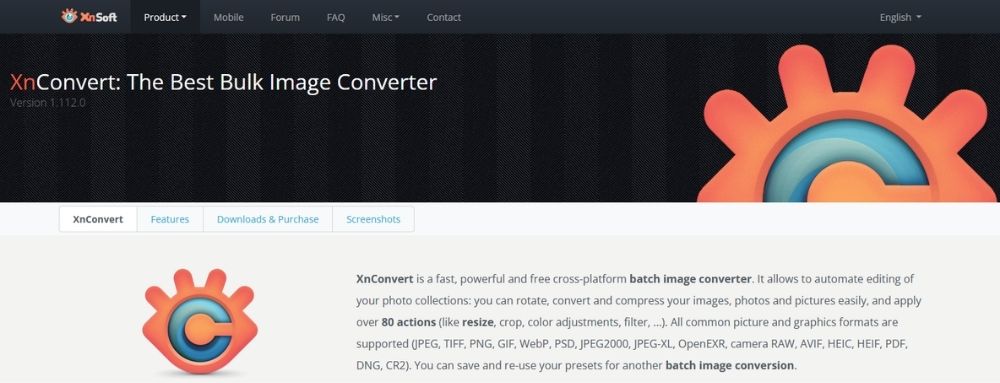
XnConvert is recommended by many users as a trusted solution for desktop conversion software. There are plenty of other desktop conversion tools out there, but for the sake of using one as an example, XnConvert is a decent free option. It supports many image file formats, including common ones like PNG, JPG, and WebP, as well as less common formats like EPS. So, if you want to convert EPS to PNG without using Adobe tools, XnConvert can be a simple option to try.
- Firstly, visit the official XnView website and download XnConvert. Make sure you select the correct setup file according to your system, such as Windows, macOS, or Linux.
- With XnConvert downloaded, go ahead and install it on your system.
- Now open XnConvert and drag-drop the EPS file, or simply click on the “Add files…” button to upload your EPS file or files to its interface.
- After uploading the EPS image, you can use the options in the “Actions” tab to edit the image before conversion.
- To convert EPS to PNG, just click on the “Convert” button.
Frequently Asked Questions
a. Are online EPS to PNG converters safe?
This normally depends on the converter you’re using. Online converters like AhaConvert usually have in-built security methods like 256-bit SSL encryption, protecting your files from outside breaches.
b. Is EPS better than PNG?
EPS are vector images and can be scaled without pixelation. PNG pixelates upon zooming in, but is more compatible across web use than EPS. Between EPS and PNG, the better choice depends on whether you need a file for professional design work or a simple image that can be opened and shared anywhere.
c. Will I lose quality when converting EPS to PNG?
Since EPS is a vector image format, rasterizing it by converting EPS to PNG will lock it in a grid of pixels. Visually speaking, this could mean a loss in quality.
d. Can I convert EPS to PNG for free?
Yes, online tools like AhaConvert are free to use. Other than that, you can use a desktop converter like XnConvert, which is also free.
e. Can I convert EPS to PNG on my phone?
Yes. AhaConvert works across all browsers, so if you open the online converter on your phone’s browser, you can easily convert your EPS files to PNG.
Conclusion
When you convert a vector file like EPS into a raster format like PNG, there is always a small trade-off. You will likely notice slight pixelation in some cases after converting the EPS to a PNG file.
A good converter keeps this difference as minimal as possible. AhaConvert does a decent job retaining the original look of the EPS file, so when the PNG is viewed at a normal size, most people will not even be able to tell that it was converted. And that is exactly why people convert EPS to PNG in the first place. They want something easier to open, upload, and share without making the image look messy or low-quality.
