
Introduction
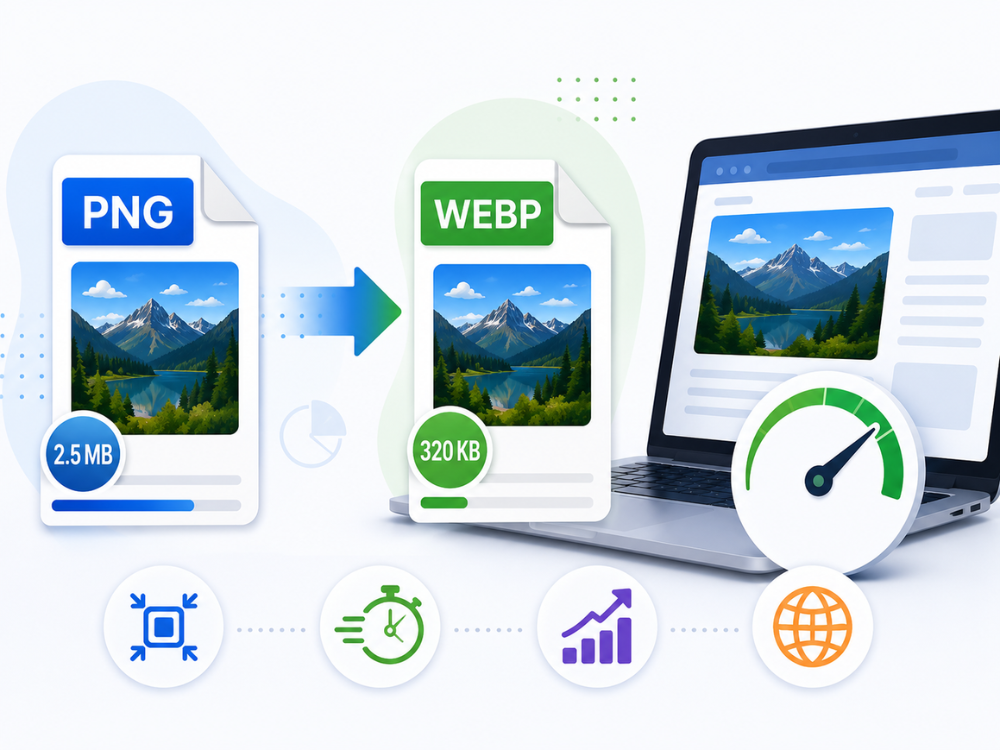
If you manage a website or an online store, or work with digital images frequently. There is no doubt that you have already been told that WebP is better than PNG for the Internet. The difference between them is enormous. And it plays an essential role in file size, the primary factor that affects how long it takes for the image to load. Knowing how to convert PNGs to WebP is one of the simplest ways to improve your website’s speed.
This guide explains everything you need to know about converting PNG to WebP and choosing the best free PNG to WebP converter. That can be found now, and, finally, how to convert PNG to WebP using AhaConvert. You don’t even need to know anything about optimizing images beforehand.
What is WebP and Why It Matters?
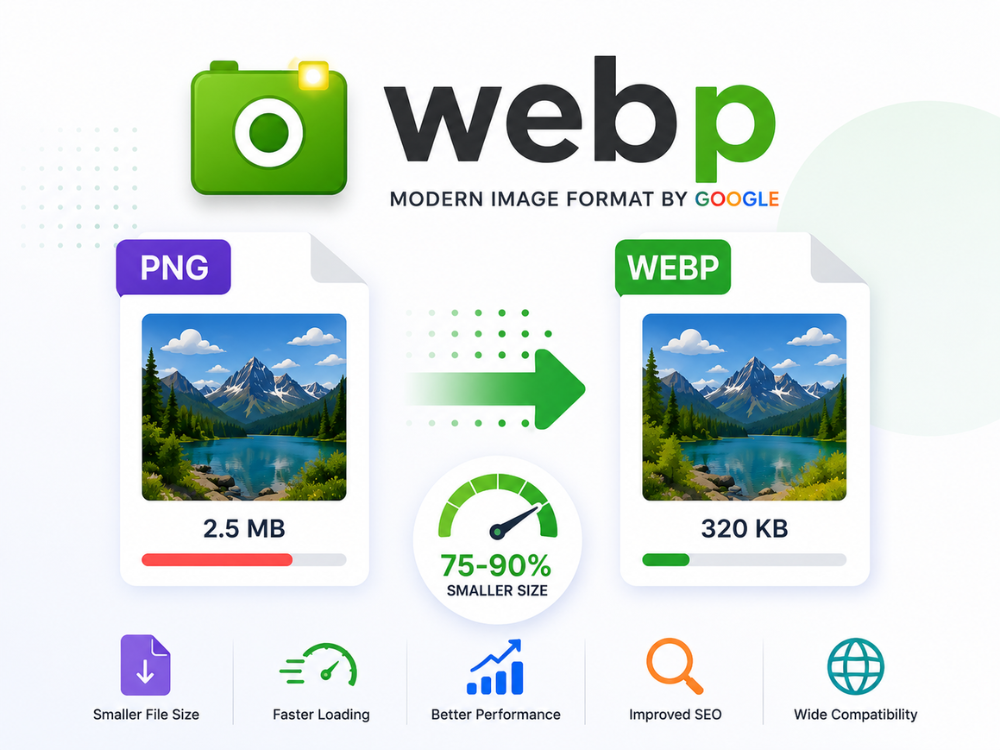
The WebP format was introduced by Google in 2010. It was designed specifically for websites, allowing images to maintain high quality while using much smaller file sizes than PNG or JPG. If you need a different image format, you can also convert PNG to JPG for broader device and application compatibility. WebP achieves its smaller file sizes by using an advanced compression algorithm that is more efficient than traditional PNG and JPG compression.
Many website owners convert PNG to WebP to reduce image size while maintaining excellent visual quality. This results in a significant reduction in image file size. Compared with a similar PNG file, a WebP file is 25–35% smaller. Without any loss in image quality, it presents. For websites with lots of pictures used — photo galleries, blog entries, portfolio sites.
It is important to reduce the amount of data sent to the user as much as possible, and this format provides that option. For instance, if 2 MB of PNG images were transferred from a homepage in the past. Now the same images can be transferred in under 1.4 MB using WebP.
Besides its compression functionality, WebP provides additional features, including transparency (as in PNG images), animations (as in GIF images), and colors. WebP images are supported in all recent browsers, including Chrome, Firefox, Safari, and Microsoft Edge. This makes WebP a good file format for practically any web development project. Even Google considers website speed when ranking websites.
PNG vs WebP
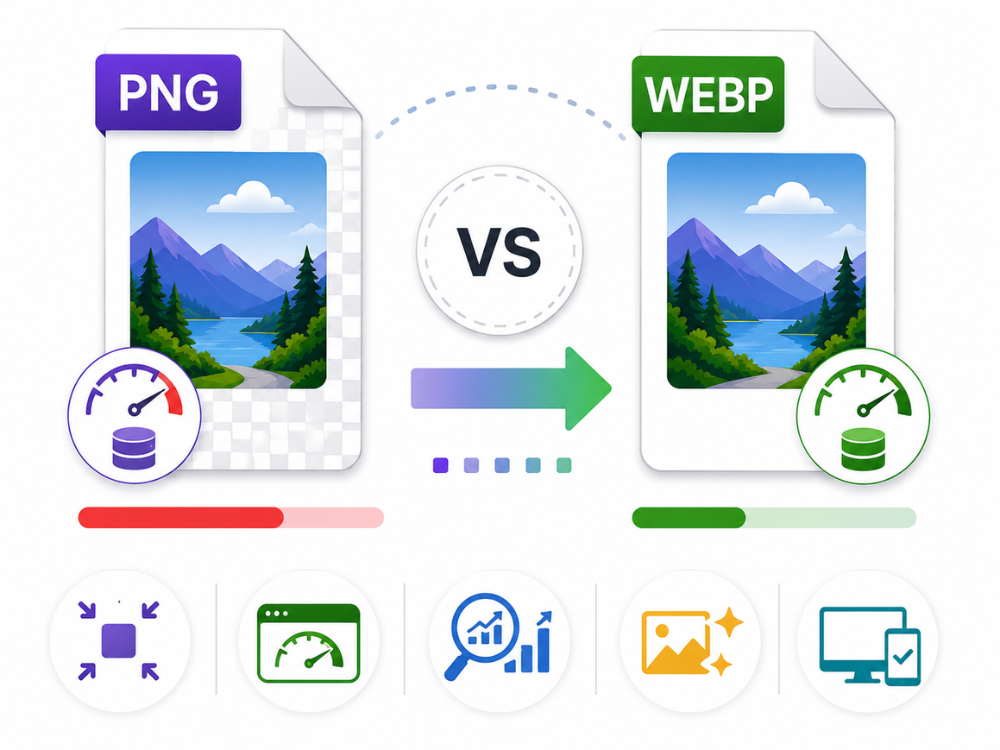
Understanding the key differences helps clarify when and why converting PNG to WebP makes sense.
| Feature | PNG | WebP |
|---|---|---|
| Compression Type | Lossless only | Both lossy and lossless |
| File Size | Larger | 25–35% smaller on average |
| Transparency Support | Yes | Yes |
| Animation Support | No | Yes |
| Browser Support | Universal | All modern browsers |
| Best Use Case | Print, design, editing | Web images, web performance |
| Color Depth | Up to 48-bit | Up to 24-bit (lossy), lossless equivalent |
| Metadata Support | Limited | Yes |
Lorem ipsum dolor sit amet, consectetuer adipiscing elit, sed diam nonummy nibh euismod tincidunt ut la
Understanding these differences makes it easier to convert PNG to WebP for websites that need faster loading speeds.
The PNG format is used to create images with transparent backgrounds, such as icons, logos, interface elements, and product images. This format preserves image data when saving. One disadvantage of the PNG format is that its lossless nature results in larger files than WebP.
Unlike PNG, WebP has been developed with web delivery in mind, and its lossless compression makes files about 26 percent smaller than PNGs of the same quality, according to tests by Google. With lossy compression (acceptable in many cases on the web), the difference is even more significant.
It should be noted, however, that the downside of WebP is its limited compatibility with offline design programs and printing workflows. And that is why PNGs are saved as originals, while WebP is used for web graphics in their copy.
Why Convert PNG to WebP
Faster Page Load Speeds
Page load speed is one of the most immediate factors affecting the user experience. Time after time, it has been proven that users leave web pages that do not load sufficiently fast within just a couple of seconds.
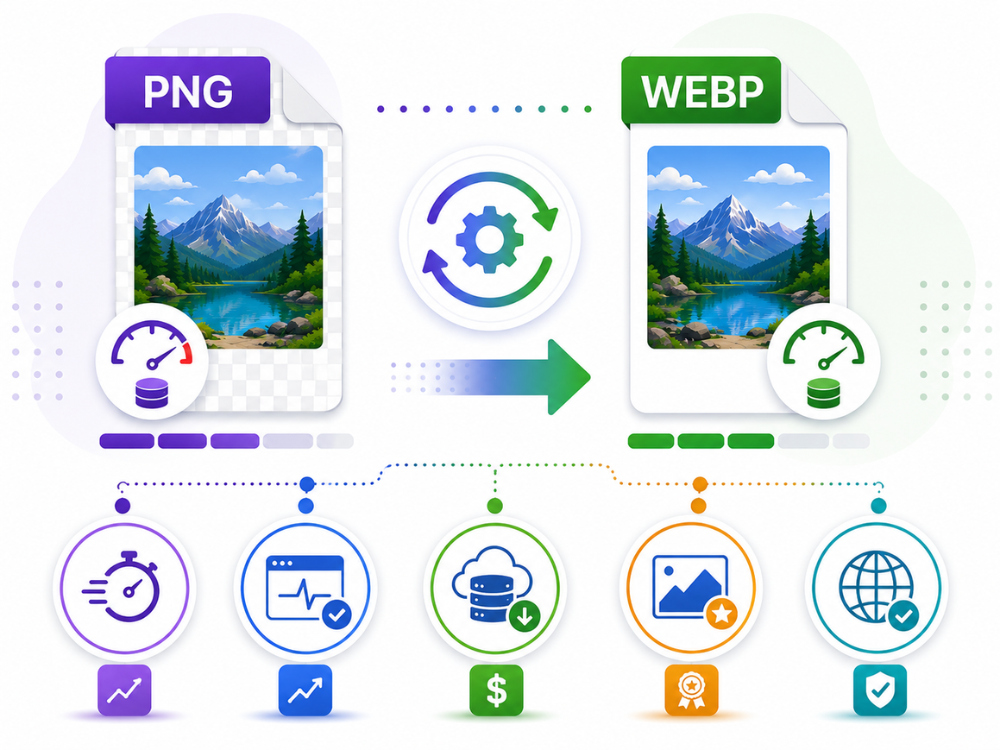
Given that the WebP format is far less heavy than the PNG image format. Using the former would make the entire web page lighter and thus load faster, especially on mobile networks. Many website owners convert PNG to WebP because smaller image files help pages load faster.
That may make all the difference for highly frequented web pages, as even a fraction of a second reduction in page load speed can affect bounce rates. Specifically with e-commerce web pages. When you convert PNG to WebP, visitors spend less time waiting for images to load.
Better Core Web Vitals Scores
Google’s Core Web Vitals, especially Largest Contentful Paint (LCP), indicate how quickly the main content on the page loads. Oversized, non-optimized PNG files are the most common reason for poor LCP scores. A PNG-to-WebP converter is one of the very first tips developers get from auditing pages with Google Lighthouse or PageSpeed Insights. Developers often convert PNG to WebP to improve Largest Contentful Paint (LCP) scores.
Reduced Bandwidth and Hosting Costs
All images uploaded and displayed on your site use bandwidth. When dealing with highly trafficked sites. Using WebP images in place of large PNG files helps decrease bandwidth usage. Depending on the hosting service you use, you may save money. Businesses that regularly convert PNG to WebP can reduce bandwidth usage and hosting costs.
Maintained Image Quality
The main concern people have about converting PNG to WebP format is the loss of image quality. In fact, WebP’s lossless image compression maintains image quality. Thus, completely replacing the PNG images on the Internet. Moreover, even with WebP lossy compression at high quality, the image remains identical. Many users hesitate to convert PNG to WebP because they worry about image quality.
Online Free PNG to WebP Converters
Several reliable tools can convert PNG to WebP quickly and for free. Here are four worth bookmarking.
a. AhaConvert PNG to WebP Converter
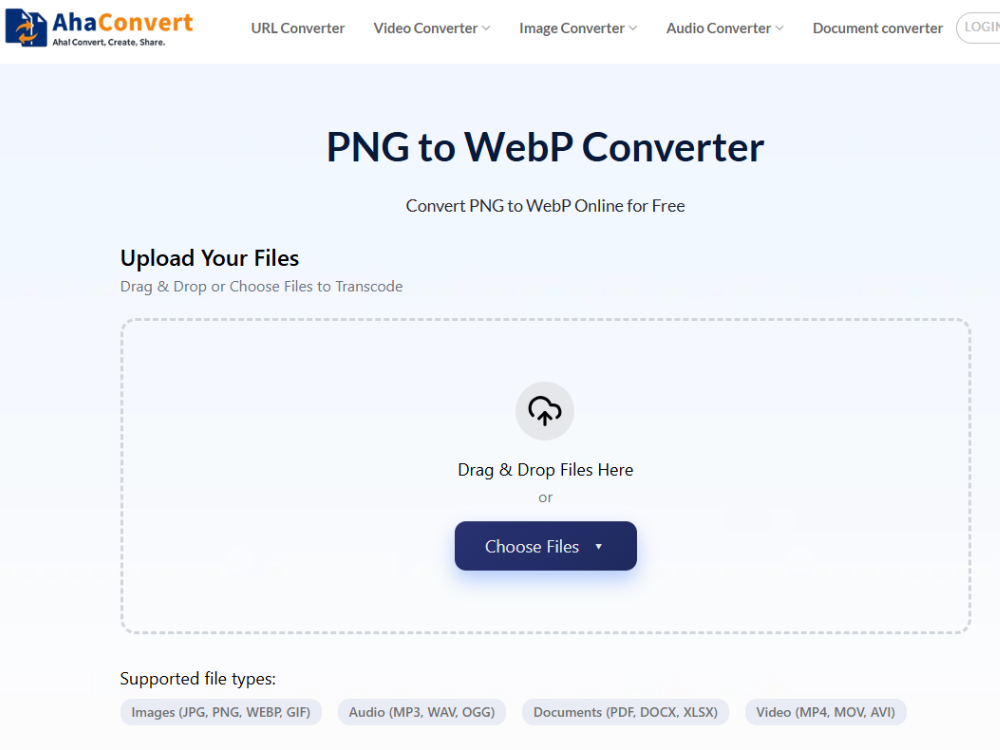
The AhaConvert PNG to WebP Converter is a completely free browser tool that lets you convert your PNGs to WebP format immediately, without downloading any software or registering an account. This application offers batch conversion, allowing you to convert multiple PNG files at once.
Uploaded files are always securely encrypted with 256-bit SSL and automatically deleted after 24 hours. This makes AhaConvert PNG to WebP Converter a secure choice whether you’re a personal user or a professional.
Best for: Fast, free, and secure PNG-to-WebP conversion.
b. CloudConvert PNG to WebP Converter
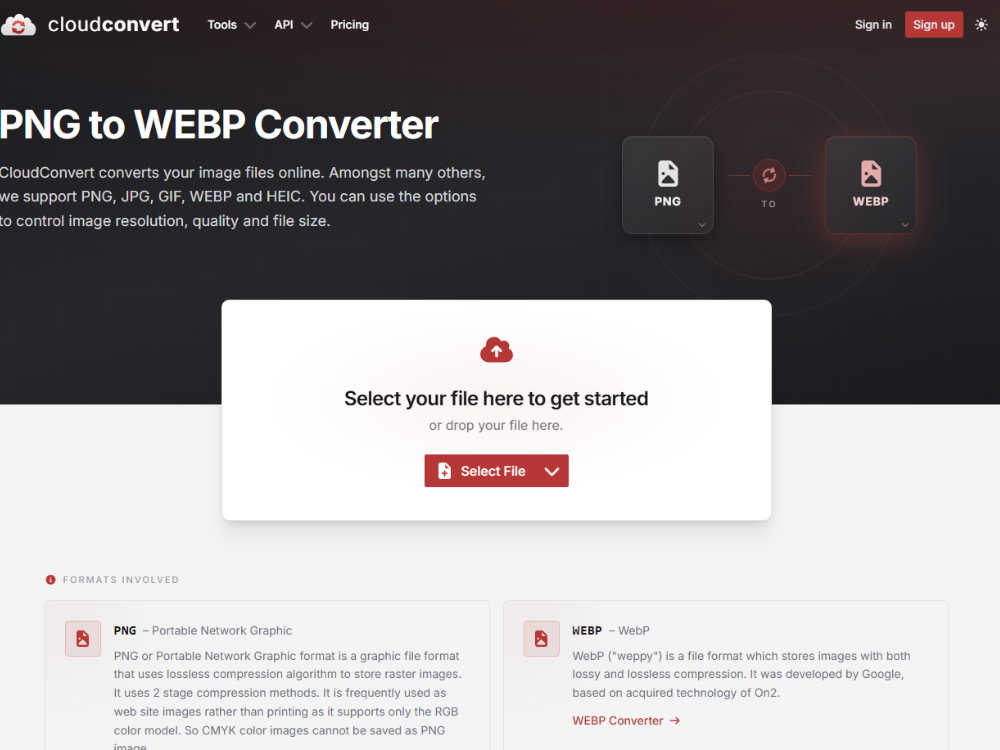
CloudConvert is a trusted online tool for converting between different formats, including converting PNG to WebP. This site provides controls to adjust the quality of the resulting image before conversion. There is a limitation on the number of conversions per day in its free version.
Best for: People who need to manually adjust the WebP compression quality settings.
c. Squoosh PNG to WebP Converter
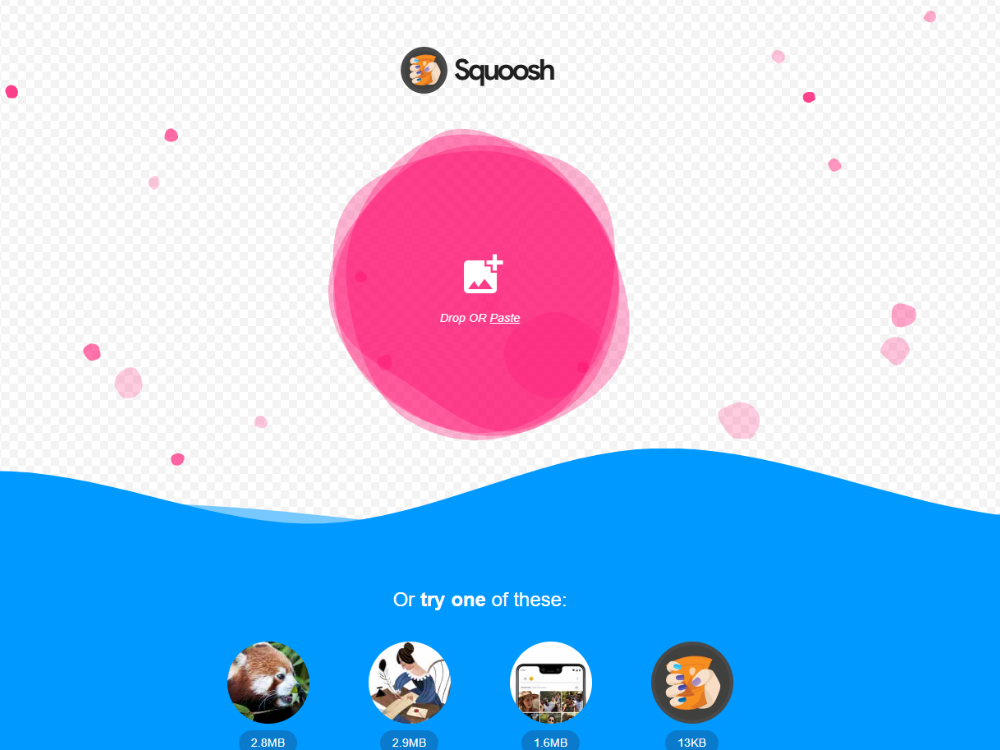
Squoosh is an online picture optimization app created by the team at Google Chrome. It offers the user a live view of both the original. And optimized images side by side to monitor how changes in quality and size are affected by varying compression settings.
It is better for optimizing individual images and converting PNGs to WebP than for offering batch optimization services. Squoosh is especially useful for determining the quality cutoff for a particular picture, thanks to its slider comparison feature.
Best for: Developers and designers who need precise visual feedback on compression quality.
d. TinyPNG PNG to WebP Converter
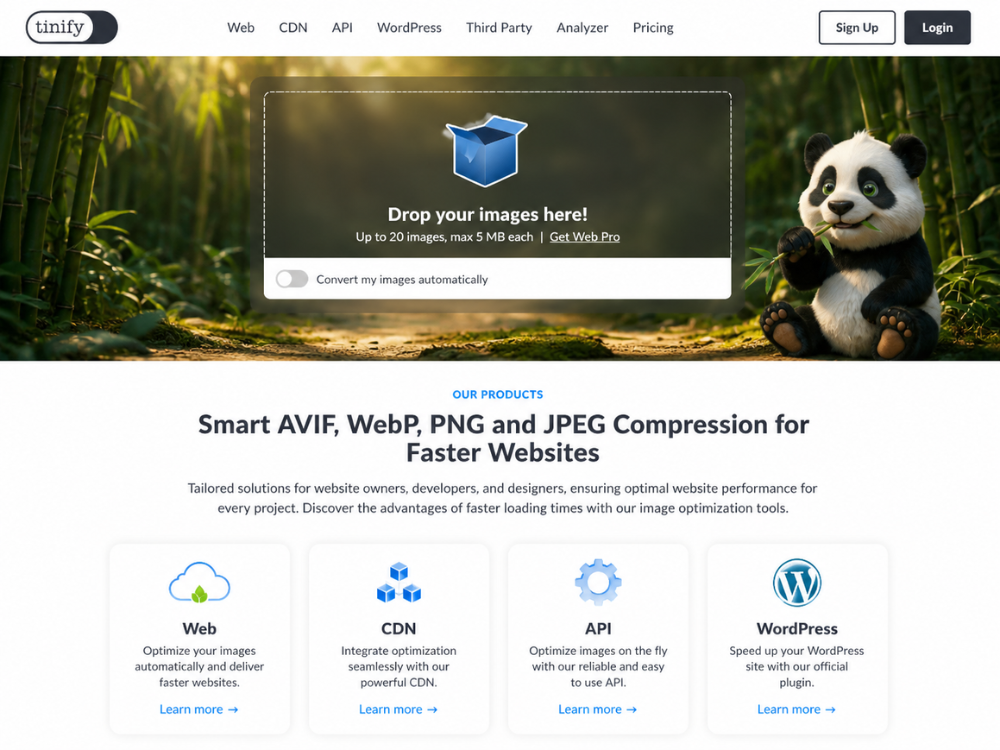
TinyPNG, even though it’s called TinyPNG, also compresses WebP files in addition to converting PNG to WebP files. Lossy compression technology is used here, and it’s really popular among web developers because of its easy-to-use interface. You can compress up to 20 images at once, but each file must be no larger than 5 MB.
Best for: Quickly and easily compressing single images.
How to Convert PNG to WebP (Step-by-Step Guide)
Among the tools we mentioned above, the best for speed, privacy, and batch image processing is AhaConvert PNG to WebP Converter. It is a free PNG-to-WebP converter that doesn’t require an account. Here are the steps for its usage.
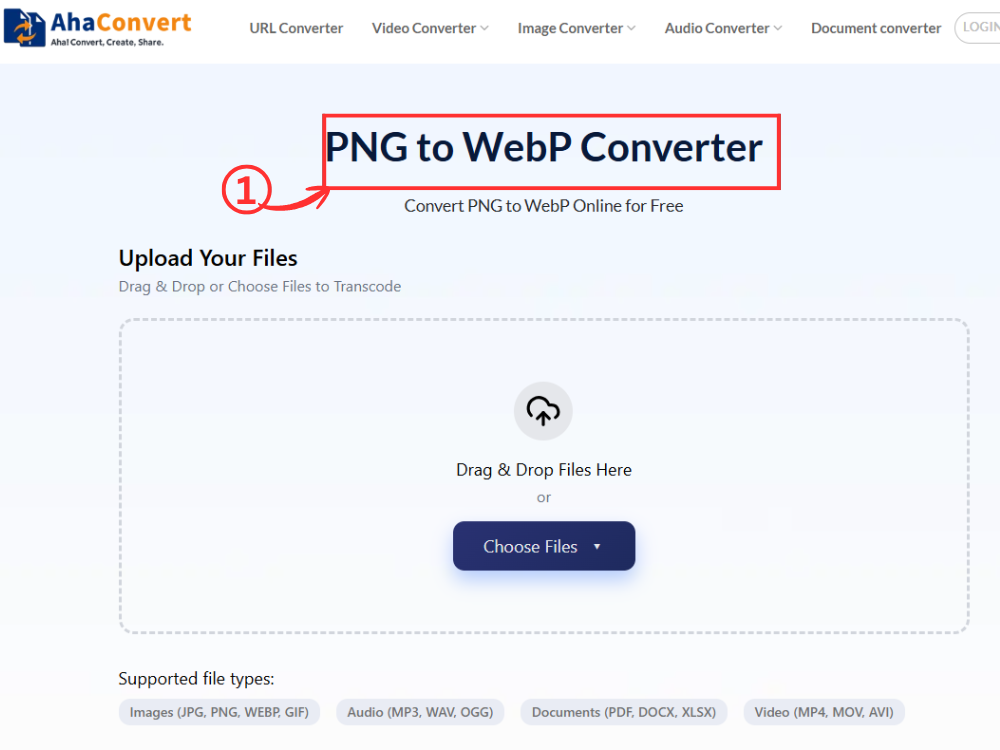
Step 1: Open the AhaConvert PNG to WebP Converter
Access AhaConvert PNG to WebP Converter from any web browser on your system. It loads quickly on Windows, Mac, and even Linux systems.
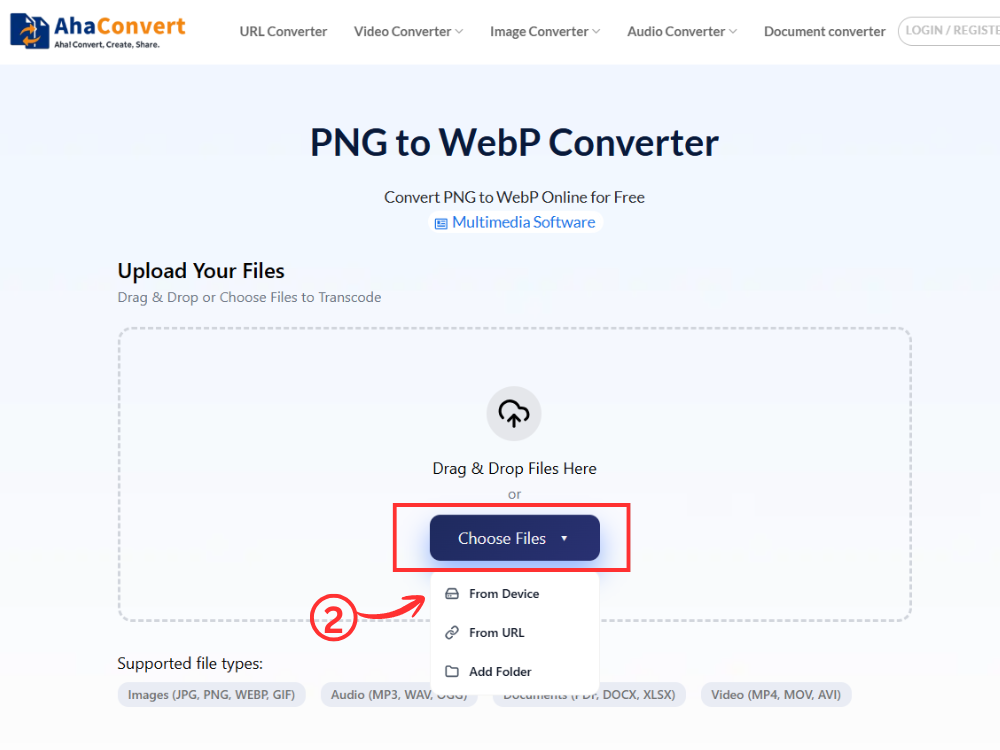
Step 2: Upload Your PNG File
Click the “Choose Files” button to locate your PNG file on your computer and upload it. You can also drag and drop the file, paste the link to a file stored on an external server, or import it from your cloud storage.
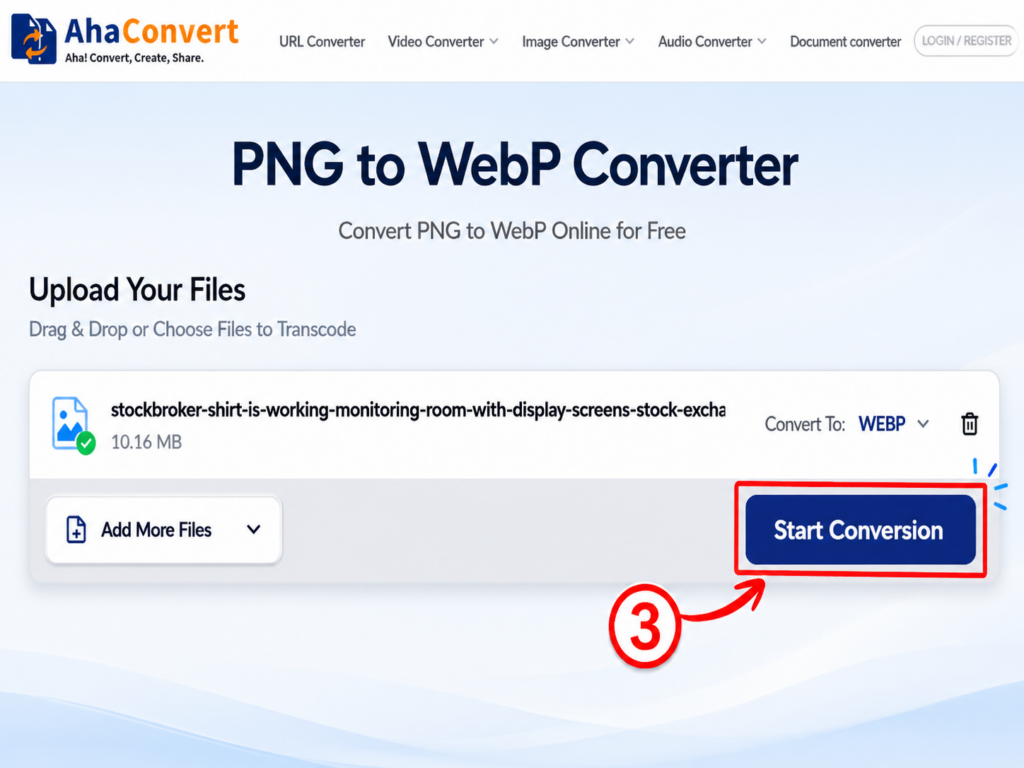
Step 3: Start the Conversion
After uploading your file, click the “Start Conversion” button. Since this website is designed to convert PNG files to WebP, there is no need to choose the desired output format, as it is already predetermined, and there is no format selection box.
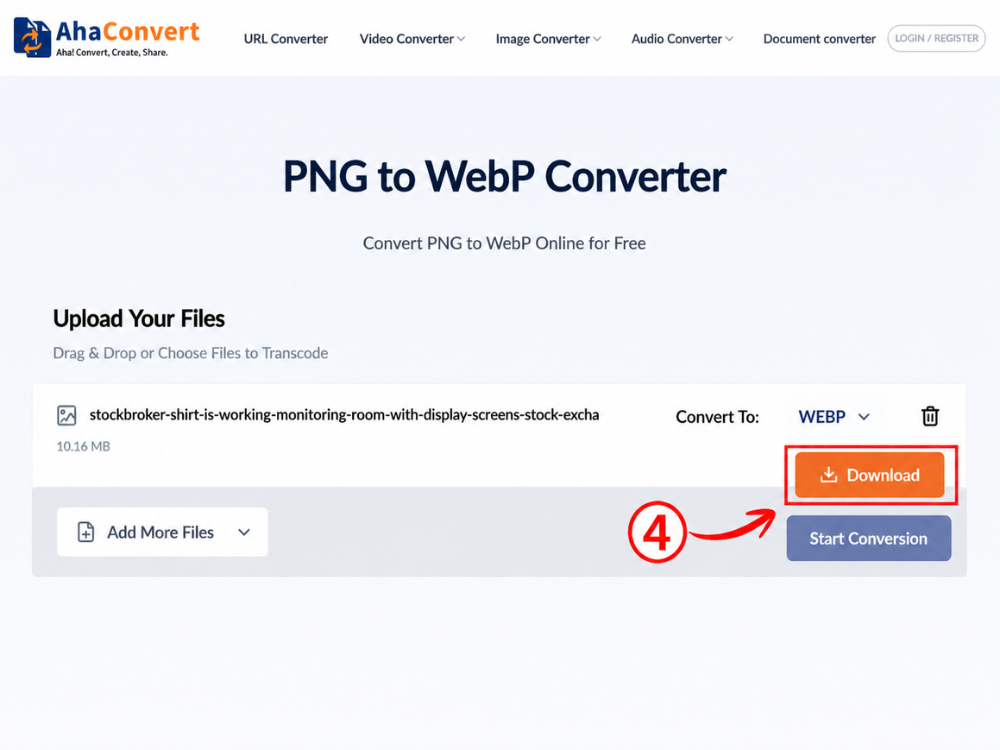
Step 4: Download Your WebP File
After the conversion process, a downloadable file will be available on the page. Click the “Download” button after you successfully convert the PNG to WebP. This process usually takes just a couple of seconds, regardless of the size of the PNG file you upload.
Frequently Asked Questions
1. Is WebP better than PNG?
When we talk about using it on the web, then absolutely yes. WebP produces smaller file sizes than PNG without reducing image quality. In addition, it helps you load your pages faster and score better on Core Web Vitals. However, in the case of printing and offline image editing, where quality is the main concern, PNG is the best choice.
2. Will I lose quality when converting PNG to WebP?
Not if it is a lossless conversion of WebP. Lossless convert PNG to WebP preserves your photo’s full image quality. And even with a lossy conversion to WebP, if done in high-quality mode, the image won’t visually differ from the original — whether for icons, banners, product pictures, or other elements on the website.
3. Can all browsers open WebP images?
Many browsers can render WebP images, including Google Chrome, Firefox, Safari 14+, Microsoft Edge, and Opera. There is availability for most Internet users. But older versions of Internet Explorer cannot render WebP images; however, it is irrelevant because the browser has become almost obsolete.
4. Is it safe to use online PNG-to-WebP converters?
However, it is true, but only when using a secure one. All uploads to AhaConvert are encrypted using 256-bit SSL. But they are also deleted automatically after 24 hours. The convert PNG to WebP does not share any of your personal details with anyone. If you have some sensitive or proprietary images that need conversion, you should use AhaConvert.
5. Can I convert WebP back to PNG if needed?
It is possible. The majority of online converters offer conversions in both directions. If you’ve converted a PNG to WebP and need to open it in an image editor that doesn’t support WebP, AhaConvert can convert it back to PNG for free.
6. How many PNG files can I convert at once?
AhaConvert allows users to conduct batch conversions. This means the user can convert multiple PNG files at once. Besides, there is no restriction on how many files you can convert in one day using the free version of AhaConvert.
Conclusion
Using WebP images instead of PNGs is one of the most effective and easiest ways to improve your website’s performance. You save space with file compression, lose almost nothing in image quality, and enjoy 100% browser compatibility.
No matter whether you optimize your blog or some huge e-commerce project. Spending some time converting PNG to WebP will definitely yield positive results, including faster load times and better Core Web Vitals.
It is important to understand that image optimization is one of the very few performance enhancements. That does not require any changes to your site’s code or server configuration.
The AhaConvert PNG to WebP Converter helps you to perform the task quickly and easily. And absolutely free PNG-to-WebP converter at no charge, using any device available to you, without any registration or limitations. Try it out!
