
Sometimes, it becomes necessary for graphic artists and print designers to convert their images from one format to another format. Conversion from PDF to EPS is a very common conversion. Even though PDF is great for viewing purposes, vector graphics require the EPS format for editing. Being able to convert PDF to EPS within seconds can save you a lot of time, particularly if your work requires editing in vector design software, like logos and other drawings.
In this article, we will explore the fundamental differences between these two formats, determine when conversion is appropriate, discuss potential problems you may encounter in doing so, and provide step-by-step instructions for converting using an entirely free online service. Whether you are an expert designer working with customer data on a day-to-day basis or merely someone who wants to change PDF to EPS now.
PDF vs EPS: What’s the Difference?
What is a PDF File?
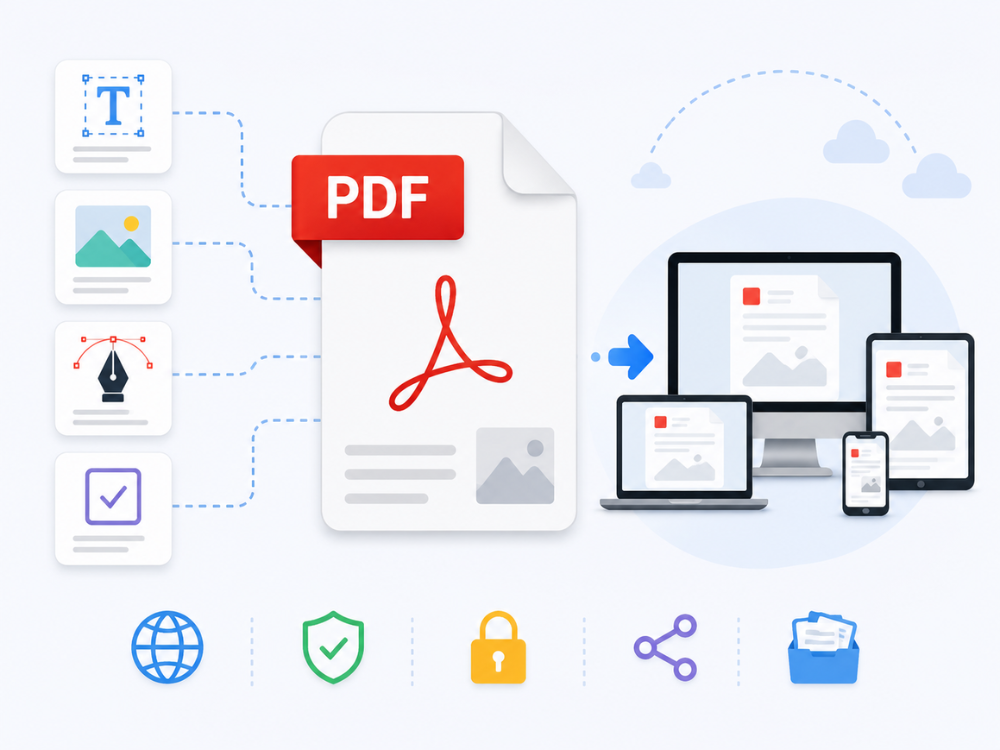
PDF stands for “Portable Document Format.” The PDF format was developed by Adobe in the early 1990s in order to preserve the document layout in different operating systems and computer platforms. A PDF file can be composed of text, images, vector graphics, and even interactivity within one file, independent of storage location and computer platform.
The format is universally compatible for transmitting documents, agreements, reports, and various forms. Virtually any device and computer operating system can view PDF documents. It does not require any further software to open a PDF. However, PDF was never intended to be a format for the editing of vector graphics.
What is an EPS File?
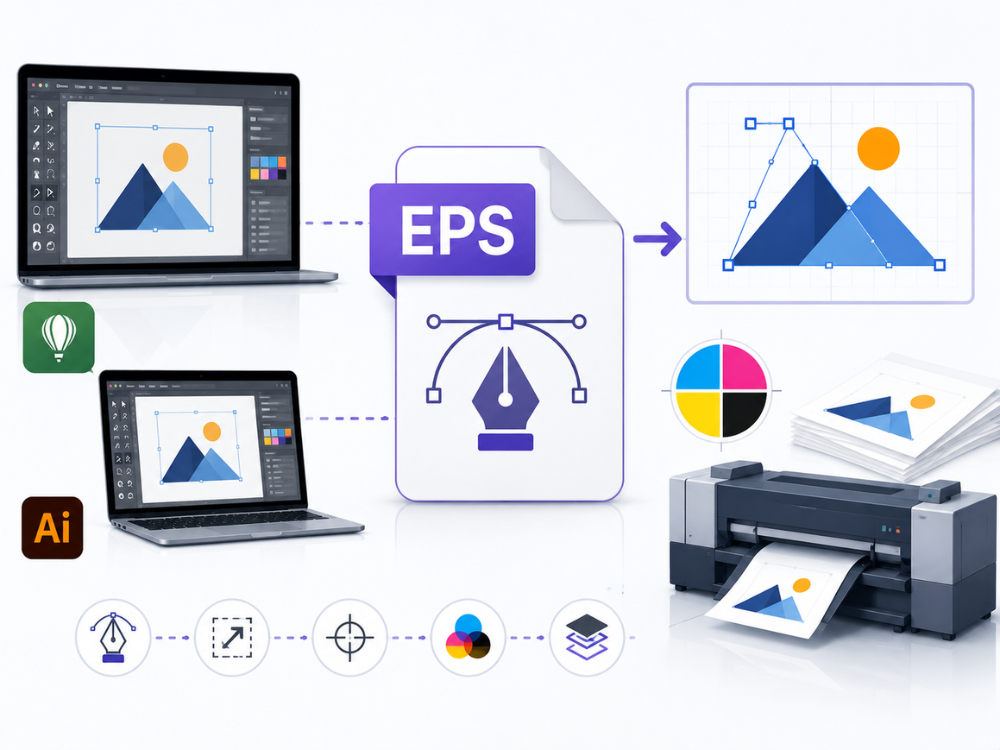
Encapsulated PostScript (EPS). This format was introduced by Adobe a long time ago as a standard for storing vector graphics in professional printing and design software. The EPS format allows artwork to be saved as a series of mathematical instructions for drawing shapes, lines, and curves, ensuring the artwork remains sharp at any size.
Many design applications, including Adobe Illustrator and CorelDRAW, can use EPS files for design editing. Over the years, print shops have depended on EPS for its ability to work seamlessly into a prepress process and use the standard commercial printing color gamut, CMYK.
Although newer formats (such as SVG) have encroached upon most of the web design area, EPS still plays a role in print production and legacy workflows. One of the factors that has kept EPS relevant for so long is the fact that it is based on PostScript, which all professional printers can understand without any problems.
PDF vs EPS
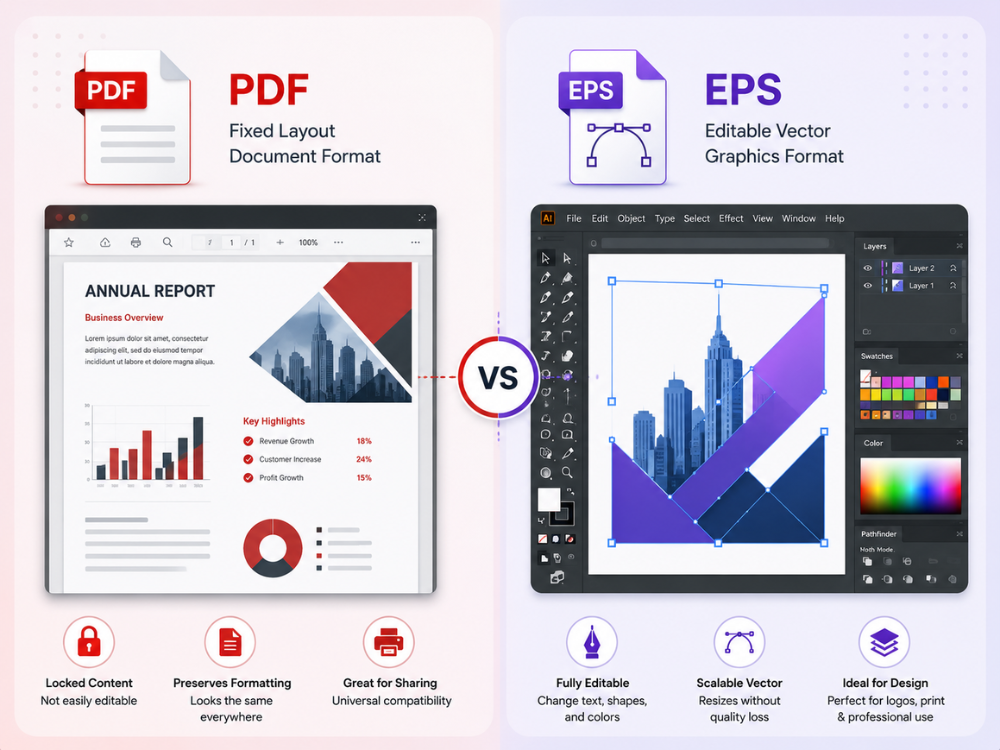
| Feature | EPS | |
|---|---|---|
| Primary Purpose | Document sharing and viewing | Vector graphics for design and print |
| Editability | Limited without specialized software | Fully editable in vector design tools |
| Color Mode | RGB and CMYK | CMYK and RGB |
| File Type | Document container | PostScript-based vector format |
| Compatibility | Universal — opens on any device | Requires design software (Illustrator, CorelDRAW) |
| Print Workflow Support | Good | Excellent, long-standing industry standard |
| Vector Quality | Preserved if originally vector | Fully preserved, resolution-independent |
| Multi-Page Support | Yes | No — single image per file |
The distinguishing feature is the reason for their creation. PDF files are great for distributing and archiving documents, maintaining their appearance no matter what platform they’re on. EPS files are more useful for designers who require an editable vector file for a design/print workflow. If you need to edit, manipulate, or add vector art to a project from a PDF, you will need to convert it to EPS.
But there are several significant points which must be considered as well: It is not possible to convert each PDF file in the same way. If a PDF file was exported directly from a vector program (for example, Adobe Illustrator), then it will also be editable.
If your PDF is a scanned image of a hardcopy print piece, it contains only raster information, and converting it to EPS will only result in a PDF with an EPS wrapper – no editable paths.
Why Convert PDF to EPS?
There are several practical reasons people choose to change PDF to EPS rather than work with the original document.
Editing in Vector Design Software
Many design software programs work better with EPS files than with PDFs when editing vector objects. If the client sends the logo or illustration in PDF format, it may be advisable to convert the PDF to an EPS file. Before opening it in Adobe Illustrator or CorelDRAW and making edits. There have been cases where importing a PDF into Adobe Illustrator automatically groups various vector objects. But with an EPS format, this becomes less of a problem.
Print Shop Requirements
Certain print shops may require an EPS file, specifically those that follow legacy methods and certain types of printers, like screen printers and embroidery digitizing printers. An EPS file from your PDF would allow you to retain compatibility with the print shop’s existing workflow without requiring any changes from them. This is seen commonly with family-owned printing and clothing stores that have been using the same RIP software since their inception
Extracting Vector Artwork from a PDF
Many PDF files contain a combination of text and images, along with vector art on the same page. If you need the vector art alone, say, a logo contained within the file and not necessarily other parts of the document. You will need to extract it to EPS.
This is frequently done by marketing departments that receive PDF documents containing brand guidelines, but only require the extraction of a specific logo. This happens very often when agencies deal with multiple client brands, because there will be a PDF file that includes more than one version of the logo, which then needs to be separated and sent in the form of EPS files.
Compatibility with Legacy Software
Some older or specialized software doesn’t support PDF import, but is fully compatible with EPS. Some studios need to use EPS for this reason since they use older software and old file types. This kind of software includes CAD software and some embroidery digitizing software.
Maintaining Vector Quality
As EPS is fundamentally based on vector graphics, converting a vector-based PDF to EPS will not cause pixelation or degrade picture quality. As vector images can be resized to any scale, it is important for the purposes of printing large posters, signs, and package designs. That a company logo be available in both a small size on a business card and a large size on a poster.
Benefits of Using an Online PDF to EPS Converter
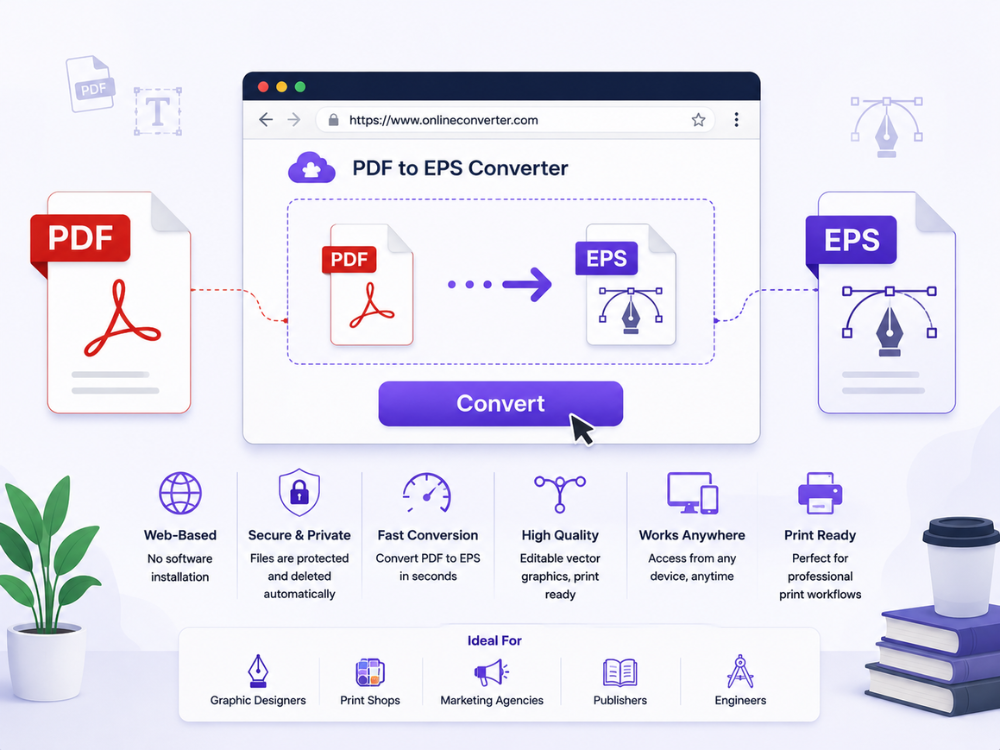
Online converters offer several practical advantages over traditional desktop software for PDF to EPS converter.
No Software Installation Required
Software tools such as Adobe Illustrator may prove costly and demand installation, upgrades, and computer memory. A free online converter removes all those demands. All you have to do is browse to the web page and complete the conversion.
It is particularly helpful when working in a situation where you cannot install software due to cost or other reasons, but need to convert a PDF file to an EPS file right away using your web browser
Works on Any Device and Operating System
Since the process is entirely browser-based, converters function equally well in Windows, Mac, Linux, and even mobile platforms. This aspect benefits independent designers who don’t have access to advanced design tools on all their devices. The freelance designer who uses a laptop at work and a tablet on weekends will have no trouble converting files either way.
Fast and Convenient for Quick Conversions
Not all PDF-to-EPS conversions will require the exacting manual tweaking that accompanies them. If your conversion is simple – extracting your logo, creating a printshop-ready file. Or simply translating old artwork into EPS format. The process takes no time at all with an online converter.
Free and Accessible for Everyone
Most web-based PDF to EPS converters, such as AhaConvert, do not charge a fee. This makes professional file conversion easy and affordable for freelancers, students, and small businesses that need occasional conversion services.
How to Convert PDF to EPS Online?
Converting a PDF to EPS online takes just a few minutes with the right tool. Here is how to do it using AhaConvert.
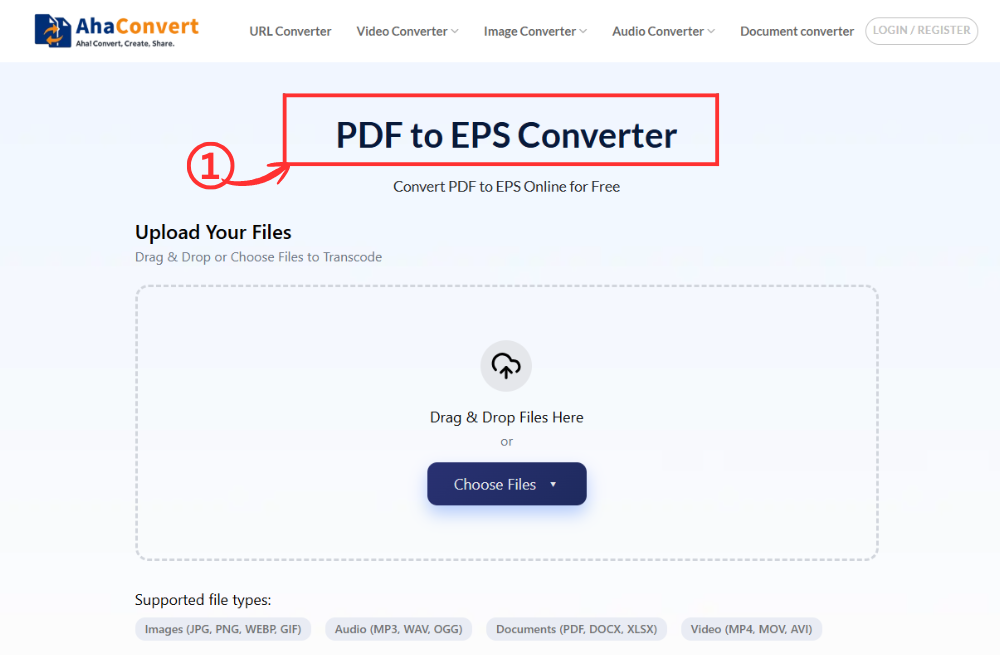
Step 1: Open the AhaConvert PDF to EPS Converter
Access the website of the AhaConvert PDF to EPS Converter in your preferred web browser. This site can be accessed instantly on Windows, macOS, Linux, or even mobile devices without downloading or installing anything.
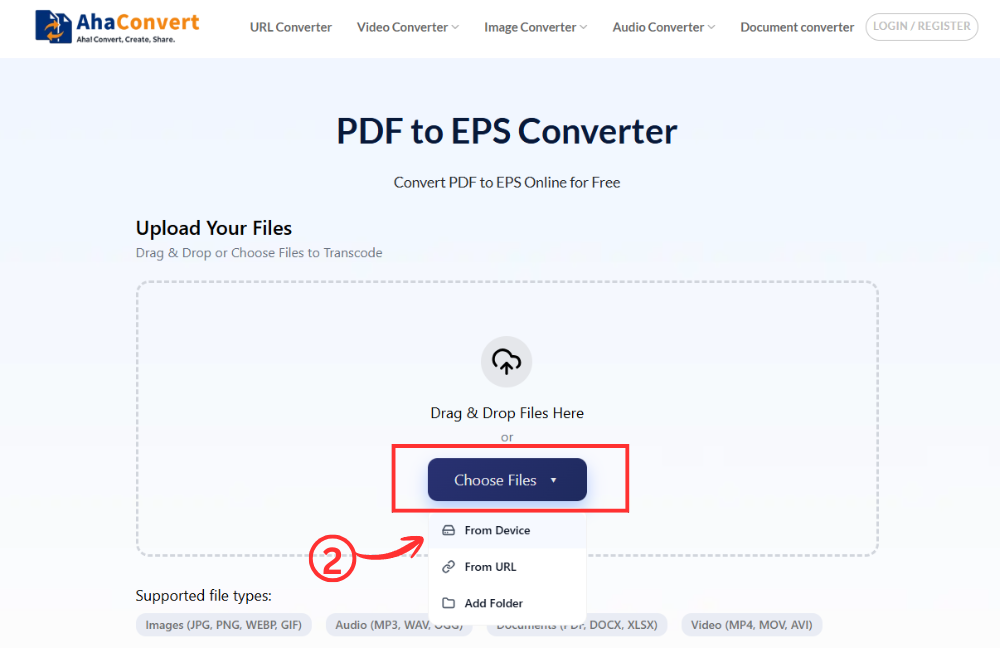
Step 2: Upload Your PDF File
Click the “Choose Files” button to browse and choose your PDF document from your computer. Otherwise, you can just drag and drop the file into the upload box or copy and paste its URL if the document is available online.
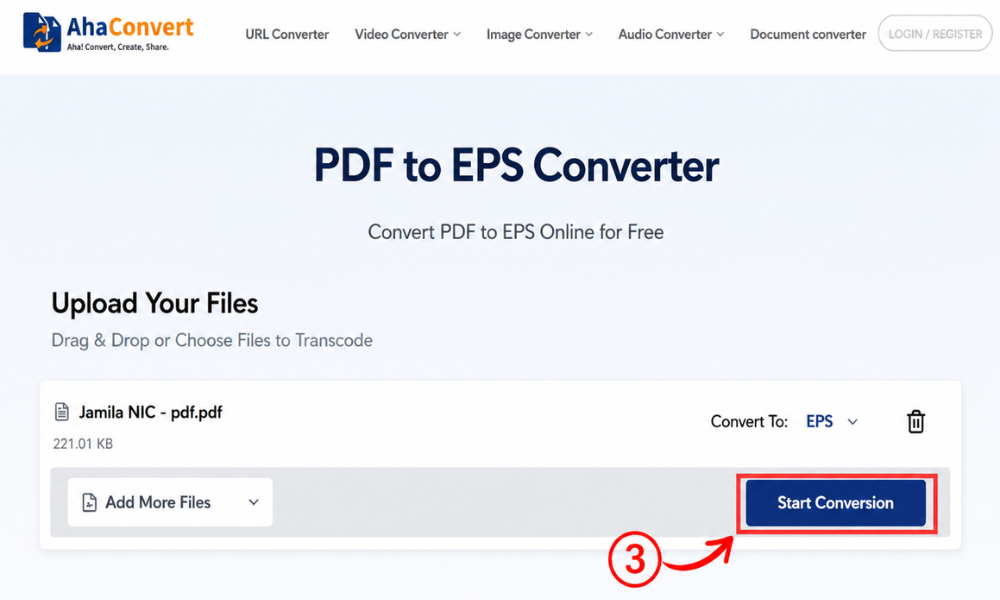
Step 3: Start the Conversion
Once your file is uploaded, click the “Convert” button. Because this is a dedicated PDF to EPS converter, the output format is set to EPS by default — there is no format dropdown to configure. Just click and let AhaConvert process your file.
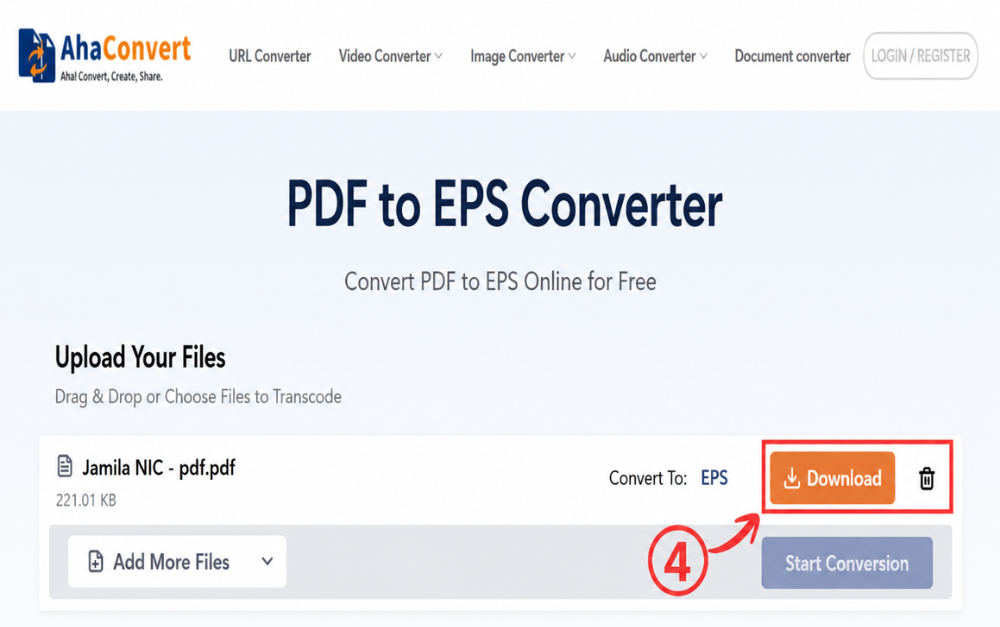
Step 4: Download Your EPS File
When the conversion is complete, a download button will appear on the page. Click it to save your EPS file to your device. The entire process typically takes just a few seconds, even for multi-page or complex PDF documents.
Frequently Asked Questions
1. What is the best way to convert PDF to EPS?
Most people will find that an efficient online tool, such as the free AhaConvert, provides the fastest and easiest way to convert. This tool does not require any software installation; it works on all devices and will generate an efficient EPS file within a few seconds. For complicated PDFs that may require manual adjustments, you should use Adobe Illustrator after this process.
2. Can I convert PDF to EPS for free?
Yes. AhaConvert allows users to convert PDF to EPS format absolutely free of cost. This tool does not charge users for the PDF to EPS converter. It is an easy-to-use online tool that converts a PDF to EPS format in no time.
3. Is EPS still used today?
Yes, though less often used in web development than in other vector image formats such as SVG. The use of EPS remains very common in printing processes, pre-press work, and some design software. Print shops, embroidery designers, and sign shops often ask for EPS files.
4. Can I change PDF to EPS on mobile devices?
Yes. The online tool is entirely browser-based, meaning you can access it from your phone or tablet regardless of the platform – both Android and iOS work well. All you have to do is load the converter in your mobile browser and upload and download your file.
5. Can I convert scanned PDFs to EPS?
Yes, although the resulting file won’t be the same as that produced from a vector PDF file. Scanning a PDF file produces a raster image. Therefore, when converting a PDF file to EPS, you end up with a raster image in the EPS file.
6. Is it safe to upload my PDF to an online converter?
No risks will occur since AhaConvert is reliable software that employs 256-bit SSL encryption to ensure the privacy of all files you upload is maintained during conversion. Moreover, your file will be removed after 24 hours.
Wrapping Up
Converting PDF to EPS is an efficient way to bridge the difference between universal shareability and the editing capabilities of vector artwork needed for use in design software and printing services. Be it the need to extract a logo from a PDF, create artwork for print, or work with older design programs, a PDF to EPS converter can handle it quickly and without issues.
Being aware of the differences between vector and raster versions of PDF files prior to conversion will help save time and effort and prevent unexpected issues when working with color-sensitive or print-based documents. PDF to EPS conversion can be done swiftly and at zero cost using the AhaConvert PDF to EPS Converter. There is no need to install any software on your computer or create accounts to convert files through online services.
If multiple files need to be converted to different formats, the more versatile AhaConvert file converter can help address potential format issues.
