

Design files may be difficult to work with and may need to be converted to formats that are easier to share and present. Converting PSD to PNG is an everyday task for designers, developers, and content creators—those who require images that can be displayed without special software. Although the PSD files are great for editing in Adobe Photoshop, they are not always convenient to use in real life or on the Internet.
Most users convert PSD to PNG when they have to post graphics on the site, send images to customers, or use images in presentations and social media. PNG files are more compatible with devices and browsers, and still retain the image’s quality and transparency. Knowing when to convert PSD files can make file sharing, storage, and daily workflow much easier.
What Is a PSD File?
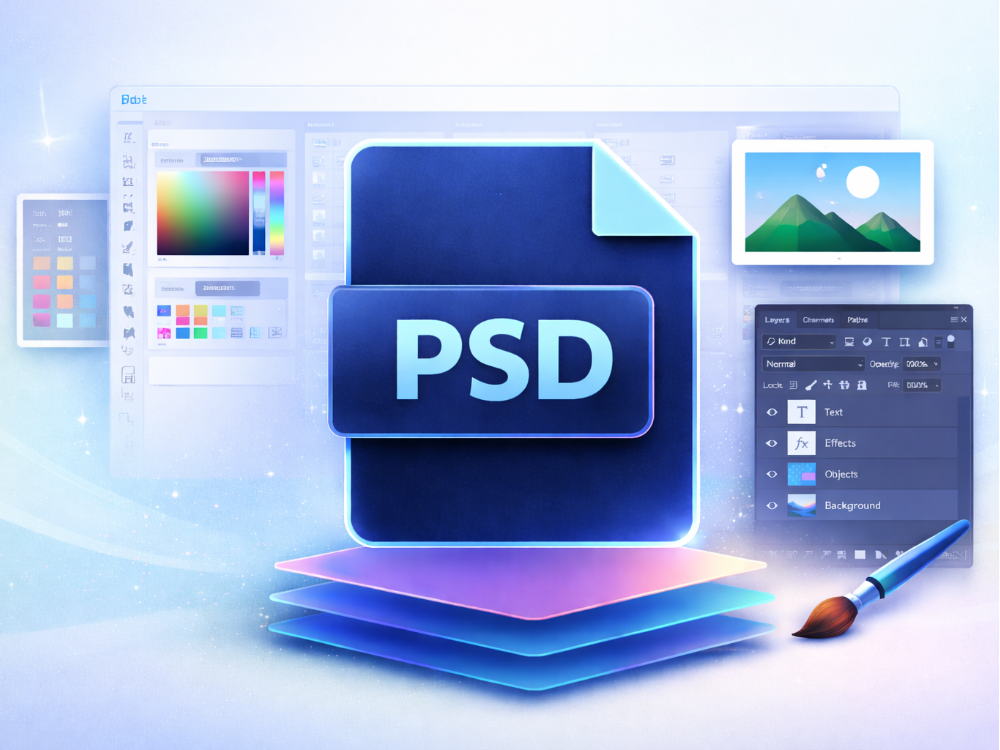
The PSD file format of the Adobe Photoshop image editing program is known as a PSD file or Photoshop Document. PSD files are popular among designers since all editing data, such as layers, effects, text, and adjustments, are placed in a single document. This makes PSD a useful format for creating and editing graphics, web layouts, and digital artwork.
Pros
- Layers and editing: PSD files let designers work with multiple layers, which makes editing more flexible. Thus, it is easy to edit portions of a design without necessarily having to edit the whole image.
- High-quality images: The format also saves detailed image information while maintaining the original quality of the design.
Separates design elements: The text, images, and effects are in different layers, and this allows designers to handle complex projects effectively.
Cons
- Big file size: Since PSD files are used to store a lot of editing information, they are often much larger than standard image files.
- Special software is needed: To open and edit the PSD files, Adobe Photoshop software or other systems are typically needed.
- Not the best to share on the Internet: most sites and devices do not allow opening a PSD file, and therefore, a PSD file is usually converted to PNG before sharing or publishing pictures.
How to Open a PSD File
There are a number of tools that can be used to open PSD files depending on your workflow. Adobe Photoshop is the most widespread as it has the editing capabilities of PSD. PSD files are also compatible with Adobe Photoshop Elements, and they can basically be edited.
In case all you want to do is preview the file, you can use some online PSD viewers that can show images of the PSD without the need for software installation. Moreover, there are graphic design software packages like GIMP that enable a user to open and modify PSD files. Although not all the features of the previous Photoshop version are necessarily supported.
What Is a PNG File?
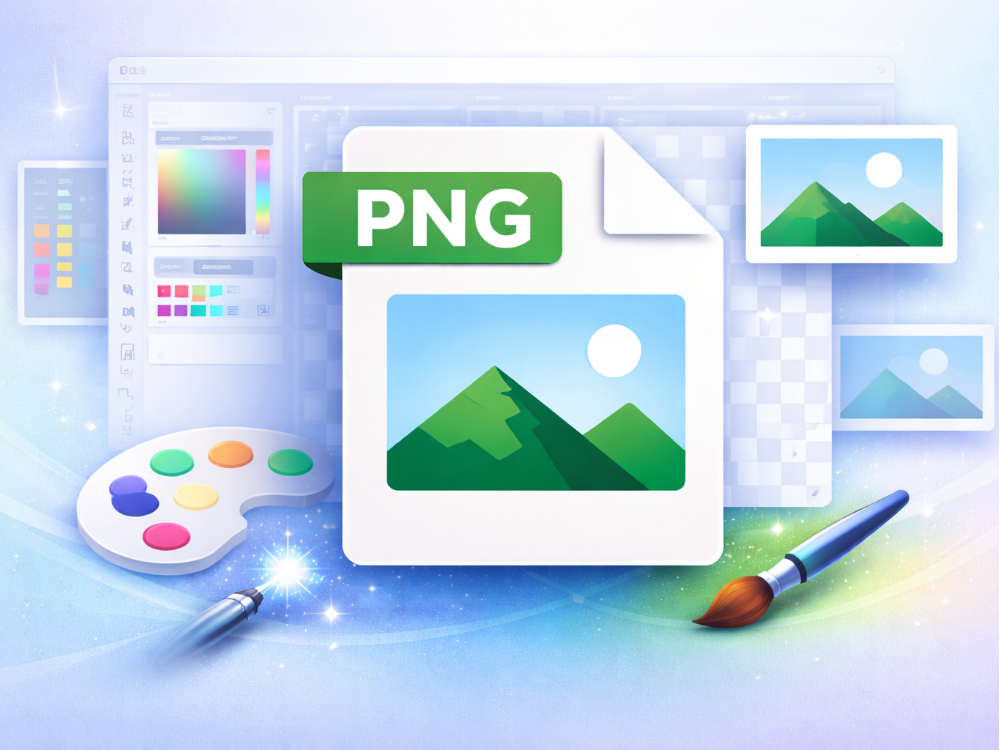
A PNG file (Portable Network Graphics) is one of the popular file formats of images that is used in web graphics and high-quality images. In contrast to the editable files like PSD, the PNG files do not store design elements arranged in layers, but a flattened image. This simplifies the sharing, displaying, and usage of PNG files online after designers have transferred a PSD file to PNG file as the final output.
Pros
- PNG lossless compression does not reduce the quality of the image while compressing the file.
- Transparent background PNG is best applicable as a logo, icons, and overlays on websites.
- Good graphics and web design PNG is good with images that have sharp edges, clear text, and graphics that need details.
Cons
- Big file size than JPG: Since PNG does not degrade image quality, the file size may at times be larger.
- No layered editing: PNG files do not store any separate layers or editable design components, as is the case with PSD files.
How to Open a PNG File
PNG files are popular and compatible across nearly all devices and can be opened without any special software. They are visible on windows through the included Photos app. In macOS, PNG files can be displayed in Preview. PNG can also be directly displayed in most web browsers, namely Chrome, Firefox, and Edge. Also, numerous image editing tools enable one to open and make basic edits on PNG files.
PSD vs PNG: Key Differences
PSD and PNG are image file formats, yet they are used in different applications. PSD files are primarily utilized in the designing and editing process, while PNG files are utilized in sharing and displaying images on the internet. These variations determine when the user needs to convert a PSD file to a PNG file.
Editing Capability
PSD files allow layers, masks, text objects, and complex editing. Designers are able to make individual alterations to every section of the picture. PNG files do not, however, retain the editing layers and are therefore less appropriate for editing designs.
File Size
The file sizes of PSD are normally bigger since they store the information about extensive editing and many layers. PNG files also use high image quality, and they eliminate the editing data that can make them simpler to manipulate and distribute.
Transparency Support
PNG and PSD both endorse transparency. PNG is, however, commonly used in transparent graphics over the web, including logos and icons, since it retains transparent backgrounds in a simple image format.
Web Compatibility
Most websites and browsers do not support PSD files. Typically, they need a design program to be opened. Instead, PNG files can be easily viewed in browsers, devices, and online platforms without any special tools.
Best Use Cases
PSD files have been used in graphics design, where one needs to do continuous editing. PNG is more suitable when it comes to publishing completed pictures, web graphics, logos, and illustrations.
Since PSD files are not the most suitable to be shared online, people tend to convert PSD to PNG and upload pictures to websites or send them to other people. Saving a PSD file to PNG file preserves the image quality, and the image becomes simple to access and interact with in various systems.

Why Convert PSD to PNG?
The conversion of a PSD file to PNG file is often used when a designer is required to share or publish an image using software other than a design tool. Although PSD files are handy when it comes to editing, they are not always handy to see or share. That is why a great number of users prefer to convert PSD to PNG in order to post pictures online or share them with other people.
Easier Sharing and Compatibility
PSD files are normally opened using Adobe Photoshop or special tools. On the contrary, PNG files are easily perceived with almost all-purpose devices, browsers, or applications. The conversion of a PSD file to PNG simplifies the task of sharing the image with individuals who lack the design software.
Transparent Background Support
PNG files also allow transparent backgrounds, and this makes them the best when it comes to logos, icons, and web graphics. Once you have converted PSD to PNG, the transparency of the design can be maintained, and the image can be used in other backgrounds.
Smaller and More Manageable Files
PSD files are also known to have layers and editing data, and this makes the file bigger. When turning a PSD file to PNG file, irrelevant editing data is eliminated, which makes the file easier and simpler to manipulate.
Better Support for Websites and Applications
The majority of websites, applications, and other online platforms do not accept PSD files per se. PNG is extensively compatible with systems and browsers. This is yet another reason why users tend to convert PSD to PNG when they want to post images on a website or any other digital platform.
Allows Users Without Photoshop to View the Image
Adobe Photoshop is not available to everyone. A PSD file to a PNG file will guarantee that every person can open and look at the picture with the help of ordinary programs like web browsers, picture viewers, or even mobile phones.
How to Convert PSD to PNG Online?
PSD can be converted into PNG in various ways based on the available tools. Two trusted techniques are below; the first one does not need any software, and the second one is based on Photoshop.
Method 1: Using an Online PSD-to-PNG Converter
In case you do not have Adobe Photoshop or just have to get it over with faster, an online PSD to PNG converter is all you need. AhaConvert PSD to PNG converter is an online tool that is capable of converting within seconds, with no account or any installation.
Step 1: Open the AhaConvert PSD to PNG Converter
Go to AhaConvert PSD to PNG Converter in your web browser. The converter loads instantly and works on any device, including Windows, macOS, and smartphones.

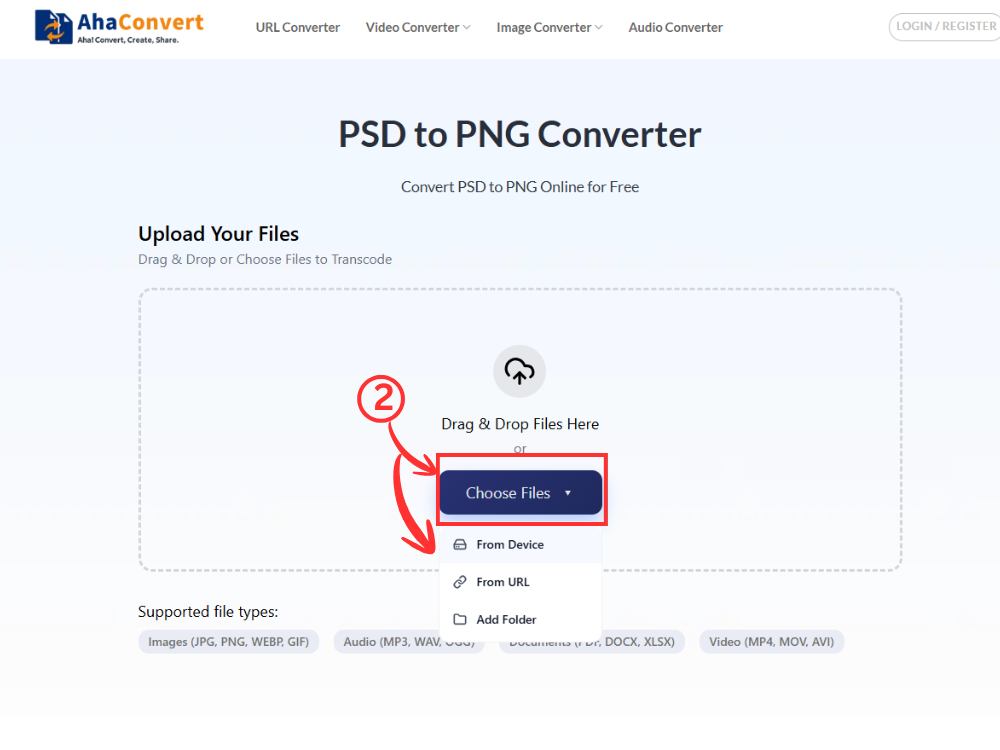
Step 2: Upload Your PSD File
Click the “Choose Files” button to upload your PSD file from your device. You can also drag and drop the file into the upload box.
Step 3: Start the Conversion
After the PSD file is uploaded, the AhaConvert PSD to PNG converter automatically prepares the file for conversion. There is no need to manually select the output format, as PNG is generated by default. Simply start the conversion process, and the tool will handle everything automatically.

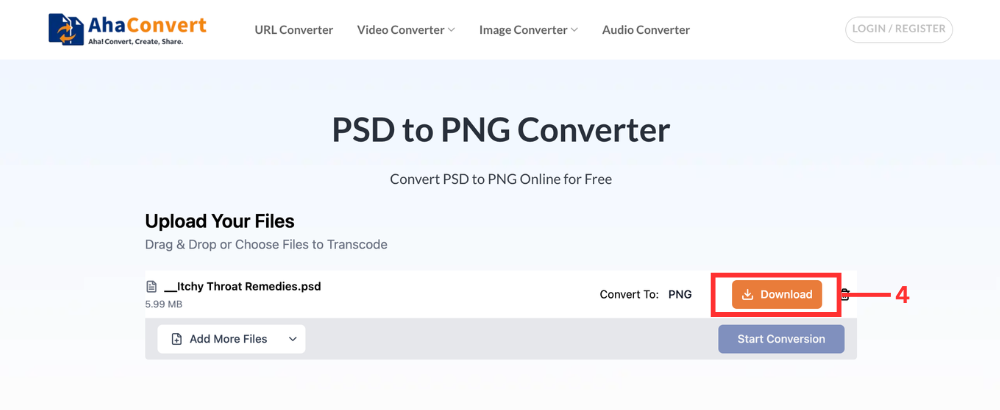
Step 4: Download the Converted PNG File
After the conversion is complete, the PNG file will be ready automatically. Click the “Download” button to save the converted PNG file to your device. The process is quick, and the file is available within seconds.
AhaConvert processes all files with 256-bit SSL encryption and automatically deletes uploaded files within 24 hours, ensuring your designs stay private. It is a simple, secure, and completely free way to handle PSD to PNG conversion online.
Method 2: Using Photoshop
When you have Adobe Photoshop, it is easy to export your PSD as a PNG right in the program, and it also has more quality options.
Step 1: Open Your PSD File in Photoshop
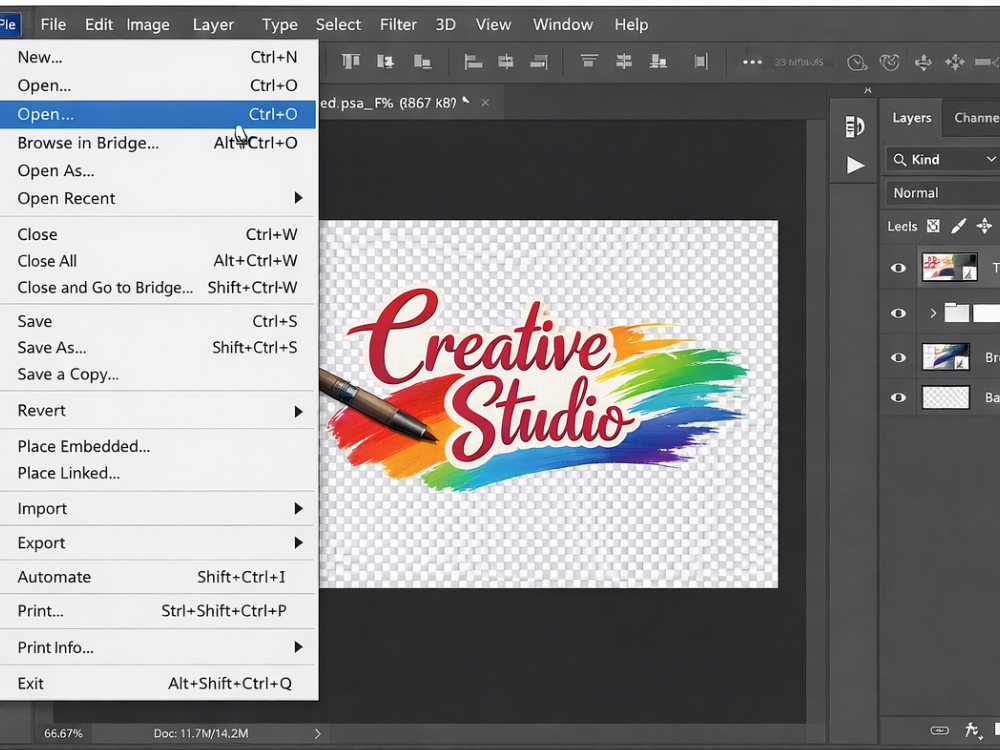
Install Adobe Photoshop software and open the PSD file you want to convert. Go to File > Open and select your file.
Step 2: Flatten the Image
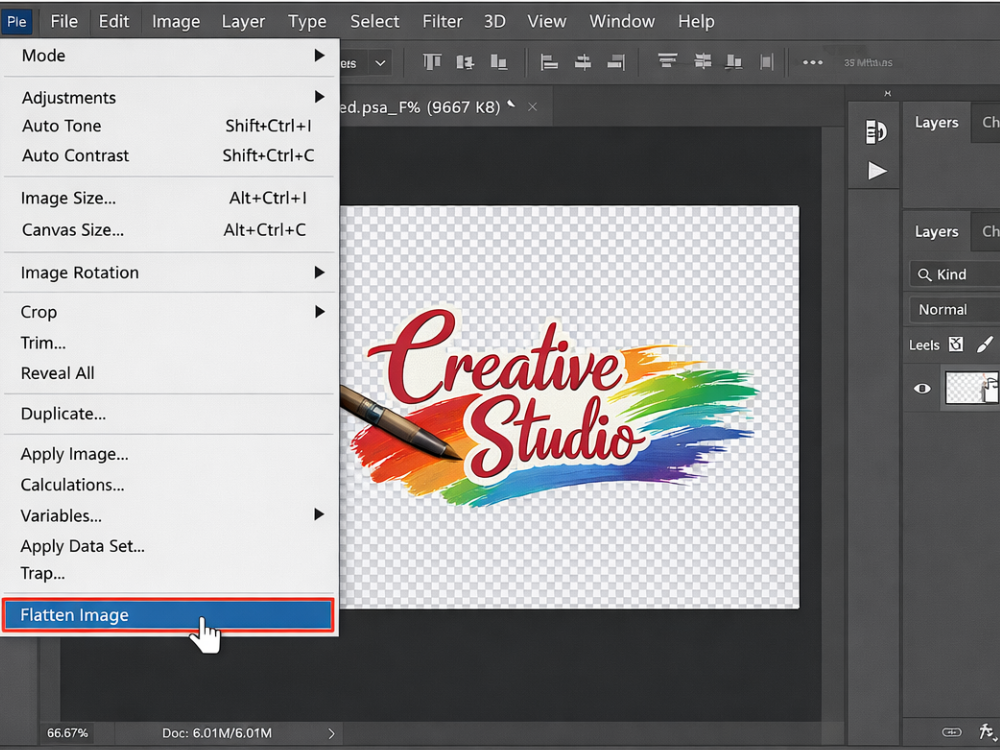
If you want to merge all layers into a single image, go to Image > Flatten Image. This step is optional; skipping it will still export a PNG, but flattening ensures cleaner output when layers overlap in complex ways.
Step 3: Export as PNG
Go to File > Export > Export As. In the dialog that appears, select PNG from the format dropdown. You can also choose whether to include transparency. Click Export and choose where to save the file.
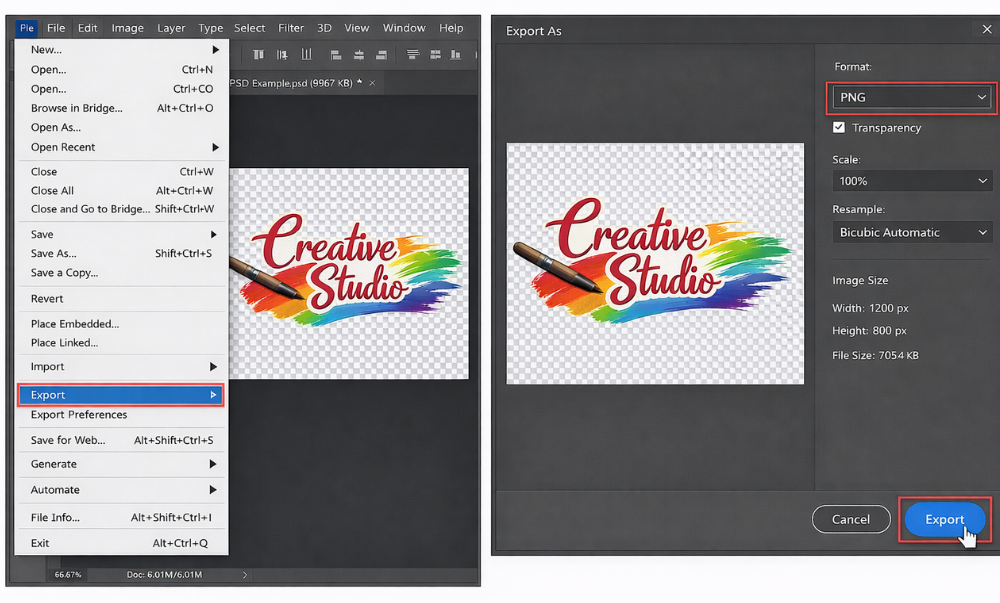
Photoshop gives you more granular control over how you convert PSD to PNG, including options for resolution, color profile, and transparency. However, it requires an active Adobe subscription, which makes the free online method far more accessible for most users.
Frequently Asked Questions
a. Is PSD to PNG conversion free?
Yes, there are a lot of tools that help a user to convert PSD to PNG without spending money. The AhaConvert PSD to PNG converter online tool is a fast method of converting a PSD file to PNG, without the need to install software.
b. Can I convert PSD files online safely?
Yes, it is usually safe to convert PSD to PNG with the help of trusted online services. Reliable websites handle the conversion of the PSD file to PNG format directly in the browser and tend to clean up files uploaded after a limited time. Well-known converters like AhaConvert are useful in making sure that the process is both safe and easy.
c. Can I convert PSD to PNG with a transparent background?
Yes, you can retain the transparency even when converting PSD to PNG. When the original PSD file has clear spaces, the PNG output tends to retain the transparency. It is due to this that PSD file to PNG by many designers, particularly when dealing with logos, icons, and web graphics.
d. What should I do if my PSD file fails to convert?
In case a PSD to PNG conversion does not work, then first verify the file size and then make sure the PSD file is not corrupt. Another option would be to re-upload the file or go with another PSD to PNG converter. This can be done by re-opening the PSD file in Photoshop and re-exporting it on other occasions.
e. Can I convert a PSD file to PNG on mobile devices?
It is possible to convert PSD to PNG on mobile devices with the help of online services. A large number of converters, such as the AhaConvert PSD to PNG converter, are mobile browsers. You can convert the PSD file to PNG, initiate the conversion, and save the PNG file without installing any software.
Conclusion
Converting PSD to PNG is a necessary, though easy, process in most design processes. This is done by designers when preparing assets to be used in websites, presenting work to customers, or when saving the final design in a light format. PNG has good image quality, transparency support, and good compatibility.
To have a quick and easy solution, the PSD to PNG Converter is a built-in browser-based application. It is also free, safe, and can be used on virtually any machine. In case you want to use design programs, Photoshop has Export As as well. This alternative gives increased flexibility to the end product.
In any case, you can now get everything you require in order to convert PSD to PNG fast and at the same time without any doubts. An online converter is fast, and Photoshop provides greater control.
