

Introduction
You are not wrong to save your file in PSD format, especially if you are well-versed in Photoshop. However, not everybody shares the same sentiments, as others may face trouble when you share this document, especially with some clients or fellow project members. In that case, you want to consider a tool to convert PSD to JPG file.
In terms of accessibility and practicality, JPG files make a lot more sense, as these files are much easier to share due to their smaller size, particularly when you are sending hundreds of image files at one time. PSD files themselves serve a great purpose for easy, precise editing. But if you are facing issues with sharing and space, the PSD-to-JPG converter comes in handy.
What Is a PSD File?
In simple words, PSD files stand for Photoshop Document. All Adobe Photoshop files use the PSD format as the standard. It consists of multiple image features and can also hold numerous images. PSD file images consist of multiple layers and allow the user to edit small details, such as font size, color, and minor details.
In short, PSD images are highly editable and can easily support large designs. The only drawback of PSD files is that they slow down browsing speed and are difficult to share due to their size. That’s why people use a PSD-to-JPG converter to make their files easier to share.
What Is a JPG File?
A JPG image file stands for the Joint Photographic Experts Group. People mostly find it confusing due to JPEG files. And their confusion is also valid, as JPG and JPEG are interchangeable. JPG files are highly popular among other file types, and the obvious reason is their convenient small size and accessibility. JPG uses lossy compression to reduce the size of the file. The only drawback of a JPG file is that reducing its size causes a loss of resolution. While converting PSD to JPG, the converter removes some layers from the PSD file. As a result, the PSD file, after conversion to a JPG file, becomes less editable.

Why Convert PSD to JPG?
The first thought that comes to mind after completing a design project is to share it with the expecting client, collaborator, or team. Now that’s where the designer faces the real issue. Adobe Photoshop saves files in PSD format. In most cases, the designer and the client do not have Adobe Photoshop installed on their systems, which prevents them from opening a PSD file. And what is the point of sharing your work if the client is unable to review it? For that purpose, you have to convert the PSD to a JPG file.
PSD files are sufficient and serve their purpose. However, PSD files are uncompressed and contain multiple layers, which slows down sharing and browsing. This fact may not matter if you’re sending a few files. However, when we are talking about sending hundreds of files at one time, the scenario changes. At that point, people use a converter to convert PSD files to JPGs to make them more shareable and easier to use. Besides sharing, a small file is convenient to open in a browser and to post or email.
How to Convert PSD to JPG Using Adobe Photoshop
Adobe Photoshop is an editing tool used to convert a PSD file to a JPG file. But first, you have to install Adobe Photoshop on your device.
- First, open Adobe Photoshop and select the PSD you want to convert. In the top left corner, click on “File” and select the “Save As” option.
- After that, a tiny dialog box will appear. Click the “Format” option to select the JPG from the menu. After selecting the JPG file, you can adjust the quality according to your liking by clicking on the options. You can select the higher quality option to get a larger file size with better visuals. Customize it according to your preference.
- After finalizing, click “Save,” then choose where you want to store the file. Your converted JPG file is saved on your device.
Converting a PSD to a JPG in Adobe Photoshop is pretty straightforward. The only drawback is that you have to install Adobe Photoshop on your device specifically for this purpose. People who work with Adobe Photoshop daily may not find this an issue, but if you don’t belong to that group, you may find it inconvenient, especially for reviewing a file.
How to Convert a PSD to JPG Without Photoshop
To convert PSD to JPG, you can use a PSD-to-JPG converter, which is easily available online. However, for reliable, secure results, choose an efficient converter like AhaConvert. These converters are easy to use, and your data remains secure. Here is the step-by-step conversion process you can follow to change your PSD to a JPG file using AhaConvert:
Step 1: Upload the PSD file
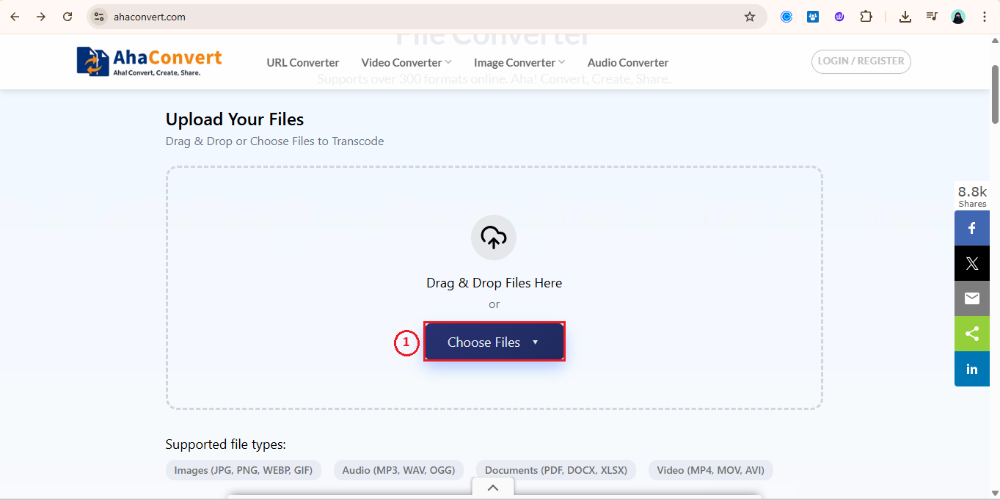
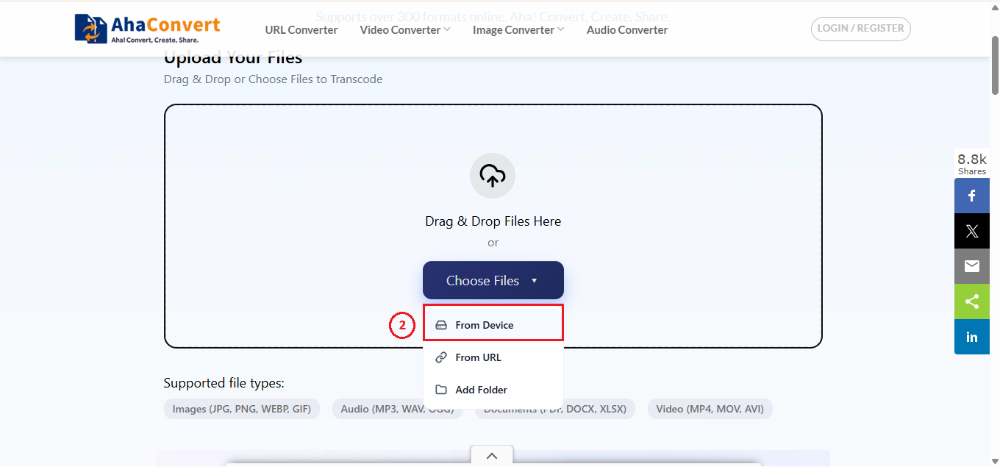
The first step is to upload your file to the browser. By clicking the “Choose file” option, you can select the file you want to convert. You will be asked to choose a file from the device, or you can also upload it via a URL. Furthermore, tools like AhaConvert also offer batch conversion. You can convert multiple PSD files in one session. To do this, click the “Folder” option to upload multiple files. AhaConvert will automatically convert them one by one to improve efficiency and to avoid manual repetition.
Step 2: Select JPG format
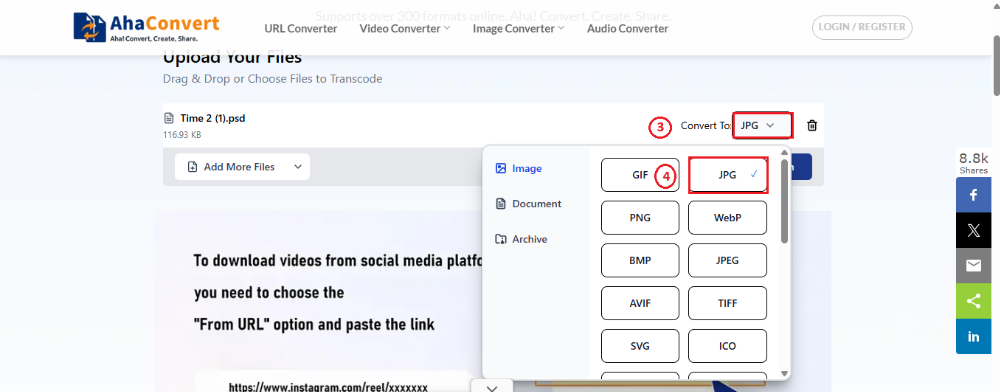
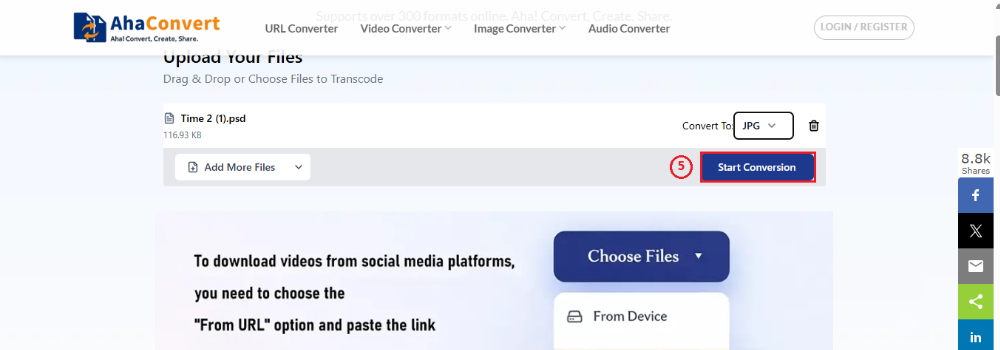
In the next step, choose the JPG format option from the list. For this, you simply have to choose from the “Convert to” options available in the section. There are multiple file options available to choose from. Complete this step using the JPG option. After choosing the PSD file you want to convert and selecting JPG as the output format, click the ‘Start Conversion’ button.
Step 3: Download the JPG file
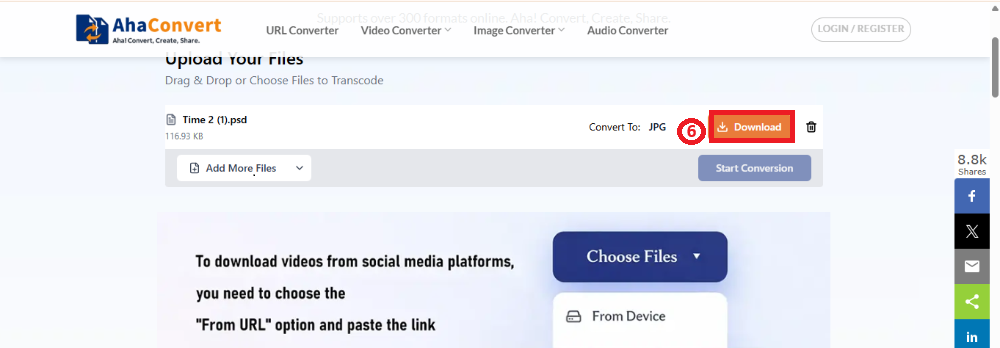
This is the last step. In a few seconds, the conversion will be complete, and a “Download” option will appear on the screen. Click on the “Download” option to get your converted JPG file.
FAQs about Converting PSD to JPG
a. Will converting PSD to JPG remove layers?
Certainly, converting PSD to JPG involves removing some layers from the PSD file. PSD files are ideal for precise editing thanks to their multiple layers. However, these multiple layers sometimes restrict user activities, and for this reason, PSD-to-JPG converters come in handy.
b. Is JPG better than PSD for web use?
JPG and PSD files can both be used for websites. PSD files are ideal for editing because they support multiple layers, allowing precise edits without affecting the entire file. However, JPG, thanks to its small size, is easily supported by web browsers without slowing them down.
c. Can I edit a JPG after converting from PSD?
Users can still edit the JPG file after converting it from PSD. However, removing some layers during conversion limits editing to only color correction, cropping, and other basic edits. Unfortunately, you can no longer edit individual text, layers, or other elements.
d. Is the PSD-to-JPG converter safe to use?
To convert a PSD to a JPG, the user must upload the file to the browser, which feels a bit unsafe. However, using a reliable converter like AhaConvert keeps your data safe, as they automatically delete files within 24 hours to ensure privacy and complete data security.
e. Is the PSD-to-JPG converter free?
There are multiple PSD-to-JPG converters available online, both paid and free. Converters like AhaConvert are free to use for all users, including both frequent and occasional users.
f. Can I use the PSD-to-JPG converter on Mac and Windows?
Yes! PSD-to-JPG converters can be used on both Mac and Windows. Furthermore, users no longer need to download the PSD-to-JPG converter. To convert a PSD file to a JPG file, simply upload the file to the browser, convert it, and download the file with AhaConvert.
In Conclusion
Sharing your creative work file in a convenient format is as important as creating one. And this is especially true when you have been using Adobe Photoshop and saving files as PSDs. You may want to change the PSD to a JPG file to make it shareable and accessible for most people. In that case, you may want to consider using PSD-to-JPG converters.
AhaConvert is highly efficient and effortless for you. It can be used directly on the browser without downloading it or making an account on the platform. In addition, some of these platforms are free for all users, including frequent and irregular users. So, use these reliable PSD-to-JPG converters to convert your images without risking your data or security.
