
As much as there is prestige surrounding JPEG file formats, they still fall under rasterized images. When you use a JPEG to SVG converter, your image becomes a vector graphic, meaning no matter how much you “blow up” the image, it will not pixelate.
This is especially useful for images like icons, logos, and other infographics. With a simple converter, you can learn how to convert a JPEG to a SVG in seconds, but sometimes a converter’s efficiency can get in the way. Let’s see which converters can help you convert your JPEG to SVG, meeting your expectations of both quality and efficiency.
What Is a JPEG?
JPEG, which also goes by JPG, is a compressed image file format. Its reduced size is one of its key attributes, making it so popular in the graphics world. Users prefer saving and sharing images as JPEGs to keep their devices lighter, leaving enough room for more important files. For this reason, many users also convert certain files to JPEG, such as converting PSD to JPG, as such files are larger and not always supported across devices and platforms.
What Is an SVG?
An SVG file reads an image as shapes, colors, and paths and creates an XML-based file that renders a 2D image. You will commonly see it being used in web graphics, logos, icons, diagrams, and similar visuals. While some converters can handle complex images with unclear edges and heavy detail, many still cannot, and because of this, many users turn to learn how to convert a JPEG to a SVG. The best practice is to stick with simple images, but if you do need to convert a raster file, such as a JPEG to SVG, use a converter that offers reliable results.
Key Differences and Why You Should Convert
The table here best explains the differences between JPEG and SVG files. This comparison will help you better understand why so many users tend to switch to learning how to convert a JPEG to a SVG.
| Feature | JPEG | PNG |
|---|---|---|
| Compression | Lossy compression is a compression method that eliminates certain data | In lossless compression, all the image data is retained |
| Image Quality | Good quality, but may degrade after editing | High quality with no data loss |
| Transparency | Not supported | Fully supports transparency |
| File Size | Smaller file size | Larger file size |
| Best Use | Photographs, web images | Logos, graphics, design elements |
| Compatibility | Widely supported across all platforms | Also widely supported across modern platforms |
Why You Should Convert?
SVGs are quite impressive and unlike anything else. The majority of the image file formats you already know are raster, meaning they are made up of pixels, which become ever so apparent once you magnify an image. This alone is one of the primary reasons why many want to learn how to convert a JPEG to a SVG.
1. SVG files are text-based, readable files that are easy for search engines to read. JPEG, meanwhile, cannot be further interpreted beyond just basic metadata. Users researching how to convert a JPEG to a SVG are commonly doing it to rank their webpages higher on search engine results pages.
2. SVGs are a more inclusive format for users with disabilities. Technologies such as screen readers can comprehend these images better and read aloud for users who wish for a better experience in digital spaces.
3. You can include animations within SVGs by enhancing the code. This level of flexibility is usually not offered by static JPEG files, where many users often turn to learning how to convert a JPEG to a SVG to animate their JPEG files.
4. SVGs are made up of mathematical formulas that describe shapes, colors, lines, points, and grids, where you can zoom in to any extent you like. JPEGs pixelate on zooming.
5. Developers and designers find SVGs more convenient to edit as they only require alterations within the code or through design tools.
Online JPEG to SVG Converter: Quick and Free Tool
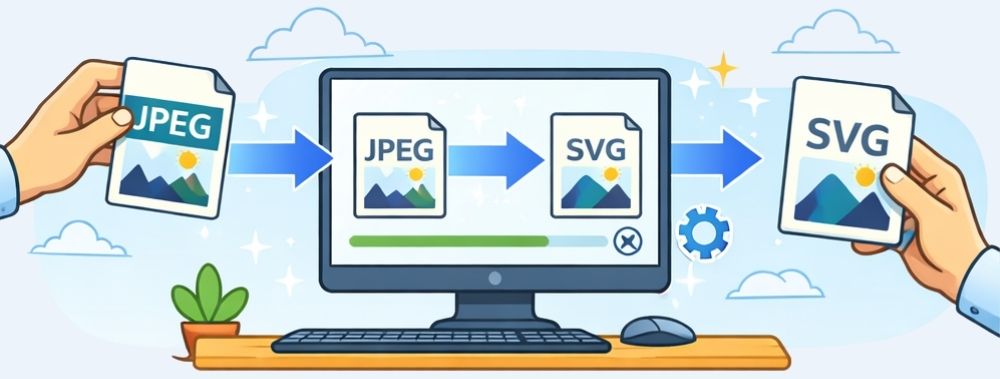
When you set out on your journey in learning how to convert a JPEG to a SVG, you will notice that many users encourage the manual process of conversions. This includes using design tools such as Adobe Illustrator and Figma to manually recreate the image and produce a vector image version of the JPEG file.
Online JPEG to SVG converters can save a whole lot of your time, especially if you just want to convert basic graphics like logos, icons, or flat illustrations, provided these converters in question are reliable. If you’re starting off and not sure how to go about using design tools to convert to SVG, the best case for you would be to learn how to convert a JPEG to a SVG using AhaConvert, as it consistently delivers reliable results.
To convert a JPEG to a SVG, you first need to find a reliable online JPEG to SVG converter free of cost. Since JPEG files are made of pixels, these converters have to interpret shapes and edges, which can sometimes lead to rough outlines, extra nodes, or inaccurate paths, especially with detailed images or heavy compression. Reliable converters spare you from these concerns, generating SVG codes, which you can integrate anywhere between your HTML codes and design tools.
Adobe Express
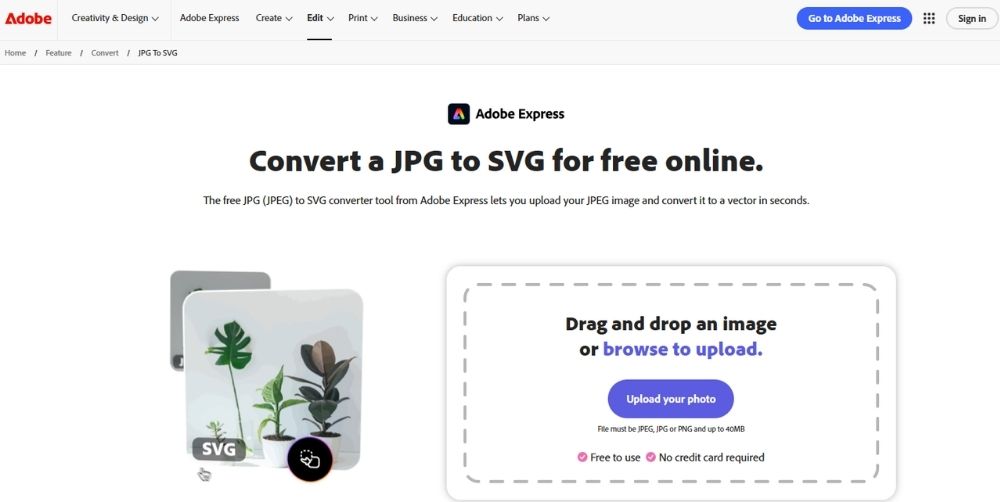
Adobe online is capable of a whole lot. From video editing to creating and designing through GEN AI, it can do it all. Within the image quick actions, it offers a “convert to SVG” tool, which works as smoothly as you can imagine. On how to convert a JPEG to a SVG, simply upload your JPEG file and within seconds, you shall have your SVG file ready. For best results, make sure the images aren’t very complex, as their performance usually depends on how basic the graphics are.
Convertio
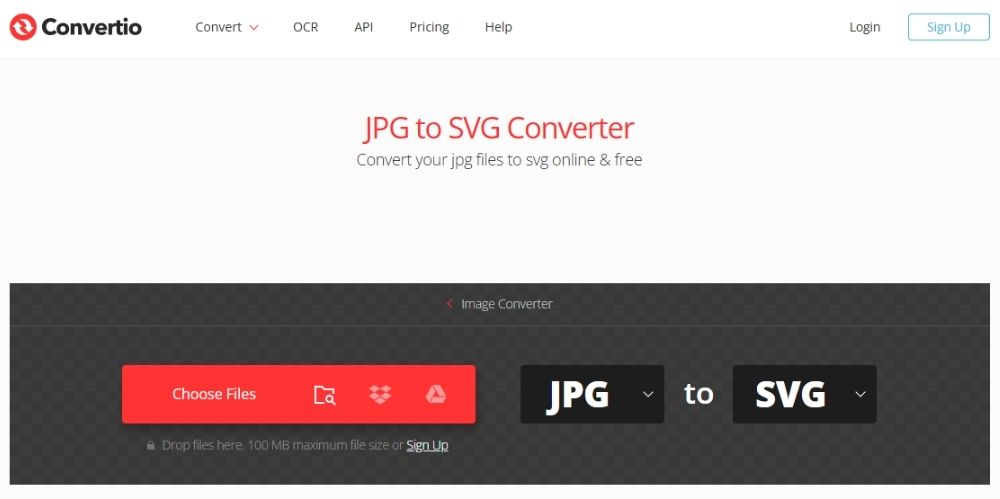
Convertio runs entirely in the browser, where you can upload files from local storage, Google Drive, or Dropbox. The tool, although very basic, is incredibly efficient while offering customization options, which can help refine the final SVG output.
Canva
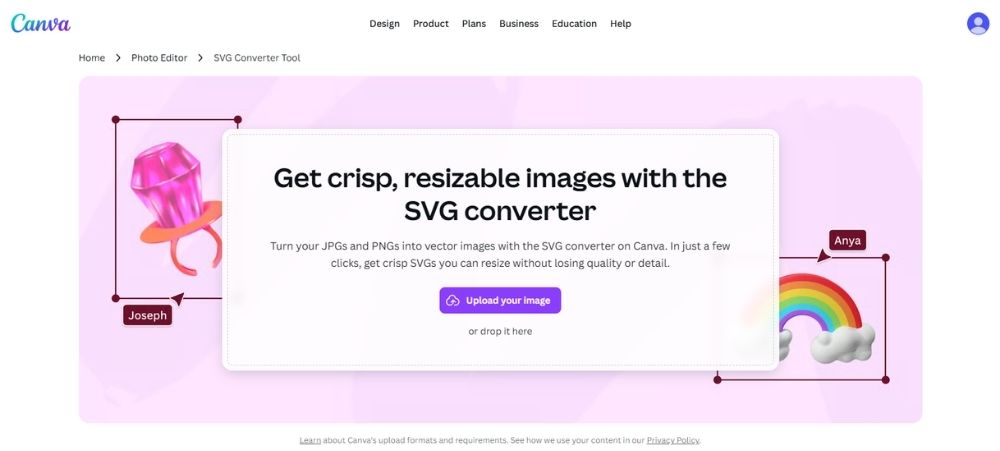
Canva is not an exclusive online converter, but you can still learn how to convert a JPEG to a SVG through it. When you open and edit an image on Canva and want to further save it to your device, the tool offers the option to save the file as SVG. It’s fairly easy to use with little to no complex steps to slow the process.
AhaConvert
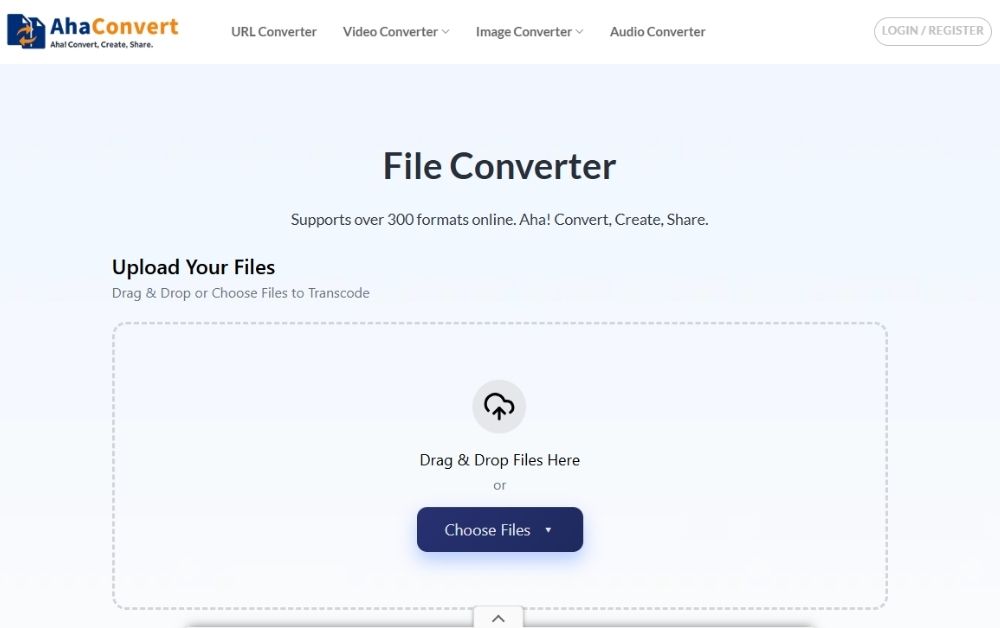
AhaConvert is a much simpler JPEG to SVG converter tool. The conversion options are endless, and there are several ways to go about conversions between JPEG and SVG, so you will likely not get confused during the process. You don’t have to sign up to use it, all while reaping from its batch conversion, free of cost, effortless, fast, and safe conversions.
How to Convert JPEG to SVG
The ease of use you get from using AhaConvert when going about converting a JPEG to a SVG is a level of convenience and comfort that barely any other tools offer. The steps for converting JPEG to SVG are incredibly easy to follow, and once the process is done, you can paste the code into your desired location.
Step 1: Open AhaConvert JPEG to SVG Converter
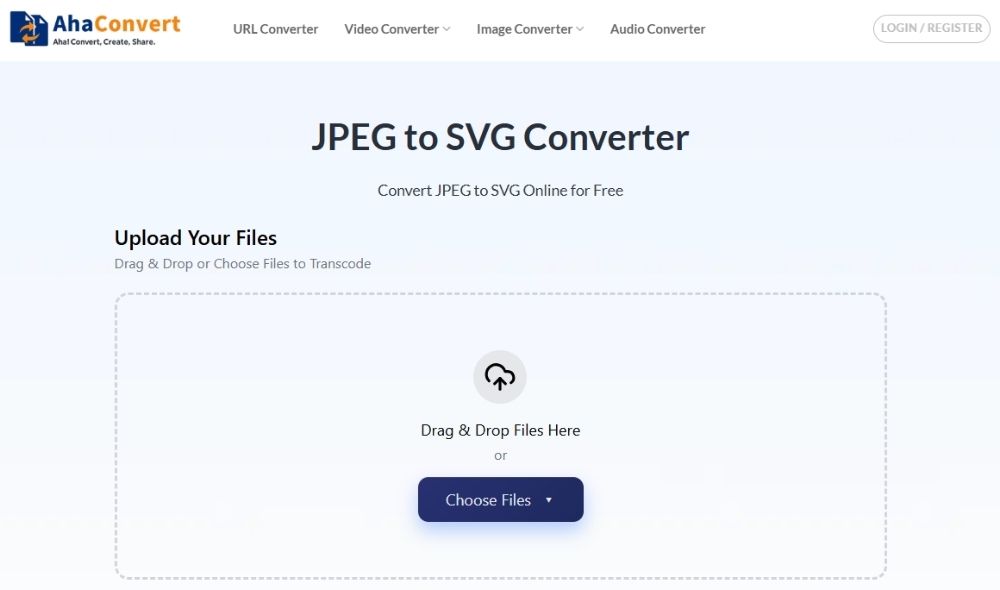
Start by opening your browser and visiting the AhaConvert JPEG to SVG Converter page.
Step 2: Upload Your JPEG File
Once you’re on the converter page, upload your JPEG image. You can either drag and drop the file directly into the upload area or use the Upload Files option to select it from your device or add it via a URL.
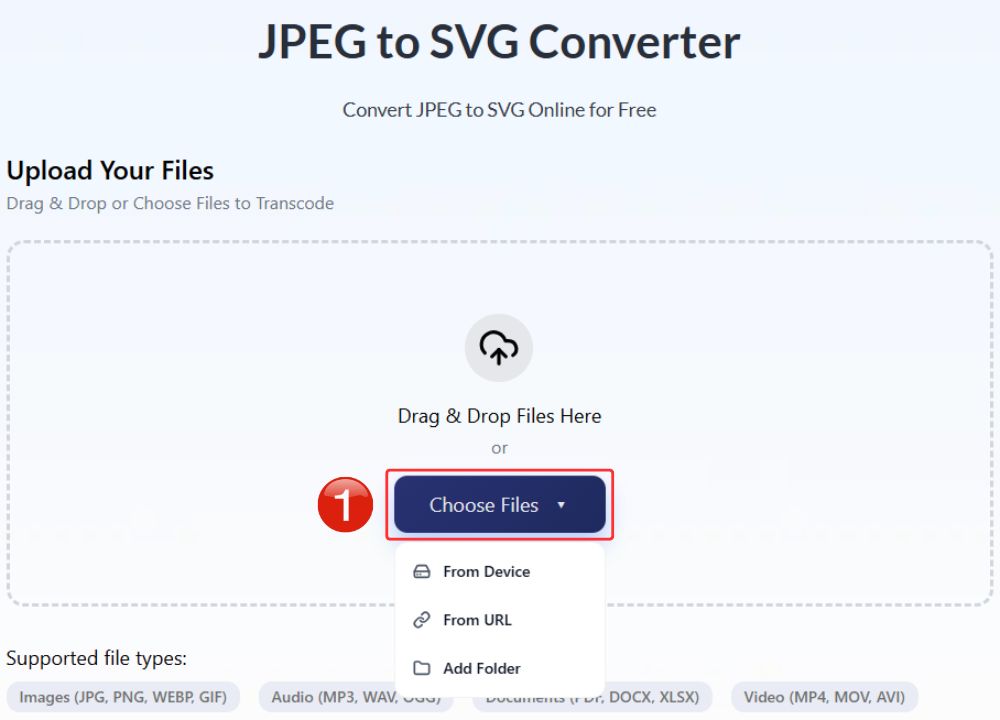
Note: AhaConvert also allows batch uploads, so you can also upload multiple JPEG files at once, and the tool will process them sequentially.
Step 3: Begin the Conversion
After uploading your file, click on the Start Conversion button to initiate the process. The output format is already set to SVG, so no additional changes are required.

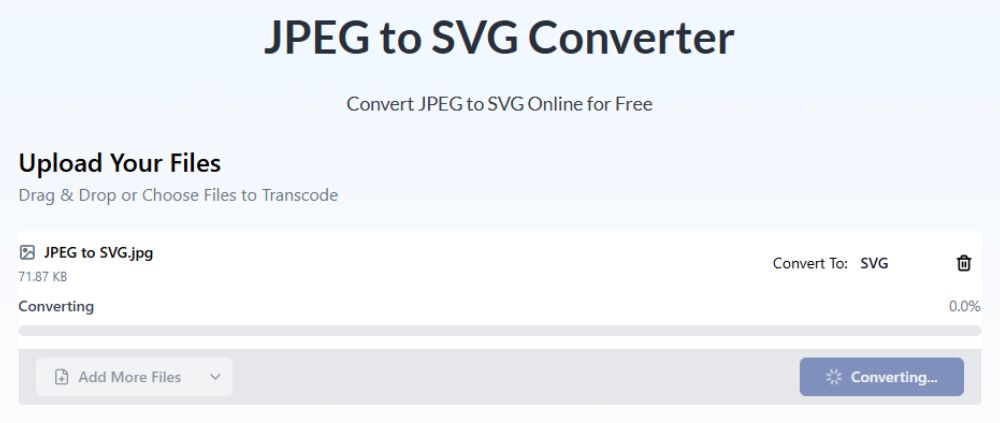
Step 4: Conversion in Progress
The tool will display the conversion status in real time, where the conversion usually takes a couple of seconds, though larger or multiple files may take slightly longer.
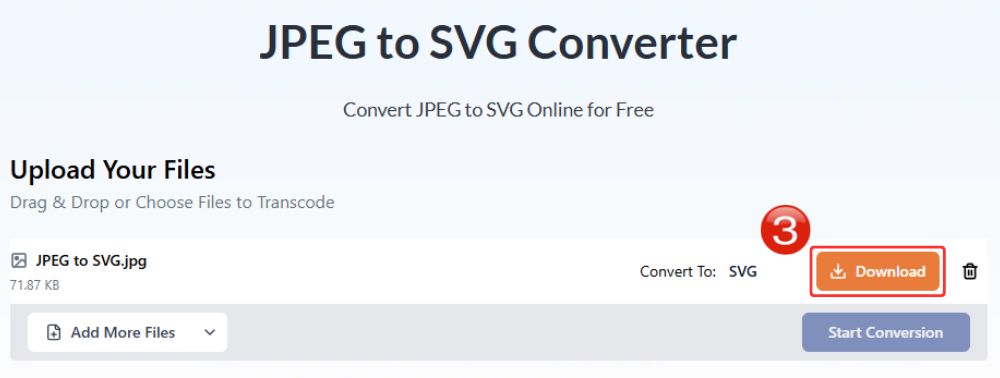
Step 5: Download the SVG File
Once the process is complete, a download option will appear. Click Download to save the converted SVG file to your device. You can open the file and paste your SVG code to the location of your choice to display the vector image.
FAQs About Converting JPEG to SVG
a. How can I convert a JPEG to an SVG for free?
There are plenty of free online converters that will effortlessly convert your files from JPEG to SVG. AhaConvert is one such tools that consistently deliver premium results.
b. Can I edit an SVG after converting from JPEG?
Of course! SVGs after conversion can be edited within software tools such as Inkscape, Figma, or Adobe Illustrator.
c. Are online JPEG to SVG converters safe to use?
Some are. Make sure to check what the privacy policy of the online converters is like. Online tools such as AhaConvert store files with 256-bit SSL encryption during conversion, which means your data is safe, preventing any middleman attacks. It also deletes files within 24 hours.
SVG files are usually supported by websites, most social media platforms do not support SVG uploads directly, so you will usually need to convert the file into PNG or JPEG before posting.
e. Can I convert multiple JPEG files to SVG at once?
Yes, if you are using an online converter such as AhaConvert, you have the option of batch conversions, meaning you can upload plenty of JPEG files at once to convert them to SVG in sequence.
In Conclusion
Figuring out how to convert a JPEG to a SVG through an online converter is usually a far more convenient option than converting it via design tools. That is not to say design tools are pointless; once you obtain your SVG file, you can further edit it on your preferred design tools. This is also why you must not compromise on a reliable online converter to make sure your results are as close to the original image as possible. AhaConvert’s accurate results are one of the strongest reasons why it is amongst the most preferred JPEG to SVG converters.
