
Have you ever faced a scenario where you had a folder containing several JPG images, but you wanted to share them as one document? It does not matter whether you are merging receipts, putting together images for the portfolio, or signing documents; it is a good idea to learn how to combine JPG images into a single PDF, which saves considerable time and effort.
The PDF format is widely accepted and maintains its layout regardless of the device on which it is opened. In this tutorial, we will review the most popular online JPG-to-PDF conversion tools and provide a step-by-step guide to converting your JPG files to PDF. Once you have gone through this guide, you will be able to merge multiple images into a single PDF file.
Why Combine JPGs into One PDF?

There are various reasons to convert multiple JPG files into a single PDF document. The conversion process is explained in terms of its reasons, as that is the best way to explain how it has become so engrossed in the modern world.
Simplified File Management
Overwhelmed might be the right feeling to describe your reaction to managing a lot of images. By converting a JPG file to a PDF, you will consolidate all your data into a single, clean file that is easy to store and find later. You won’t need to spend time browsing through thumbnails anymore to see if that’s what you are looking for.
Professional Presentation
That’s one reason why PDF files look more professional compared to lossy image files. If you submit your portfolio or report in a nice and well-structured PDF, it will reflect on your professionalism. The PDF format ensures that, no matter what device you view the document on, it will look exactly as you want it to.
Easier Sharing and Distribution
Sending multiple JPG files via email can be a hassle due to attachment size and download time. A PDF file would completely eliminate all these problems because the recipients will receive a document that is ready for viewing or printing.
Smaller File Size and Improved Security
Generally, combining images into a PDF results in a file size smaller than the sum of the individual JPGs’ sizes. Besides, the PDF format allows users to protect the document with a password and encrypt it, which is not available for other image formats.
Using JPG to PDF Converter Tools (Online)
Many online tools are available that allow you to convert JPG to PDF easily without needing to install any software. Following, we will examine five of the most common choices so that you can make an informed decision about the one that suits you best.
AhaConvert JPG to PDF Converter
AhaConvert stands out as a versatile platform supporting over 300 file formats. The JPG to PDF converter is a browser-based application that requires no software download or registration. It allows users to upload images and download the converted PDF in seconds.
What’s attractive about AhaConvert is its focus on privacy. All files uploaded to the tool are encrypted with 256-bit SSL while processing, and the tool automatically deletes them within 24 hours. The tool is also compatible with Windows, macOS, Linux, iOS, and Android. For anyone looking for a free JPG-to-PDF converter without sign-up, AhaConvert is a great option.
PDFCandy
PDFCandy has over 90 tools available for PDF files, and one of them is the JPG to PDF converter. This feature provides the users with an option to specify the page format, orientation, and margins before the process of conversion starts. The tool allows for the conversion of a batch and also offers a desktop application for users of Windows who wish to work without the internet. However, the free version imposes restrictions on conversions, limiting them to 1 per hour.
Smallpdf
Smallpdf has been a great PDF solution and has built a strong reputation over time. Their converter is versatile, as it can handle not only JPG but also a variety of image formats, including PNG, BMP, GIF, and TIFF. Uploading the files is done using TLS encryption, making it secure. Besides that, the whole conversion process will lead to automatic deletion of the files one hour later. The whole interface is very clear, simple, and intuitive to use.
JPG2PDF.com
JPG2PDF.com is dedicated only to image-to-PDF conversion, offering a very smooth experience. Users have the option to upload as many as 20 images at once; the tool will automatically combine them into one PDF. The service is free of file size restrictions and does not apply any watermarks. For the sake of privacy, files are removed after 60 minutes.
ILovePDF
ILovePDF provides intelligent and personalized editing choices, such as the option to select the page orientation, choose from various page sizes, and set margins. The service can also combine several images into one PDF file, which is a perfect way to develop different reports or portfolios. The app versions for both iOS and Android make it possible to perform conversions directly on mobile devices.
Comparison Summary
Among the listed choices, AhaConvert offers the most balanced mix of features, user-friendliness, and data protection. The unlimited free conversions, the range of supported formats, and the lack of registration requirements make it especially user-friendly for those who need a trustworthy JPG-to-PDF converter.
How to Combine JPGs into One PDF? (with AhaConvert)
Here is the step-by-step process to combine JPGs into one PDF using AhaConvert.
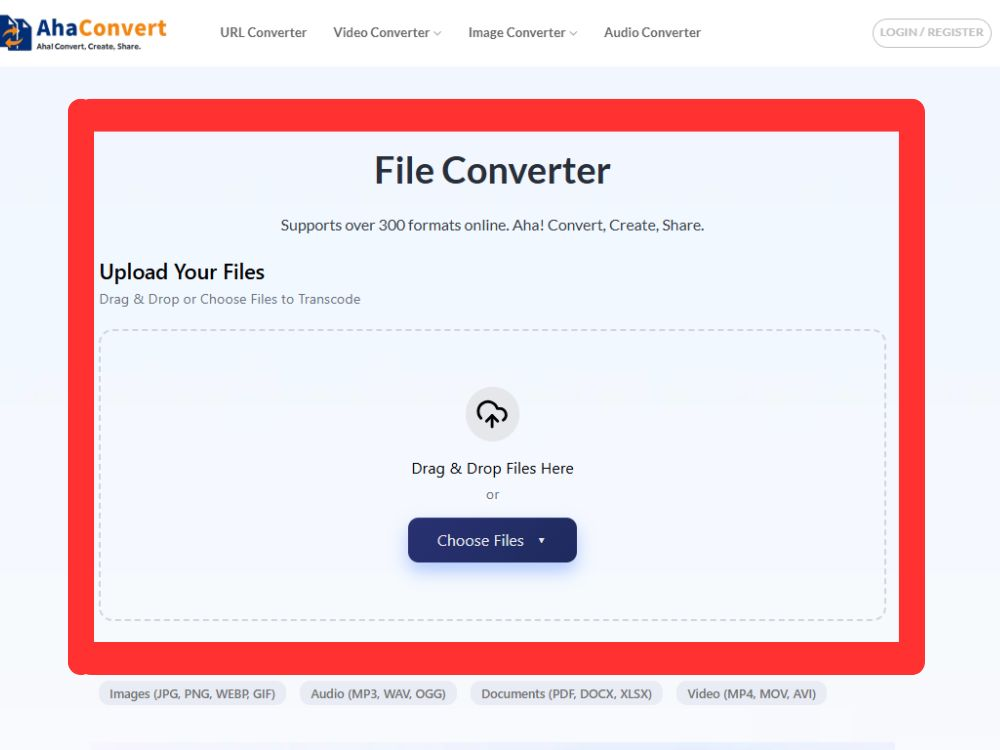
Step 1: Go to the AhaConvert Website
Launch your preferred web browser and go to AhaConvert.com.
Step 2: Upload Your First JPG File
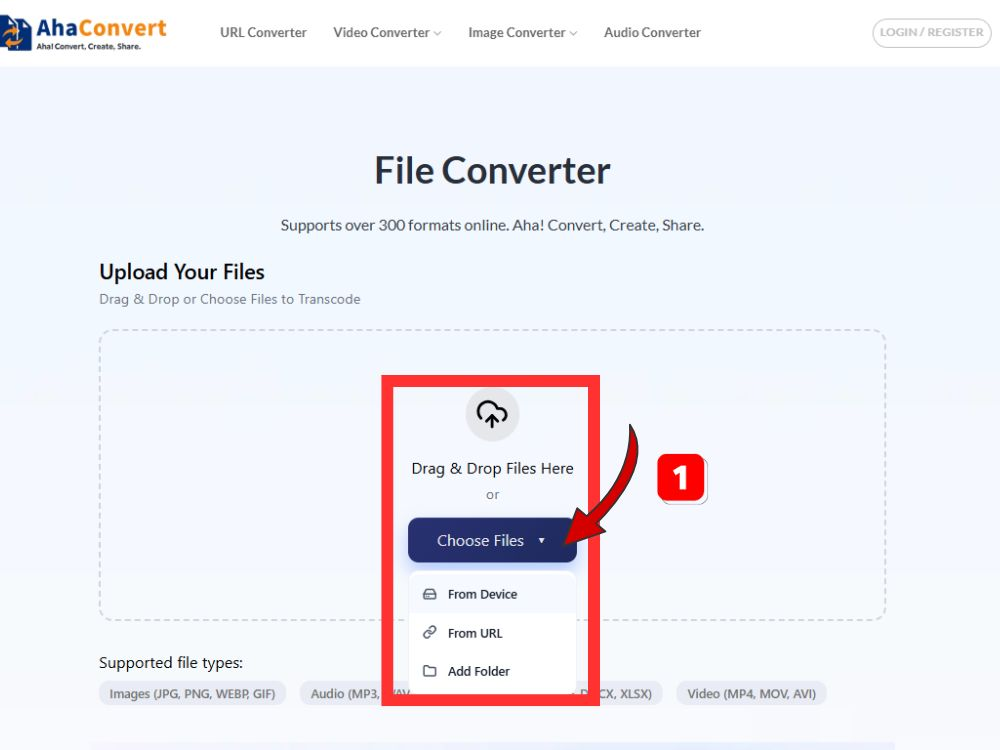
Hit the “Choose Files” button or simply drag and drop your first JPG image into the upload area. AhaConvert allows uploading files from a device, URL, or folder.
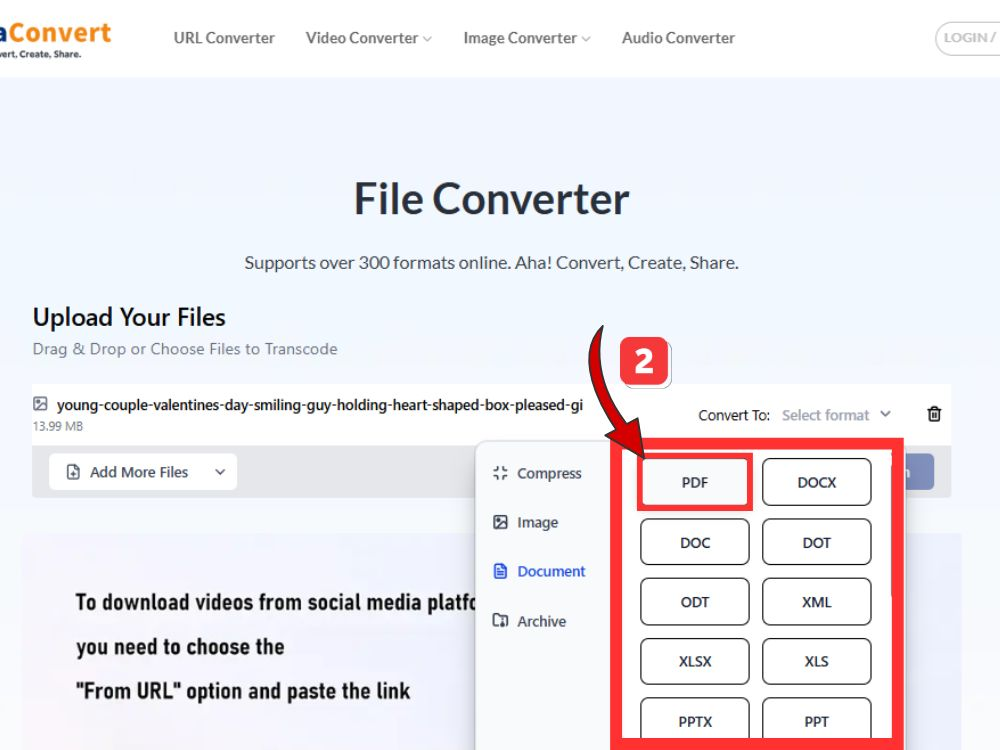
Step 3: Select PDF as the Output Format
Find the output format dropdown menu and pick “PDF” from the options. This will set off the right conversion process for merging your JPG to PDF.
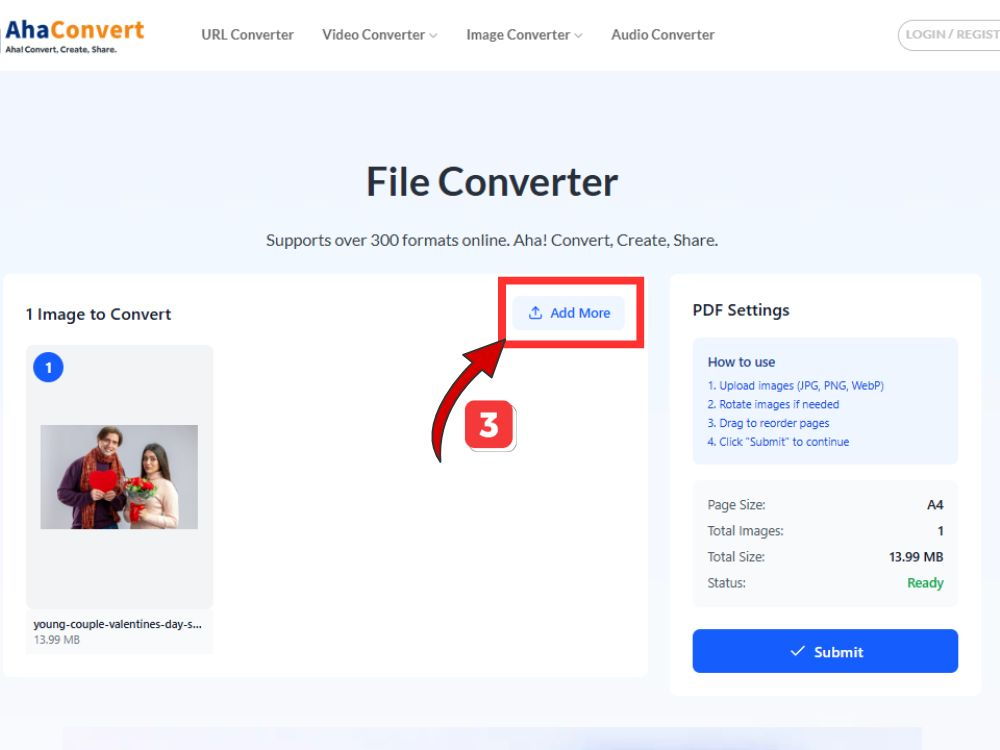
Step 4: Add More JPG Images
Click the “Add More Files” button to upload additional JPG images you want to combine into the same PDF document. Repeat this step until all your images are added.
Step 5: Start the Conversion Process
Hit the blue “Submit” Button.
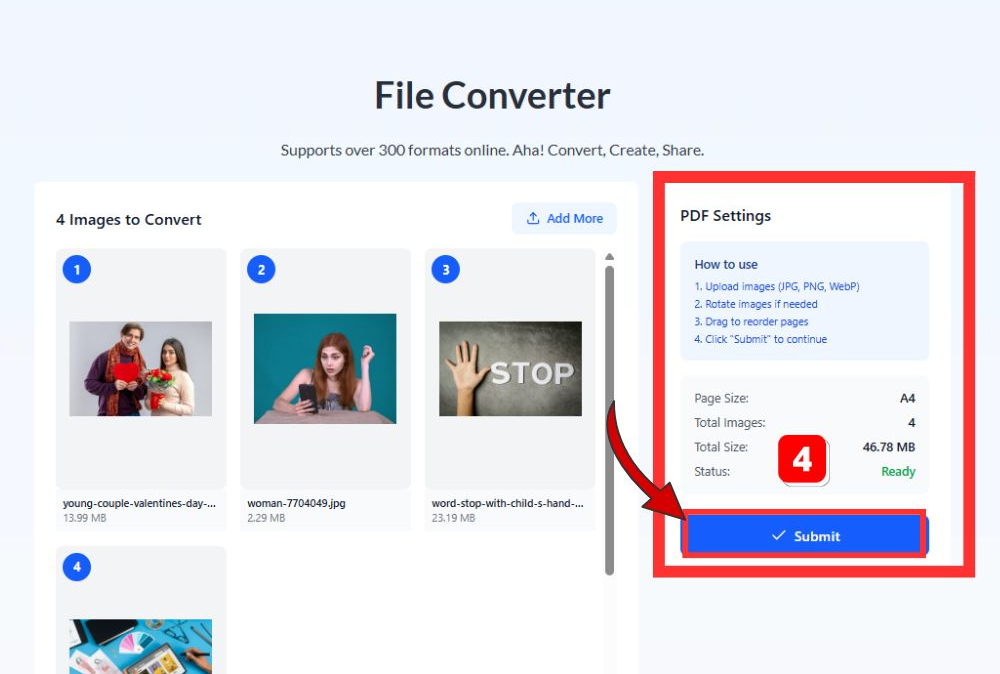
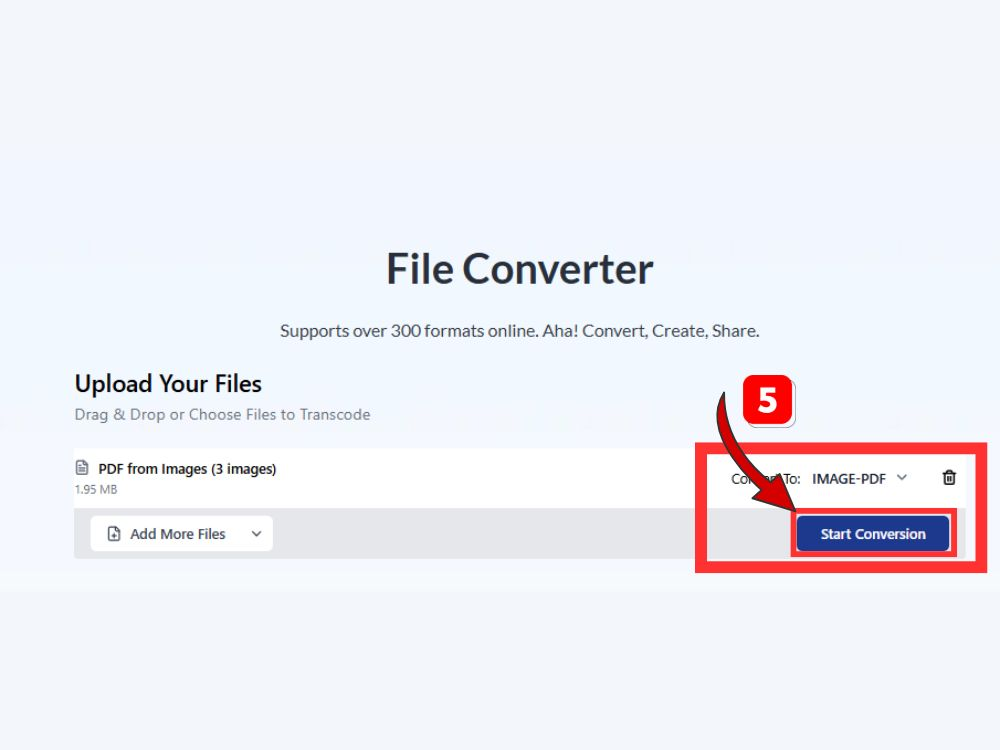
Now click the blue“Start Conversion” button to begin processing. AhaConvert’s cloud-based servers handle the conversion, which is usually completed in seconds. One can see the status in real time via a progress indicator.
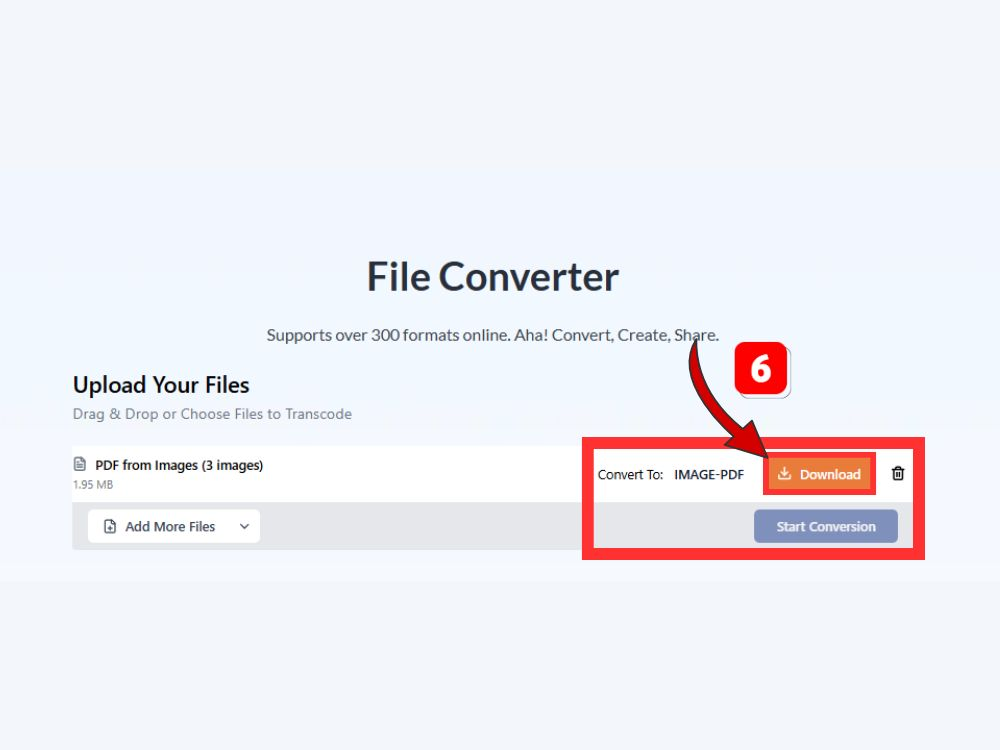
Step 6: Download Your Combined PDF
After the conversion is complete, click the “Download” button to save your newly created PDF. The file will have all of your original JPG images that have been placed in the order of upload, thus creating a shareable PDF with the original quality of the images.
Frequently Asked Questions about JPG and PDF
1. Do I need to sign up to use AhaConvert for JPG to PDF conversion?
No account creation is necessary for AhaConvert use. You get immediate access to all conversion features without the need to create an account or disclose personal data. This characteristic of the platform is favorable for speedy conversions when you require JPG to PDF free no sign up service.
2. What’s the difference between JPG and PDF files?
JPG is designed to store photographs with compressed file size and can only display a single image. A PDF can have multiple images, text, and pages in a single file. JPG is an image format, while PDF is a document format. That is why PDF is an ideal option for sharing professional documents and image collections.
3. How do I rearrange pages in a JPG-to-PDF document?
The majority of JPG-to-PDF conversion tools process images in the order they are uploaded. To have pages arranged in a certain way, give your files a numerical name (01, 02, 03) and upload them, or use a tool that allows you to reorder the uploaded images via drag-and-drop before the conversion process.
4. Can I combine JPG files from different folders into one PDF?
Certainly, you can merge JPG files from several places. Just choose files from various folders during the upload process or upload them in groups. The converter will create a single PDF containing all uploaded images, regardless of their original storage locations.
5. Can I combine JPG and PNG files into one PDF?
Many converters, including AhaConvert, support multiple image formats simultaneously. You can upload a mix of JPG, PNG, GIF, BMP, and other image formats, and the tool combines them into a single unified PDF during conversion.
6. Is my data secure when using online conversion tools?
Well-known sites like AhaConvert consider data security to be of utmost importance. During the upload of files, the files are protected with 256-bit SSL encryption.
Conclusion
Learning how to combine JPGs into one PDF opens several ways for document management to be done better. Whether organizing personal photos, compiling business documents, or preparing materials for submission, merging images into a single PDF proves invaluable.
We have discussed a number of really good JPG to PDF converter options in this guide and have illustrated their use with AhaConvert in detail. The platform is very easy to use, has super privacy protection, and is free, so it is a superb choice for image-to-PDF conversion.
Well-organized source files are the beginning of successful conversions. Get your pictures in the right order before uploading, and you will always get professional results. Go ahead and convert your images now and enjoy the convenience of PDF documents that are organized and can be easily shared!
For more conversion tools and file format solutions, visit AhaConvert and explore the full range of available features.
