
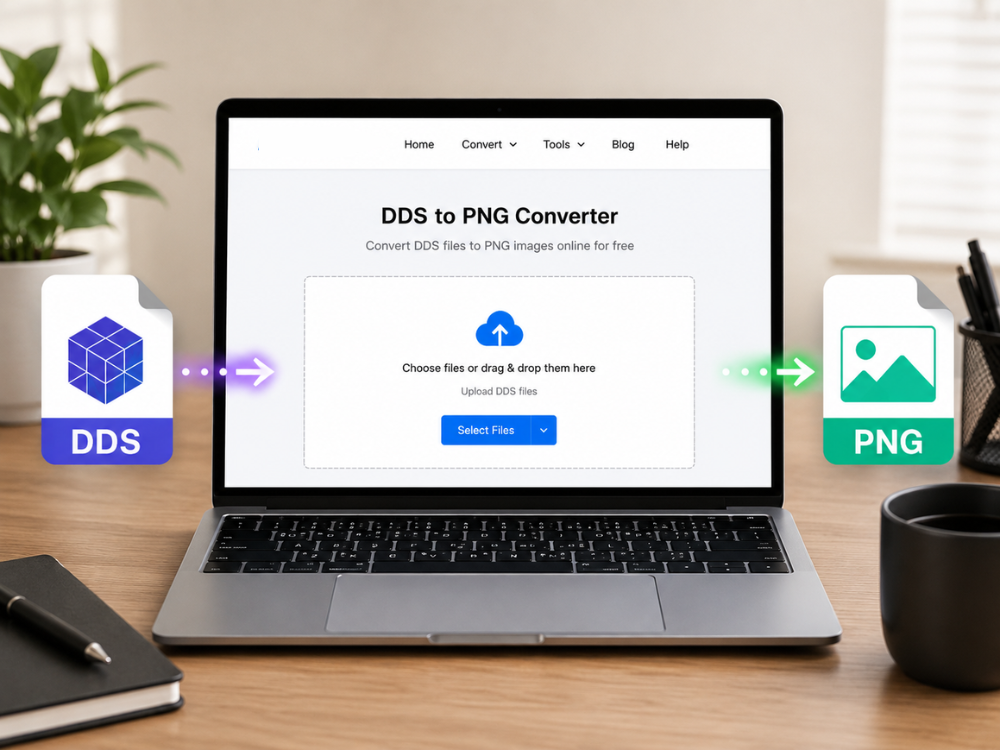
If you have ever dealt with game asset files, game textures, or even 3D modeling files, then you must be aware of the existence of the DDS file format. Although DDS files are perfect for real-time rendering in games and graphics engines, they cannot easily be opened and edited in any software. This is why it is so necessary to convert DDS to PNG.
There is nothing else better than PNG files. They are supported by all kinds of editors, viewers, and even browsers. Whether you need to work on an image created for your game or just want to view its texture on your smartphone screen, PNG is the best choice. So here we go: you are going to learn all there is to know about converting DDS to PNG.
What is the DDS format?
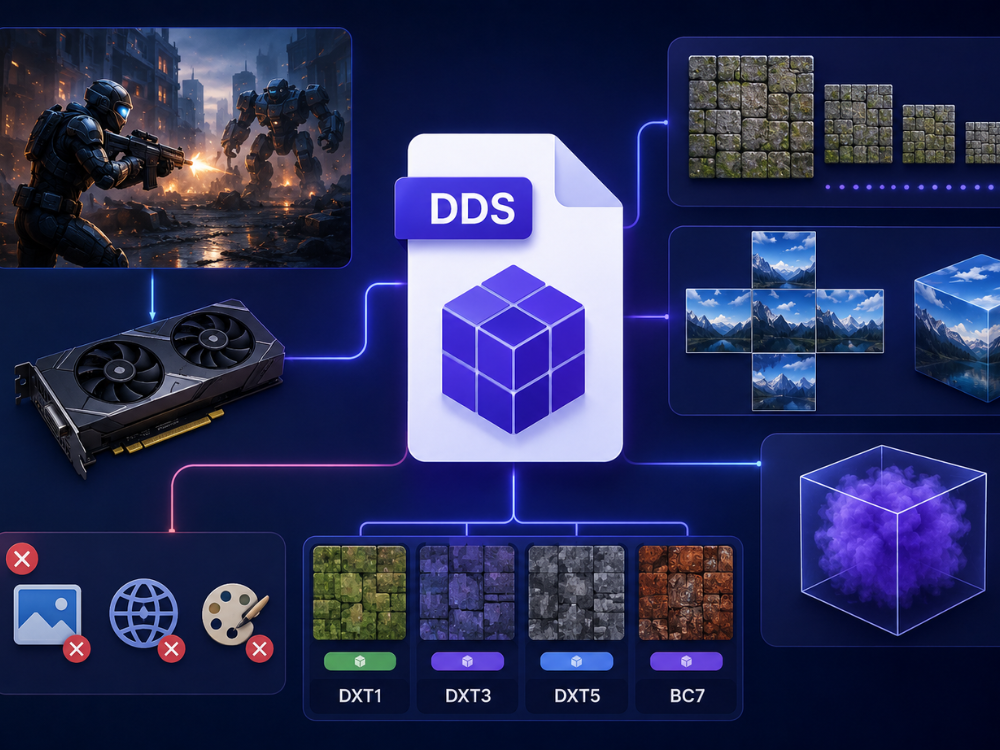
The abbreviation DDS stands for DirectDraw Surface. This format was created by Microsoft in order to store compressed textures that would be used in DirectX-based applications, mostly computer games and real-time 3D simulations. Unlike usual image formats, DDS supports GPU-compressed textures natively. Consequently, you will not have to decode those textures manually before showing them on the screen. That is why using DDS images will be especially convenient for computer games.
The DDS format allows storing such types of textures as mipmaps (which are stored in different resolutions), cubemaps (used for reflections), and volume textures as well. Several compression methods are supported by this format, for instance, DXT1, DXT3, DXT5, and BC7.
Nevertheless, if you want to use a DDS file not in the game development environment but, for example, to examine its content in a usual image viewer, you will not be able to do this, as these files cannot be displayed via web browsers and picture editing programs. To use a texture in an application rather than a game development one, you should convert DDS to PNG first.
The Differences Between DDS and PNG
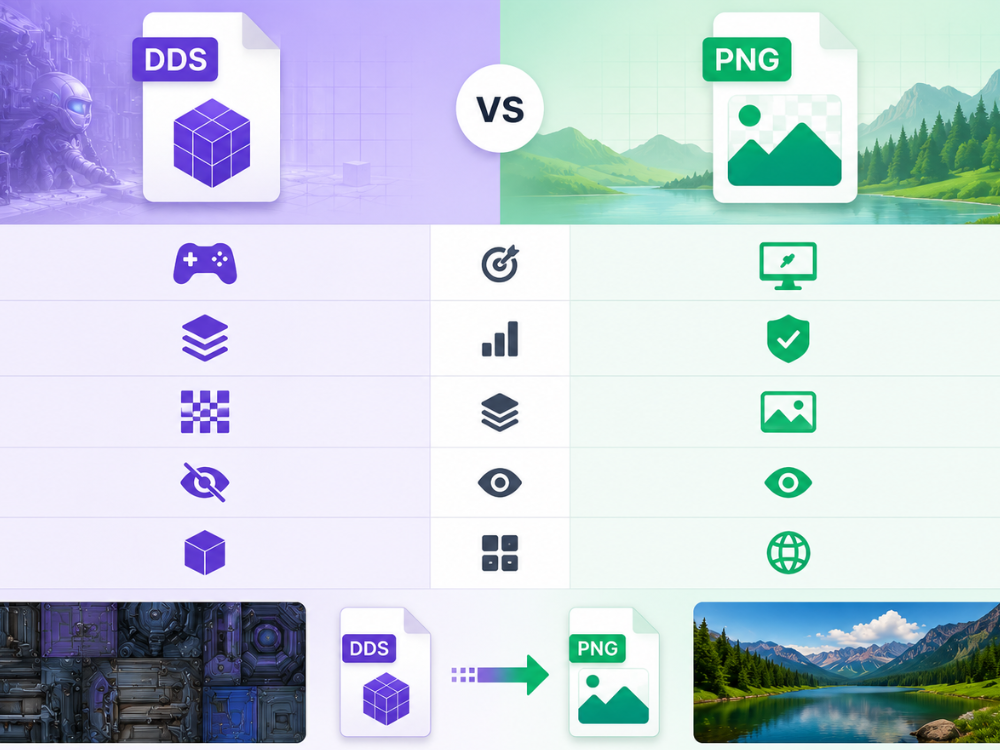
The two formats, DDS and PNG, have different purposes. DDS emphasizes game and texture storage, while the PNG image format focuses on image quality and broad compatibility.
| Feature | DDS | PNG |
|---|---|---|
| Primary Use | Game textures, real-time 3D rendering | General-purpose images, web, and design |
| Compression | GPU-native (lossy or lossless depending on codec) | Lossless |
| Transparency | Supported | Supported |
| Browser Support | Not supported | Widely supported |
| Mipmap Support | Yes | No |
| File Size | Generally smaller | Moderate |
| Editing Support | Limited (specialized tools) | Universal |
Format Purpose
DDS was designed to be used within the graphics pipeline. It’s optimized for speed and is graphics card-friendly, but not compatible with everything. On the other hand, PNG had been designed to be lossless and to be compatible with any platform or application, from web browsers to design software to mobile devices.
Compression and Quality
DDS files may be compressed using optimized methods for the graphics processor to make the file smaller and render it faster. Some compression formats, such as DXT1, will cause minor loss of quality or small artifacts in the image. For PNG, it adopts lossless compression and preserves all the image pixels. The image quality remains unchanged after saving and/or exporting.
Compatibility
This is arguably the biggest practical difference between the two formats. PNG opens in virtually any application — your phone’s gallery, a web browser, Photoshop, Canva, Word, and countless others. DDS, however, requires specialized software. Game engines like Unity or Unreal Engine handle DDS natively, and tools like GIMP (with a plugin) or Paint.NET can open them, but mainstream apps simply cannot.
Transparency
Both formats have transparency (Alpha channels). This is because the transparent regions of a DDS file (such as a character overlay or UI element) are exactly preserved in the PNG output. No need to man clean up.
Mipmap and Advanced Texture Features
There is one aspect in which DDS really beats PNG, which is mipmapping. DDS files may store several copies of the same texture at various resolutions in a single file, and game engines employ this feature to boost performance when viewing the texture from different distances. There is no such option available for PNG. For those just looking to view and distribute a texture, that does not matter. For everyone else who wants to view, distribute, or modify game textures, there is PNG.
How to convert DDS to PNG with online DDS to PNG Converters?
Many online tools can help you to convert your DDS images to PNG images without installing any other software on your computer. Below is the list of four such converters.
AhaConvert DDS to PNG Converter
AhaConvert DDS to PNG Converter is a convenient and easy-to-use Internet conversion solution to convert DDS to PNG without installation. It works on Windows, Mac, Linux, Android, and iOS computers. Users can drag and drop a DDS file to initiate the conversion process and will get the PNG image files right away.
An easy-to-use interface makes it very simple for first-time users to convert easily. It allows for multiple file uploads, allowing multiple files to be converted at once. There are no processes to log in to accounts or install programs; all processes are online.
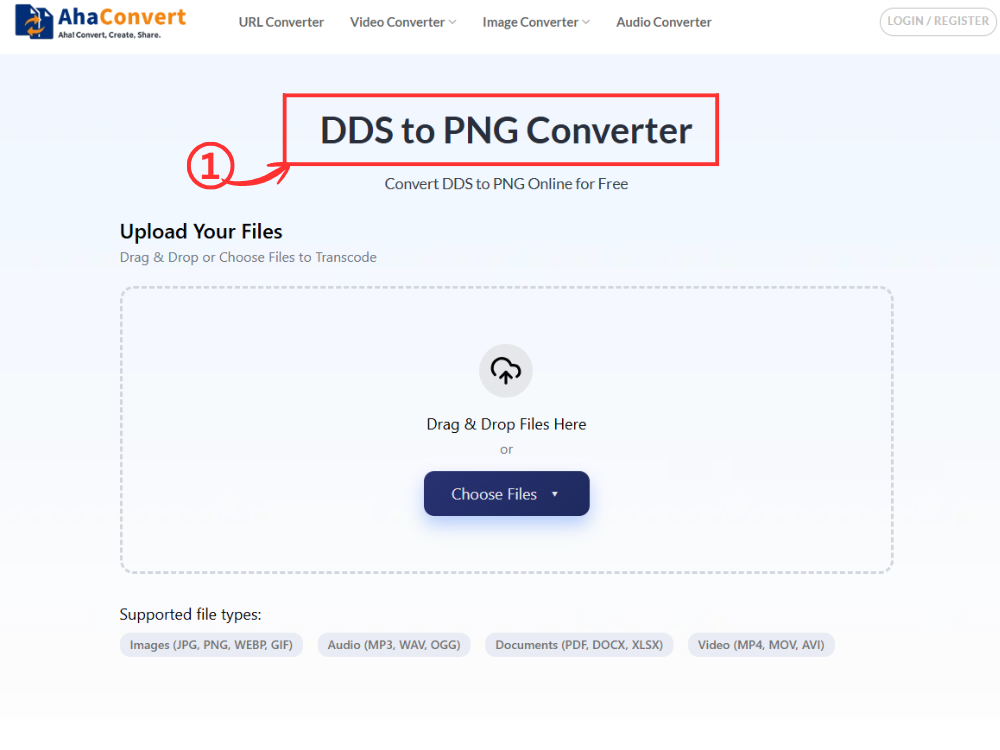
Step 1: Open the AhaConvert DDS to PNG Converter
Go to AhaConvert DDS to PNG Converter in any web browser on your device. The page loads instantly — no installation or account needed.
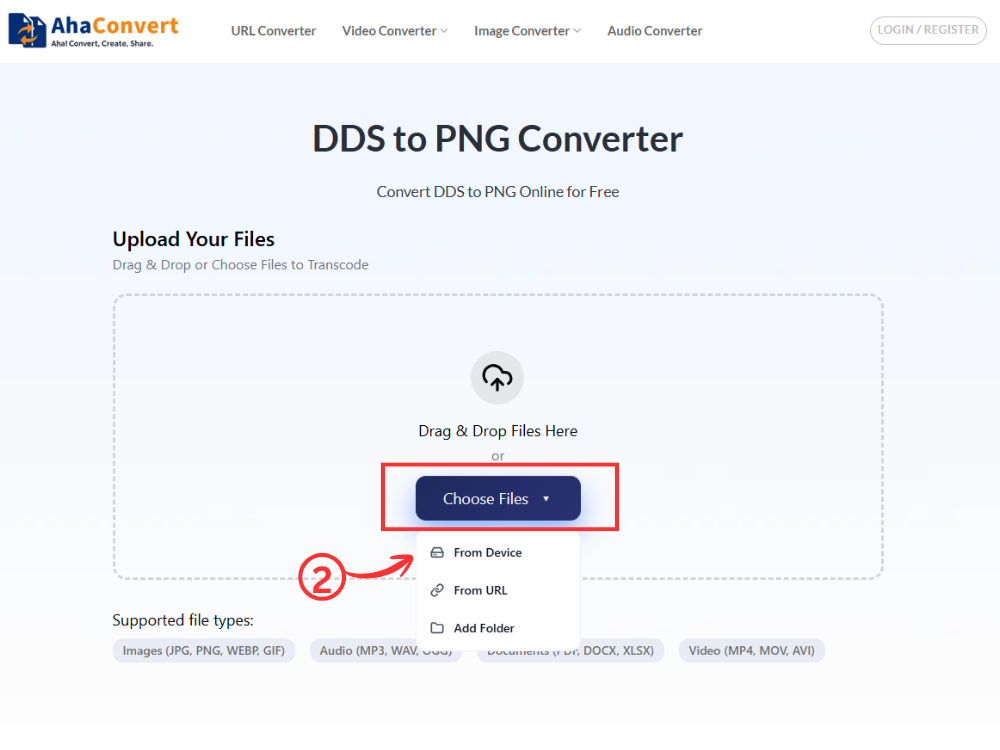
Step 2: Upload Your DDS File
Click the “Choose Files” button to select your DDS file from your device. Alternatively, you can drag and drop the file directly into the upload area, paste a file URL, or import it from cloud storage. If you have multiple DDS files to convert, you can upload them all at once for batch processing.
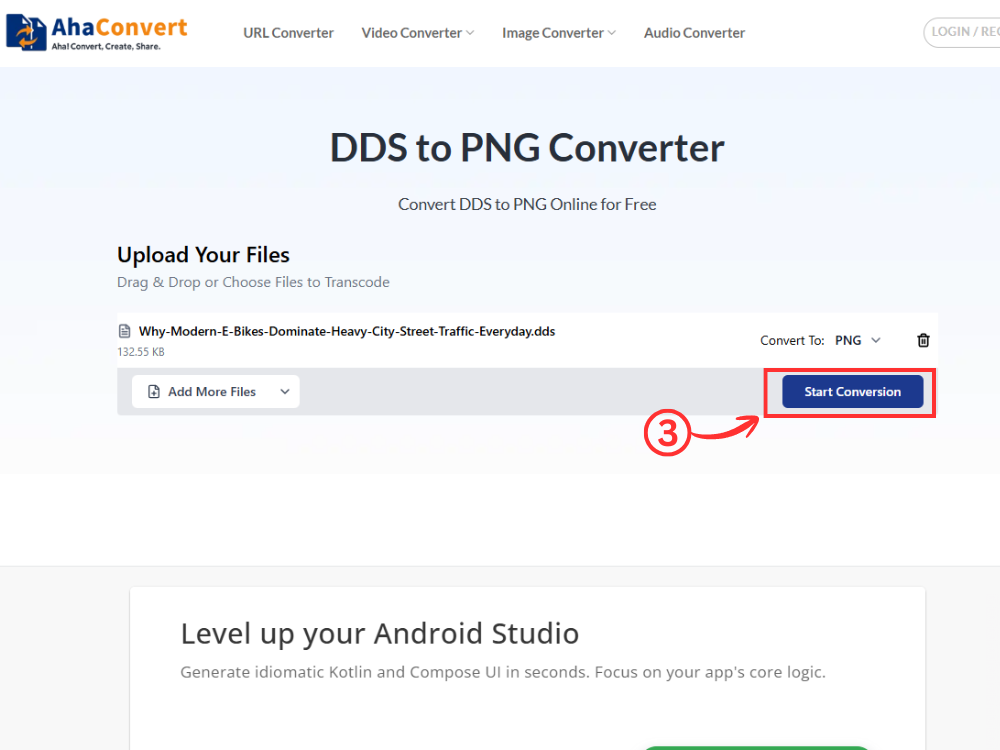
Step 3: Start the Conversion
Once your file is uploaded, click the “Start Conversion” button. Since this is a dedicated DDS to PNG converter, the output format is automatically set to PNG — there is no need to select it manually.
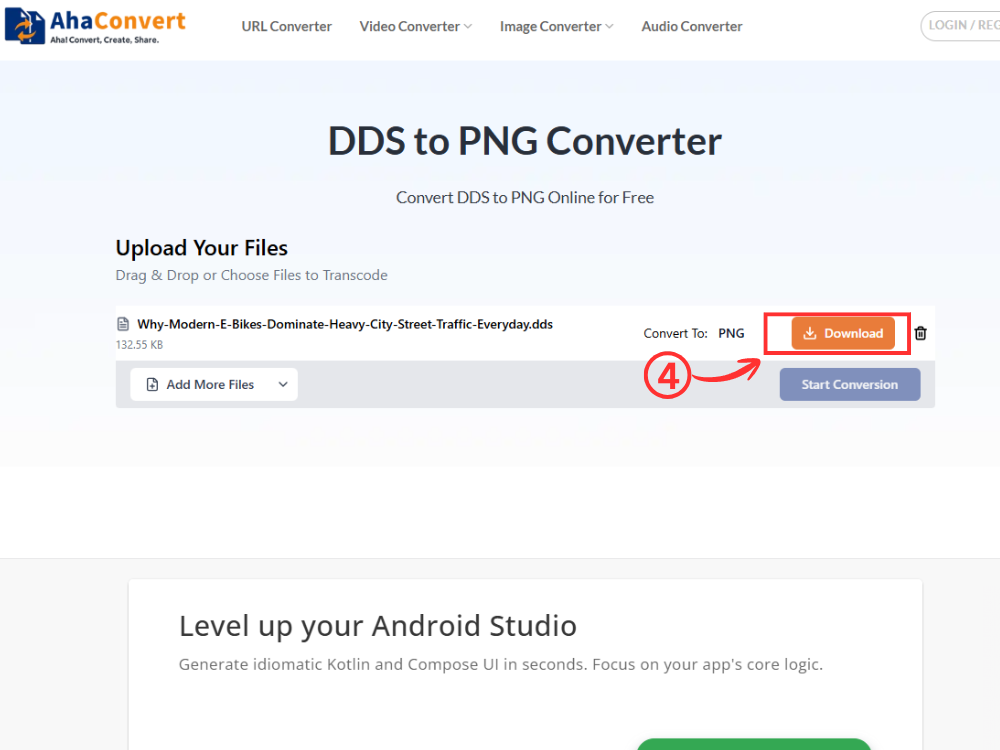
Step 4: Download Your PNG File
When the conversion is complete, a download button will appear. Click it to save the converted PNG file to your device. The whole process typically takes just a few seconds.
Convertio
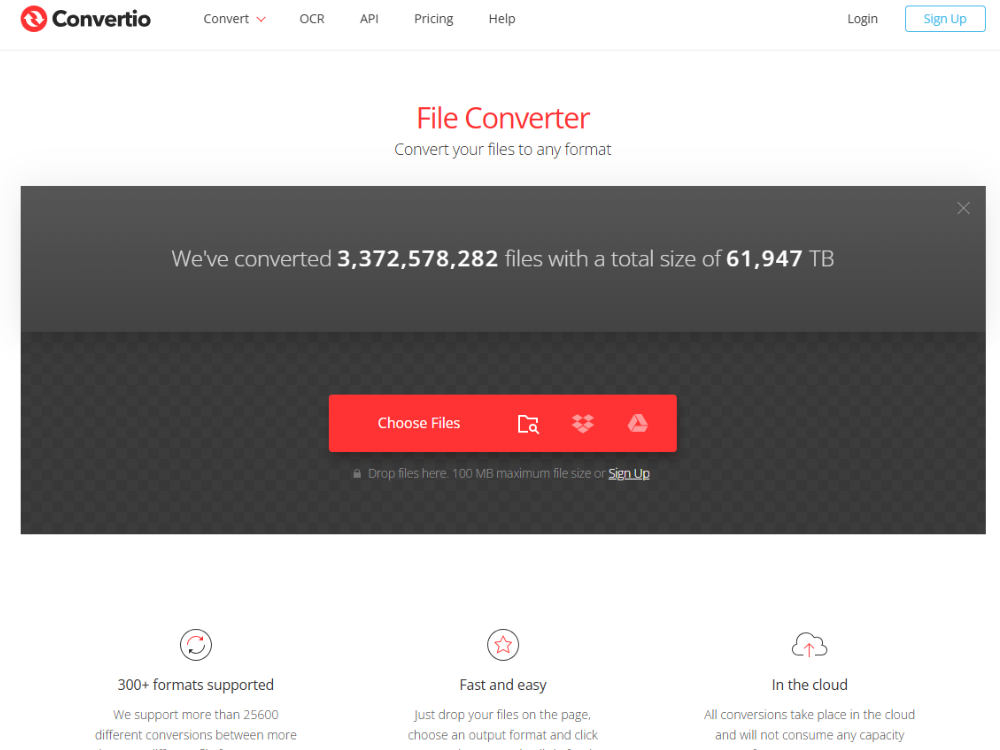
Convertio is one of the most popular websites for converting files into various formats, such as DDS and PNG. This website has an elegant design and permits the uploading of files using different mediums like a personal computer, Google Drive, and Dropbox. The downside of the basic version is the limitation of the file size to 100 MB.
Steps:
- Go to convertio.co and click on your DDS file.
- From the drop-down select PNG as the target format.
- Click on “Convert”, and then download the output file.
Pros:
- Easy interface
- Cloud storage support
- You can use the same file in one or more formats.
Cons:
- Five daily limits for free users:
- Reduced processing time during peak hours
CloudConvert
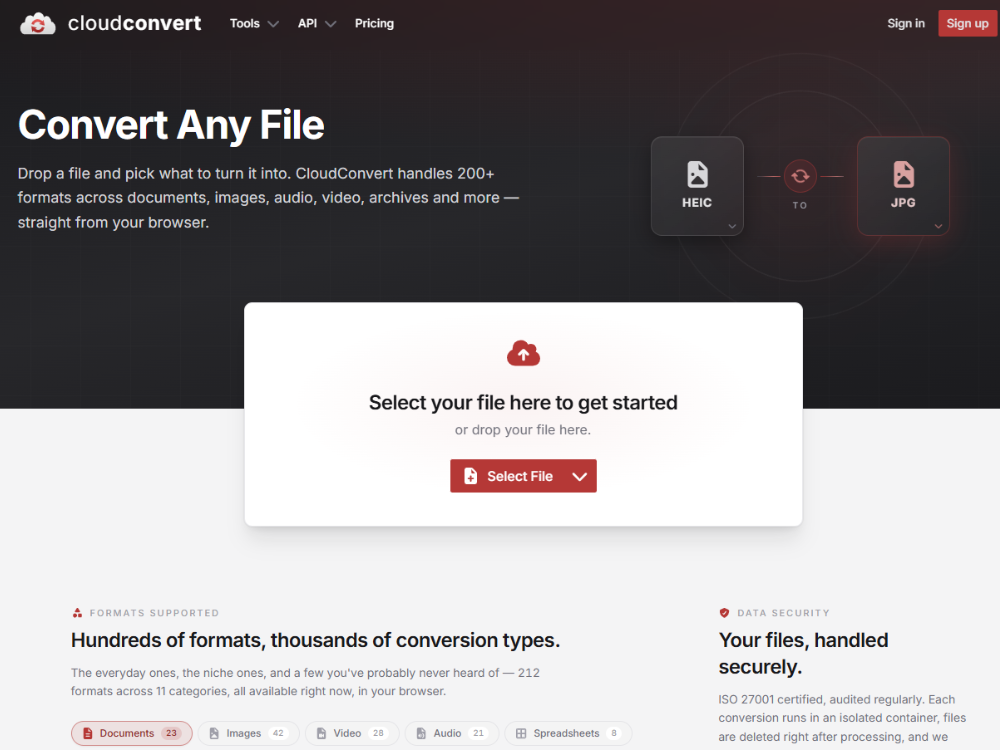
Another good conversion tool to use is CloudConvert. This software not only converts DDS to PNG but also allows for other features such as changing image dimensions and DPI before the conversion takes place. The limitation is that the free version has daily conversion limits.
Steps:
- Go to cloudconvert.com and upload your DDS file.
- Choose PNG as an output format.
- Set any of the optional parameters, and then click “Convert” and download.
Pros:
- Advanced image controls
- API support
- Good file compatibility
Cons:
- Limited free credits
- Some settings may confuse beginners
FreeConvert
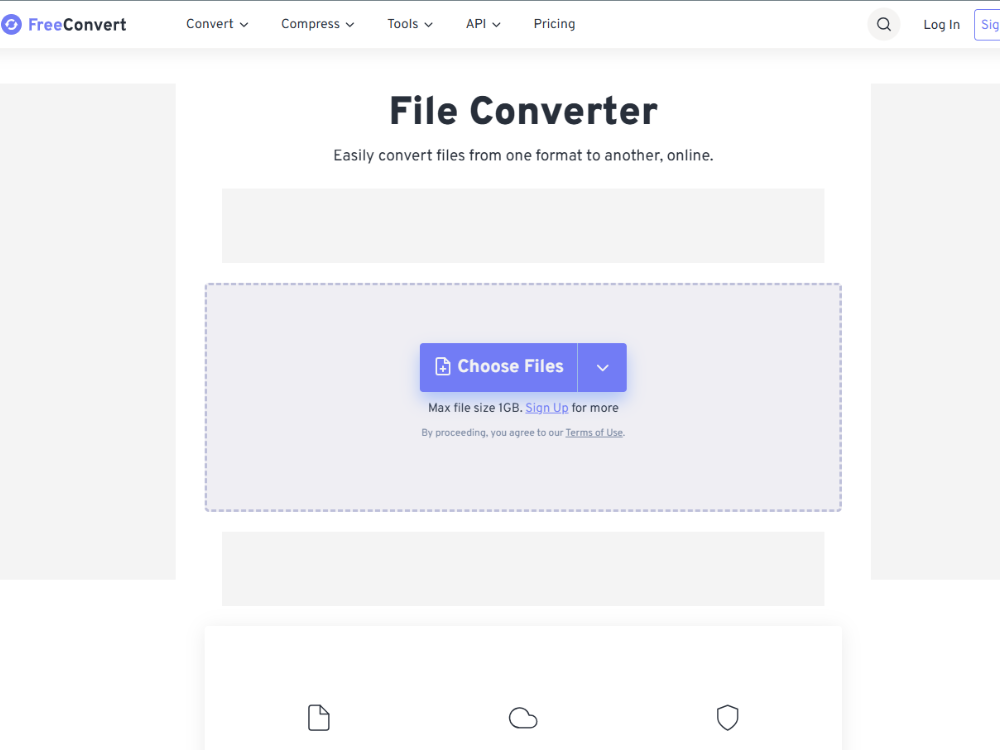
FreeConvert can convert DDS to PNG without loss of quality. It supports up to 1 GB file uploads even on the free plan, and offers some simple image features such as resizing prior to conversion. It’s a simple interface, so it’s good for occasional use.
Steps:
- Go to freeconvert.com and upload your DDS.
- Change the output format to PNG.
- Click on “Convert now” and download the converted image.
Pros:
- Beginner-friendly layout
- Supports drag-and-drop uploads
- Mobile-friendly
Cons:
- Ads on the free version
- Upload size restrictions
Comparison Summary
Of all these choices, AhaConvert is the best choice for regular use. It does not have any registration requirements, has no daily limits on conversion, allows batch conversions, and keeps your uploads secure through 256-bit SSL encryption. Regardless of whether you are converting one texture or multiple textures in a folder, the AhaConvert DDS to PNG converter will get it done quickly and efficiently.
When Should You Convert DDS to PNG?
Understanding the right time to convert will help you make good use of your time and maintain efficiency while working. Here are the scenarios where you need to convert DDS to PNG.
1. Sharing Textures with Non-Technical Users
For those game developers or 3D artists who provide texture files to a client, colleague, or reviewer who doesn’t have game engine software, DDS files won’t open on their end. Making it into PNG first means that they will be able to see it in any application without the need for plugins or special software.
2. Uploading Images to the Web
The web does not have the ability to recognize DDS files. In case you want to publish a texture on a website or anywhere online, you should go for PNG as it is supported in all web browsers.
3. Editing in Standard Design Tools
While working on applications such as Photoshop, Canva, Figma, or even GIMP without the DDS plug-in, one will not be able to work directly on DDS files. It will be required to convert them to PNG for editing and saving in any other format as desired.
4. Archiving Textures for Later Use
It might become necessary for some companies to store their texture references in PNG form because it is universal and does not lose quality. Therefore, accessing the textures even after years will be much simpler without having to worry about compatibility with software.
5. Mobile Preview
In order to have an idea about how a particular texture looks on mobile devices, you need to make sure that it has been converted into a PNG format because iOS and Android have no provision to view DDS textures directly.
Frequently Asked Questions
Can I convert DDS to PNG for free?
Yes, Software like AhaConvert offers the chance to convert DDS files into PNG files without paying any money at all. This implies that no charges are involved, nor do you need a subscription plan. You don’t have to pay for each conversion either. You simply upload your DDS file, select PNG as the output format, and download the output file.
Is PNG better than DDS?
It all depends on personal preferences and requirements. DDS images are much better suited for real-time rendering in games since GPUs can directly access the data. In contrast, PNG files are more flexible and can be viewed on almost any device without the need to install any extra software.
Can I convert DDS to PNG on mobile?
Yes, you can definitely do that. As AhaConvert operates entirely in browsers, it can run on almost all devices with web browser capabilities, and that includes smartphones running on Android and iOS platforms. Just visit the website and upload your DDS image there to get the PNG converted one.
Will transparency be preserved?
Usually, yes, because DDS as well as PNG formats provide the support of an alpha channel (transparency); therefore, when you convert DDS to PNG via efficient software such as AhaConvert, transparency will be retained.
Is the DDS to PNG conversion safe online?
Conversion using a reliable converter like AhaConvert is completely secure. This tool uses the 256-bit SSL encryption protocol to make sure your files are safely transmitted and converted. Moreover, all files uploaded for conversion will be deleted from their system within 24 hours, and no personal data is shared with third parties.
How long does the conversion take?
The process of converting DDS files into PNG files using AhaConvert normally takes only a few seconds. However, when you are dealing with more than one document, the process will definitely take some more time. But rest assured, you can use the online conversion services provided by this site.
Do I need to install software to convert DDS to PNG?
Not at all. Web-based converters such as AhaConvert run entirely within your web browser and do not require you to download and install any software.
In Conclusion
DDS images can perform well inside game engines and real-time rendering systems, but their lack of compatibility with various applications renders them unusable for everyday purposes such as transferring, viewing, or editing images. Conversion of images into PNG format immediately addresses this issue, providing a lossless image that can be used across any platform or device.
Of the various available converters for converting DDS to PNG format, AhaConvert appears to be one of the easiest options to choose for the average user. AhaConvert is free, does not require users to create an account, allows users to convert multiple files in batches, and ensures the complete security of the files.
No matter whether it is a game developer preparing images for inspection, a 3D graphics designer editing texture maps, or even someone receiving the file and looking to convert DDS to PNG, the conversion process can be accomplished in seconds. Start using the AhaConvert DDS to PNG Converter now!
