
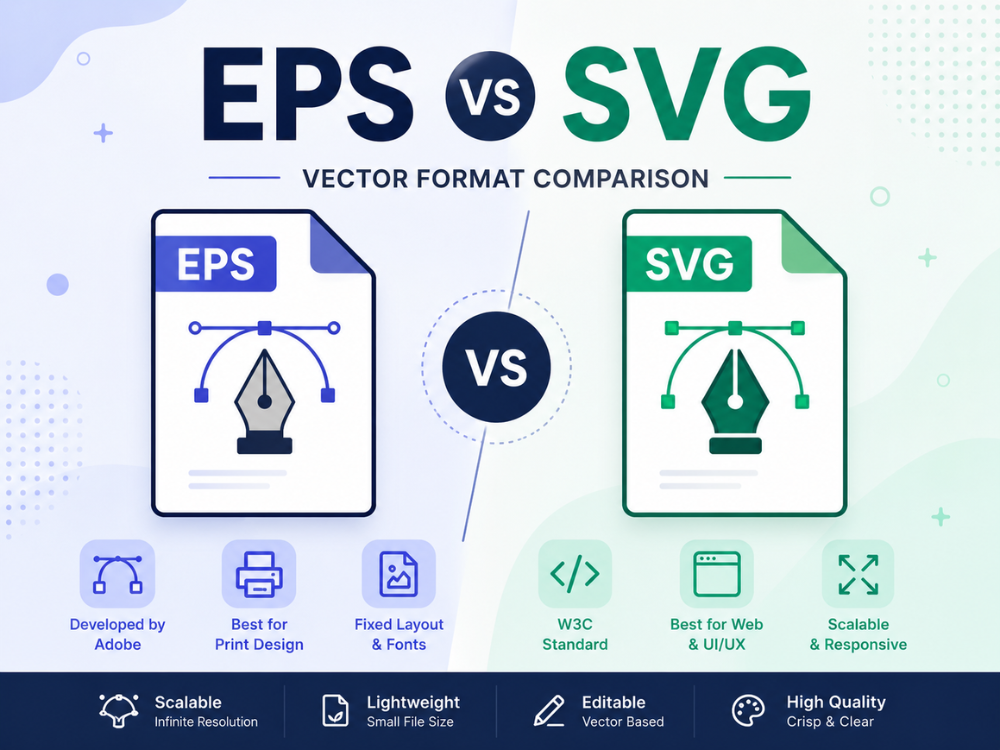
The two most popular vector graphics file types include EPS and SVG. It is therefore important to know how they differ, particularly when one wants to be involved in any form of design activity or business. They are both types of graphic files used to create logos, illustrations, and other printed graphics.
It is common to search for ways to convert EPS to SVG because, compared to EPS vs SVG files tend to perform better when used for responsive website and mobile app designs. This article will provide you with valuable information on how the formats differ, their advantages and disadvantages, and how to use the EPS to SVG converter tool.
What is the EPS format?
Definition of EPS
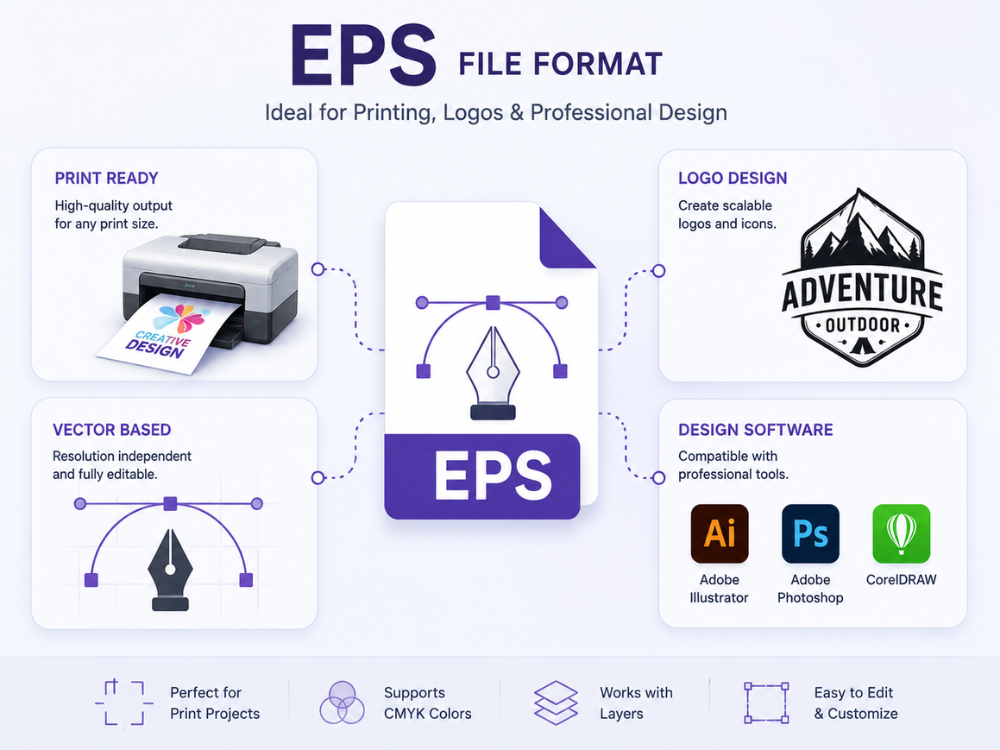
EPS refers to Encapsulated PostScript. It was developed by Adobe as a file format for saving vector graphic designs. EPS files are widely used in professional printing, logo design, packaging, and large-scale design. Unlike ordinary image files, EPS files can save vector lines, text, and embedded images in a single file. This is because vector graphics are independent of resolution.
Main Features
EPS graphics allow scalable vector graphics; therefore, they are perfect for use in professional printing works. Posters, banners, product packaging, and brand logos are common applications of EPS files used by designers.
Main features of EPS file format:
- Vector-based graphics
- High-quality print support
- Scalability without pixelation
- Compliance with Adobe Illustrator and CorelDRAW software
- It is possible to embed fonts and images.
Pros and Cons
EPS is a popular format that is well-suited for handling print quality and offers great design flexibility. EPS is still the preferred format for large-format printing for many print shops. However, online, there are limitations on using EPS files. Most Web browsers cannot display EPS files, and many mobile devices cannot either.
Pros
- Excellent for printing
- Can be scaled without any loss of quality.
- Professional design support
- Highest resolution available for logos and illustrations.
Cons
- Poor browser compatibility
- Larger file sizes
- Less than 10 support tools outside of design software.
- Not suitable for responsive websites.
What Is an SVG File?
Definition of EPS
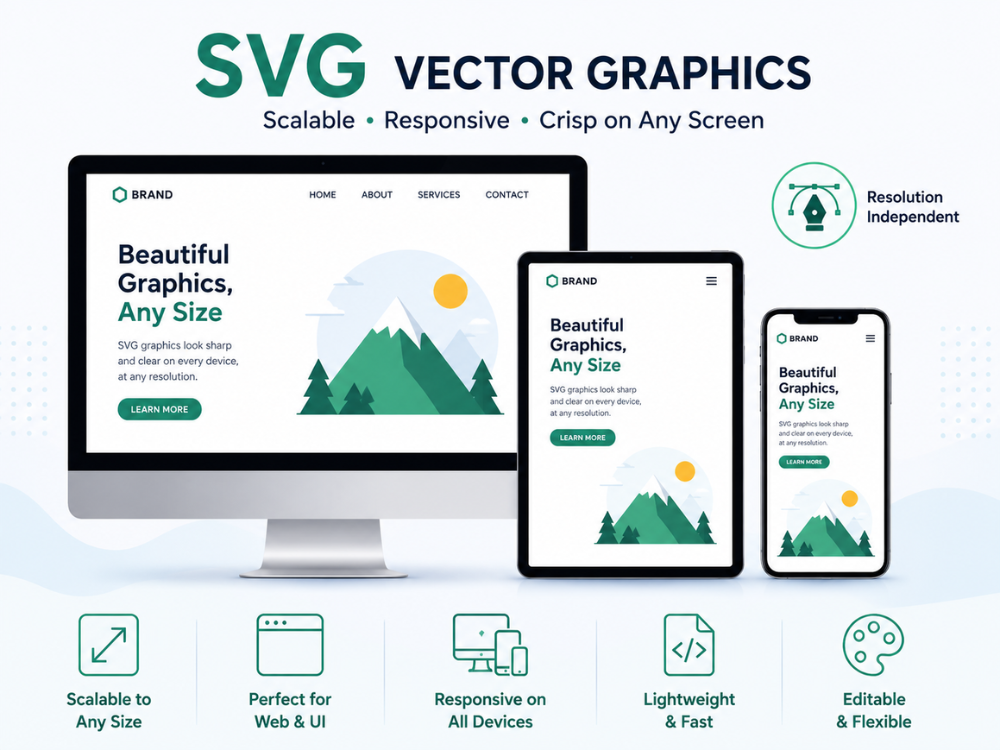
SVG means Scalable Vector Graphics. It is an XML-based vector graphics format mostly intended for websites and other digital applications. Vector graphics information in SVG files is saved in code form rather than pixel-based. The advantage of this approach is that images appear clear regardless of their screen sizes.
Main Features
SVG files support modern browsers, are lightweight, and are responsive. A lot of web developers utilize SVG graphics for logos, icons, animations, and interface elements.
SVG standards include:
- Web-friendly vector graphics
- Small file sizes
- Responsive scaling
- Browser compatibility
- Can be edited using coding and design tools.
Pros and Cons
Since they load fast and look good on any screen, they are highly popular in the online world. However, for large print production or more complex print workflows, SVG isn’t always the ideal file format.
Pros:
- Excellent for websites
- Easy to carry and quick to load.
- Mobile-friendly.Optimized for cell phone use.
- Search engine friendly
- Quickly edit and animate
Cons:
- Not all print workflows are supported. Not all print workflows are supported.
- Not as ideal as the previous model for printing more complex designs.
- Certain effects may not look the same in different browsers.
EPS vs SVG: What Are the Main Differences?
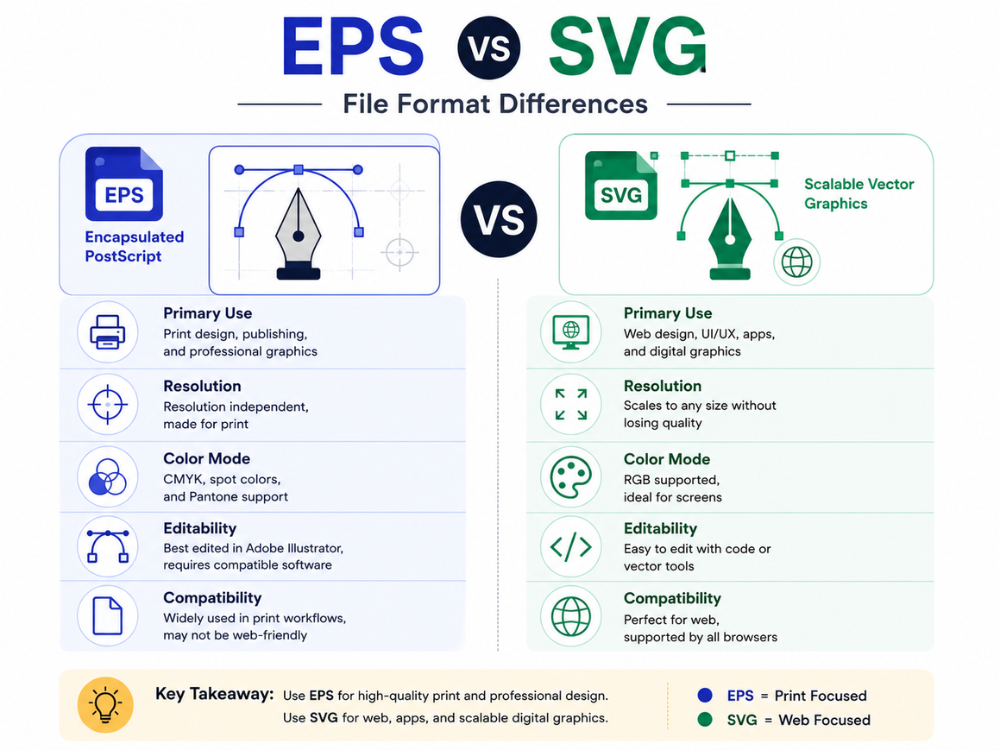
EPS vs SVG, both these formats support scalable vector graphics, though they were designed for different environments. EPS focuses more on professional printing, while SVG is built for modern web use.
| Feature | DDS | PNG |
|---|---|---|
| Primary Use | Game textures, real-time 3D rendering | General-purpose images, web, and design |
| Compression | GPU-native (lossy or lossless depending on codec) | Lossless |
| Transparency | Supported | Supported |
| Browser Support | Not supported | Widely supported |
| Mipmap Support | Yes | No |
| File Size | Generally smaller | Moderate |
| Editing Support | Limited (specialized tools) | Universal |
EPS vs SVG for Printing
When it comes to EPS vs SVG for printing, EPS clearly has the edge when it comes to professional printing. For decades, print shops and publishing workflows have used EPS. The format can accommodate the standard color management system used for offset and commercial printing, namely, CMYK. SVG, however, is in RGB color, which is appropriate for screens. If you don’t use color profile management, an SVG converted to print may not produce the same colors as the original. When it comes to sending a project to a professional printer, it’s a safer bet.
EPS vs SVG for Websites
But on the Internet, EPS vs SVG, it is quite the opposite! The most common digital vector format is SVG. SVG supports are rendered natively by browsers and are XML-based, which means they load rapidly, scale well on retina and high-density screens, and can be styled with CSS. However, it is impossible to display EPS in a browser at all — if a user visits a page containing an embedded EPS file, he or she will not see anything. SVG is the only viable vector format for web design, icons, logos, and infographics.
EPS vs SVG for Logo Design
Logo creation is located at an interesting intersection point of print and digital worlds. At the point of EPS vs SVG for logo design, typically, professional graphic designers provide logo files in both versions: EPS for usage in print materials like business cards, signs, and product packaging; and SVG for usage on the Web, for icons in applications, and for online marketing. In case you have only an EPS file and you need to use your logo on the Web, the most effective thing that you can do is convert your EPS to SVG.
Why Convert EPS to SVG?
Better Web Compatibility
It is quite simply impossible to use EPS files on the Web. They cannot be displayed by the browser and will not render in a browser with any CSS or HTML. However, SVG is a first-class web format. Understanding EPS vs SVG and converting your EPS artwork to SVG instantly makes it accessible to any website, landing page, or web application.
Smaller File Sizes
In file size, comparing EPS vs SVG. SVG is usually smaller in size than EPS. SVG’s store content in XML text instead of PostScript instructions, and this means that they tend to be much smaller and can therefore help to improve page load speed and site performance. Faster load times also have a direct impact on SEO rankings and user experience.
Responsive Design Benefits
SVG will scale to any screen size. A single SVG file is effective on a 4K display and a small smartphone display without having to export multiple images at varying resolutions. Great for responsive design projects where you need a logo or icon to change based on breakpoints.
SEO Advantages
SVG is a plain XML text that can be read and indexed by search engines. This means that alt attributes, title elements, and descriptive text within an SVG file can all be crawled. No such thing exists for EPS files — they are “black to the search engines. As such, SVG may benefit your site’s search presence.
How to Convert EPS to SVG Online
Several reliable online tools make it easy to convert EPS to SVG without installing software. Below is a step-by-step guide to the EPS to SVG converter using AhaConvert, along with brief overviews of additional options.
Best Online EPS to SVG Converter – AhaConvert
AhaConvert EPS to SVG Converter is a free, browser-based tool that converts EPS files to SVG quickly and securely. No account or software installation is required. Files are protected with 256-bit SSL encryption during conversion and automatically deleted within 24 hours, so your artwork stays private. The tool also supports batch conversion, making it easy to process multiple EPS files in one session.
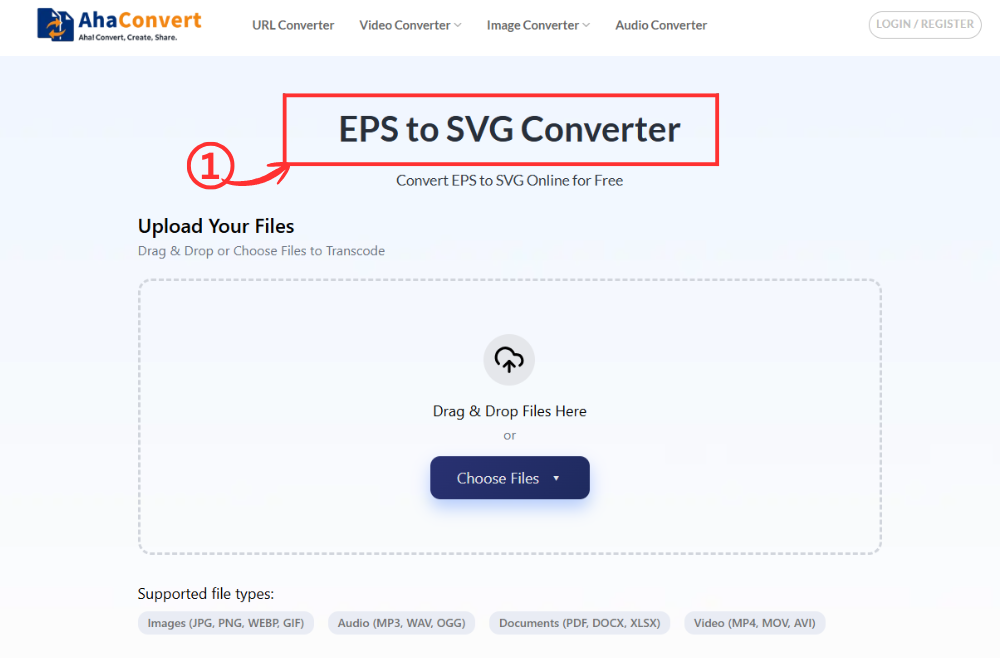
Step 1: Open the AhaConvert EPS to SVG Converter
Go to the AhaConvert EPS to SVG Converter in any web browser. The page loads instantly on any device, desktop, tablet, or smartphone — with no downloads or sign-up needed.
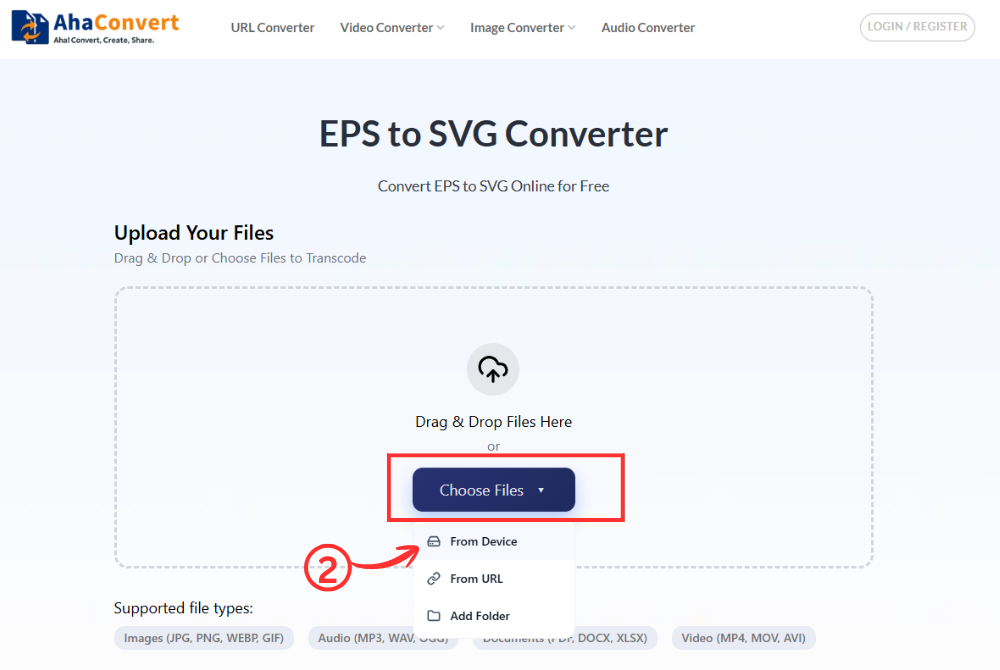
Step 2: Upload Your EPS File
Click the “Choose Files” button to select your EPS file from your device. Alternatively, drag and drop the file into the upload area, paste a file URL if the file is hosted online, or import it from the folder.
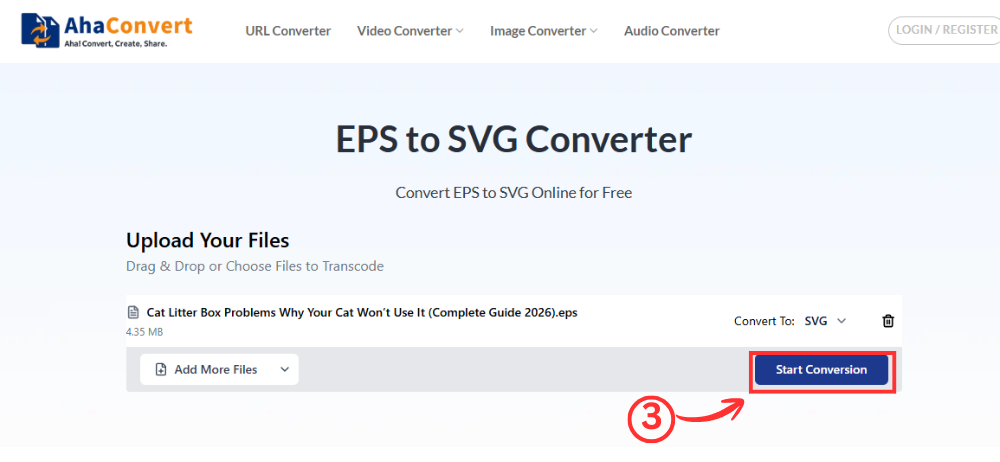
Step 3: Start the Conversion
Once your file is uploaded, click the “Start Conversion” button. Because this is a dedicated EPS to SVG converter, the output format is automatically set to SVG. There is no format dropdown to configure — just click and let the tool process your file.
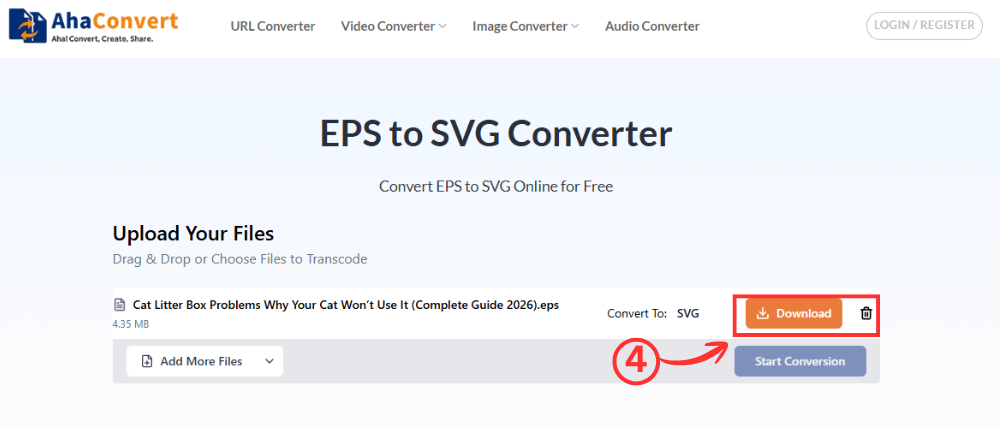
Step 4: Download Your SVG File
When conversion is complete, a download button will appear on the page. Click it to save your SVG file to your device. The entire process typically takes just a few seconds, even for files with complex vector artwork.
EPS vs SVG: Which One Should You Choose?
The choice between EPS vs SVG is based solely on the purpose the file should serve at a particular moment. Neither format is superior, but each one has advantages in its own specific environment.
Choose EPS If:
- You’re sending your project to a pro printer or commercial press.
- When it comes to print pieces like packages, signs, or branding pieces, you need CMYK color accuracy.
- You are sharing files with a print shop or studio that expects PostScript-based formats.
- Your workflow relies on professional design software like Adobe Illustrator or CorelDRAW.
Choose SVG If:
- You are creating a website, application or any other product requiring graphics to show on a browser.
- Lightweight, scalable graphics that work at all screen sizes are desired.
- Animated or interactive vector elements that are driven by CSS or JavaScript are required.
If you currently have EPS files and need them for digital use, the simplest solution is to convert EPS to SVG with a free online tool. The conversion is fast, accurate, and requires no technical knowledge.
EPS vs SVG: Frequently Asked Questions
1. Is the EPS to SVG conversion free online?
Yes. Using a tool such as AhaConvert will allow you to convert your EPS file to SVG format free of charge – there is no charge whatsoever for using the service since there is no requirement to create an account or pay subscription fees.
2. Can I edit an EPS file directly in a browser?
No. To open and edit EPS files, you need software such as Adobe Illustrator, Inkscape, or CorelDRAW. The EPS format can’t be displayed by browsers. If you wish to display and edit your document in a browser window, it may be better to convert it to SVG.
3. Do all web browsers support SVG files?
Yes. SVG images will be displayed in browsers such as Google Chrome, Firefox, Safari, and even Microsoft Edge without the need for additional plug-ins. They can also be used effectively in the browsers of mobile devices.
4. Can I convert EPS to SVG without losing quality?
Yes. Both EPS and SVG file formats are vector files, and the paths of a mathematical nature remain unchanged. Proportions will also be preserved along with colors. The exception is made when it comes to EPS with raster files within its structure.
5. Can I convert EPS to SVG on a mobile device?
Yes. AhaConvert operates in a browser, which means that conversion of EPS files into SVG files can be done right in your mobile browser. All that you’ll need is a mobile browser, the EPS files that should be converted, and Internet access. Once you’ve got the AhaConvert converter in the browser, just upload the EPS file and click convert.
6. Which format is better for logo design — EPS vs SVG?
Again, it depends. The EPS format is great for when logos are intended to be sent as print-ready, whereas the SVG format works best for web/digital use. Most logo creators usually provide them in both formats. In the latter case, a quick conversion from EPS to SVG will do.
Conclusion
EPS vs SVG essentially comes down to where the graphic is going to be applied. EPS is considered the best option for printing due to its ability to work with CMYK and high compatibility with leading design programs. On the contrary, SVG rules the online world due to its browser support, lightness, responsiveness, and interactivity.
For all those working in both print and web-based environments, learning when to utilize which type of files and the process of converting EPS to SVG is crucial. Using the AhaConvert EPS to SVG Converter, one can easily convert in a matter of seconds at no cost. If you are looking to convert any of your EPS files into SVG, this tool will take only seconds!
