
A PNG is usually all you need when there is just one image to send. But things get less convenient when you have a bunch of them. Maybe they are scanned pages, pictures you need to print, or files you have to send by email. Keeping every image in a separate file can be a hassle.
When you convert PNG to PDF, you can keep those images together in one file.
If you wish to convert PNG to PDF online without using any programs. Then you may make use of an online PNG to PDF converter. Windows also has a Print to PDF option. Google Drive is another choice, and you can do the same thing from a phone. The best option really comes down to the device you are using.
Why Convert PNG to PDF?
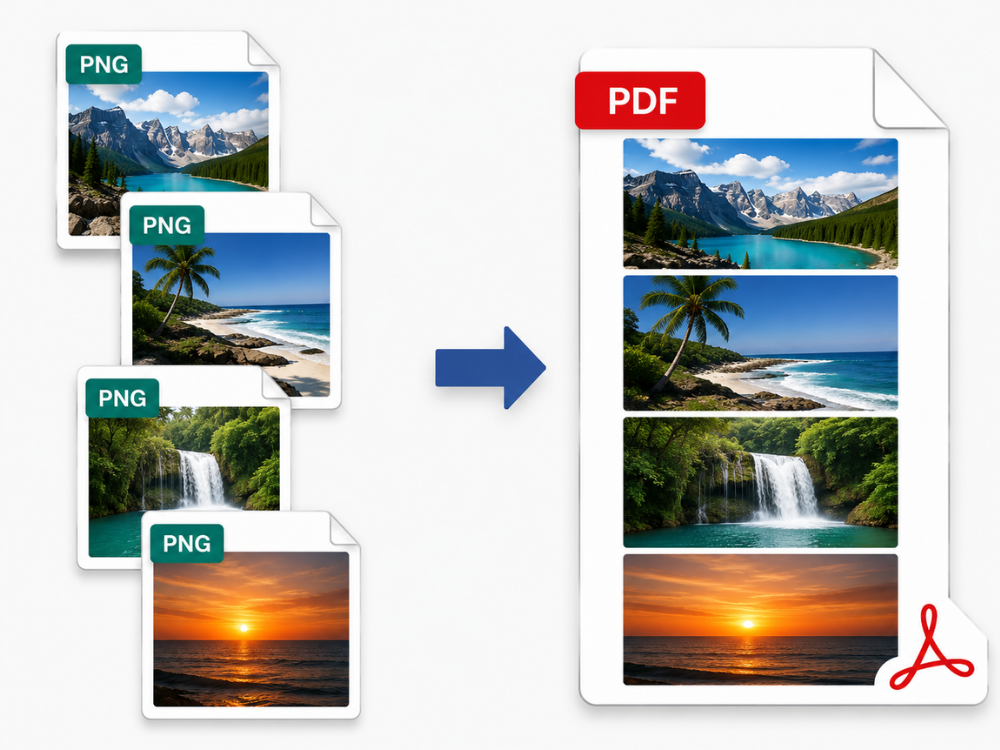
There are many reasons why it would be better to use a free PNG to PDF converter and not simply send the PNG file. A PDF will always be much easier to share, print, and store, particularly if there are more images involved.
a. Professional Document Submission
A lot of job websites, official offices, and government sites ask for files in PDF format. If your file is a PNG, you may need to convert it to PDF before you upload it. The image remains the same while its file type changes. This can help when the site does not accept PNG files.
b. Universal Compatibility
PDF opens identically on every device and operating system. Unlike PNG, which might appear different depending on the individual viewing it. PDF files have the same appearance on Windows, macOS, Android, and iOS.
c. Combining Multiple Images
One PDF document can have multiple pages stored in it. Thus, instead of attaching multiple images, one may decide to combine them into one document. This may be helpful in case of receipts, identity photos, forms, or other types of documents. The PNG to PDF converter will be very helpful in combining multiple images.
d. Better for Printing
When it comes to printing your document, PDF is an obvious choice. You can adjust the page size and margins and see how the picture will fit on paper. PDF format can be used by almost any home printer as well as any print shop.
e. Long-Term Archiving
In addition, PDF is also useful when there is a need to store files for an extended period of time. The PDF file format was adopted by the International Organization for Standardization (ISO) in the year 2008. In case there are numerous pictures to be archived, one may convert PNG to PDF.
Reducing the file size is another motivation to convert PNG to PDF. A free PNG to PDF converter allows combining multiple pictures into one file. Making it more convenient to upload your pictures to job applications or to cloud services and content management systems that accept only document formats.
PNG to PDF converter is not just useful if you are a student and have to combine your scanned homework; it is also valuable for professionals when you want to archive your invoices. And the same goes for other images as well. If, for example, your files are JPGs, you can check out our guide on how to add a JPG to PDF.
PNG vs PDF: What’s the Difference?
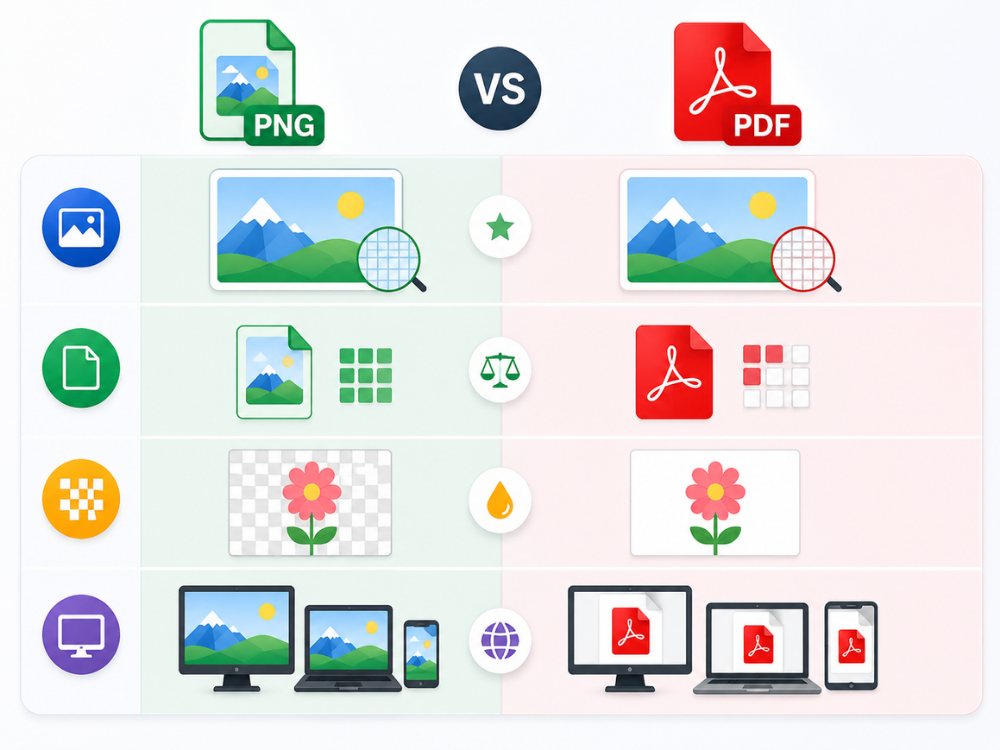
Both PNG format and PDF format are formats that are widely used. Yet, PNG format cannot be used for the purposes for which the PDF format is designed. The former is mainly used for images, while the latter works perfectly for documents. This is important when choosing to convert PNG to PDF.
a. Image Quality
PNG keeps the details of an image without the same type of quality loss you get with some other image formats. When you convert PNG to PDF, a good converter can keep the picture clear. The final result will also depend on the quality of the original PNG.
b. File Size
PNG files can be larger than some other image formats because they keep image data without lossy compression. PDF file size can vary based on what the file contains. The size of a PDF depends on the information contained. For instance, a PDF file holding one PNG file will be somewhat bigger than the PNG file. But PDF compresses information when embedding images, and thus a PDF containing multiple images will be smaller than multiple PNG files.
c. Transparency
PNG has a transparent background that is important for logo creation and other graphic work. There are slight differences when it comes to dealing with the transparency of PNG in PDF. If you convert the PNG to PDF, it may be seen as white in the new file.
d. Compatibility
PNG is appropriate if you need an image for your website or image program. On the other hand, PDF is the right file type for printing and distributing your documents. This all depends on the purpose for which you want to use the document/file.
How to Convert PNG to PDF With an Online PNG to PDF Converter
If you want a quick way to convert PNG into PDF for free, an online tool can save you from installing extra software. You can open the online PNG to PDF converter in your browser, add your image, and save the finished PDF.
AhaConvert PNG to PDF Converter is a free PNG to PDF converter that allows users to perform conversions directly in their browsers. This converter accepts PNG files and has support for multi-file conversion to PDF free. The company behind this converter claims to offer protection to its users’ files using 256-bit SSL.
Step 1: Open the Free PNG to PDF Converter
Launch the AhaConvert PNG to PDF converter in your web browser. It works both from a computer and a mobile device. No other software installation or creating an account is required in advance.
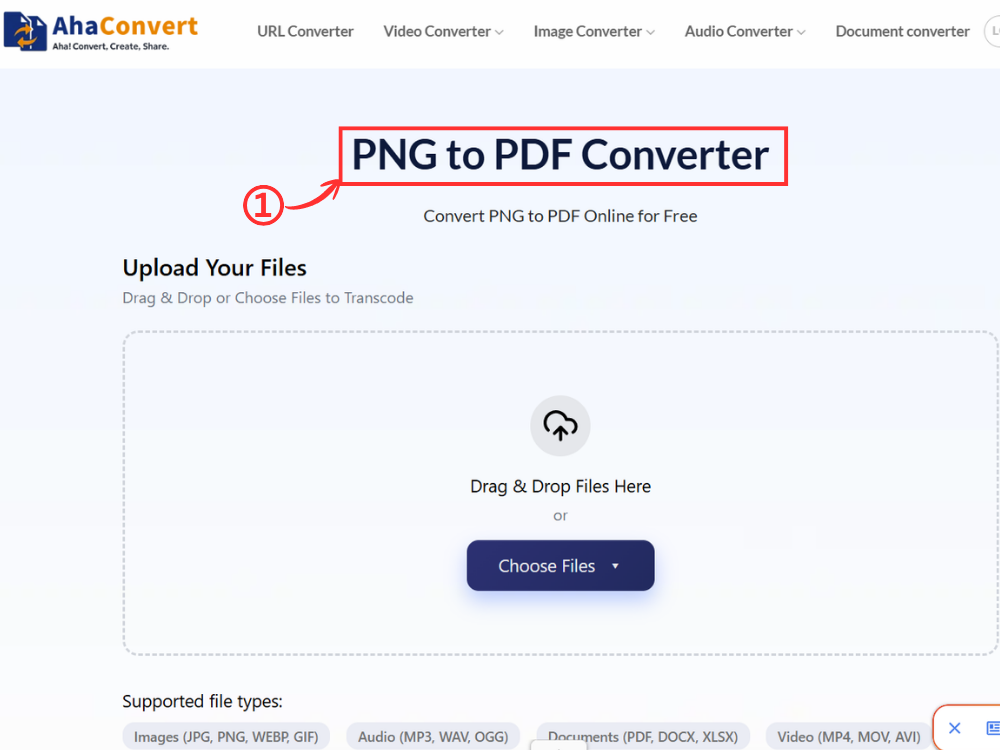
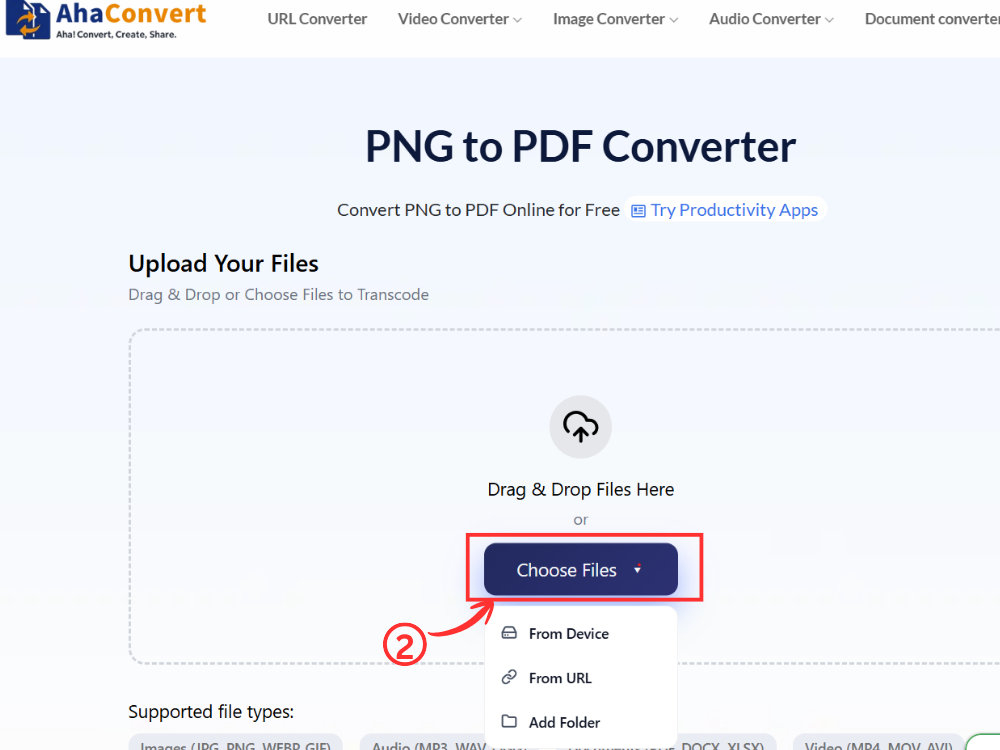
Step 2: Upload Your PNG File
Click the button “Choose Files” to select the PNG file from your PC. Or drag and drop the PNG file or paste the URL from an online host of your PNG file.
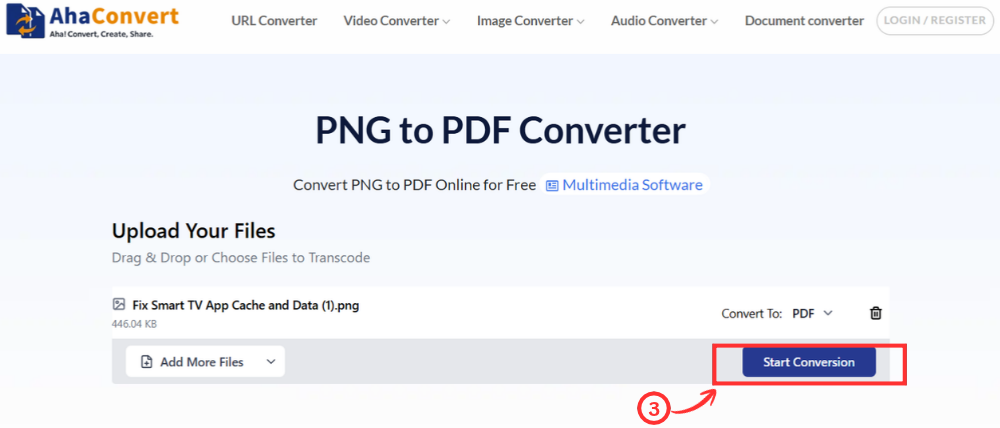
Step 3: Convert Your PNG File
When the PNG to PDF converter is done, click on “Start Conversion”. The online converter will convert PNG to PDF and prepare it for you. PDF is the output format, and you do not have to select it.
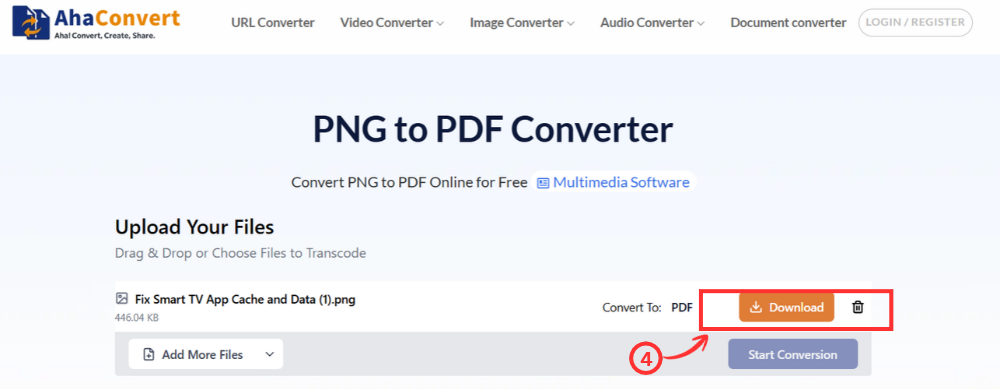
Step 4: Download Your PDF
After completing the document, click on “Download”. Your PDF will be saved on your device from there. It can now be opened, sent, or uploaded wherever required.
How to Convert PNG to PDF Online Using Windows Print to PDF
Windows has an inbuilt feature that allows you to convert PNG to PDF without installing any other program. The Microsoft Print to PDF feature is available from applications like Photos and Paint. This process does not require access to the internet.
Step 1: Open Your PNG File
Open your PNG image in any image viewer: Windows Photos, Paint, etc. This should be any program that allows for printing images.
Step 2: Open the Print Dialog
Click on Ctrl + P to access the Print Dialog, or File > Print from within the image viewing program.
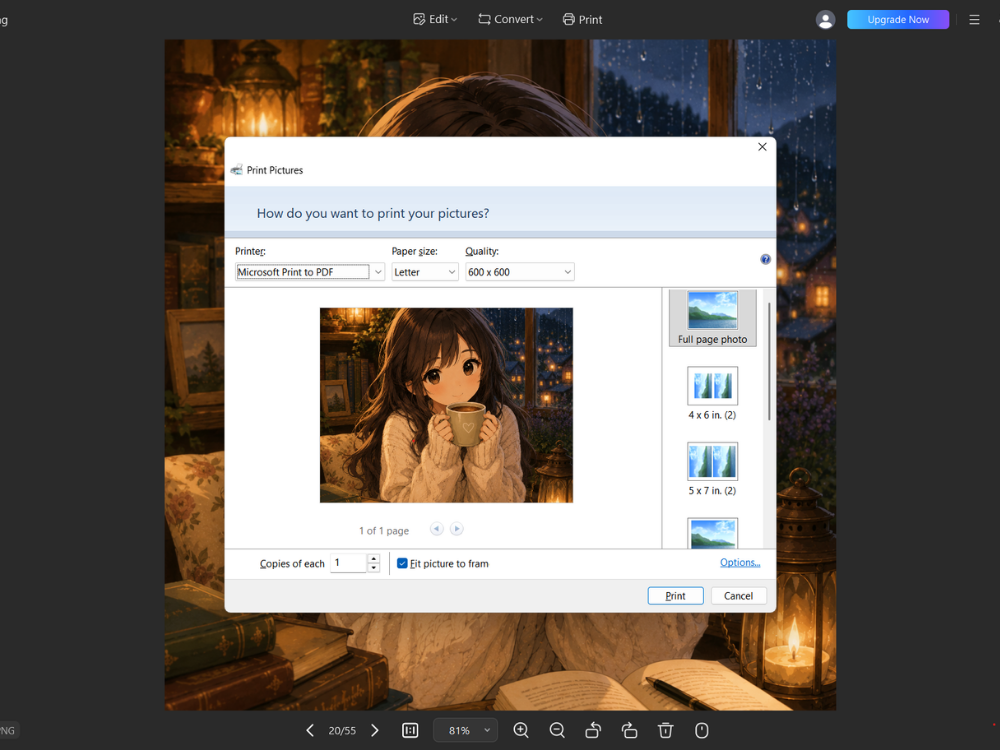
Step 3: Select Microsoft Print to PDF
From the printer name dropdown list, select “Microsoft Print To PDF” as the printer.
Step 4: Adjust Settings and Print
You can set some page size and orientation settings and click the Print button.
Step 5: Save Your PDF File
Save your PDF document in the provided saving dialog box by specifying where and under what name to save it.
How to Convert PNG to PDF Online Using Google Drive
Another method for converting PNG to PDF online is Google Drive. This may prove helpful if the image is stored in your drive. You can utilize the option of print in order to save your image in the form of a PDF file.
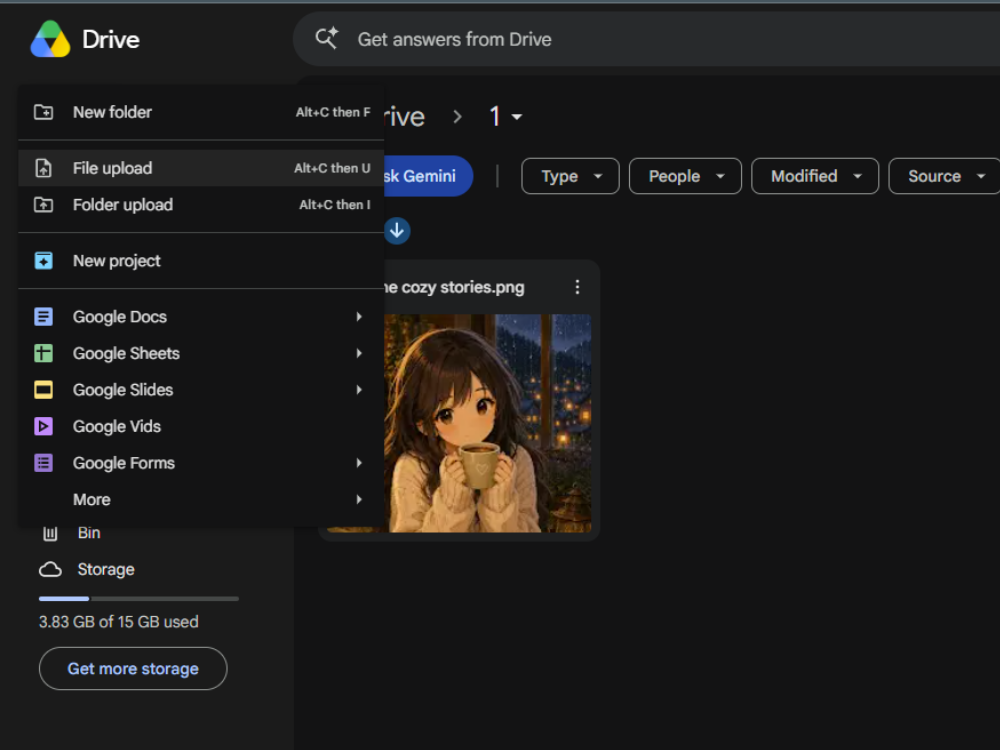
Step 1: Upload Your PNG File
Go to Google Drive and sign in. Click New on the left. Then click File upload. Find the PNG picture on your computer and click it. The picture will then appear in your Drive. You can also drag the picture from your computer and drop it into Drive.
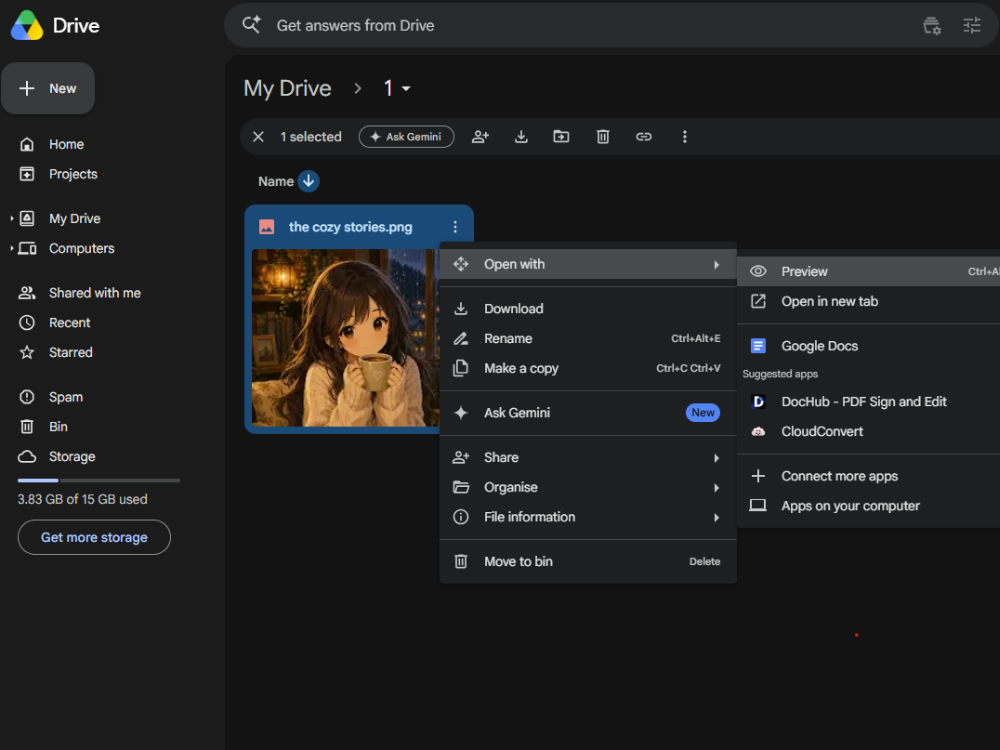
Step 2: Open the PNG in Preview
Find the picture in your Drive and right-click it. A small menu will open. Click Open with, then choose Preview. Google Drive will show the picture on the screen.
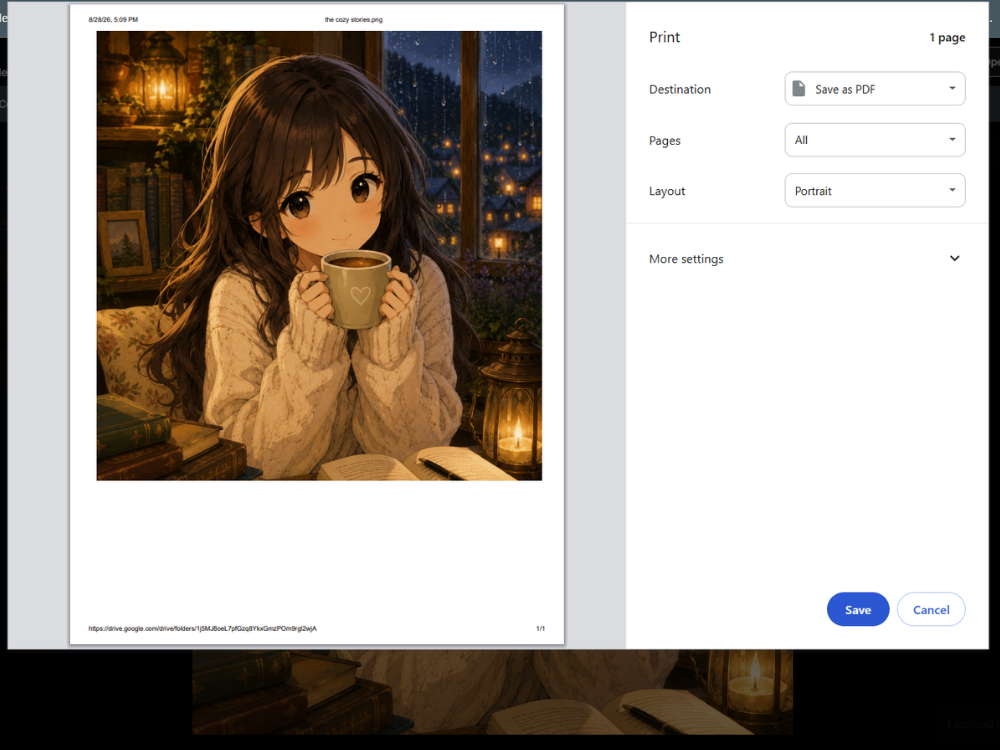
Step 3: Print and Save as PDF
Press Ctrl + P while the picture is open. A new print window will appear. Look for Destination and select Save as PDF. Look at the picture first to make sure it looks right. Then click Save. Choose a place on your computer, type a name for the PDF, and save the file.
How to Convert PNG to PDF Online Using Your Smartphone
You may also convert PNG to PDF on your phone. AhaConvert PNG to PDF Converter is also accessible via a mobile browser, so you don’t need to download any other software. You can apply the same technique using either an iPhone or Android phone.
Step 1: Open the Converter in Your Mobile Browser
Open Safari on an iPhone or Chrome on an Android phone. Then open the AhaConvert PNG to PDF page. You can start from the browser without installing an app.
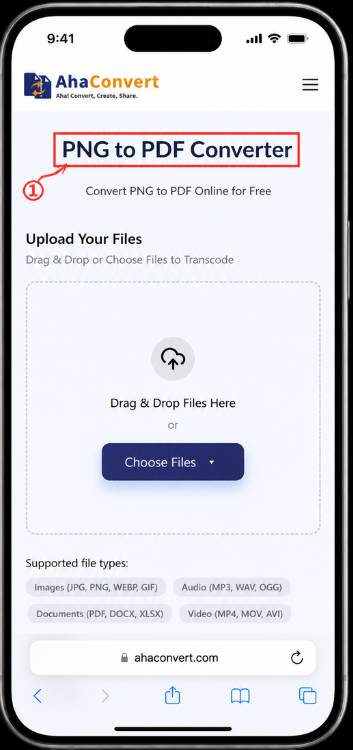
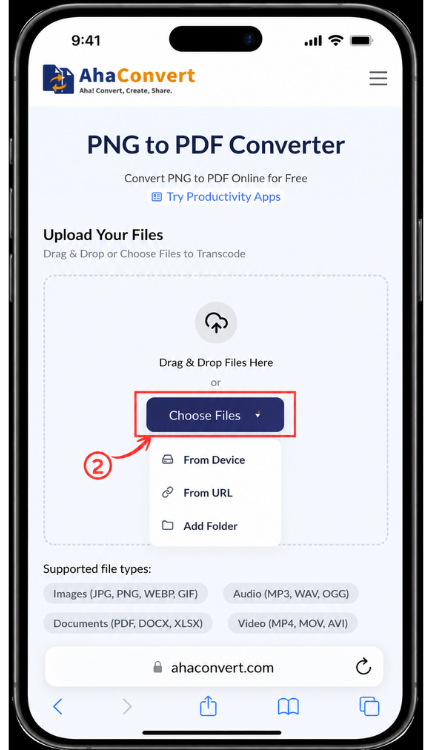
Step 2: Upload Your PNG from Your Phone
Tap “Choose Files” and find your PNG picture. You might save it in your Photos, Files, or online storage. Tap on the picture that you wish to work with. You could also use a URL link for an online PNG image.
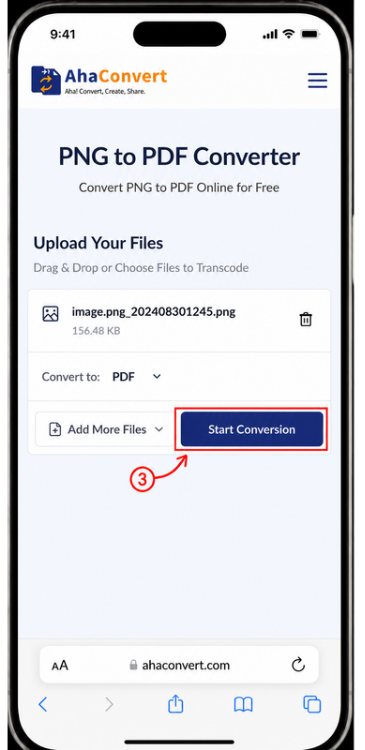
Step 3: Convert Your PNG
Once the picture is added, look for “Start Conversion” and tap it. The tool will convert the PNG into PDF. There is no need to pick PDF yourself.
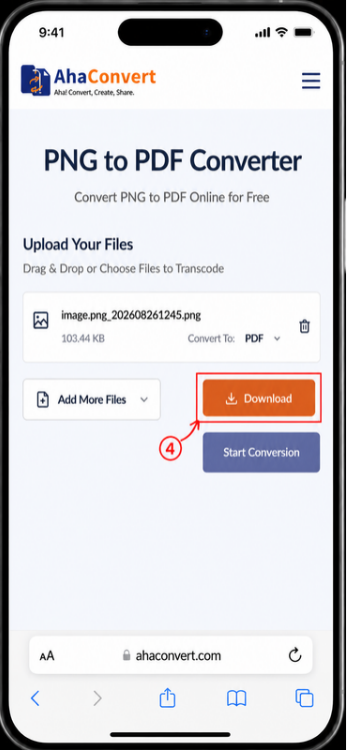
Step 4: Download the PDF
Wait for the new file to finish. Then tap the “download” button. Your phone will save the PDF. Check Downloads or the Files app if you don’t find it immediately. You can now send, upload, or keep the file on your phone.
Frequently Asked Questions
1. Can I convert PNG to PDF for free?
Yes. There is an option to convert PNG to PDF for free with AhaConvert. You can also use Windows Print to PDF or Google Drive to convert PNG to PDF for free. It all depends on the type of device.
2. Can I convert multiple PNG images into one PDF?
Yes. You can insert more than one PNG image into one PDF file. This could be handy if you have images that are pages of one document. For instance, you might have many pages from a document and want to save them all in one file. AhaConvert allows multiple PNG images in one conversion process.
3. Is it safe to use an online PNG to PDF converter?
An online PNG to PDF converter can be useful, but you should be careful with private files. Before uploading an ID, bill, or other personal document, read the site’s privacy rules. AhaConvert says it uses 256-bit SSL to protect files during transfer and deletes uploaded files within 24 hours. It also says it does not sell or share user data.
4. Is PDF better than PNG for printing?
Generally yes. PDF is the standard format for professional and home printing — it preserves layout, sizing, and margins consistently across all printers and operating systems. PNG can also be printed at high quality, but PDF gives you more control over page size and print settings. For formal document printing, PDF is the more reliable choice.
5. Can I convert PNG to PDF without losing quality?
Yes, you can convert PNG to PDF without losing the original image quality if the converter preserves it. This also depends on the original quality and size of the PNG file. According to AhaConvert, it preserves the original image quality during conversion.
6. Does converting a transparent PNG to PDF remove the transparency?
Most of the time, it does. A PNG can have a clear background, but PDFs handle it differently. After you convert a PNG to PDF, the clear part will often appear white. This can be a problem for logos or pictures with no background.
In Conclusion
You can also convert PNG to PDF if you need to send a bunch of images at once, print an image, or upload a document to sites that accept PDF files. If you want to know how to convert PNG to PDF online, you can use any web-based program, Windows OS, Google Drive, or your smartphone. Each method is different, so it is up to the person to decide which one to use.
If someone needs an online PNG-to-PDF converter, they can use the free AhaConvert service, which converts the file format online without installing additional software. This solution suits those who need to convert PNG to PDF and save the document on their PC. The AhaConvert PNG to PDF Converter is accessible in one’s browser.
