
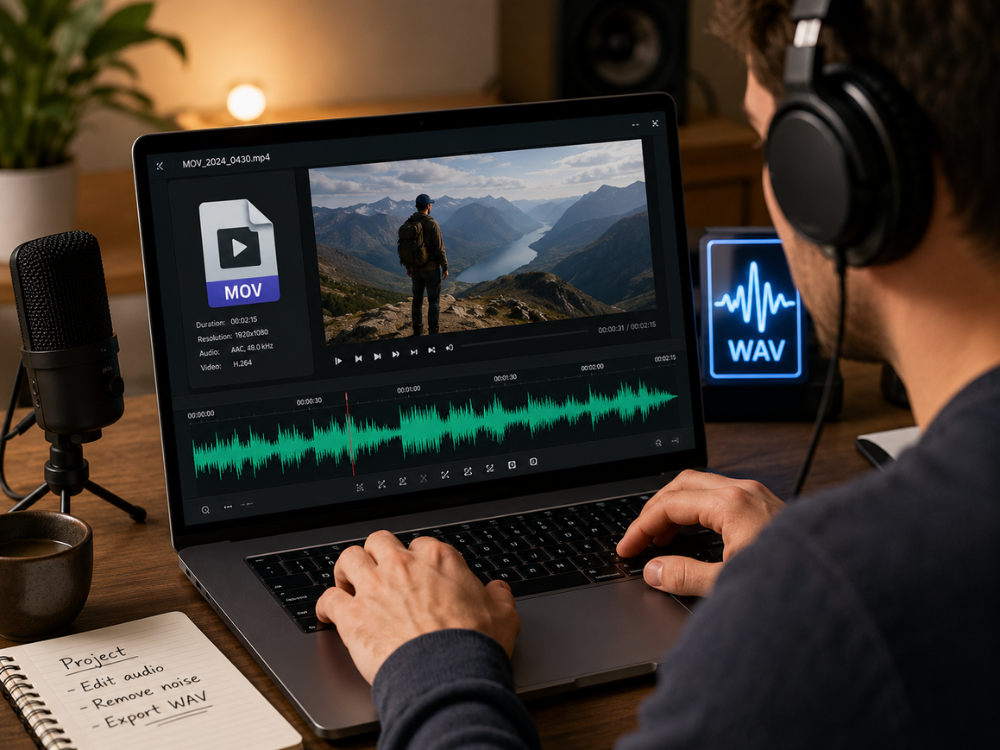
If you only need the audio from a MOV video, there is no reason to keep the entire video file. Extracting the soundtrack into a WAV file saves storage space and makes the audio easier to edit, share, and archive. Whether you recorded a voice note on your iPhone, captured a screen recording, or shot a video you want to extract audio from, the process is straightforward. Having the ability to convert MOV to WAV will make it easier for you to do so.
It should be noted that WAV is a lossless audio format that works on almost any device and in any program for editing videos and audio files. Therefore, WAV is the obvious choice when the task is to separate audio from video files. This article explains what MOV and WAV files are and why to convert MOV to WAV; at the same time, this guide shows you in detail how to convert MOV to WAV online for free.
What is a MOV File?
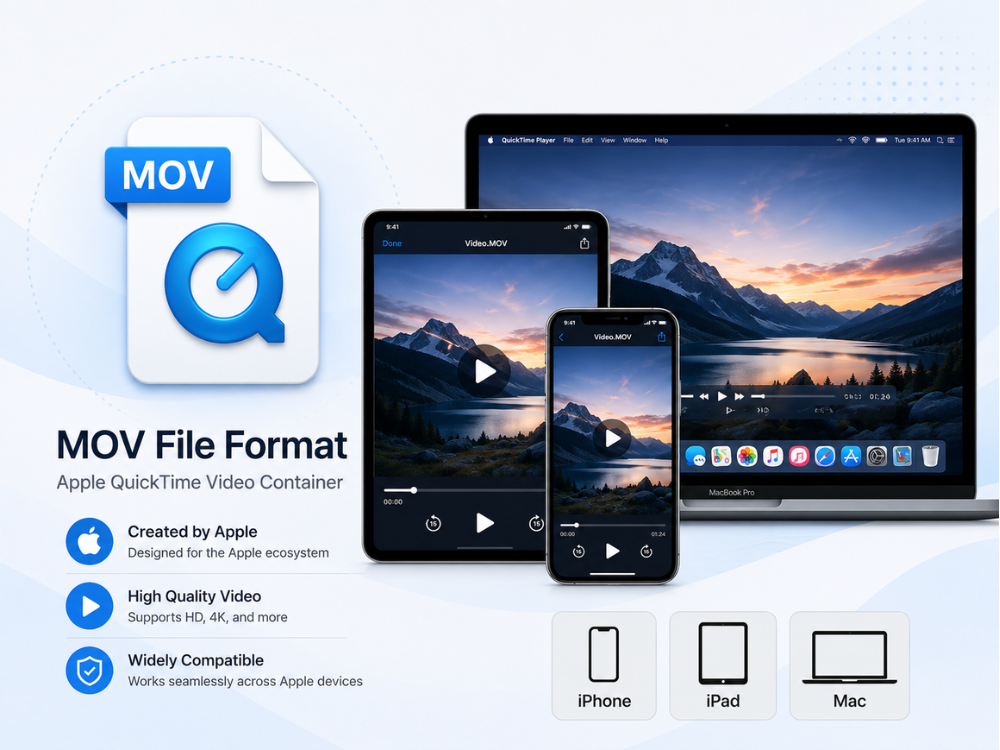
MOV is the QuickTime video format created by Apple back in 1991, as part of the QuickTime Player package. MOV files store a collection of video, audio, and subtitle tracks within a single file. They are used as a default recording format on iPhones, iPads, and screen recordings on Macs.
The file can contain audio tracks compressed in various ways — from AAC to PCM and even MP3. While this makes MOV a good option for video recording, it also results in unnecessarily large files when only the audio track is needed.
MOV runs natively on Mac and iOS systems via QuickTime and the Photos app. However, there is a strong demand for ways to convert MOV to WAV. A voice memo recorded on an iPhone, for example, is saved in MOV format. However, the video stream is usually blank or consists of still images. Converting MOV to WAV eliminates the use of such useless video content.
What is a WAV File?
The Waveform Audio File Format (WAV) was an audio file format created by Microsoft and IBM in 1991. WAV uses pulse-code modulation (PCM) to store audio, which ensures there is no loss of audio data or changes to it.
As an uncompressed format, WAV is considered the best in ensuring the originality of the audio because there will be no losses in it. This makes WAV the preferred file format in audio production, podcasting, broadcasting, and post-production. The majority of media players and operating systems use the WAV file format with no problems at all.
WAV files are indeed bigger than MP3 files due to the lack of compression. But then again, when it comes to shorter audio files like voice memos, interview audio, or a clip taken from MOV audio, this is not a big problem. The price paid for having a larger file is always worth it.
The use of WAV is widespread when the extracted audio has to be edited afterward. The uncompressed nature of the audio ensures that no extra loss occurs during the processing. Therefore, WAV is a great file format to choose when you are going to trim the sound, eliminate noise, equalize the sound, and do other editing procedures. In case your goal is to perform some edits on the extracted audio before making it public, you should save it in WAV format.
MOV vs WAV: What’s the Difference?
MOV and WAV serve two very different purposes, so comparing them side by side helps explain why converting between them makes sense.
| Feature | MOV | WAV |
|---|---|---|
| File Type | Video container | Audio format |
| Developer | Apple | Microsoft / IBM |
| Contains | Video, audio, text, effects | Audio only |
| Compression | Varies (H.264, H.265, AAC, etc.) | Uncompressed PCM (default) |
| Audio Quality | Depends on the codec used | Lossless (uncompressed) |
| File Size | Large (video + audio) | Large (uncompressed audio) |
| Platform Compatibility | Strong on Apple; limited on Windows | Universal across all platforms |
The fundamental difference is that a MOV file consists of video, audio, and metadata, whereas a WAV file includes only the audio content. After converting MOV to WAV files, you will have audio files that are easy to use and require no effort to load into an audio program or other audio-related software. That’s exactly what makes many people prefer to convert MOV to WAV first before continuing their work in audio-only software.
Why Convert MOV to WAV?
There are several practical reasons a person might want to convert MOV to WAV rather than continuing to work with the original video file.
a. Extracting a Voice Recording or Interview
iPhones and Macs often store voice recordings or interviews in the .mov format as the default. The conversion from .mov to .wav will extract the voice recording or interview from the video.
b. Isolating Music or Sound From a Video Clip
In cases where the MOV file carries a musical performance, a podcast section, or a soundtrack that needs to be isolated for other uses. Conversion into a WAV format will provide you with an audio-only file for subsequent modifications or mixing.
c. Working in Audio Production Software
There is no doubt that the majority of digital audio workstations and audio editing programs process the WAV format more efficiently than video files. Converting MOV to WAV enables working with the audio.
d. Reducing File Size for Audio-Only Sharing
If there is a video embedded in a MOV file, the file size could be larger than the actual audio file size. When the video is not needed, and only the audio file needs to be shared, converting MOV to WAV results in a smaller file.
e. Meeting Delivery or Submission Requirements
There are some podcast websites, transcription websites, or other portals for submitting audio files where only audio files are allowed, but not video files. When someone has an audio recording in MOV format but wants to upload it to a website that allows only audio files, converting the MOV to WAV helps achieve the goal.
Another motivation for converting MOV to WAV is the preservation of audio files. Video files include a lot of additional visual information, which is not required if only audio needs to be saved. By saving the audio information as a separate WAV file, one can have better storage and access opportunities in the future. If one keeps interview records, lecture audio, podcasts, or music recordings, the WAV file is a much more preferable option.
Why Choose Online MOV to WAV Converter?
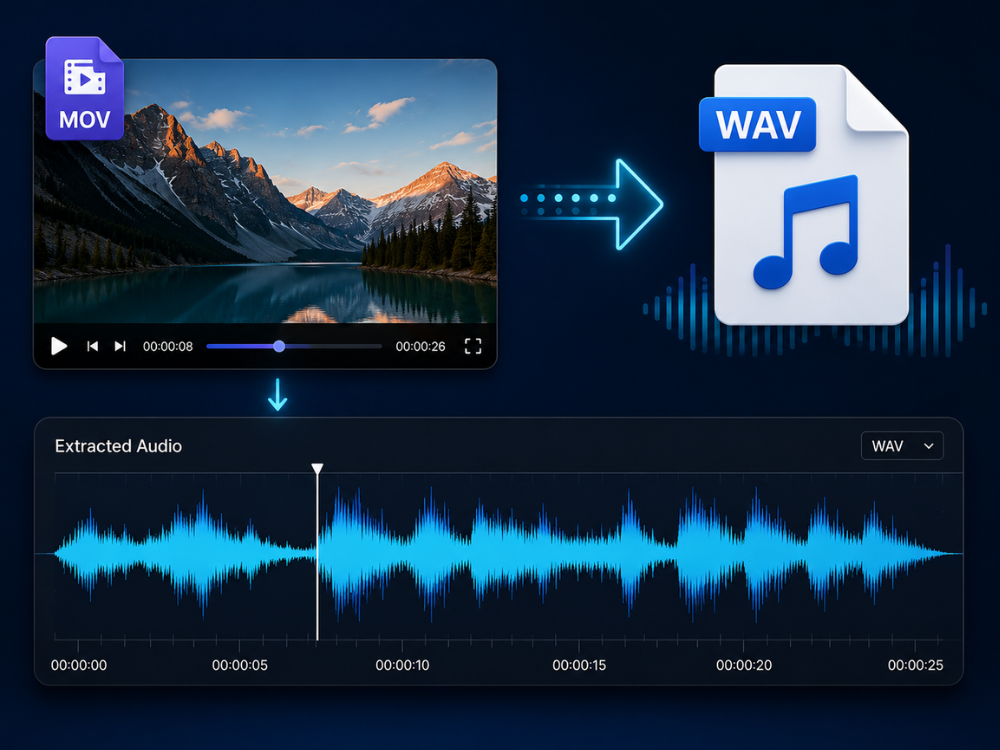
There are numerous benefits to using an online MOV to WAV converter when it comes to this kind of audio conversion process.
a. No Software Installation
Desktop applications that allow for editing videos and converting MOV files. Such as Adobe Premiere Pro and Final Cut Pro – they cost money and require resources from your computer. The free online tool for converting MOV to WAV will do the job right in your web browser.
b. Works on Any Device
Since the conversion software does not need installation, it runs within the browser. It works just as well on Windows, macOS, Linux, iOS, and Android. In particular, when using MOV conversion for iPhone, it will work perfectly even on your mobile device.
c. Fast for Simple Conversions
Dedicated video editing software is not required for all .mov to .wav conversions. An online converter will get you the output in seconds, much quicker than launching a paid program for what is essentially a quick format conversion.
d. Free and Privacy-Focused
The software, AhaConvert MOV to WAV Converter, is free, does not require an account sign-up, and secures all uploaded files with 256-bit SSL encryption. This converter deletes all files uploaded after 24 hours and keeps your recordings secure even while the conversion process is going on. It allows batch processing of more than one MOV file at a time.
How to Convert MOV to WAV Online?
Below is the way to convert MOV to WAV format with the help of the AhaConvert MOV to WAV converter.
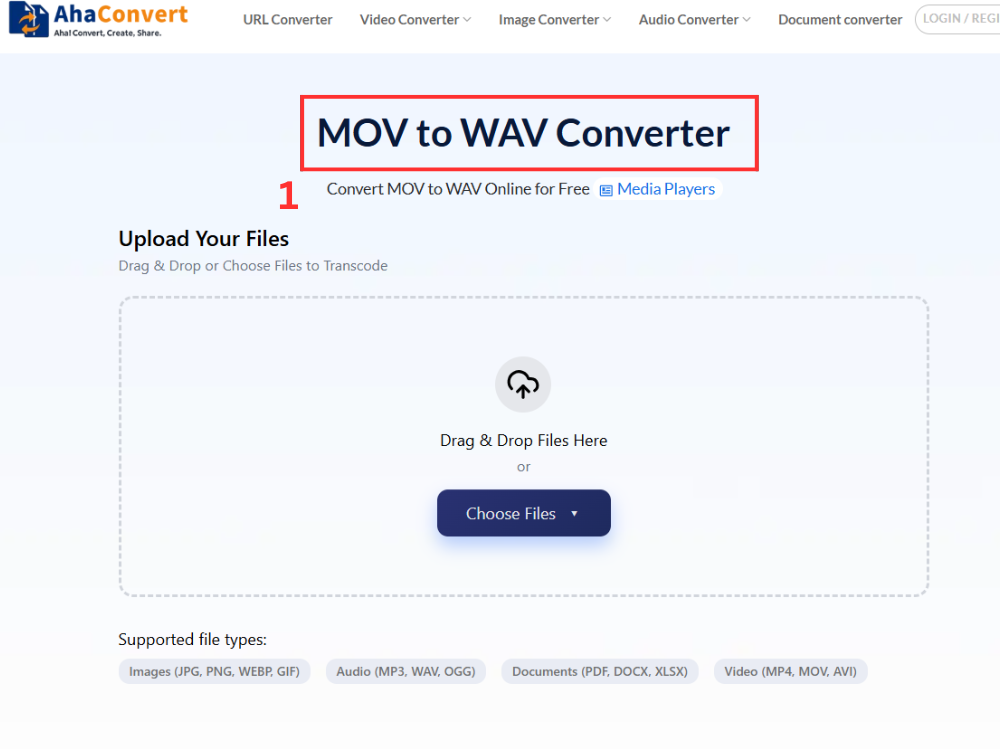
Step 1: Open the AhaConvert MOV to WAV Converter
Browse the AhaConvert MOV to WAV Converter website in any browser from any device and start the process immediately.
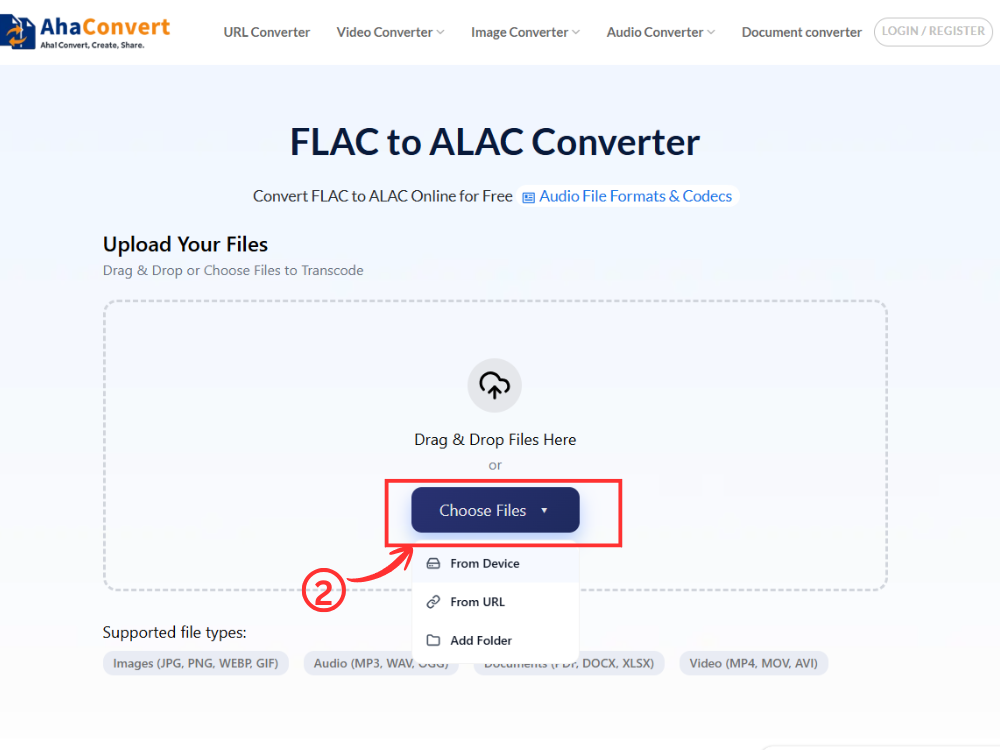
Step 2: Upload Your MOV File
Click the ‘Choose Files’ button to select your MOV file from your device. Alternatively, drag and drop the file into the upload area, paste a file URL if the video is hosted online, or import from cloud storage.
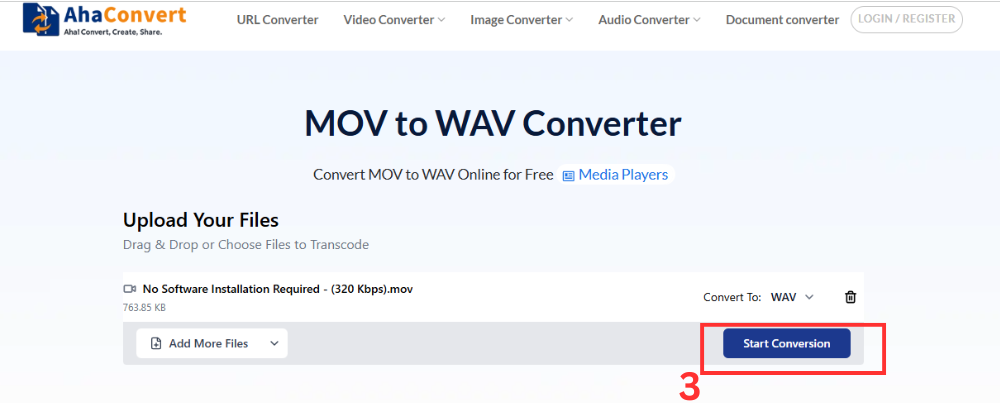
Step 3: Start the Conversion
After the upload completes, click “Start Conversion”. Since the tool is a specific MOV-to-WAV converter, the output format is automatically set to WAV; therefore, there is no dropdown menu for settings.
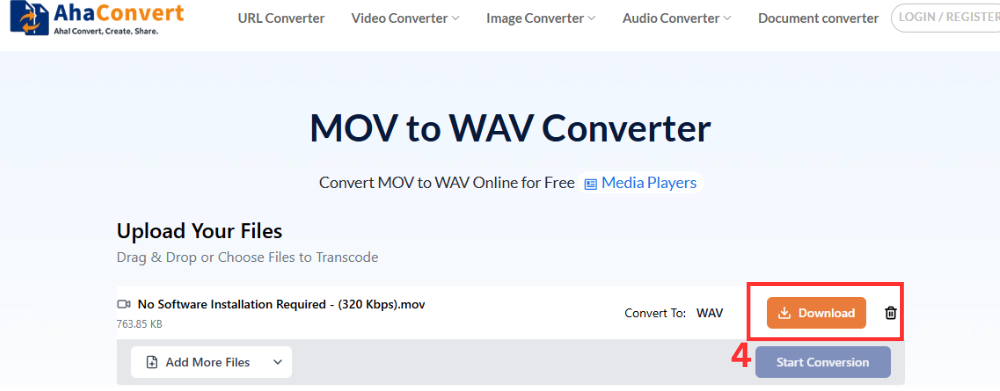
Step 4: Download Your WAV File
A link to download the file appears once the conversion is complete. Just click on the “Download” button, and your WAV file will be downloaded to your computer instantly.
Frequently Asked Questions
1. Is there a free MOV to WAV converter?
The AhaConvert MOV to WAV converter operates in your web browser and costs nothing. Just upload your MOV file, and it will turn into a WAV file in seconds without having to create an account, pay for a subscription, or install any software, and there’s no restriction on the number of MOVs you can convert to WAV.
2. Can I convert .mov to .wav on a Mac?
Yes, and it functions in the exact same manner as on any other computer. Start using the converter via Safari or Chrome, upload your MOV file using any convenient method, and then download the WAV file immediately. There is no additional software or plugin required for MOV to WAV conversion on macOS.
3. Can I convert MOV to WAV on my phone?
Yes. As AhaConvert operates entirely in your browser, you can convert files from an iPhone or Android device without downloading any application. Just load up AhaConvert in your smartphone’s browser, upload MOV, and get WAV directly on your device.
4. Is this MOV to WAV converter safe to use?
AhaConvert encrypts all uploads using 256-bit SSL encryption and removes files from its servers within 24 hours, without distributing them to any third parties. Therefore, it is suitable both for personal recordings and for sensitive project audio files.
5. How long does it take to convert MOV to WAV?
Conversion times for most files typically last just a few seconds. However, in some cases where the file is relatively large, the process can take a little longer, though this is not an issue since AhaConvert runs it in the cloud.
6. Will converting MOV to WAV reduce audio quality?
No. WAV files are of a lossless nature, and therefore, when you extract audio from your MOV file, it remains at its full quality. If the original audio track remains unaltered, converting from MOV to WAV will not affect it.
7. Do I need special software to convert MOV to WAV?
No. Conversion from MOV to WAV is possible with the help of a browser-based application such as AhaConvert, which converts the files without requiring any software installations. This allows you to convert MOV to WAV on any platform, including desktops or mobile platforms, using just a web browser.
Conclusion
While the MOV file format is ideal for capturing and editing video on any Apple device, it is not the best choice when your main focus is audio. When you convert MOV to WAV, you get a pure audio file that works well with any DAW or audio editor on any platform, without compatibility issues.
Converting MOV to WAV makes it easier to extract the sound from recordings on the iPhone. It also helps prepare files for broadcasting, store interviews, and convert MOV files for use with audio editing programs on Windows. Conversions are completed within a matter of seconds.
The AhaConvert MOV to WAV Converter is what will do the job quickly, without charging money, and with no software installation, and even no account required. Besides converting MOV to WAV, users who work with other audio and video formats can use AhaConvert Audio Converter.
