
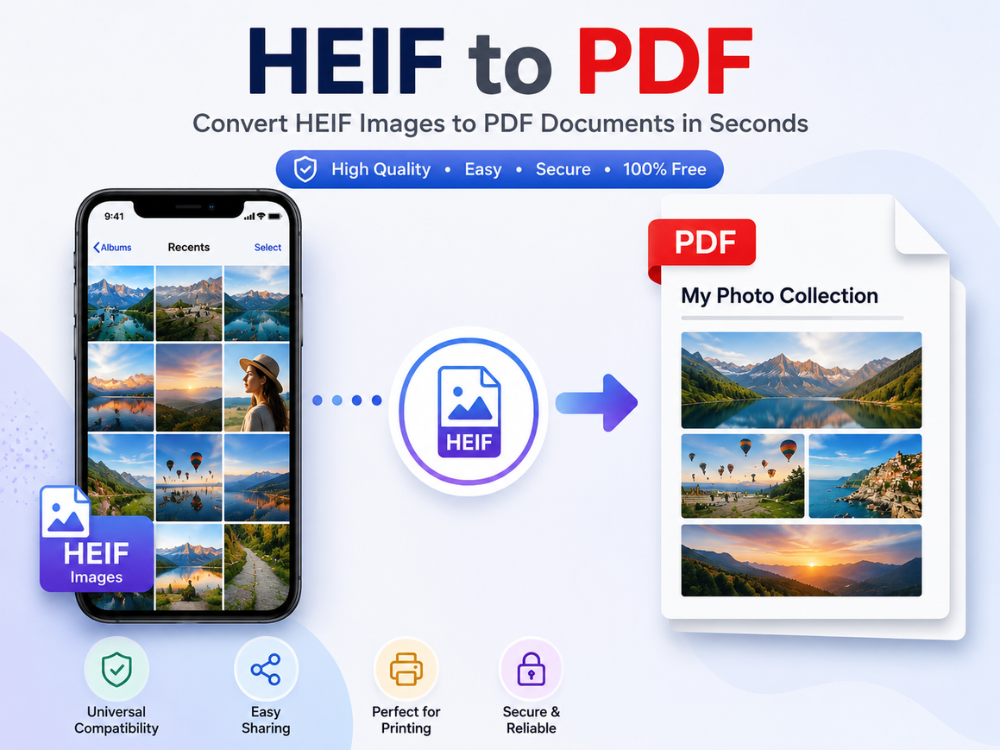
If you own an iPhone or any Apple device, your photos are saved in HEIF format. It has been years since Apple implemented HEIF as the default image format for Apple Photos, given the quality and compression efficiency. But the sharing or use of such images can hit compatibility issues outside of the Apple ecosystem. One way to fix it right away is to convert HEIF to PDF — PDF is one of the most widely supported formats for sharing, printing, and archiving documents and images.
Converting HEIF to PDF is useful in many situations. It helps when printing photos, sharing files with clients, or submitting images through online forms. This guide explains what HEIF is and how it compares to PDF. You will also learn how to convert HEIF images to PDF on Windows and iPhone using free online tools.
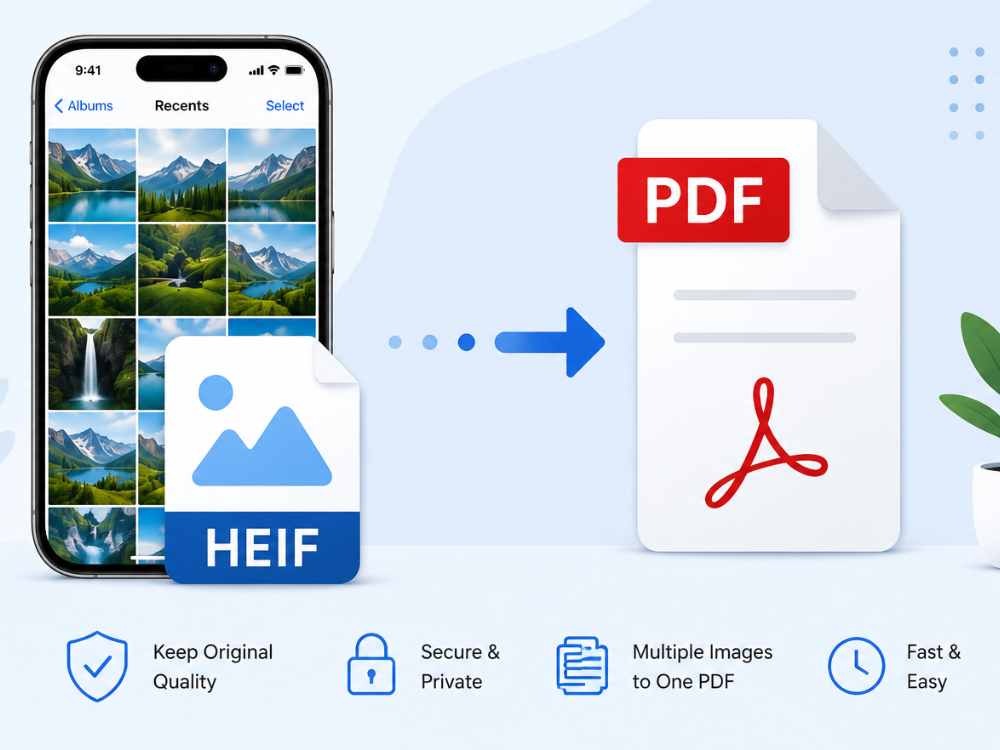
What Is HEIF?
HEIF stands for High Efficiency Image File Format. This image file format was developed by the Moving Picture Experts Group (MPEG). HEIF was adopted by both iOS 11 and macOS High Sierra as the default image capture format and is already being used by other manufacturers as well, including some Android phone brands.
The biggest advantage of using the HEIF file format lies in its compression efficiency. HEIF images maintain excellent quality. They also require much less storage space than JPG files. HEIF files are much smaller than JPG files. This allows you to store more photos on your device without sacrificing quality. In addition, HEIF supports 16-bit color depth, transparency, frame sequences, and additional information, such as depth maps and HDR.
Unfortunately, the issue of HEIF’s low popularity should be mentioned. Most platforms won’t open HEIF files, and neither does Windows, nor a great number of other programs that work with images. Because of this, many people have to convert their HEIF images to PDF or JPG.
HEIF vs PDF: What are the Differences?
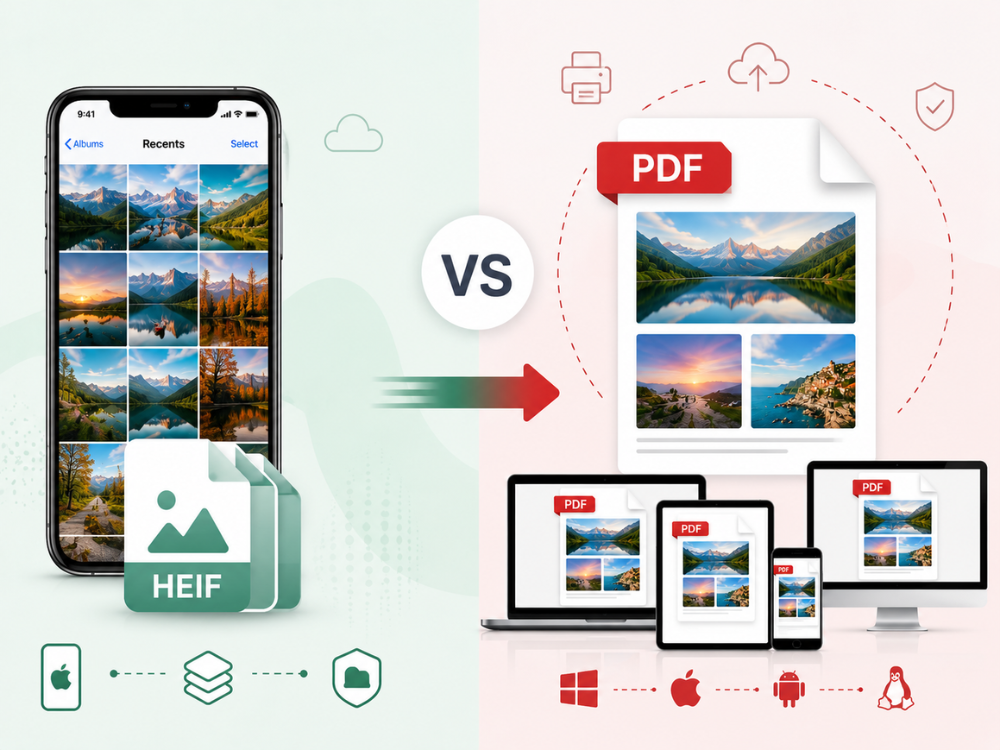
HEIF and PDF serve entirely different purposes, which is part of why conversion between them is so commonly needed.
| Feature | EPS | |
|---|---|---|
| Full Name | Encapsulated PostScript | Portable Document Format |
| Primary Purpose | Professional printing and graphic design | Document sharing, viewing, and printing |
| File Type | Primarily a vector graphics format | A document format that can contain text, images, and vector graphics |
| Scalability | Can be resized without losing quality | Can preserve vector quality and scale without loss when vector elements are used |
| Browser Support | Generally not supported by web browsers | Widely supported by browsers and PDF viewers |
| Ease of Sharing | Limited due to compatibility issues | Easy to share and open on most devices |
| Editing | Typically edited in professional design software | Can be viewed by most users and edited with PDF tools |
| Printing | Designed for commercial printing workflows | Suitable for both everyday and professional printing |
| File Content | Mainly graphics and illustrations | Supports text, images, graphics, forms, and multiple pages |
| Multi-Page Support | No, usually single-page artwork | Yes, supports multiple pages in one file |
| Security Features | No built-in security options | Can include passwords, permissions, and encryption |
| Compatibility | Best suited for design and print software | Compatible with almost all devices and operating systems |
| Common Uses | Logos, illustrations, billboards, packaging, print designs | Reports, contracts, manuals, presentations, and printable documents |
The completeness of compatibility is the key element that arises from this comparison. PDF files work on almost every device. They open on Windows, macOS, Android, iPhone, and Linux using standard PDF readers. HEIF, however, does need certain software or codecs to be installed on non-Apple devices. The HEIF-to-PDF converter resolves many compatibility issues. It makes sharing, printing, and submitting photos much easier.
Why Convert HEIF to PDF?
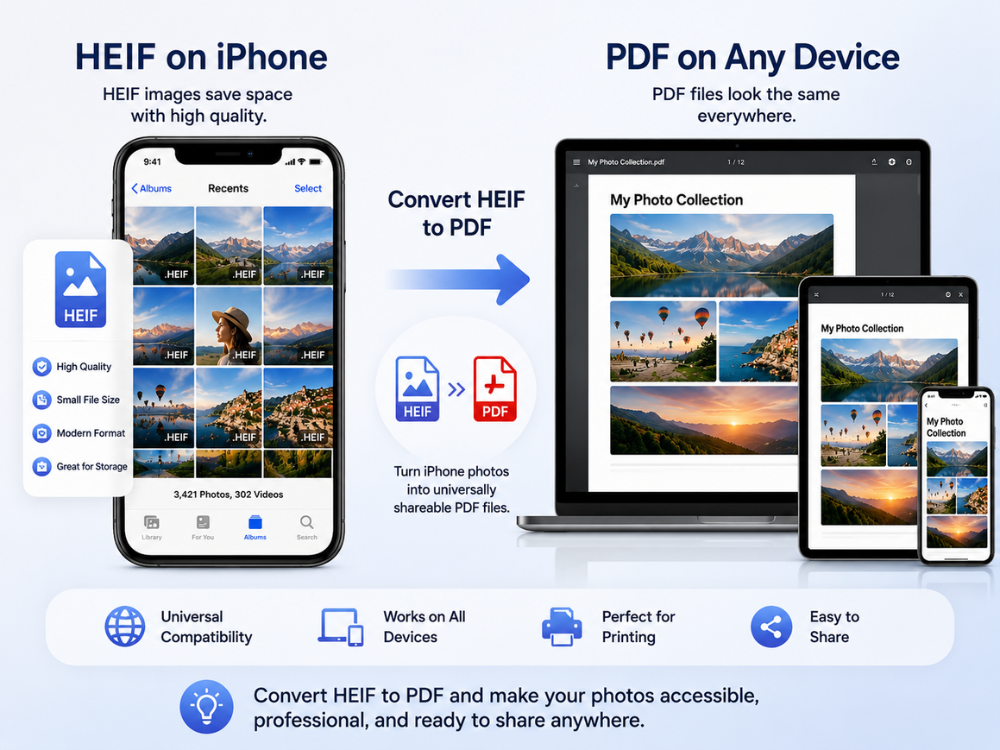
There are a number of use cases where converting a HEIF image to PDF is a better option than converting to JPG or another image format.
Universal Sharing and Compatibility
PDF is supported by almost all platforms, devices, and applications. A HEIF file sent to anyone with a Windows PC or an Android device might not be readable at all. A PDF will open immediately on any device; however, there is no need to have any special codecs or software installed. This is one reason many people learn how to convert HEIF to PDF. It makes sharing photos outside the Apple ecosystem much easier.
Professional and Official Submissions
Documents in PDF format are particularly required for many government forms, job applications, official websites, and professional websites. The PDF format can be used for HEIF images, so they will be accepted and will display properly on any computer the recipient uses.
Multi-Image Documents
PDF’s strength is that it allows you to merge several pictures into one single, organized document. Having multiple HEIF photos, such as scanned receipts, a set of property photographs, or a set of event photos, as a single PDF bundles the information together and makes it easier to distribute. This is not possible in a simple image format such as JPG.
Printing
Both professional and home printing use the PDF format. PDF is the native file format of most printers, print shops, and document management systems. When printing, you can print out an HEIF image as a PDF first to verify prints will be the correct size, correct margins, and print quality on different printers and operating systems.
Archiving
One of the most popular long-term formats for archiving documents and images is PDF. PDF is an ISO standard since 2008, a format that will stay supported over time, unlike most proprietary image formats.
4 Online HEIF to PDF Converters
Several free online tools handle the HEIF to PDF converter reliably, without requiring any software installation. Here are four worth considering.
1. AhaConvert HEIF to PDF Converter
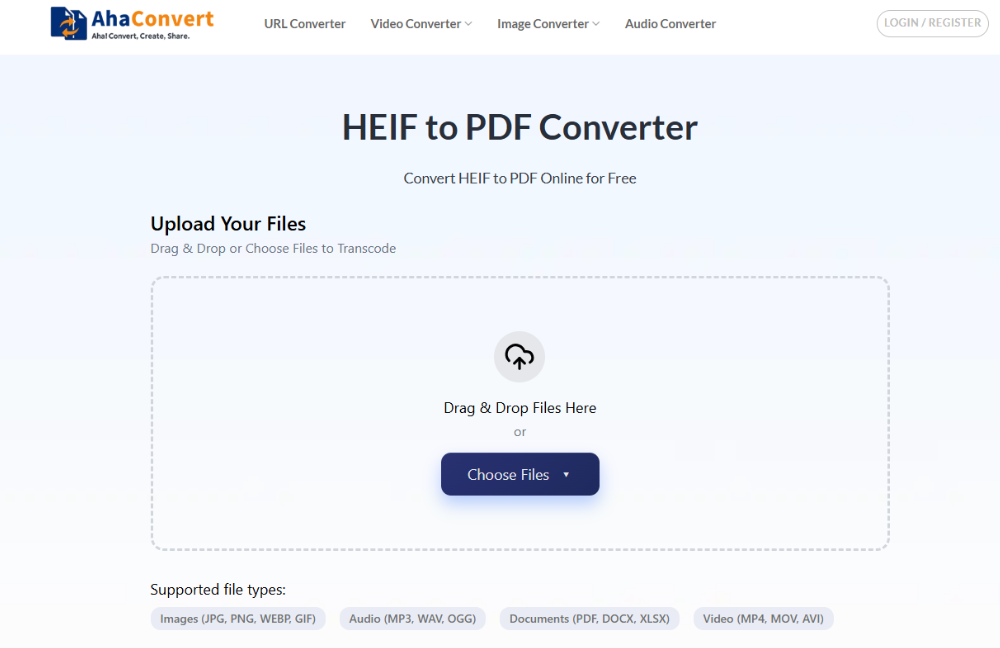
AhaConvert HEIF to PDF Converter is a free, browser-based application that converts HEIF and HEIC files to PDFs safely and quickly. No signing in or installing of software is required. It is browser-based, requires no installation, and works on Windows, macOS, Linux, iOS, and Android.
Your photos remain private as they are encrypted with 256-bit SSL while uploading, and automatically deleted within 24 hours. Support for batch conversion allows you to convert several HEIF files at once, for example, when you want to convert a large collection of iPhone pictures into a single PDF file.
Pros:
- Completely free
- No registration required
- Batch conversion support
- Strong privacy protection
- Works on any device and browser
Cons:
- Requires an internet connection
- No manual page layout or margin customization options.
2. Online2PDF HEIF to PDF Converter
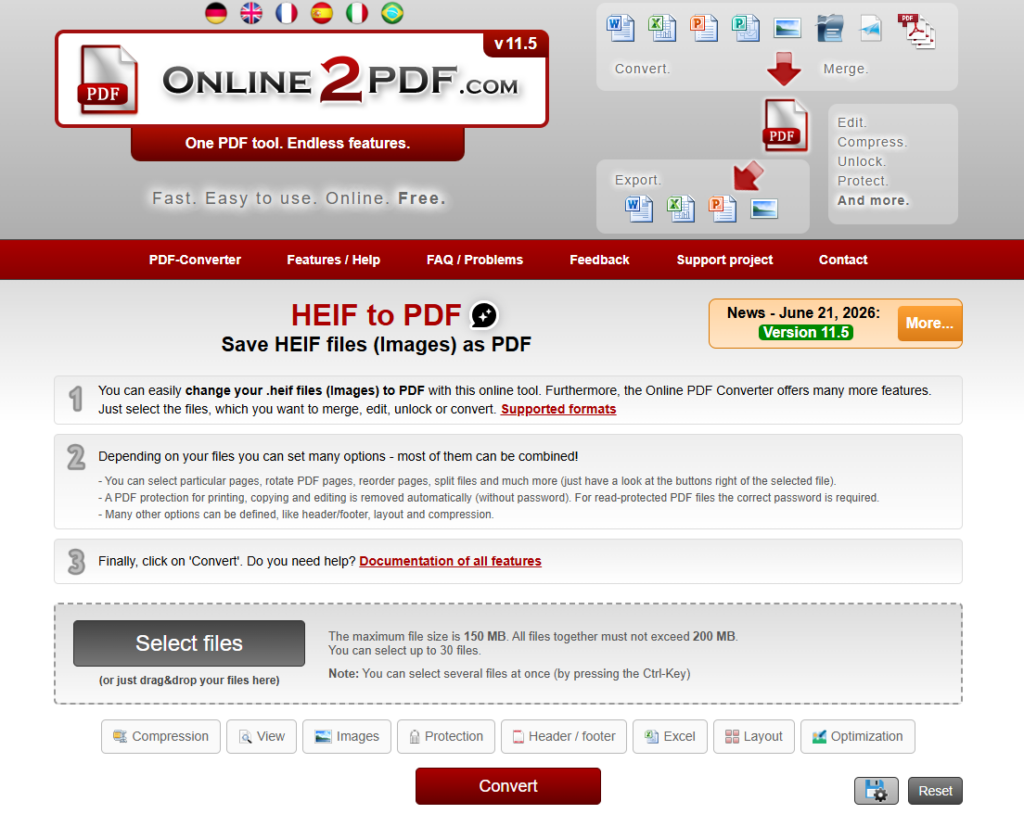
Online2PDF is a versatile online PDF converter that supports converting HEIF images into PDF documents. It allows users to combine multiple HEIF files into a single PDF, rearrange page order, adjust page size and orientation, and apply compression settings before conversion. These customization options make it a good choice for users who need more control over the final PDF output. However, the interface is more functional than modern, and there are file size limits for free users.
Pros:
- Supports merging multiple HEIF images into one PDF
- Offers page layout and compression options
- No registration required
Cons:
- Interface feels dated
- Free version has file size limitations
3. XConvert HEIF to PDF Converter
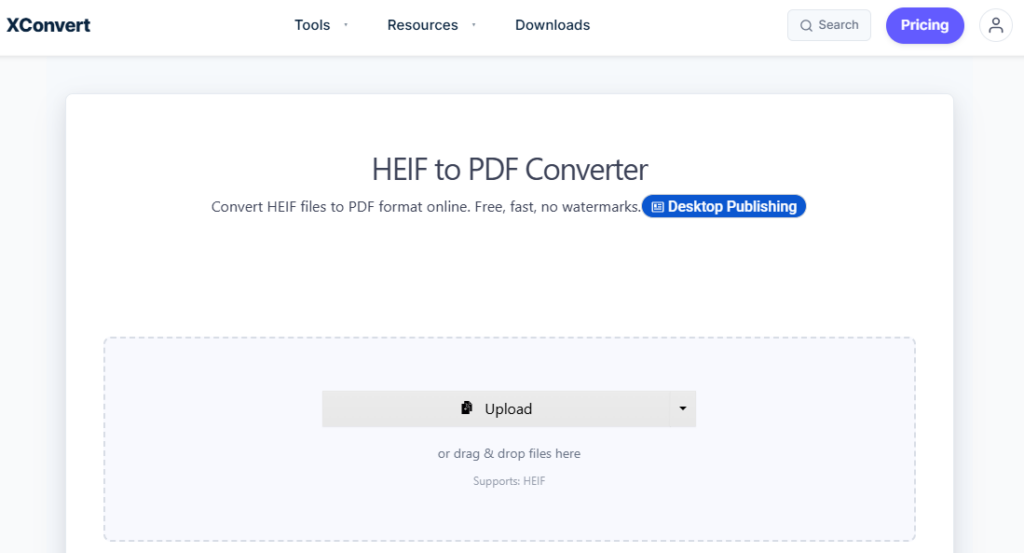
XConvert is an easy-to-use online converter that supports both HEIF and HEIC image formats. Users can upload multiple images and choose whether to combine them into a single PDF or export separate PDF files. It also provides useful customization options such as page size, margins, orientation, and image quality, making it suitable for batch conversion tasks.
Pros:
- Supports batch HEIF to PDF conversion
- Flexible PDF layout and page settings
- No account required
Cons:
- Upload speed may vary for large files
- Advanced customization options are relatively limited
4. FreeConvert HEIF to PDF Converter
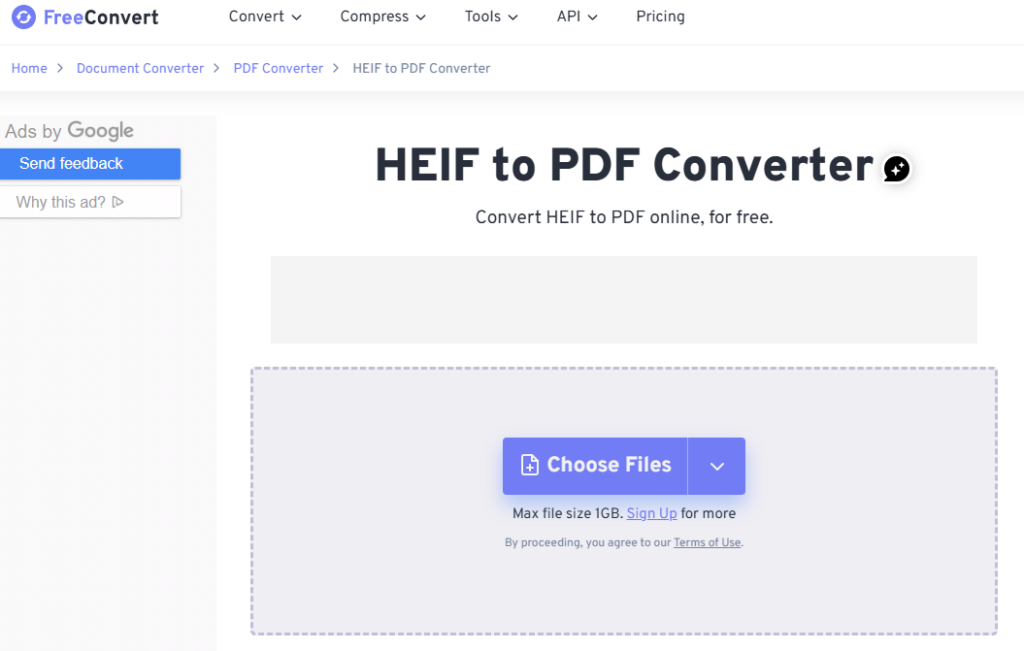
FreeConvert is a feature-rich online file converter that supports HEIF to PDF conversion with batch processing capabilities. Users can customize page size, orientation, margins, and image quality before generating the PDF. The platform also offers optional metadata removal for improved privacy. While the free plan is generous, conversion limits and maximum file sizes apply.
Pros:
- Supports batch conversion
- Multiple PDF customization options
- Simple and modern interface
Cons:
- Free plan has file size and usage limits
- Processing speed may slow during peak hours
Quick Comparison
| Tool | Free | Batch Support | Registration | Best For |
|---|---|---|---|---|
| AhaConvert | Yes — unlimited | Yes | Not Required | Every day HEIF to PDF conversion |
| Online2PDF | Yes | Yes | Not Required | Customizable PDF creation |
| XConvert | Yes | Yes | Not Required | Batch HEIF to PDF conversion |
| FreeConvert | Limited | Yes | Not Required | Flexible PDF conversion options |
Among these tools, AhaConvert remains the best choice for most users looking for a fast, free, and privacy-friendly HEIF to PDF converter. It offers unlimited conversions without requiring registration, supports batch processing, and works across desktop and mobile devices. Besides converting HEIF to PDF, AhaConvert also supports converting HEIF images to popular formats such as JPG, PNG, and WebP, making it a versatile all-in-one image conversion solution.
Convert HEIF Image to PDF Online on Windows
HEIF files are incompatible with Windows without codecs. The best and quickest way to convert is to use a browser-based codec such as AhaConvert, rather than dealing with codec installations.
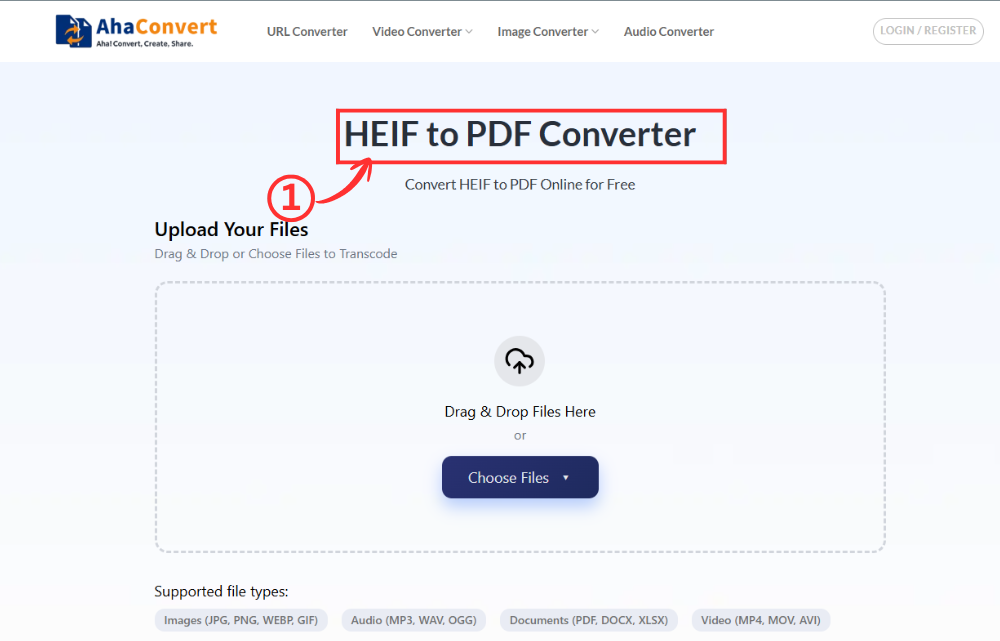
Step 1: Open the AhaConvert HEIF to PDF Converter
Go to AhaConvert HEIF to PDF Converter in any web browser on your Windows PC, Chrome, Edge, Firefox, or any other browser. The page loads instantly with no downloads or sign-up required.
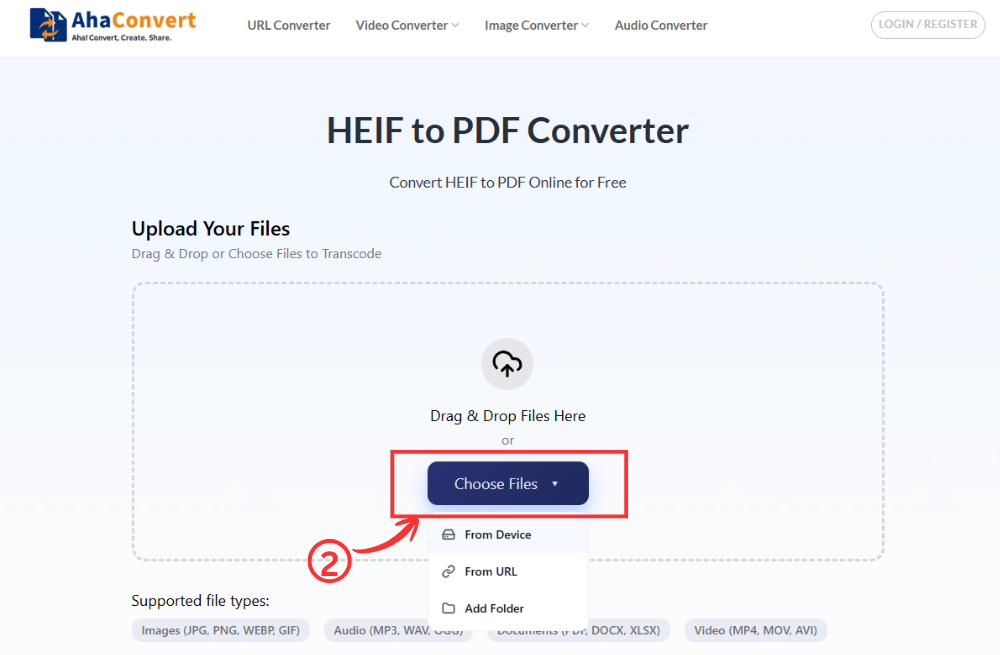
Step 2: Upload Your HEIF File
Click the “Choose files” button to navigate and select the HEIF/HEIC file from your Windows PC. You can also drag and drop the file directly into the upload area, or paste a file URL if the image is hosted online.
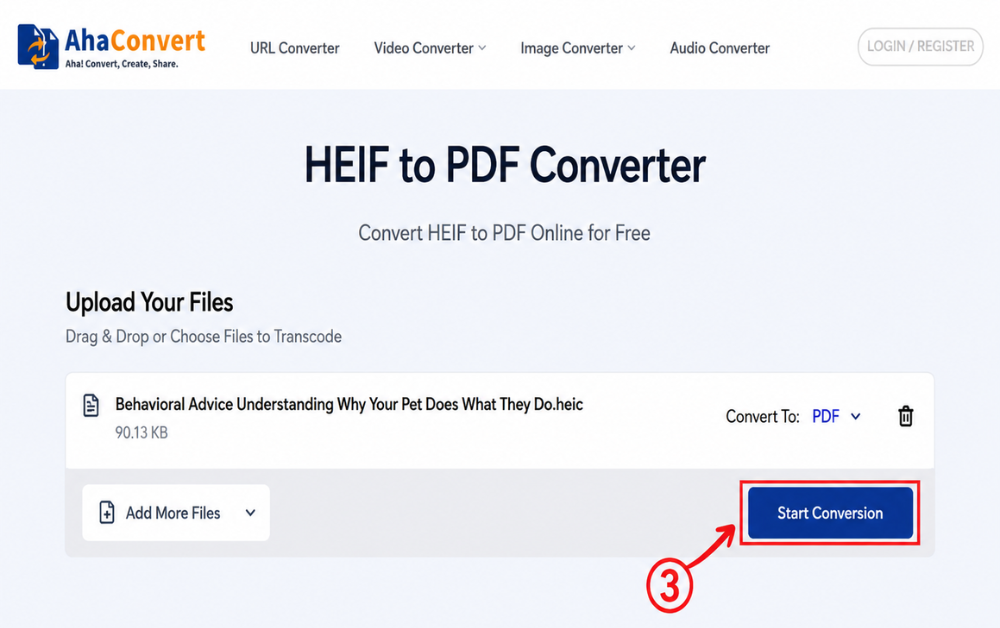
Step 3: Start the Conversion
After uploading your file, click on “Start Conversion”. This is a dedicated HEIF to PDF converter, so there is no format drop-down to select from. AhaConvert will start converting your file instantly.
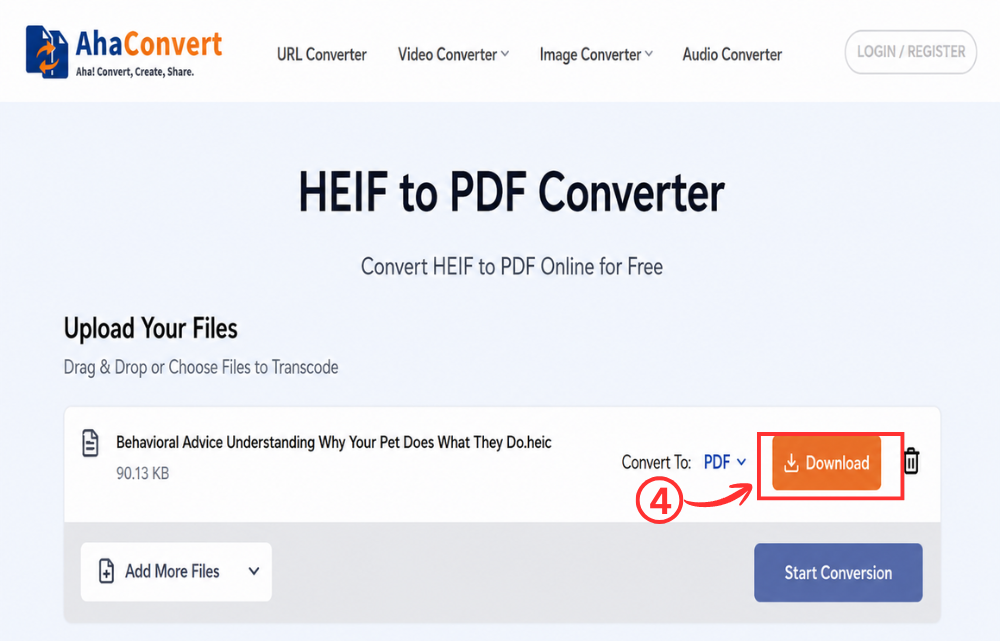
Step 4: Download Your PDF File
Once the conversion is done, the page will display a “Download” button. Click it to save your PDF to the Windows PC. Normally takes only seconds to complete, even for high-resolution HEIF images.
Convert HEIF Image to PDF Online on iPhone or iPad
AhaConvert is even more convenient to use in a mobile browser if you want to convert HEIF photos without first transferring them to your computer.
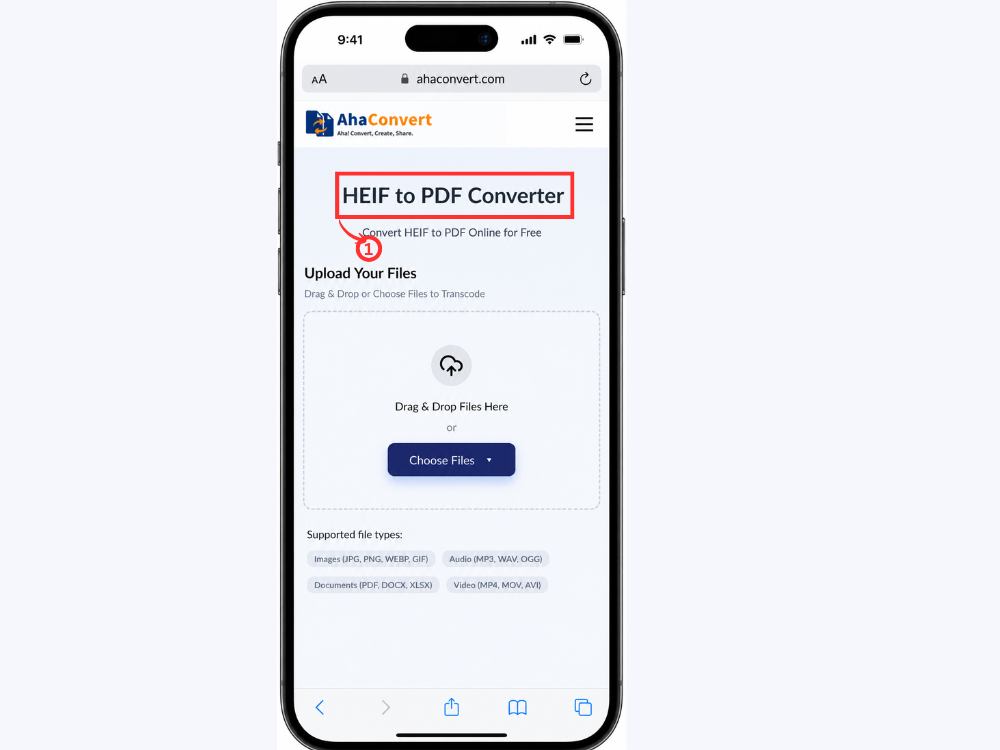
Step 1: Open the AhaConvert HEIF to PDF Converter on Your Device
Open Safari, Chrome, or any browser on your iPhone or iPad and navigate to AhaConvert HEIF to PDF Converter. The page loads the same clean upload interface as on desktop — no app download required.
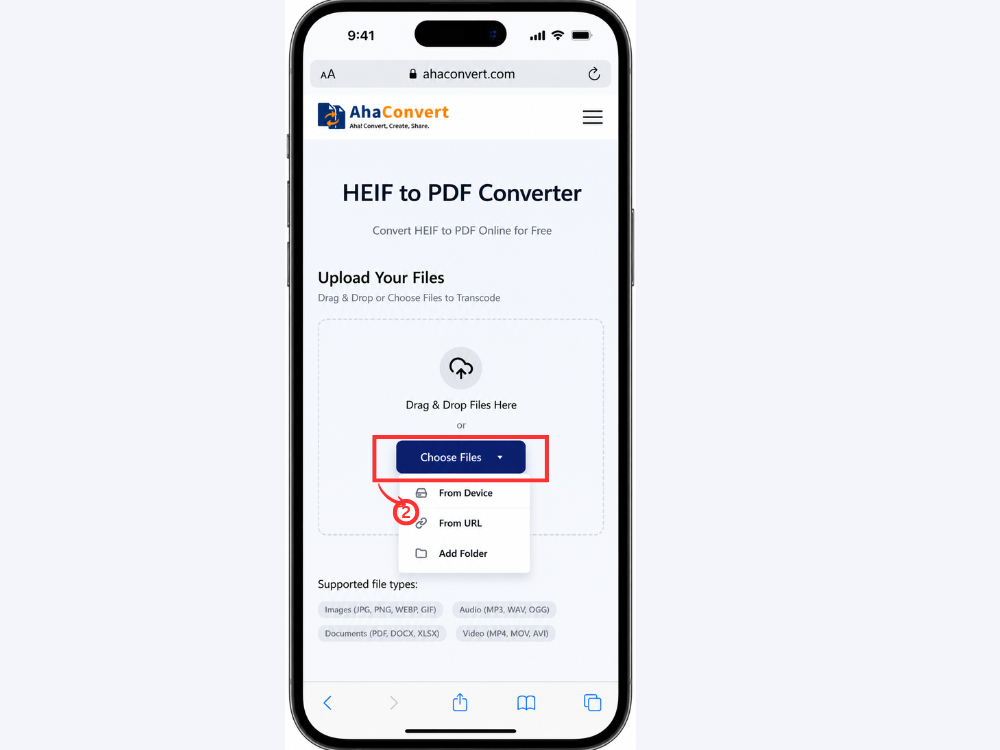
Step 2: Upload Your HEIF Photo
Tap on the “Choose Files” button. You’ll be asked to choose an image from your iPhone or iPad library. Tap on the HEIF image to select it.
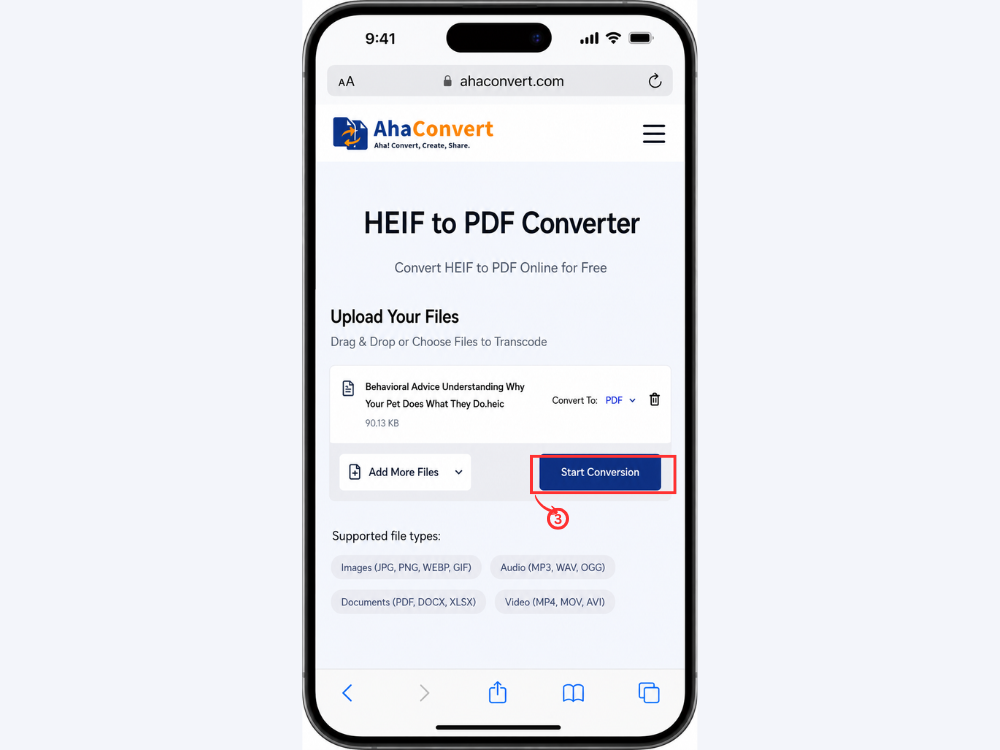
Step 3: Start the Conversion
Tap on the “Start Conversion” button. The output format is already set to PDF, no extra settings required. The image is processed on the fly, without installing any application in the browser.
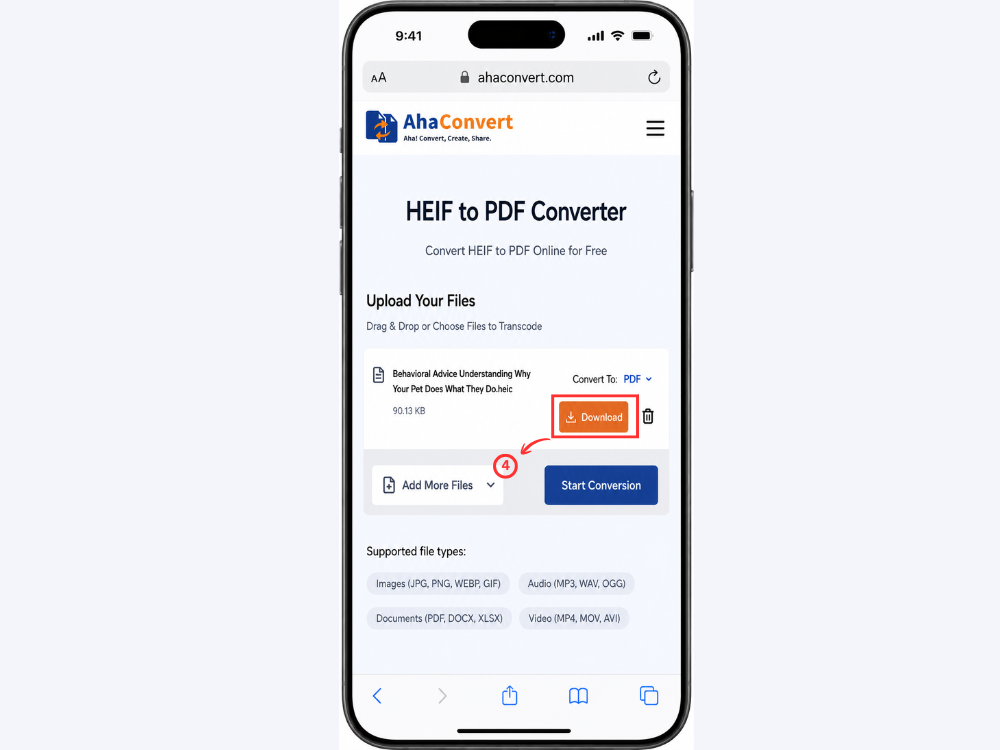
Step 4: Download and Save the PDF
On the screen, a download file appears after the conversion finishes. Click on it to save as a PDF to your iPhone or iPad. You can share, email, print, or upload the file without doing anything else.
Frequently Asked Questions
1. Can Windows open HEIF files?
By default, Windows doesn’t support HEIF. The HEIF Image Extensions that are available in the Microsoft Store are required to open .heif or .heic files directly. The easiest solution is to convert HEIF to PDF or JPG first with a free online converter such as AhaConvert, but it doesn’t require any software installation.
2. What is the difference between HEIF and HEIC?
HEIF is the general open image format; HEIC is Apple’s proprietary HEIF format. HEIC is a video compression standard based on HEVC (H.265) and has the .heic file extension. All HEIC files are technically HEIF files, but not all HEIF files are HEIC. Both formats have similar practical effects and are both converted with the same tools.
3. Why are my iPhone photos in HEIF format?
Since iOS 11, Apple has implemented HEIF, with HEIC becoming the standard photo file format. This is because of storage efficiency. HEIC photos are about 50% smaller than comparable JPG photos, yet can offer equivalent or better image quality. This will allow iPhones to hold many more photos without having to upgrade their storage.
4. Can I convert multiple HEIF images into one PDF?
Yes. AhaConvert has a batch upload feature, so you can upload multiple HEIF files in a single session and convert them all in one go. There are also tools available that can perform this function, such as iLovePDF, which can merge multiple images into a single PDF. This is especially helpful if you have multiple iPhone photos that you want to combine into a single shareable document or print.
5. Is this HEIF-to-PDF converter free?
Yes. There are no hidden fees or subscription plans, and no account registration is required to use AhaConvert. Just open the converter in your browser, upload your HEIF file, and download the PDF output. The tool supports unlimited conversions and can be used on any device with an Internet connection, free of charge.
6. Does converting HEIF to PDF reduce image quality?
AhaConvert is a high-quality converter that preserves image quality throughout the conversion process. PDF preserves the image at its original resolution, so the output PDF will be of very high image quality, matching the source HEIF file. A quality loss in conversion is minimal when the conversion is performed by a reputable converter and no unnecessary resampling or compression is used.
In Conclusion
While a great format for efficiently storing high-quality iPhone photos, AhaConvert HEIF to PDF Converter is not compatible with most other platforms and situations, making it unsuitable for sharing, printing, or submitting photos in most professional or cross-platform scenarios. There’s an answer to that HEIF-to-PDF problem. PDF is easily viewed on any device, is required by official forms and platforms, and is the default format used for professional printing and archiving.
You can use the AhaConvert HEIF to PDF Converter to convert images directly on your iPhone or on a Windows PC without installing any software. The AhaConvert image converter is a useful tool for those who want to convert HEIF to other image formats, as it supports a wide range of output formats, including JPG, PNG, etc. The next time you’re looking to share or print an iPhone shot, a quick HEIF-to-PDF conversion is all you need.
