

If you are to look at the bottom line, PDFs are one of the best file formats for sharing documents. And there’s nothing quite like it. The internet is filled with PDF files containing reports, books, pamphlets, images, and more. It’s an all-rounder file format, and that’s its specialty; it can contain everything in this extremely shareable and secure document.
But is it really the best format to consider when working with logos or icons? PDF to SVG conversion is commonly preferred in those instances, so they can remain in their peak resolution. This guide on how to convert PDF to SVG will have you sorted on not just how to convert document formats, but also let you in on the best tools to use to convert PDF to SVG.
What is PDF Format?

Adobe’s most acclaimed file format, PDF, garnered attention immediately after its launch from people across many different fields. And for over 3 decades now, it has been used by almost everybody. It is a container format, which means that, like a folder, it can contain multiple elements like text, images, links, videos, etc.
When sharing documents between devices became common, people often faced issues with formatting. Text and images appeared differently on every computer. Fonts were inconsistent. Layouts broke. Images, at times, were not placed where they should be. This created major issues in printing and presentation. Many fields relied on documents (academia, judicial, corporate, etc.).
Even when converting files, like JPG to PDF, the goal was to maintain the same appearance everywhere without distortion. PDF (Portable Document Format) was created to ensure documents appear exactly the same regardless of the device, operating system, or software.
What is SVG Format?
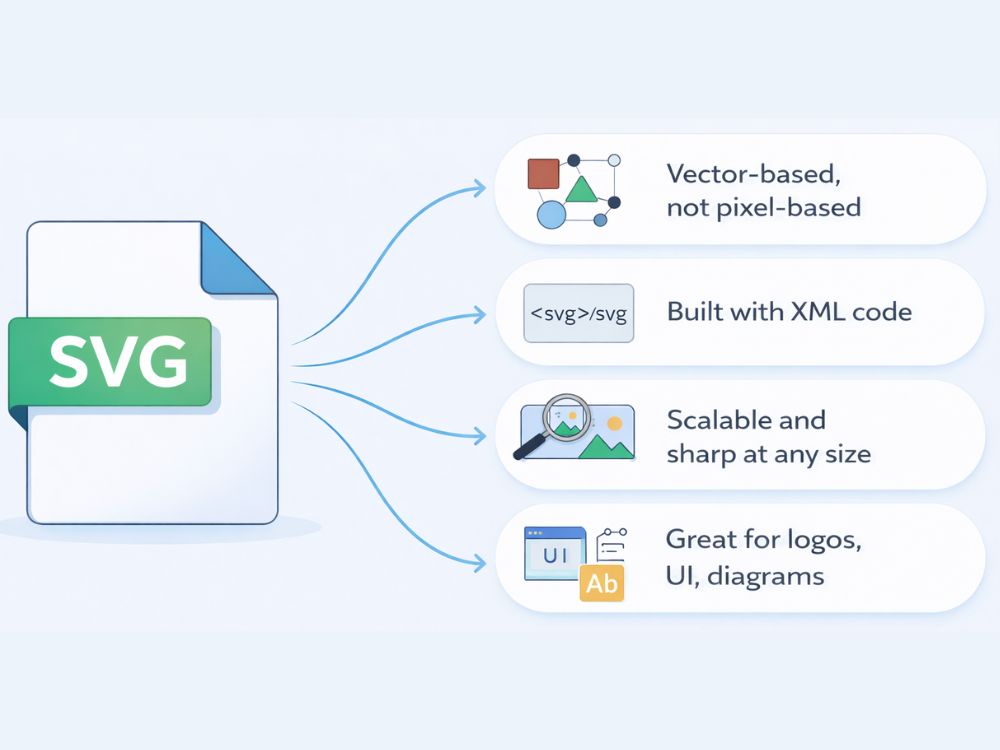
To put it simply, SVG (Scalable Vector Graphics) is an open standard, vector image format. Unlike PNG and JPG files, which rely on pixels to make up an image, SVG uses vector instructions, paths, and coordinates to create an image. Think shapes. Traditionally, digital images are made of pixels, tiny colored squares placed one after another to form an image.
SVG, instead, builds an image with shapes: lines, squares, circles, etc., using code. It does not store images as tiny colored squares like pixel-based formats, but you can break it down into specific enlarged shapes that, when put together, make the image whole.
An SVG file is built on XML, which means it will look like code and will ultimately be read by HTML as a proper image. Think of an icon of, let’s say, a file. The one that is widely used to represent file formats. It looks clean and elaborate, but when you look closely, you will notice it is really just a couple of shapes, intelligently designed to represent a file. SVGs are therefore incredibly high in quality; they don’t pixelate when zooming in and remain sharp.
Because they are high in quality, often smaller in size, and are built on a simple design, designers frequently use SVGs, along with many developers and marketers who work with logos, UI elements, charts, diagrams, and icons.
Key Differences of PDF and SVG
There’s essentially a very limited comparison between SVG and PDF. They both serve widely different purposes unless it’s about sharing images. Where SVG is limited in its use, considering it is an image format, PDF’s versatility allows it to include and share images along with other content. But why use one over the other? These differences between the two will make it a lot clearer.
| Features | DNG | JPEG |
|---|---|---|
| File Type | RAW image format | Raster image format |
| Compression Type | Lossless or optional lossy compression | Lossy compression |
| Image Quality | Preserves full image data and maximum detail | Some image data is lost during compression |
| File Size | Larger than most standard image formats, but ~20% smaller than proprietary RAW | Much smaller file size due to compression |
| Editing Method | Supports non-destructive editing with edits stored as metadata | Repeated editing and saving can reduce image quality |
| Compatibility | Supported by many professional editing tools, but not all devices | Supported by nearly all devices, browsers, and software |
| Workflow | Often used in professional photography workflows | Common in everyday photography and web publishing |
| Metadata Storage | Stores extensive metadata (camera settings, lens info, GPS, etc.) | Stores EXIF metadata but generally less extensive |
Why Convert PDF to SVG?
PDF to SVG conversion is a lot more common than you might think, and it can be attributed to the reasons that compel most designers and developers to go out and find PDF to SVG conversion tools that live up to their expectations of a premium converter.
1- Scalability: SVGs can be resized while keeping their quality crisp, which especially makes them popular for web use, e.g., for logos, icons, and UI elements.
2- Editing: Comparatively, SVG files are easier to edit, considering you can open them on browsers, design tools, and text editors, where these files are readily editable, unlike PDFS, where editing of images is a bit limited.
3- Interactive Design: You have the liberty to alter the image however you desire since SVG works directly with HTML, CSS, and JavaScript. From changing colors to animation, it provides a very flexible environment for working with visual elements.
4- Web Optimization: The lightweight nature of SVGs especially gives them an edge. For websites, they tend to store icons, logos, or illustrations that don’t take up much space and thus significantly reduce the load time of websites.
Online PDF to SVG Converter Tools
The following are some online tools that let you convert PDF to SVG conveniently. Let’s take a look.
1. AhaConvert PDF to SVG Converter
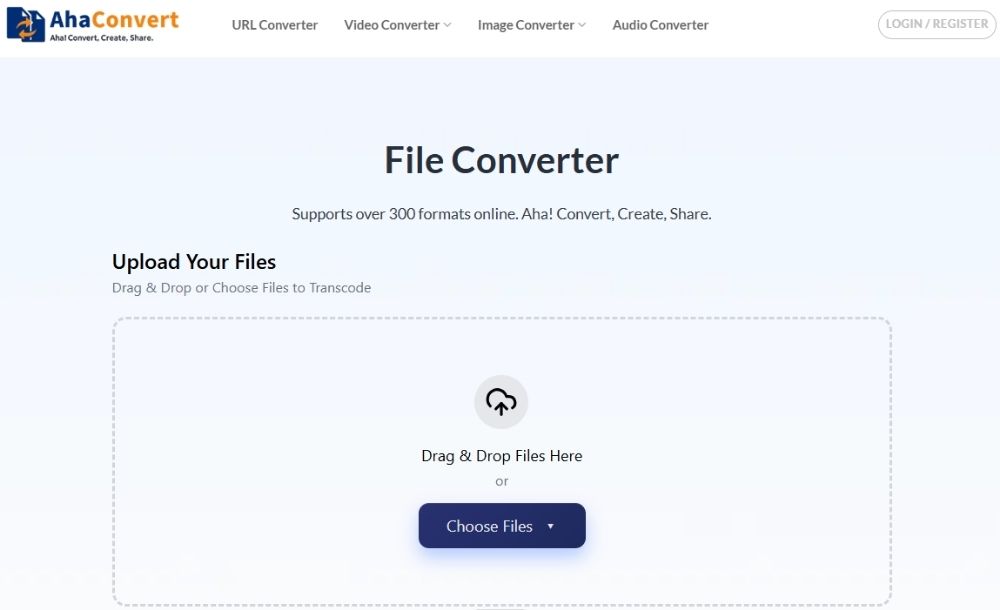
AhaConvert is a file converter that can handle conversions between URLs, audio, videos, and images. They have categorized converters dedicated to specific input and output formats, such as a PDF to SVG converter, but the real value comes when you use the batch conversion feature, where the results of SVG are crisp and clear, almost removing the need to get a designer to do it for you. On top of that, it is free and can be operated across any browser of your choice.
2. MiConv PDF to SVG Converter
MiConv is a much more extensive tool with a lot more formatting options because it caters to so many departments. You have 3D, videos, images, GIS, archives, ebooks, docs, Excel, CAD, fonts, and presentations, which is a lot, and while its over-the-top library of formats is good, it can get quite difficult to find what you want. The delivery is fast and overall quite reliable.

3. CalcsHub PDF to SVG Converter
Calchub, in the very essence, is a calculator hub, so while it contains file converters, it also offers metric conversions and various other calculators that can calculate anything from BMI to gas mileage, anything with an integrated formula.
Regardless, its file converter has a limited set of options where the majority include PDF at either end. The PDF to SVG converter is easy to find in that case and is equally easy to use. Besides the load of ads it bombards you with, it can get in between the time you are trying to convert, and can take up a whole lot of time.

4. Quillbot PDF to SVG Converter
Quillbot is notorious in the doc domain, and its PDF to SVG converter, although limited to 10MB, gives decent results in a short span of time. It is easy to work with and overall a good enough tool, especially when you don’t want to get involved with complex settings, even though the SVG code itself can be quite complicated.

5. Filator PDF to SVG Converter
Filator’s integration with AI resonates with its modernity, where it offers several PDF tools. It is intuitive once you open the tool, and from there on out, you can select the intensity of the quality you want and use batch conversions.

The result comes down to the SVG code, which you can then link, embed, or paste into your HTML. Now, the coding can differ, especially given the image’s complexity. The simpler the code, the better, but again, it should aim to match what you gave as input. AhaConvert had decent results with a ready-to-copy SVG, followed by Miconv, then Quillbot (which provided a ZIP file, which can be a tad inconvenient), then Filator, and then Calchub.
How to Convert PDF to SVG (Step-by-Step)
The complexity of the SVG file may lead many to believe that converting a PDF to SVG is complicated. Reality is far from it. Converters like AhaConvert are really intuitive, and with just a couple of steps, you can have an SVG file ready to use.
Step 1: Open AhaConvert on a browser
Head over to your browser and open AhaConvert Image Converter.
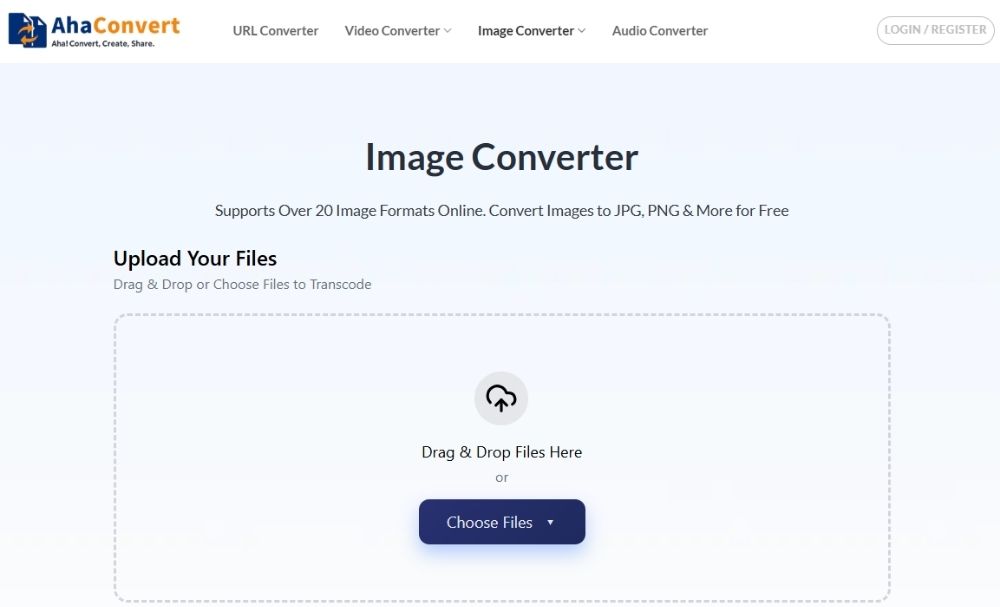
Step 2: Upload the PDF
Now, click on the “Choose Files” button and pick the PDF file you want to convert. You can also drag and drop the file directly.

Step 3: Choose SVG as Output
Next, select SVG as the output. Click on the “Convert To” drop-down, go to the “Image” tab, and choose the “SVG” format.

Step 4: Convert PDF to SVG
To start the conversion, click on the “Start Conversion” button. AhaConvert will begin processing your PDF file.

Step 5: PDF to SVG Conversion
The conversion can take anywhere from a few seconds to a few minutes, depending on the file size. You can monitor the progress during this step.
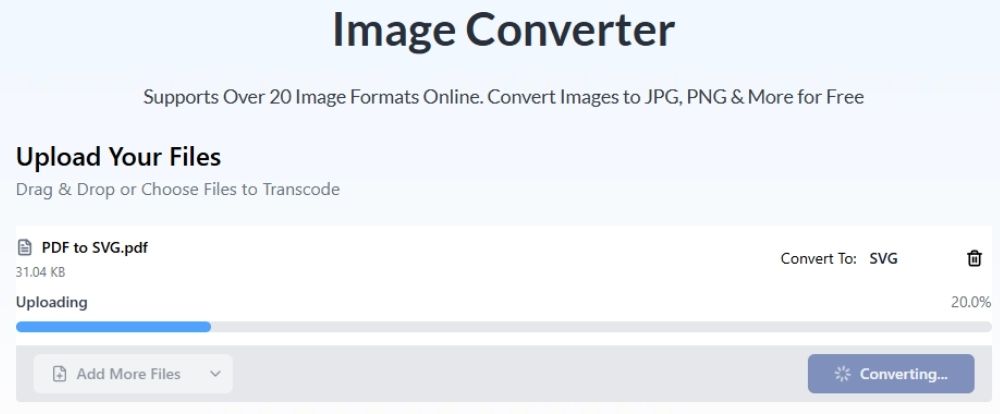
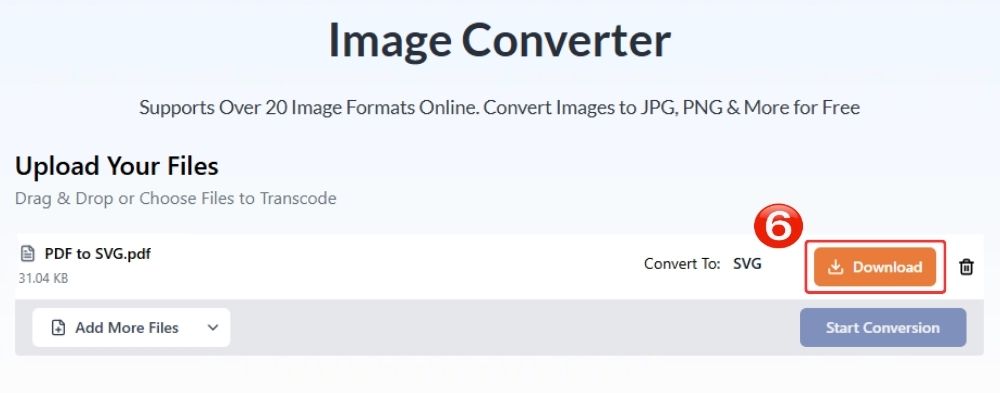
Step 6: Download the Converted SVG File
Once the conversion is complete, download the SVG file to your device by clicking on the “Download” button.
FAQs About PDF to SVG Conversion
a. Is it free to use a PDF to SVG converter?
Yes, there are several online PDF-to-SVG converters to choose from; however, the cost alone shouldn’t be the deciding factor. Online converters like AhaConvert commit to delivering premium quality results without charge.
b. Can I convert a scanned PDF to SVG?
Yes, AhaConvert can convert scanned PDF to SVG. It can read scanned documents and convert them into SVG images online.
c. Can I convert a password-protected PDF to SVG?
No, you can not. But if you remove protection or enter the correct password, you can then proceed with the conversion process.
d. Is it safe to convert PDF to SVG online?
Depends. Some converters may not be entirely safe, but certain converters, such as AhaConvert, rely on 256-bit SSL encryption, ensuring the safety of your files and deleting them within a 24-hour time period.
e. Can I edit SVG files after converting from PDF?
SVG files are vector-based and are easily editable using certain design tools, like Inkscape, Illustrator, Figma, etc. If you wish to edit the code, you can do that on the platform where you can preview the file.
f. Is SVG better than PDF for websites?
SVGs are better in the sense that they are XML-based and are usually integrated with the HTML code, making them much more compatible. They are vector file formats, so they are resolution-independent and will remain sharp at any size.
Conclusion
In an age where vector visuals are considered contemporary in their crispness and novelty, they are a fresh sight from the traditional visual graphics we used previously. The code problem remains evident, though a good converter should be able to first interpret the structure of the image and then deliver an SVG file that is usable and not broken.
Though there is always a chance of it misinterpreting, taking your chance at free online tools won’t hurt, where we have discussed plenty. AhaConvert PDF-to-SVG converter tool is intuitive with close-to-accurate results, and let’s not forget the safety side. Its 256-bit SSL encryption keeps your files secure within the process and deletes them within 24 hours as if they never existed.
