

Unlike more universally accepted file formats, DNG is more niche and purpose-built. It is a form of RAW image format, with the exception that it is smaller in size, making it much more usable on photo editing platforms such as Lightroom. Now, as much convenience as DNG has endowed us with, JPEG is a lot more distinguished in the image formatting world. Naturally, users are obligated to convert file formats.
There are several online converters in the market that convert DNG to JPEG, and one such tool is entirely free, delivers premium bulk conversion features, and most of all preserves the original resolution to the best of its ability. In this guide, you will learn a little about what tool is and how to convert DNG to JPEG.
What Is a DNG File?

A DNG file, which is short for digital negative, is a type of RAW file. RAW image format files, as we know, are high-quality images taken with professional cameras and are often difficult to work with. They pose the challenge of compatibility, as most photo editors do not accept this file format due to its size, especially when compared to more widely supported formats discussed in JPEG vs JPG comparisons. They are not usually shareable and can take up a lot of space on a device.
The DNG file format was invented to counter this issue. It is much smaller in size, around 20% smaller than RAW, so you do not need heavy compression. It can be easily shared across platforms, including many renowned photo editors such as Photoshop, Lightroom, and Capture One.
DNG is a product of Adobe, and that is why its purpose is mainly to maintain the quality of RAW while offering a reduced size. Where other file formats reduce the resolution of the RAW image, DNG maintains it and stores the image with the vibrancy, detailing, and sharpness exactly as you captured it.
What is JPEG Format?
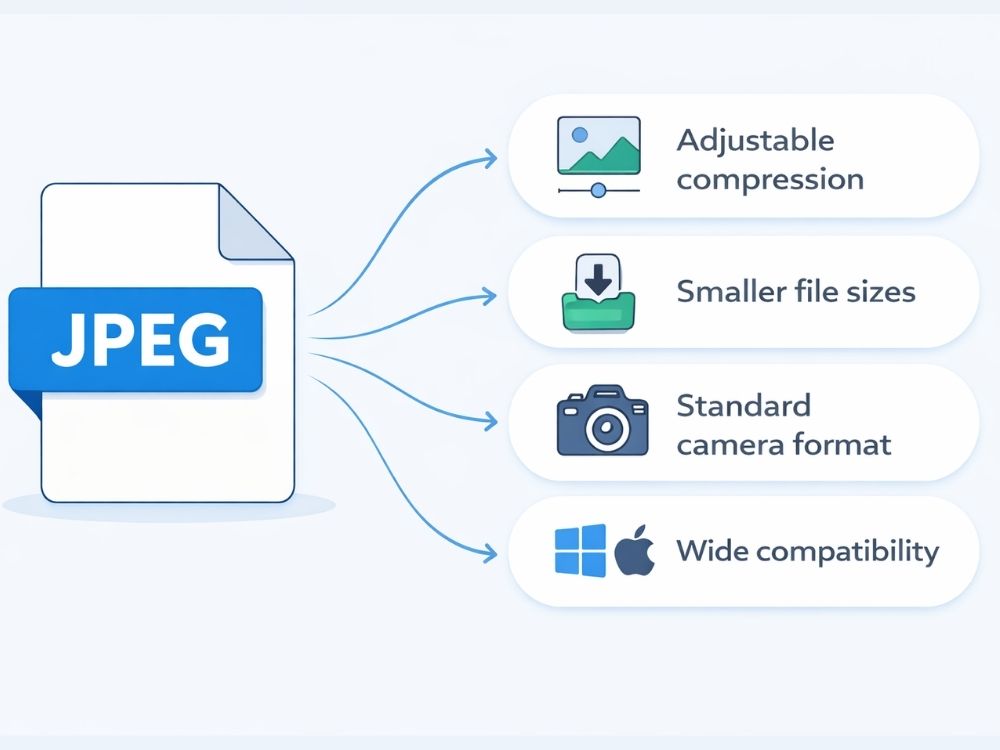
JPEG, or JPG, is a raster image format that to date is widely used for digital imaging. It quickly became one of the most popular image formats for sharing photos efficiently and still remains in great demand for sharing photos across platforms, including public image hosting, cloud storage, and email and messaging services. JPEG uses lossy compression, which means you can expect a reduction in resolution when reducing an image’s size, as it removes some image data to make files smaller.
JPEG compression works by breaking an image into small blocks and compressing each block separately. This approach is usually preferred for photographs and images with gradients or many color variations, where the loss in quality is typically not very noticeable.
DNG vs JPEG: What’s the Difference?
DNG and JPEG have a lot in common. For starters, neither of them can support transparency; they are both considered famous in digital photography because they are designed to store detailed photographic images rather than vector graphics.
However, the differences between the two formats become much more significant when the need to convert between them becomes unavoidable.
| Feature | PNG | JPG |
|---|---|---|
| Compression | Lossless | Lossy |
| Filesize | Larger | Smaller |
| Transparency | Yes | No |
| Best For | Logos, Graphics, Screenshots | Photos, Web Images |
| Re-save Quality | No Quality Loss | Slight degradation each save |
| Universal support | Yes | Yes |
Why Convert DNG to JPEG?
Since we have established that the two formats are quite different from one another, especially in terms of their use case, the need to convert between them often becomes a non-negotiable need. DNG is typically used when photographers want to preserve maximum image detail for editing, while JPEG is preferred more for sharing, publishing, or everyday viewing.
Because of this significant difference in their purpose, people often convert images from DNG to JPEG, especially after editing, when they need a lighter file format that can be easily shared across platforms. Here are a couple more reasons why the DNG-to-JPEG conversion is popular among users.
• Better device compatibility
Many phones, browsers, and basic image viewers do not support DNG files, and in those instances, JPEG is quite useful.
• Web and social media use
Websites and social platforms tend to offer compatibility to JPEG images because they load faster and require less bandwidth.
• Faster image sharing
JPEG files are lightweight, so they upload and download quickly compared with DNG, which is bulkier in size.
• Finished image export
Photographers often edit images in DNG first to preserve quality, plus because it’s compatible with Adobe. Once editing is complete, they export the final image as a JPEG for publishing or distribution.
• Easier printing and publishing
printing platforms, online publishing channels, and CMS systems expect JPEG images instead of RAW formats like DNG.
How to Change Image Format from DNG to JPEG?
A good DNG-to-JPEG converter should offer quick, reliable conversions, and sometimes people need to convert a large number of images, which can take up a lot of time if done one by one throughout the day. AhaConvert solves that problem by supporting batch conversions, making the process much easier and faster.
User-friendly DNG to JPEG Converter Online
AhaConvert is an online, free tool, which means you can use it on virtually any browser on any operating system, such as Windows or Mac. Follow this easy process to convert DNG to JPEG with AhaConvert and get reliable results every time.
Step 1: Open AhaConvert DNG to JPEG Converter
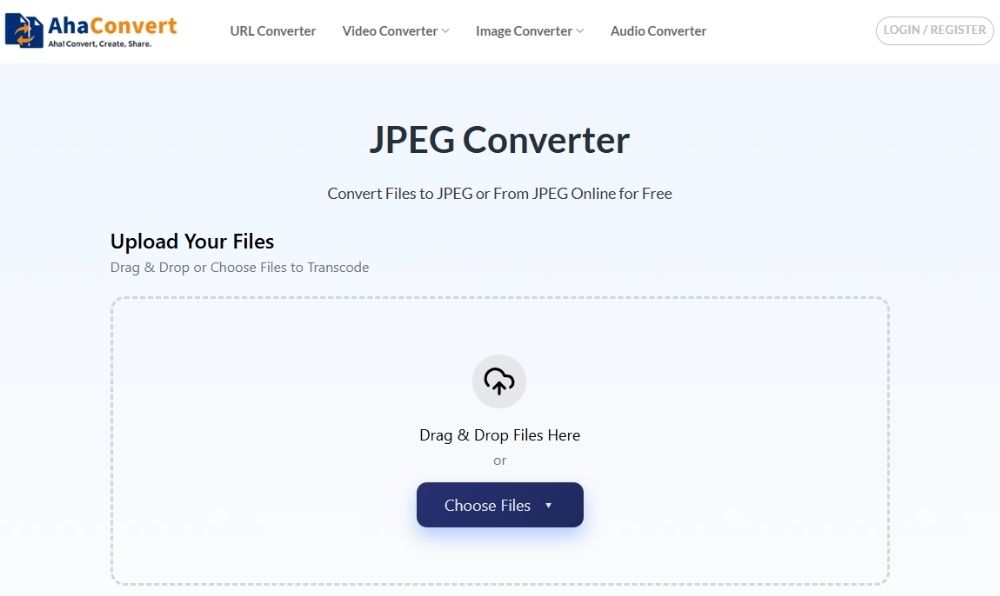
First, open your device’s browser and go to the AhaConvert JPEG converter page.
Step 2: Upload your DNG file
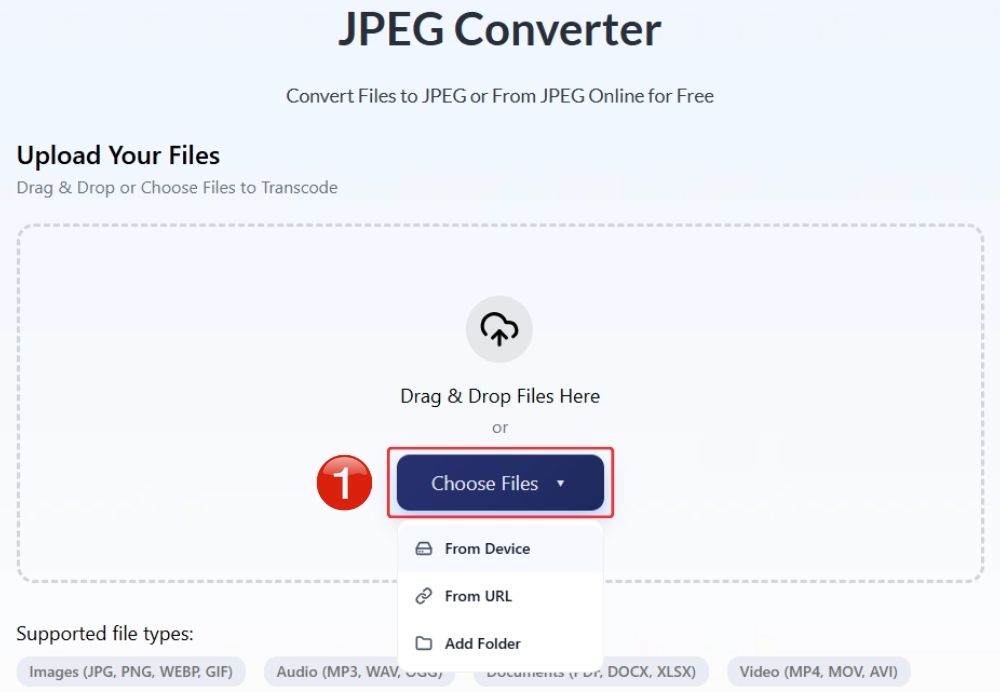
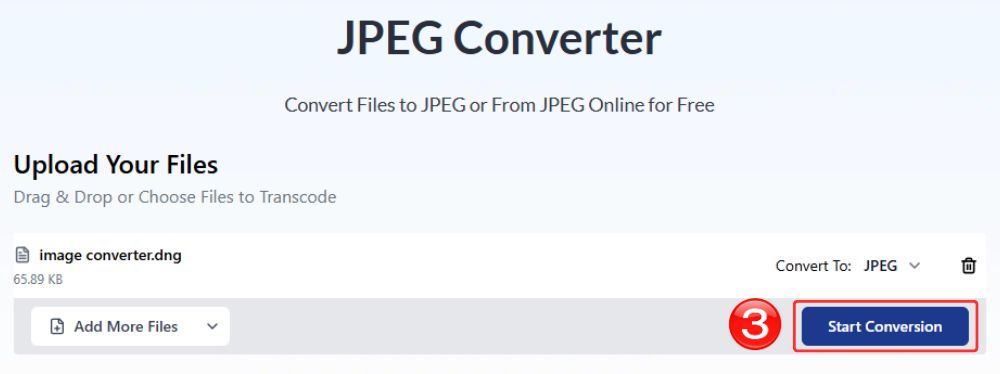
Upload your DNG file into the upload box. You can drag and drop the file directly, or click “Choose Files” to select it from your device, a URL, or an entire folder.
Step 3: Confirm JPEG as output format
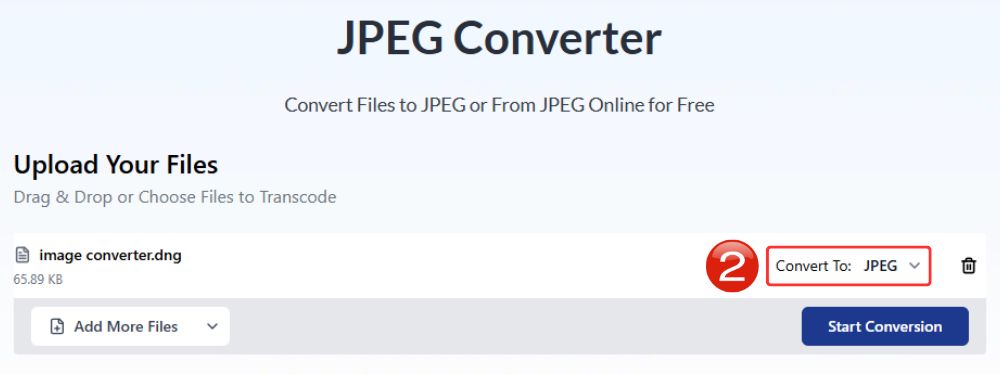
On the right side, find the “Convert To” option. Make sure it is set to JPEG as the output format.
Step 4: Convert DNG to JPEG
Next, click “Start Conversion” to begin converting the DNG file into JPEG format.
Tip: Convert multiple files (optional)
If you want to convert several images at once, click “Add More Files” and upload additional DNG files before starting the conversion.
Step 5: Uploading and converting
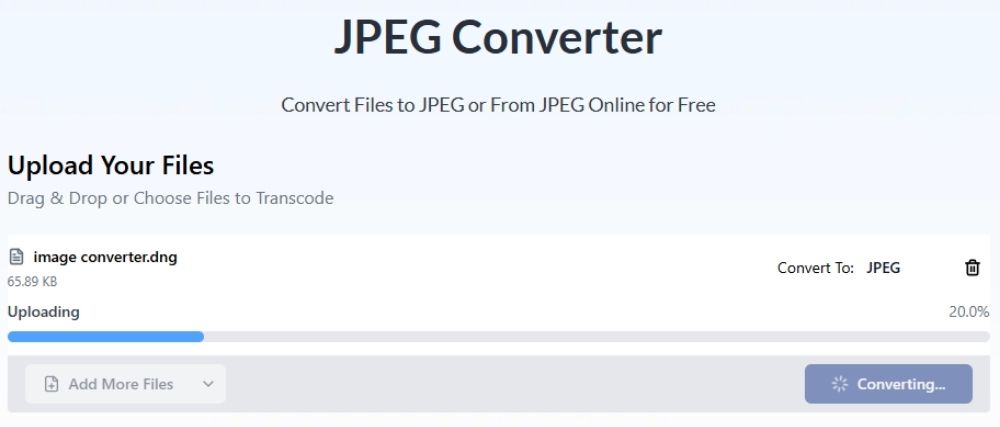
The conversion may take a few seconds, depending on the file size or how many images you uploaded. You can track the progress directly on the screen.
Step 6: Download the JPEG file
Finally, when your JPEG files are ready, click the “Download” button to save the file to your computer.

Step 7: Save the file to your folder
A “Save As” window will appear. Choose the location on your device where you’d like to save the JPEG image, rename it if needed, and click “Save”.
FAQs About Converting DNG to JPEG
a. What software can open DNG files?
Since DNG is a file format created by Adobe, it is supported across Adobe Photoshop, Lightroom, and Capture One.
b. Can I convert DNG to JPEG on my phone?
Of course! You don’t even have to install a third-party tool, since AhaConvert can efficiently work across any browser on your phone.
c. Is it safe to convert DNG to JPEG online?
If you have confidentiality concerns, AhaConvert encrypts files with 256-bit SSL during conversion, and after 24 hours, they are deleted. This way, your documents remain safe and accessible only to you, not to anyone else.
d. Does converting DNG to JPEG reduce image quality?
In many cases, the reduction in image quality is not noticeable, especially if you’re using a high-end converter such as AhaConvert, but theoretically speaking, since compression is carried out through lossy compression, it does reduce image quality to some extent.
e. Can I convert DNG to JPEG on Windows or Mac?
Of course. AhaConvert is a free online file converter that works smoothly across any web browser and various operating systems, including Windows, macOS, Linux, iOS, and Android.
Choosing the Right Converter for DNG to JPEG
There’s a massive and impressive pool of converters on the internet, and many of them are quite useful. Some offer batch conversions, while others are great simply because they are free and accessible. But finding a tool that checks every box, including being free, secure to use, and capable of batch conversions, is not always guaranteed. In that sense, it’s a give or take situation, and trying a reliable option means you have nothing to lose.
AhaConvert is intuitive, with a modern interface and support for multiple file formats. Since DNG is a RAW file format, users worry a lot about loss of quality when converting DNG to JPEG. AhaConvert is designed to handle this carefully and maintain image quality when converting multiple files at once.
