
AVI and GIF differ vastly from each other, and these differences start from their very nature. GIF is an image file format, while AVI is a video file format. Therefore, conversions between them are not just uncommon; they are also different from standard video-to-video conversions.
Regardless, there are plenty of file converters that support conversions between video file formats and image file formats. They can convert an AVI file into a looping GIF. There are some constraints and benefits that we will go through, including the best way to convert AVI to GIF.
What is the AVI format?
AVI (Audio Video Interleave) is a multimedia container file format that was launched in 1992 by Microsoft, which can play multiple types of media content without separating the audio and video. This makes it one of the most popular early video formats.
In the early 2000s, AVI was especially popular, but since then, many newer formats have come into use. These formats offer better editing compatibility, archiving features, streaming support, and web-based video capabilities, which pushed AVI further back in line.
What made AVI feel even more outdated is its large file size. Modern formats are easier to stream and use on the web, especially formats like MP4. However, many people still have AVI video files stored on their computers today. Since AVI is not the most modern format anymore, many users convert AVI files into newer formats for easier playback, sharing, or storage.
Why Convert AVI to GIF?
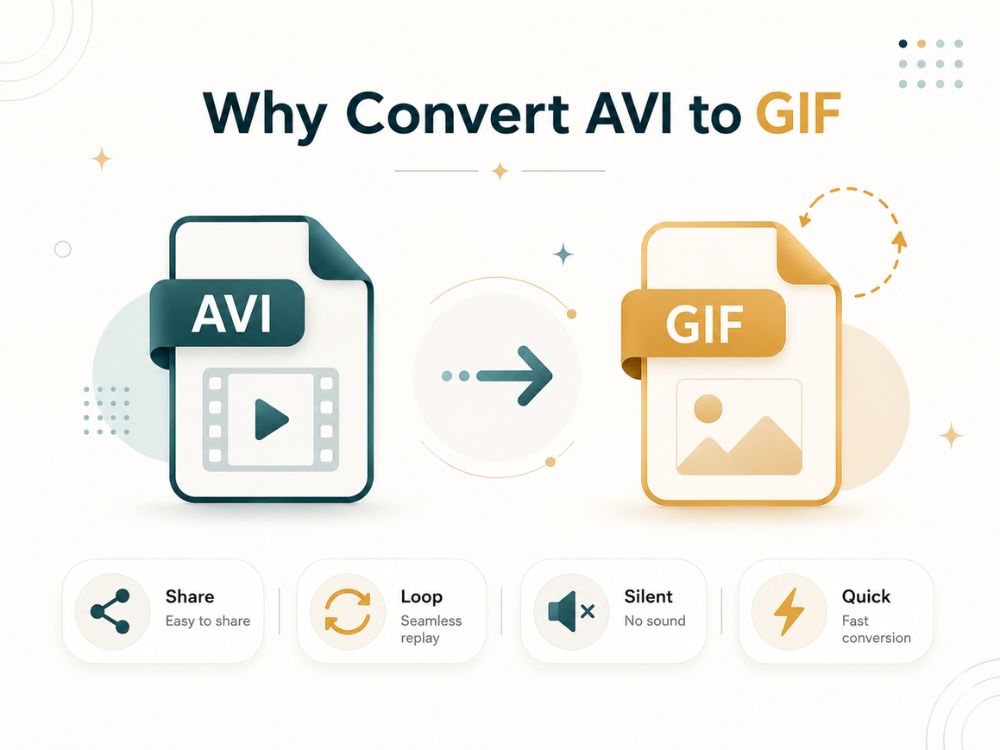
We know that a GIF is an image format, not a video format. It contains multiple image frames that loop one after another, creating the illusion of a video. You can especially see this when you convert GIF to PDF, where the images separate, showing how every frame breaks apart individually.
So, why would someone turn AVI to GIF?
1. To Share Short Clips More Easily
AVI files are full video files, while GIFs are simpler to share in blogs, forums, chats, and social posts. If someone only needs a few seconds from an AVI video, converting it into a GIF makes that moment easier to use.
2. To Create a Looping Animation
GIFs repeat automatically without needing a play button. This makes them useful for reactions, quick visuals, product movements, and simple demonstrations.
3. To Remove Audio
GIFs do not carry sound. If the audio is not important, converting AVI to GIF keeps the focus only on the visual part.
4. To Use It Like an Image
A GIF can be placed almost anywhere an image can be placed. This makes it useful for tutorials, emails, web pages, and step-by-step visual examples.
5. To Highlight One Specific Moment
Sometimes the full AVI video is not needed. A GIF can pull out one action, expression, or movement and make it repeat clearly.
6. To Avoid Video Player Issues
AVI files may not play smoothly on every platform or browser. GIFs are easier to display because they are treated more like images than videos.
Top Online Free AVI to GIF Converters
AhaConvert AVI to GIF Converter
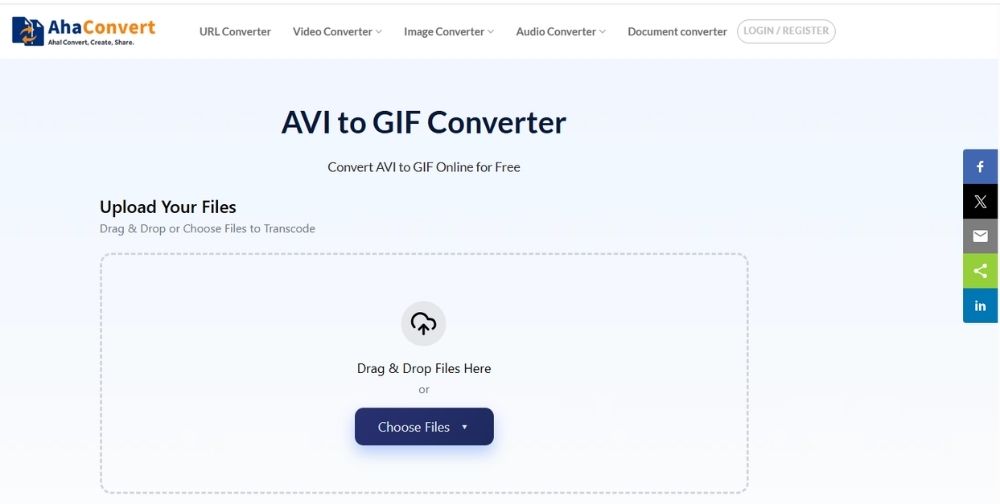
AhaConvert is a free online file conversion tool that supports hundreds of different file formats. This means you can convert files between a wide range of formats, including video-to-image conversions such as AVI to GIF.
Using the tool is very simple, and during testing, the conversion process was surprisingly fast, producing a looping GIF within a short time.
One concern that naturally comes up when converting AVI to GIF is quality. GIFs support far fewer colors than videos, so some loss in visual detail is expected. However, AhaConvert handled the conversion well, and any quality loss was barely noticeable in the final output.
Security is another important factor when using online file converters. According to AhaConvert, files are protected using 256-bit SSL encryption during transfer, and uploaded files are automatically deleted within 24 hours.
Another advantage is that the service does not require registration or account creation. You can upload, convert, and download your file immediately. For a free tool, AhaConvert offers a simple experience, fast processing, and solid conversion quality, making it a practical option for AVI-to-GIF conversions.
Pros
- Free to use
- Batch conversion option available
- No signup required
- Fast AVI to GIF conversion
- Good output quality
- SSL encryption and file deletion within 24 hours
Cons
- Limited editing options
EZGIF AVI to GIF Converter
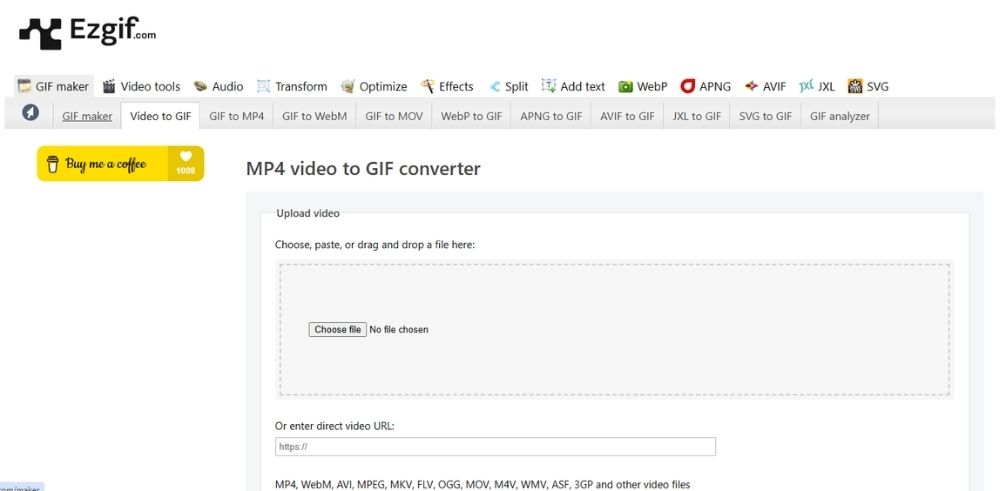
Ezgif is a GIF-centric toolkit that offers conversion, GIF making, resizing, cropping, optimization, and other editing tools in one place. This obviously means that it supports AVI file to GIF conversions with editing options afterward as well.
The platform supports many video formats, with uploads limited to 200 MB. Once the AVI file is uploaded, you can choose the exact section you want to convert instead of turning the entire video into a GIF. You can enter the start and end time, adjust the GIF duration, and control how the final animation loops.
Pros
- Best for GIF editing
- Lets you trim the exact video section
- Includes resize, crop, optimize, cut, and speed tools
- Good for short AVI clips
Cons
- Interface looks outdated
- File size limit may be restrictive for larger videos
Convertio AVI to GIF Converter
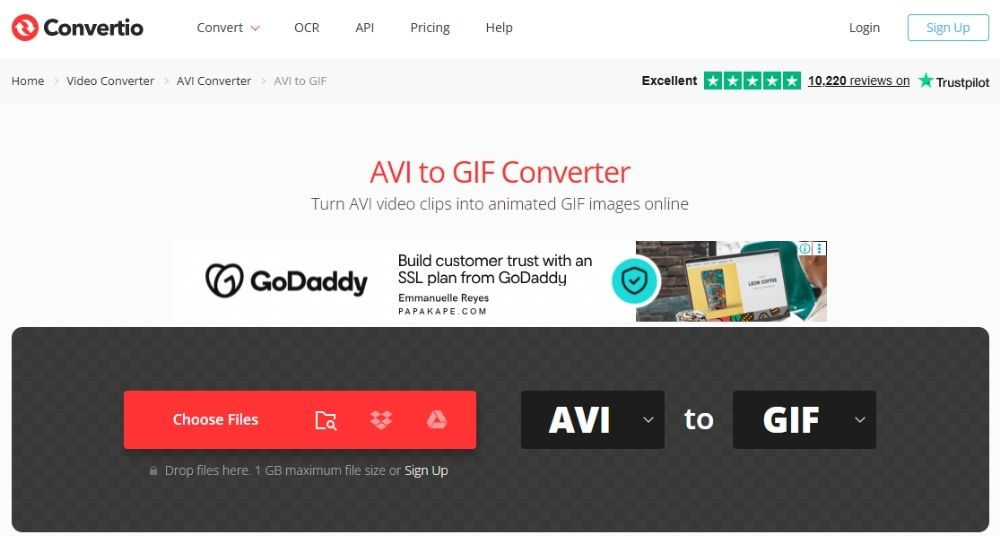
Convertio appears to position itself as a complete conversion hub, offering file conversion across many different formats. Naturally, AVI to GIF conversion is also included.
The tool can handle files up to 1 GB, which makes it useful for larger AVI videos. The conversion process is fast, and you do not need to create an account before using it. After converting the file, Convertio also provides some editing options, which can help if you want to make small adjustments to the final GIF.
In terms of output, the converted GIF looked different from the results produced by AhaConvert and Ezgif. The file size was relatively smaller, but that smaller size seemed to come at the cost of quality. The transition was smooth, but the animation did not look as seamless as the other tools.
Pros
- Supports AVI to GIF and many other conversions
- Handles files up to 1 GB
- No signup needed for basic use
- Fast conversion
- Supports uploads from device, Google Drive, Dropbox, and URL
Cons
- Output quality was weaker in testing
- Smaller file size came with noticeable quality loss
- Animation did not look as clean as AhaConvert or Ezgif
Zamzar AVI to GIF Converter
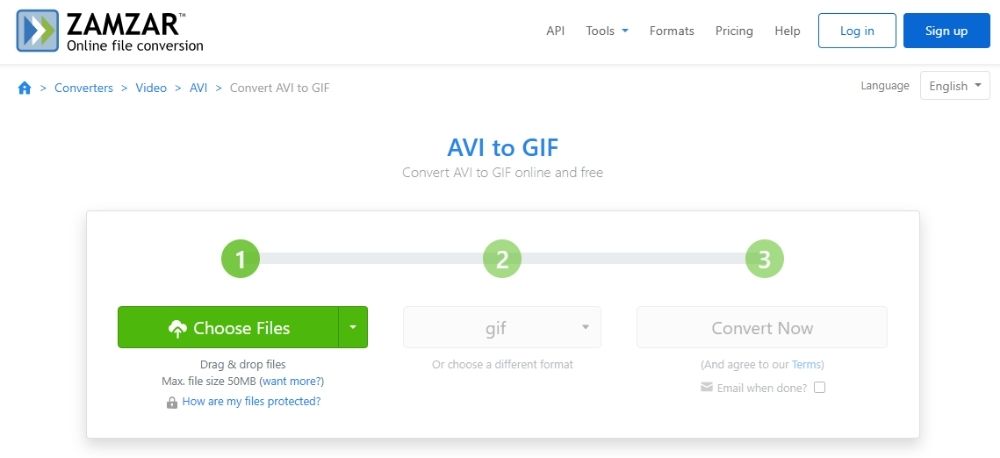
Zamzar is another popular file conversion tool, and like the other tools on this list, it also supports AVI to GIF conversion. From the same AVI file, I tested across different tools, Zamzar produced the largest GIF file size. The quality was decent, but the bigger size is something to keep in mind if you want a lighter GIF for web use.
The tool itself is simple to use. You upload the file, choose GIF as the output, and run the conversion. It also supports batch conversion, so you can convert more than one file and download each one after processing.
There are not many editing options after conversion, which may be a drawback if you want to crop, resize, or optimize the GIF right away. It just does the job without making the process complicated.
Pros
- Easy to use
- Supports batch conversion
- Good for basic AVI to GIF conversion
- Says files are deleted after some time
Cons
- Free file size limit is lower than many alternatives
- Few editing options
CloudConvert AVI to GIF Converter
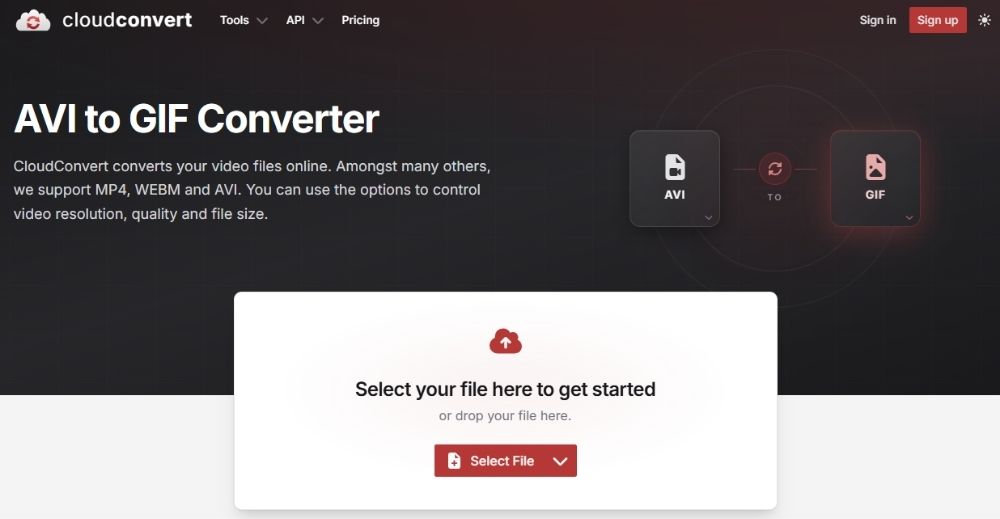
CloudConvert has a more modern approach compared to many of the other tools on this list. The interface looks cleaner, and that is probably the first thing you notice right away.
It also puts a lot of focus on cloud storage and security, which makes sense for a tool that handles uploaded files online. You can upload files, run batch conversions, and download the converted files for free without the process feeling outdated or confusing.
Now, the important part: how was the AVI to GIF conversion?
It was neat. The final GIF was short, clean, and decent enough in quality. Compared to the other tools, the result was almost similar to Ezgif and AhaConvert, which performed well in terms of smoothness and output quality.
Pros
- Clean and modern interface
- Offers settings for quality, resolution, and file size
- Good conversion quality
- Supports batch conversion
- Strong focus on file security
Cons
- Slightly more advanced than needed for simple conversions
How to Convert AVI to GIF on AhaConvert
Step 1: Open the AhaConvert AVI to GIF Converter
Go to the AhaConvert AVI to GIF converter in your browser. Since the tool works online, you do not need to download any software or install anything on your device.
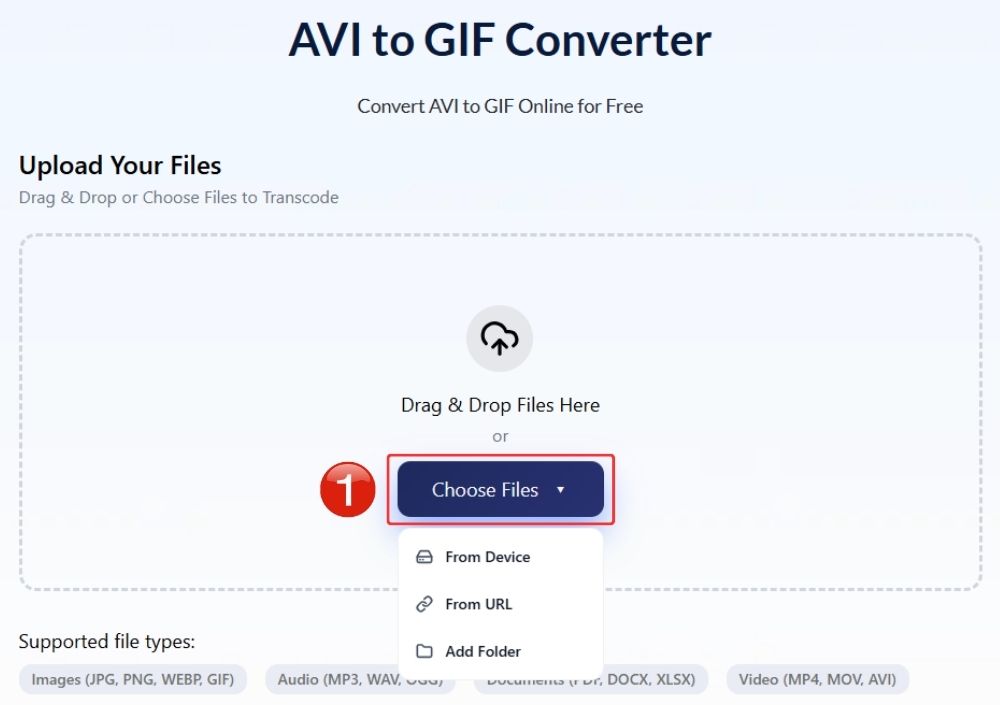
Step 2: Upload your AVI video
Click Choose Files and select the AVI file you want to convert. You can also drag and drop the file into the upload area if that is easier. If you have more than one AVI file, you can upload multiple files in the same session.
Step 3: Start the AVI to GIF conversion
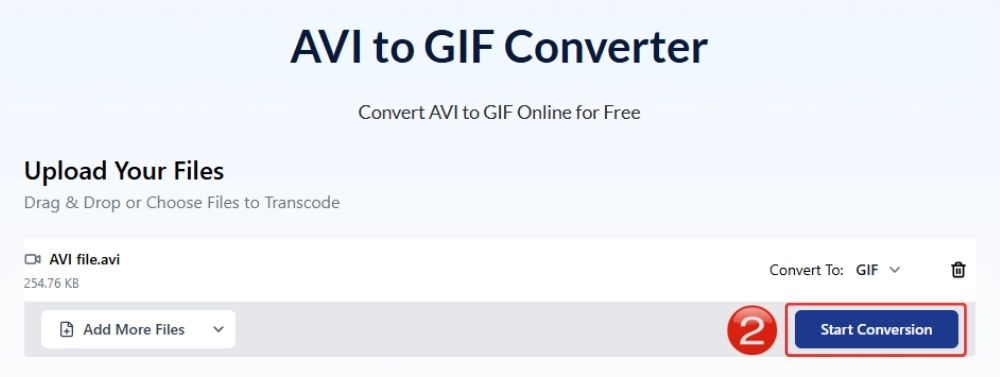
Click the Start Conversion button. AhaConvert will process your AVI video and turn it into a looping GIF.
Step 4: Wait for the conversion to finish
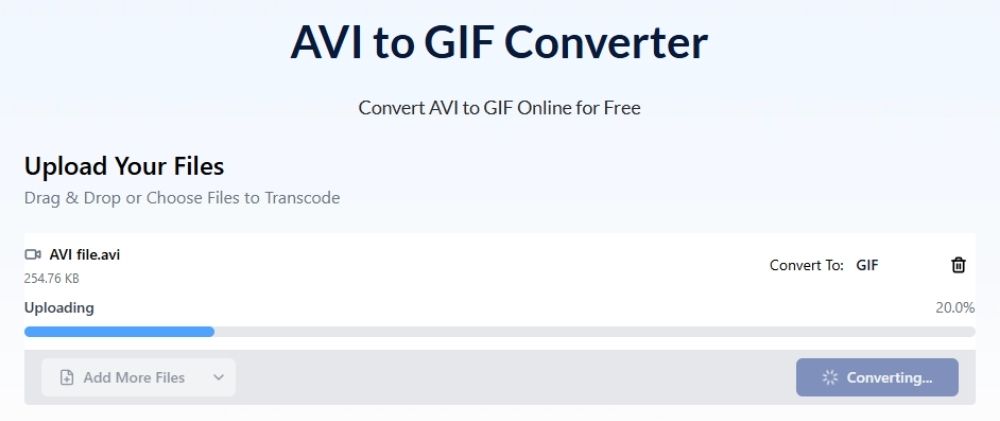
Wait a few seconds while AhaConvert converts your AVI file into a GIF. The processing time may depend on the file size and the length of the video.
Step 5: Download the converted GIF
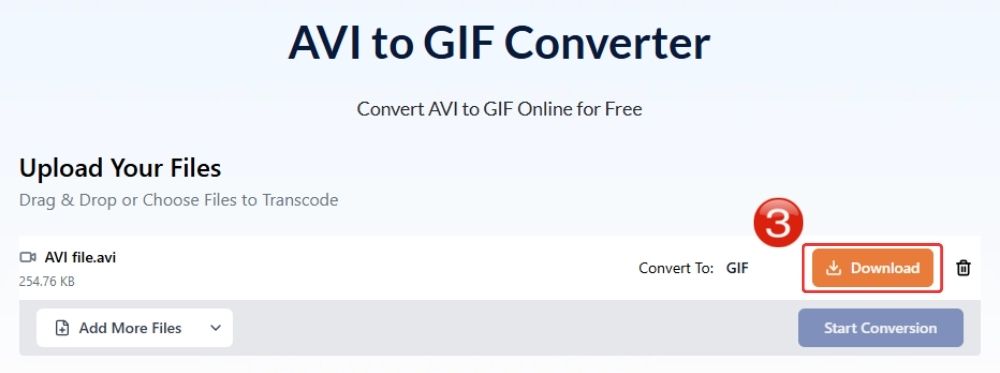
Once the conversion is complete, click Download to save the GIF file to your device. You can now use it as a looping animation for blogs, chats, social posts, tutorials, or anywhere else a GIF is supported.
Frequently Asked Questions
a. Is it free to convert AVI to GIF online?
Yes, a lot of online converters offer free AVI to GIF conversions, including AhaConvert, where the conversion is not just free, but you have to sign-up either.
b. Will converting AVI to GIF reduce quality?
Sometimes yes. GIF can only support 256 colors per frame, which can often mean the quality of the video after conversion from AVI to GIF will be reduced.
c. How long can a GIF be when converted from AVI?
Technically, a GIF can be several seconds or even longer, but it is better to keep it short. Since GIFs store motion through multiple image frames, longer clips can quickly become heavy in size. For AVI to GIF conversion, a 3 to 10-second clip usually works best. Anything longer may take more time to load, lose quality, or become too large for easy sharing.
d. Is it safe to upload AVI files to online converters?
This usually depends on the converter as to what security measures they are taking to ensure your files remain safe. AhaConvert uses 256-bit SSL encryption, plus the files are usually deleted within 24 hours after upload, so it’s usually a safe route to convert your files through it.
e. Can I convert AVI to GIF on my mobile?
Yes, you can convert AVI to GIF on mobile as long as the converter works in your browser.
Conclusion
When converting files, there are a few things a good converter needs to get right. The first one is quality.
The second, and probably more important thing, is safety. If you have even the smallest doubt about a converter, it is better not to upload your file there.
AhaConvert takes care of every little thing. With 256-bit SSL encryption and automatic file deletion within 24 hours, it gives users more confidence while converting AVI to GIF or any other file format. The tool is simple, free, and does not require a sign-up, which makes the whole process easier.
