

Have you ever tried putting a logo on a colored background, just to see an ugly color contrast and a white box around it? Or uploaded photos on your website that increased the page speed? The frustration and problem is in choosing the wrong image format.
JPG and PNG work in totally different ways. One shrinks your image to a very small size, and the other keeps the details sharp while compromising on the image size. Knowing which one to use at the right place makes things fast and easy.
The JPG vs PNG choice affects load times, print quality, and whether your graphics look professional or amateur. In this guide, we will break down the PNG vs JPG quality difference, file size, and when each format makes sense.
What is JPG/JPEG?
Back in 1992, a group called the Joint Photographic Experts Group had a problem. The photos were huge. Internet connections were terrible. Sharing images online took forever. So they built JPG to fix that.
The format shrinks the image by removing the color data that we don’t even notice. A 15MB image taken from a camera can be turned into a below 1MB image. The prime advantage is that most people cannot tell the difference. This process is called lossy compression, which has made JPG the standard format for transferring photos online.
Here is what JPG does well. It handles 16.7 million colors. Sunsets, portraits, landscapes, product shots, anything with lots of color variation looks great. File sizes stay small. Loading stays fast. Photographers and online stores run on JPG for precisely these reasons.
On the flip side, there are drawbacks too. The two main downsides are the loss of image quality after repeated edits and the lack of transparency in the background. First, when you edit and save the JPG, it compresses again with each save, and so the quality drops each time. After a few edits, the image becomes blurry and loses its structure. Second, if you need a logo without a background, JPG will not support it.
What is PNG?
PNG showed up two years after JPG, in 1994. Designers needed something for web graphics that GIF could not handle well. PNG became that something.
Where JPG throws data away, PNG keeps all of it. Every pixel stays put, no matter how many times you save. Edit your file twenty times, and it looks identical to the original. Text stays crisp. Edges stay clean. Nothing degrades.
But the reason why designers love PNG is its transparency in the background. The format uses an alpha channel that allows the pixels to be fully or partially see-through or solid. Logos can be placed on any background without needing white or different-colored boxes. Icons can be embedded in the page design, and the buttons appear to be natural. PNG-8 handles simple graphics with up to 256 colors. While PNG-24 supports full color for complex graphics. Both versions keep that lossless quality that makes graphics people happy.
JPG vs PNG: Key Differences
Same image, two formats, very different results. Here is what actually separates them.
PNG vs JPG Size
JPG wins on size. Not even close.
Take a photoand save it as JPG, maybe 400KB. Save that same photo as PNG, could hit 2MB or higher. Four to five times bigger is normal. Multiply that across a whole website or photo library, and storage adds up quickly.
JPG gets small by deleting data and removing extra colors. PNG stays big by keeping everything. When page speed is important, JPG wins, but when file size is not a concern, PNG works fine.
PNG vs JPG Quality
This one depends on what you are saving.
Photos? JPG and PNG look almost identical. Seriously. Put them side by side, and most people cannot pick the winner. But JPG does it with way less data, so why bother with PNG for photos?
Graphics can significantly change how an image is perceived. Elements like logos, text, icons, and screenshots, which typically have hard lines and flat colors, lose quality when saved as JPG files. The compression used in JPG format creates smudgy artifacts around the edges, causing letters to appear blurry and clean lines to become uneven. In contrast, the PNG format maintains the quality of every pixel, preserving the image quality without these issues.
PNG vs JPG Compression
JPG compresses images by dividing them into small blocks, analyzing color patterns, and eliminating what it considers unnecessary. When compression is set high, files shrink significantly, but the quality declines. Keeping compression low maintains better quality, though the file size remains larger, still lower than PNG.
PNG scan and detects the repeating patterns in your image and stores them efficiently without deleting anything. Its quality never drops despite how many times you edit and save the image as JPG, which loses its quality.
PNG vs JPG Transparency
JPG has zero transparency support. Transparent areas become solid colors when you save. Usually white and sometimes black.
PNG handles transparency through its alpha channel. It supports complete transparency, partial transparency, gradient fades, and much more without losing quality. This allows web designers to build entire interfaces, logos, buttons, overlays, icons, and anything needing flexible backgrounds.
PNG vs JPG Compatibility
Good news here. Both work everywhere. Every browser. Every phone. Every image editor. Every social platform. Pick your format based on what your image needs, not whether people can open it.

JPG vs PNG: Which One is Better for Your Needs?
Different jobs need different formats. Here is how to match them up.
PNG vs JPG for Website
Websites usually have JPG-format images. Smaller files load faster. Faster pages and a higher website ranking on Google keep users engaged without waiting too long for page load. Hero images, product galleries, blog photos, JPG handles all of them.
Logos, icons, and graphics that require navigation use PNG formatting. They require sharp edges and transparent backgrounds. The best practice is to use both formats based on the specific needs.
PNG vs JPG for Printing
PNG provides clean prints for graphics with small text, lines, and solid color contrast. Specifically for logos, which benefit from no compression artifacts that can obscure details.
Photos print okay from JPG if you save at high quality. Just know that compression shows more on paper than on screens. Big printing projects often skip both formats for TIFF or PDF, which support CMYK color profiles.
PNG vs JPG for Photography
Final photos go out as JPGs. Stock sites expect it. Instagram expects it. Clients expect it. The format handles all those colors and gradients without bloating file sizes.
Smart photographers keep originals in RAW format or another lossless format like PNG. They only convert to JPG after editing and at the end, where no further compression or edits are required.
PNG vs JPG for Graphics
Graphic designers live in PNG territory. Logos, icons, UI elements, illustrations, all PNG. The format maintains sharp edges and supports transparency that most design work requires.
Text, shapes, and flat color areas always look better in PNG. JPG makes them look cheap with visible compression fuzz around edges.
How to Convert JPG to PNG
Got a JPG but need a PNG? Takes about thirty seconds with the right tool.
AhaConvert runs in your browser, no downloads, no signups. Drop in your JPG, pick PNG as output, and grab your converted file. Done. The site encrypts uploads with 256-bit SSL and automatically deletes everything afterward.
Step 1
Head to the JPG to PNG converter.
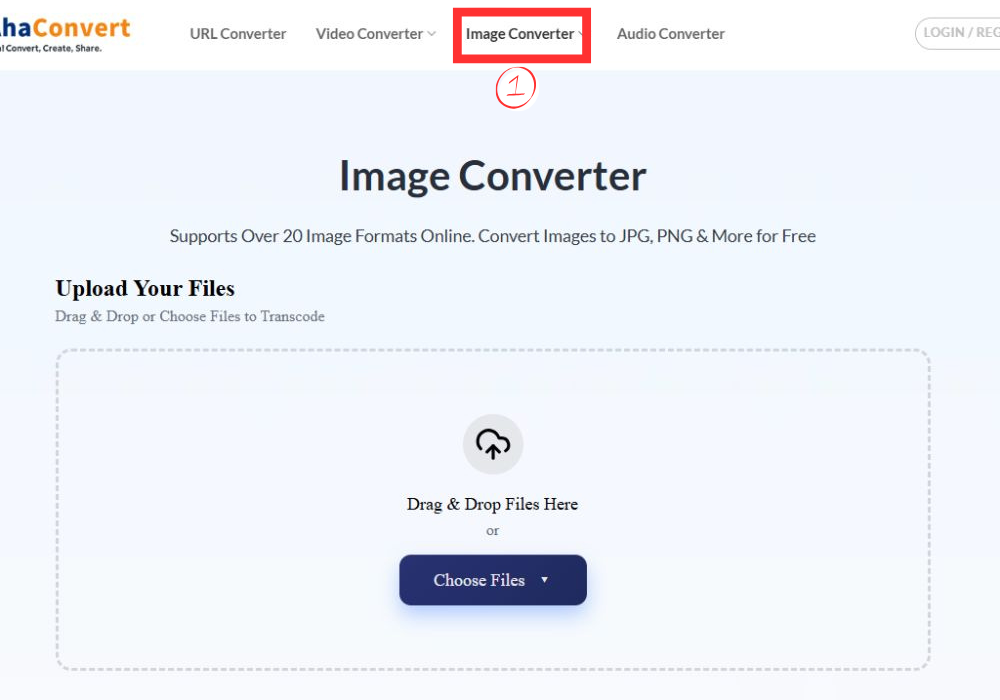
Step 2
Drag your JPG files in or click to browse. Works with multiple files if you need batch conversion.
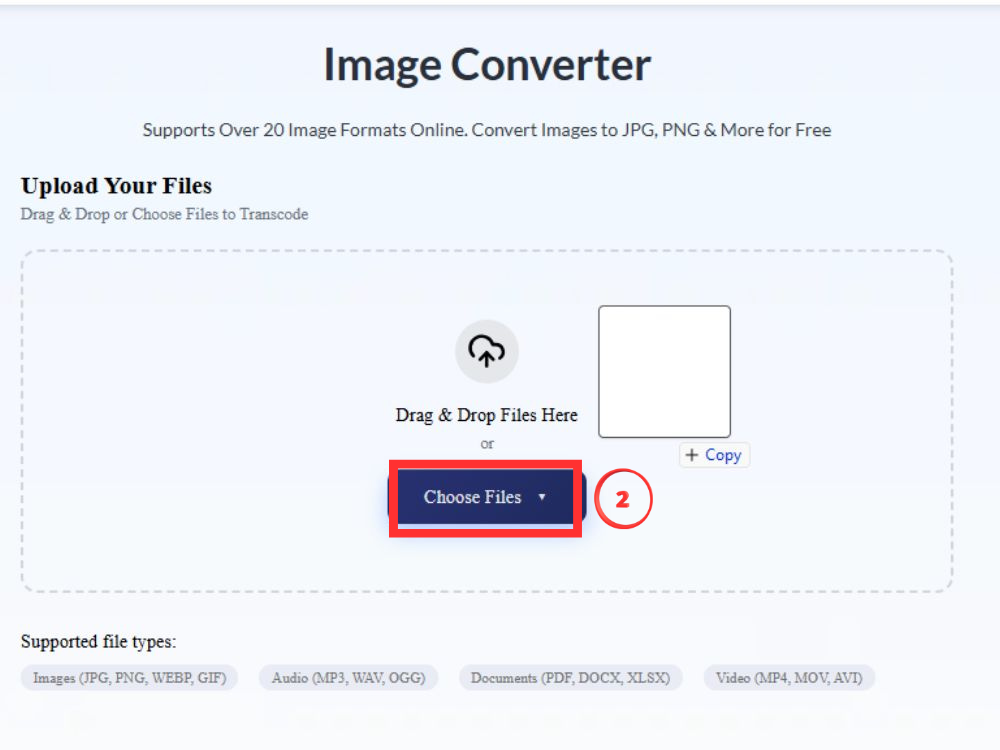
Step 3
Set PNG as your target format.

Step 4
Click “Start Conversion”. Wait for a few seconds, and it will be done.

Step 5
Download the finished PNG files.

Conversion preserves all existing quality since PNG does not compress further. What goes in comes out intact.
JPG vs PNG: Frequently Asked Questions
Does PNG always have better quality than JPG?
Depends on what you are saving. Graphics with hard edges and flat colors look better in PNG. Photos look nearly identical in both; JPG does it smaller.
When should I use PNG instead of JPG?
Transparent backgrounds. Text and logos. Sharp edges. Files you plan to edit repeatedly. Any of those situations calls for PNG.
JPG vs PNG: Which is better for Instagram?
Photos do fine as JPG, Instagram compresses uploads anyway. Graphics with text benefit from PNG sharpness.
Can I edit a JPG image multiple times without degrading its quality?
Nope. Each save reruns compression. Quality drops gradually with every edit cycle.
Is it possible to convert a JPG to a PNG without losing quality?
Conversion keeps whatever quality exists. But damage already done by JPG compression stays, PNG prevents further loss.
Can JPG files be used for animated images like PNGs?
Neither supports animation normally. Moving images need GIF, APNG, or WebP.
Conclusion
Decide between JPG and PNG; it depends on what kind of thing you’re working with.
If you are working with photos, JPG is usually the choice. The files are smaller, so they load faster. The picture still looks really good. On the other hand, if you are working with graphics like logos or things that have transparent parts, PNG is the best way to go. PNG files are great because they have edges and do not get all messed up when you look at them closely. Also, PNG files are really easy to edit, which is a plus.
Stick to that rule, and format choices get simple. When you need to switch between them, AhaConvert handles it in seconds right from your browser.
